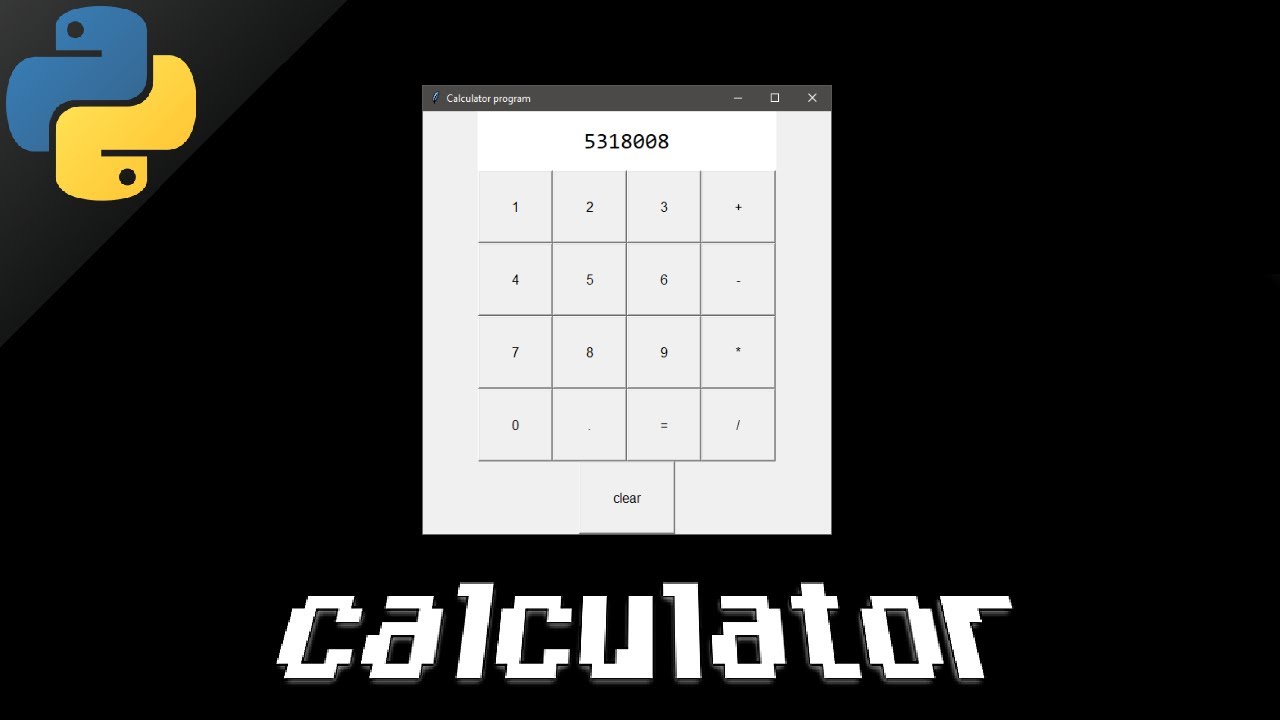
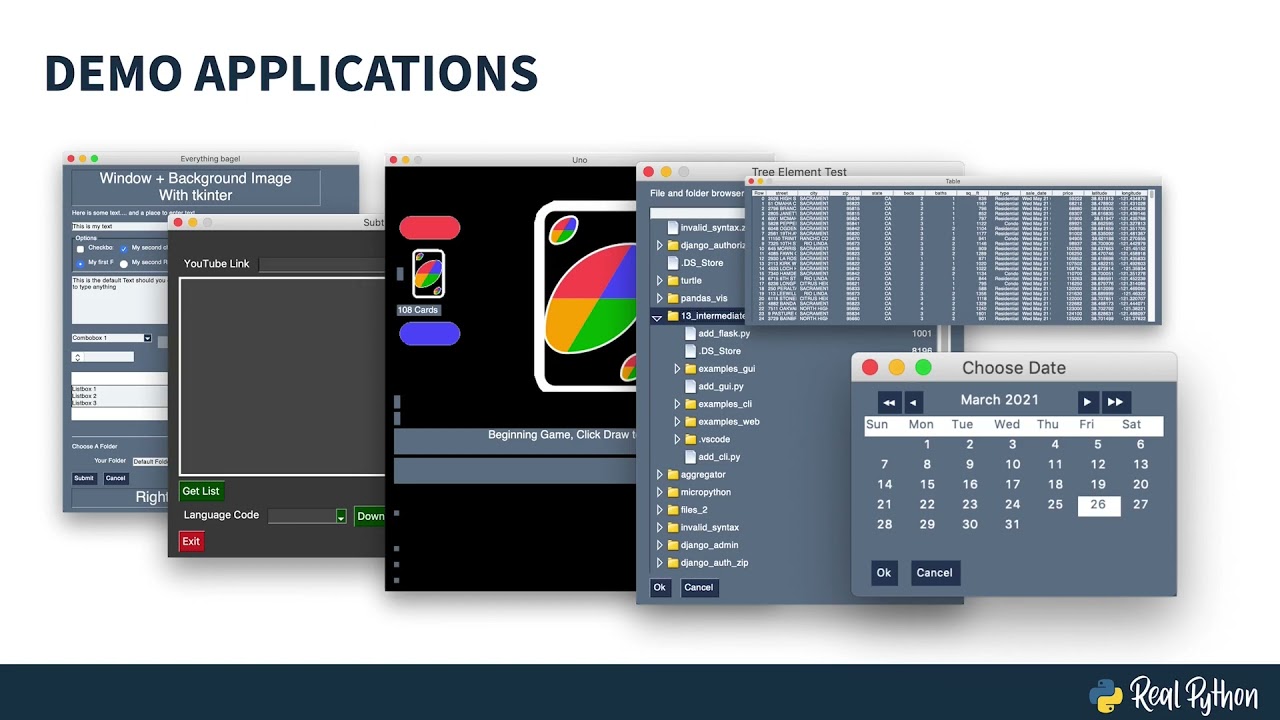
[Music] what is going on guys welcome back in today's video we're going to build a graphical user interface calculator with python so let us get right into it all right guys so we're going to build something that looks like this this is a graphical user interface calculator written in python and when we have this we can just press some buttons for example 12 plus three times and then parentheses five minus two for example so this would be three times three is nine plus twelve should be twenty one as you can see this is the result we can clear that we can type some nonsense here and then clear that as well we can start with eight times nine plus eight minus six i don't know we don't need the parentheses here uh and of course we can try to do something like eight divided by zero and we're going to get an error here so uh those exceptions are also handled and this is we're going to build in today's video using python uh and the only module that we're going to need for that is tk enter which is part of the core python stack so it's not going to be too complicated we're going to say import tk enter stk and we're going to have a basic calculation string so we're going to build this in the following way we're going to have a calculation string which is going to be an empty string at first and then we're going to have three functions and one function is going to be add to calculation um and we're going to have a symbol as a parameter we're going to pass for now we're going to have evaluate calculation which is going to just call the eval function and then do the necessary tk inter operations and then we're going to have the clear field function and for now we're going to pass on all of those um now before we do anything with those functions here we're going to have to build a basic uh window or a basic graphical user interface so that we can actually say okay we want to have a text field and we want to get the values from that text field uh we want to clear that text field and so on so the first thing we're going to do down here is we're going to say uh root equals let me just look at my code here on the second screen our root equals tk. tk and then of course we're going to define the basic stuff like the geometry of the of the windows so the dimensions and so on and in the end we're going to call root. mainloop so this is everything in between is going to be the graphical user interface uh but those are the two endpoints so we create the object and we run the main loop so next we're going to say root dot geometry uh and i chose for this project something like 300 times 275 and i think if we run this code we should already see a graphical user interface even though it's not going to do anything but this is what we see already so we have this window here in the in the proper size and the first thing we're going to do is we're going to add a text field for the result so we're going to call this text underscore result it's going to be tk.
text and it's going to be part of the root it's going to have a height of 2 and it's going to have a width of 16 and the font is going to be arial and 24 and of course we're going to say text result dot grid because we're going to use a grid here and we're going to say column span column span equals five so we're going to have this grid structure where we have five columns and the text uh the text field should go across all the five columns so we're going to run this and we can actually see that we already have this down here is no text field up here we have a text field uh so this seems to work and actually i think we can already start with the functions because the functions need to address this text field but they don't need to address any of the buttons so we're going to start with the functions right away and the first thing we want to do is we want to say okay calculation is going to be a global variable so that we can actually manipulate it inside of the function and then we're just going to say calculation is going to be plus equal string of the symbol so no matter if it's an integer or not it's going to be type casted into a string add it to the calculation string and then we're going to say text result which is what we have down here uh and we're going to delete everything and the notation here is a little bit confusing we have to specify 1. 0 here for the start and the end is specified with the string end so this is how we delete the whole content of the text result field and then we're going to say text result dot insert again 1. 0 as the index where we insert the string and the string itself is going to be the calculation so this is quite a simple function uh and the next function is going to be the evaluate calculation function so let's say we have a string like 10 plus 3 times 4 minus 2 in parenthesis and so on this string can now be evaluated using the eval function so this is just a python function that evaluates python statements the function just looks like that eval and then you pass a string now the problem with that function is that it is not only for evaluating calculations it can also evaluate python code and the problem with that is of course theoretically someone could inject some code so of course in this case this is a graphical user interface calculator that you're just going to use for fun so you're going to build this project in order to learn uh graphical user interface programming you're not going to build it and put it online somewhere and connect it to your sensitive files but theoretically just be aware that this is a security issue because people can inject code into your um into your program and then maybe do something with it just keep that in mind that you don't get used to you using the eval function um so what we're going to do here again is we're going to say global calculation and then we're going to try we're going to try because uh sometimes we're going to get an error for example if we try to divide by zero and we're going to catch that exception with the accept keyword um and in that case we're going to pass and up here we're going to say result equals string of the evaluated outcomes so we're going to evaluate the calculation we're going to turn this into a string and we're going to save that as a result and then we're going to set calculation to nothing again so we're going to reset it basically um now you can also alternatively leave the result there so that the user can proceed right away maybe this is actually not stupid so i actually didn't do it in the previous project that i showed you in the beginning maybe we're going to do it here uh let's just proceed as uh in the prepared code but maybe we're going to change that later on uh but for now we can also say again text result dot delete from one to end and dot insert and we're gonna insert the result actually i think we can why not actually why not just say calculation equals that and do it right away i think that makes sense to be honest it's a little bit more intuitive and in the case that we have some error what we're going to do is we're first of all going to clear the field this is a function that we have not implemented yet but it's basically just this here um and then we're going to say text result or actually do we need that if we do it anyways in the function down below i don't think that so we're going to clear the field and then we're just going to say text result dot insert 1.
0 and we're going to say error like that and in the clear field function this is going to be quite simple we're just going to say again global calculation just so that we can say calculation equals empty and we're going to say text result delete from 1. 0 up until end there you go so what do we have here i think it's because we didn't specify yeah we didn't specify any specific exception but i don't want to do that for this video because we would have to think about all possible mistakes uh but those are the functions so the functionality is actually done the only thing that we now need to do is we need to add a bunch of buttons that do something uh and this is going to be a little bit tedious but maybe if you haven't worked so much with tk enter it's good to repeat the steps so what we basically need to do is we need to create the individual buttons so for example btn underscore one is going to be the button for the digit one and we're going to say tk button part of the root window so this is root what we defined up here and we're going to add this button to root and the button is going to have a text it is obviously going to be one and the button is going to have a command and as a command we're going to pass a lambda expression and we're going to do that because uh otherwise we would not be able to pass a parameter that easily so we're just going to say lambda uh and we're going to pass add to calculation 1. so why do we do it like that why don't we just do it like that the problem with this is that it would immediately call the function whereas lambda just refers to a function that does this if called so it's better to do it like that or not just better it wouldn't work the other way so we would have to we have to use a lambda expression here and besides that we say the width is going to be 5 and the font is going to be you can choose whatever you want but i'm going to go with ariel 14.
so this is the button now we need to say btn 1 uh dot grid and here you need to specify where the button is going to be and of course it's going to be in the second row because the first row uh is occupied by the text field so we have one row five columns of the row are used by uh the text field here so the second row the first column is going to be the button so we're going to say row equals two and column equals one and the usual column span is just going to be one so what we're now going to do is we're going to copy this and we're going to do this all the time so we're going to do this for two we're just going to change button to uh button one to button two we're going to change the text to two we're going to change the parameter here to 2 so add to calculation 2.