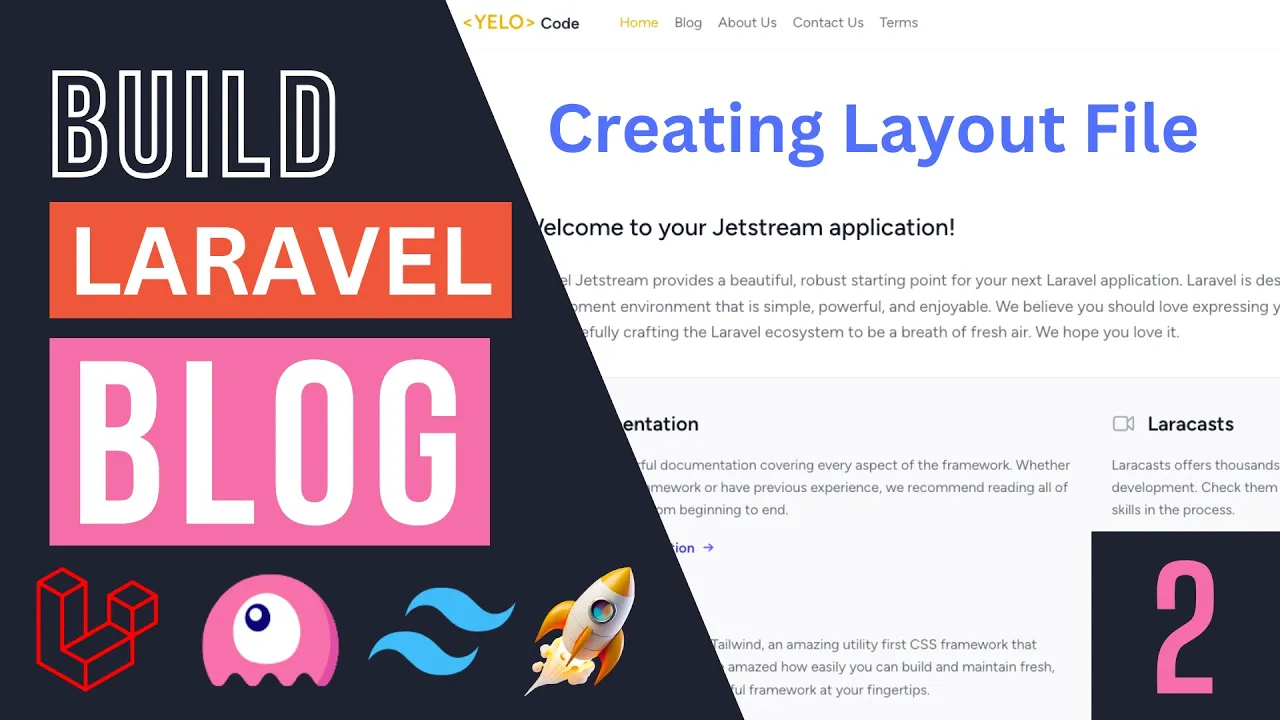
all right guys welcome back on today's episode we're gonna set up our application layout so before we do that guys I have prepared to GitHub repos so the first one is going to be the HTML template that we're going to be using throughout the course it's going to be a Tailwind CSS template now you don't need to know Kelvin CSS to actually follow along I'm going to show you guys which part to copy just think of it like any other CSS template that you use okay so it's going to be with Kelvin and if I make any modifications I'll show you guys the exact same classes that I'm going to be using so the link will be in the description guys you can go ahead and check it out the next one is going to be the GitHub repository for the entire code base so it's going to be a GitHub repo called a lot of a Blog project and if you want a latest version you can check out the main branch and then I will create a separate Branch for every single episode so for example if you want the code for episode one you can come over here select the branch for episode one and then look at the code okay or you can check out the commit for that episode and see all the changes I made and maybe your code has some issue it's not working exactly like mine you can come over here and compare okay so that's just something I want to point out now that we I have we have done that let's go ahead and actually start by setting up our template okay guys so uh just a quick brief overview in Jet Stream So since we have installed jet stream uh there should be now a new folder called layouts so just stream comments with two layouts one app and one guest so the guest layout is actually the HTML which is used for login and register Pages let me go ahead and log out so this guest. blade. php is used for the login and register page and then the app.
blade. php file is used for one once we have logged in right so inside the dashboard now on our application we're going to be using the same template across all the pages so later on we can actually go ahead and delete this guest for now I'm going to keep it but basically we're going to put everything inside this app. blade file and then and this will compare it is just a simple template it doesn't even have a layout okay so I'm not really worried about it so let's start off guys by first updating this app.
blade. php so let's go open up over our uh GitHub repo I'm going to open up the home page you can use any of the pages actually the the header and footer is exactly identical I'm going to open up home so let's come over here and what we can do is at the top part it's going to be importing the Tailwind CSS CDN right so since jet stream uses a Telvin by default we don't actually need to worry about that so we're going to start off I'm going to go ahead and copy all the code inside the body so let's go ahead and do that all the way down here and I'm going to go inside this app. blade okay so this is going to be our main layout file and I'm gonna get rid of this page heading we don't need it for now I'm gonna also remove this live bar include for navigation menu now later on we will look at the navigation menu we need some code from it but I'm going to remove the import let's also get rid of all of these now I'm going to keep the models because we do need it uh it's good to have that I'm going to keep expander as well so let's go ahead and paste all the code we copied inside over here that's a lot of code so let's scroll down I'm going to actually go ahead and if you guys pay attention there is a header section I'm going to minimize that there is going to be this code over here so this is going to be the hero section for our home page I'm going to actually remove this we don't need it for now in the layout and then we have this main section right so this is going to be the main verb the main content of each page growth so inside here is going to be different on every page right so we can go ahead and actually remove all of that and then this last part is going to be the footer so we're going to keep that let's get rid of this body tag we don't need it obviously it's going to be duplicate and it's actually identical to what we have over here so we can go ahead and do that let's remove this let's also remove this okay now that we have done that let's go ahead and I'm going to go ahead and log in and this is the page we get over here guys okay so we are on the dashboard page now it kind of looks okay but we don't have any color so in order to fix that the reason this is happening is because we need to compile our Tailwind CSS so the way we do that I showed you guys on the previous episode you can go ahead and do npm run build and this will go ahead and compile it for production and for production basically guys it only includes the CSS classes you have used because Telvin has a lot of utility classes like maybe 90 of them are not going to be used on your project so it's only going to include the ones you have and then also it's going to Minify all your JS and you know JavaScript all those files so they take the least amount of time so that's one way of doing it but if you want to happen live as a code you can go ahead and do npn run Dev let's go ahead and do that this will basically look for our changes and then once we change one of these blade files it will actually automatically reload the page so let's go ahead do a quick reload and now as you can see we got the nice looking header and also we got the footer so it seems to be working so that now that is a now that that is done guys let's go ahead and actually kind of refactor this a little bit I don't like the header and footer actually being inside this app.
blade file because over here will be quite big the photo is relatively small so we could maybe keep the footer but let's go ahead and do that so inside this we use a layout I'm going to go ahead and create a new folder I'm going to name mine partials you can name yours whatever you like I have previously myself used a share they can use include you know I just change it up depending on the project if it doesn't get boring so let's go ahead and create one for header. blade. php and then another one forever footer and now that we have these two files we can go ahead and cut the code for the header inside is respective file and same for the footer let's go ahead and do that I'm going to save both these files and now we will have to actually include this I'm going to say include layouts.
partials. header and then I'm going to go ahead and do the same for the footer it should be under the main and instead of header let's make this footer let's save the file let's double check I have saved everything else let's go back let's do a quick reload and it seems to be working guys so now that's a good sign good so now that we have done that guys we have created our main layout and this layout is actually used on the dashboard page so right now we're on the dashboard page but we are not seeing any of the dashboard page content so in order to fix that inside this main we need to do ahead and say use this kind of mustache blade syntax and say slot okay so this will be the main content of the page it will be replaced with this slot variable so let's do a quick reload and as you can see we got this shown over here now what about the top right right so previously uh jet stream actually had kind of a profile icon menu of sorts we can actually go ahead and reuse that so I told you guys there is this navigation menu right that we remove the include we can actually go ahead and reuse this so let's open it up and if you guys scroll down obviously these are going to be the navigation links uh we'll come back to those later on let's cool down there's going to be a section for a team drop down we are not using the team section so I don't really care about that I'm going to minimize it if you scroll down a little bit more there's actually a section called settings okay so let's go ahead and copy this entire thing I'm going to copy the entire thing go to our header and then once you're inside header on the header right you guys can see over here I'm gonna go ahead and paste it in below login and register so let's paste that in so let's go back and as you guys can see we actually have a nice looking kind of Icon and a drop down so this is the exact same thing that we had on gstream so the code will work on our application as well and it actually looks very nice so let's go on the profile page the profile page also seems to be working fine I might update the style a little bit and then I think the logout should also work fine it is indeed okay now let's also fix this login and register buttons they shouldn't be shown once we are logged in so this is relatively easy to do let's go back to the header and so what we can do is kind of wrap these login and register by a guest blade directive so what this guest does is it's going to be guess and then in guest whatever you kind of have inside it will be only shown when the user is logged out okay so let's go ahead and do that save it and now we should no longer be seen now since we have done the kind of this guess we also need to do the same for our drop down menu because it is accessing the logged in user so we need to make sure that we only should when the user is logged in so we can go ahead and say Alt and do something like this and seems to be working fine now one thing we can do guys is we can actually extract these into their own files I think that's a good thing to do I might later on want to add even more files to this and it might get a little bit too big so let's go ahead and do it I'm going to go ahead on our partials create a new one for I'm going to say header write let's say you hit a write Alt for when we are authenticated I'm going to say blade. php and then I'm going to create another one for header right guest for when we are showing it for a guest and the reason I'm doing this is I'm expecting the these menus to get a little bit big so I'm going to copy the guest part which is going to be login and register over to header right guest as you guys can see and I'm going to close the file and I'm going to do the exact same thing for the auth version as well okay so let's open up the header take the drop down menu stuff I'm going to move it over here let's also remove this comment I think we don't need it and I've also by the way guys we are using this x drop down this is provided by jet stream it's a kind of a drop down menu that uses alpine.
js I show you guys all these kind of components later on as we try to customize them so I just want to mention this is where the drop down is coming from so now that we have done that guys we can go ahead and include these I'm going to say include header right guest and then also header right art okay let's do a quick format let's do that let's go back and it is telling us header right alt is not fine and the reason is I need to say layouts dot partials dot headers right and same for here so let's go ahead and do that and let's do a Reload and seems to be working now so now by the way this thing is not centered I will fix that later on we don't actually need this so I'm just keeping it here so we have something displaying let's go and log out guys as well so now that we have a fixed our dashboard page for when the users are logged in we also need to do the same for when they are not logged in right so on this login and register page now as I mentioned these two pages or all the authentication pages I think it's around five of them they all use the guest layout so there are two ways of fake doing this you can go ahead and on your guest. layout have it be exactly identical to the app something like this actually this should work so we can do this or we can go ahead and update all our authentication pages to use our uh kind of app layout okay so it's up to you which one you want to do the easiest way obviously is you can just go ahead and use the guess so let's go ahead and do that now it seems to be working however the layout is kind of broken okay so let's go ahead and check one of these Pages I'm going to go ahead open up the login page so we can see find a way to fix it so let's go open up do that we can search for the pages on vs code if you guys are on vs code you can do command a p if you're on Mac and it will give you kind of a search bar or if you're on Windows it can do control P okay so this page that I bring here is a vs code shortcut there should be a similar one on phpstorm and so it gives you the ability to quickly search for pages but the pages we're looking for is Art login okay so this is the file let's open it up uh so first of all it's doing X guest layout which is our guest layout over here so this is very supporting it and then it's also using another blade component called authentication card so this x here guys is a prefix for blade components and all of these are located at on the views components right obviously without the X so this one is authentication card let's find it it's somewhere around here authentication card so this is it now I think the reason this is happening is this one is not taking the full width so one thing we can do is we can say fool sorry W full it's a Telvin CSS class that makes it makes the element take the entire page with so let's do a quick reload and it seems to be working now now it does have a gray background I don't like that so we can go ahead and find it it's over here BG grade 100 I'm gonna get rid of it let's do that and now I think it is working good really nice guys so let's go ahead and check out all the other Pages they all seem to be working same for the register page as well very nice so let's try to log in and the login functionality is also working so let's go back to the profile page I mentioned I like to update this a little bit so the profile components seem to have a little bit of a shadow I don't know if it's visible on YouTube so I would like to get rid of that because I think on our template we are not really using Shadows anywhere so it's good to get rid of it so let's go ahead and do that uh so one way of finding it is we can go ahead and find the profile page first so there is a section for profile and inside it there's going to be different blade files for all of these actions you can see update profile information update password so there is a fault for each of these right there's an update password and update profile so let's find one of these I'm going to open up update profile and it seems to be using an X form section blade component so we need to go ahead and find this and get rid of this Shadow so I'm gonna go ahead inside our components find it form section it's over here and we should see some sort of Shadow somewhere where is it it's over here okay so let's get rid of it there is another one down here as well so I'm just going to delete these uh save default let's go back and as you guys can see the shadow is gone I'm going to double check now these two seem to be using a different component so let's double check those as well so this one is two-factor authentication let's find it so I'll close this Also let's close all the files at the top so let's find 2fa page which is two-factor Authentication and scroll all the way at the top so this one is using X action section so it's a different type of section I assume the reason is different is because it has this enable button so that's why they have a different layout so let's go ahead and find it X action section should be at the top over here and do you guys see a shadow is over here so let's comment get rid of that as well and boom it is fixed as well so one more thing I would like to change guys is also going to be these inputs so the jit stream inputs seem to have a little bit of a shadow the layout you're using don't doesn't have that so I want the inputs to be consistent all around so we can go ahead and fix that now I do need to find where we have an input I think we can find an input on the blog page so let's go on our HTML look at the blog and I'm gonna search for an input tag somewhere I think we only have one input tag and I'm going to copy the HTML kind of the CSS code for it now it has some CSS for like wit and margin left I'm not going to be touching those because those are kind of may change depending on the use case I'm going to kind of copy everything after from BG transparent and afterwards so let's go ahead and do that all the way to the end so I'm going to go copy it now we need to find inside these components there should be something for input so let's just search okay so we're here input. blade.
php let's open it up so it has a prop for disabling it which is nice and so this is the HTML for it we can go ahead and actually replace this with the one we copied from GitHub I can actually do that okay so I'm going to remove it paste that in and if you're using your own template guys maybe bootstrap you can go ahead and do the same thing just replace it with the bootstrap CSS classes so let's go ahead and check if it's working it seems to have been updated all of these look very ugly right now I'm not sure why so let's check out the login and logout page as well see how they look actually the login logout page looks okay now I think the main reason it doesn't look good is because we don't have a placeholder so what I'm going to do is I'm going to give it maybe a little bit of border so let's go ahead and do that right now so it doesn't look like some empty space so let's find the input I think actually the reason guys is we are using BG transparent so one way of fixing it is let's find the background over here I think we're using bg1 grade 100 so I'm going to go ahead and place this transparent with BG grave 100.