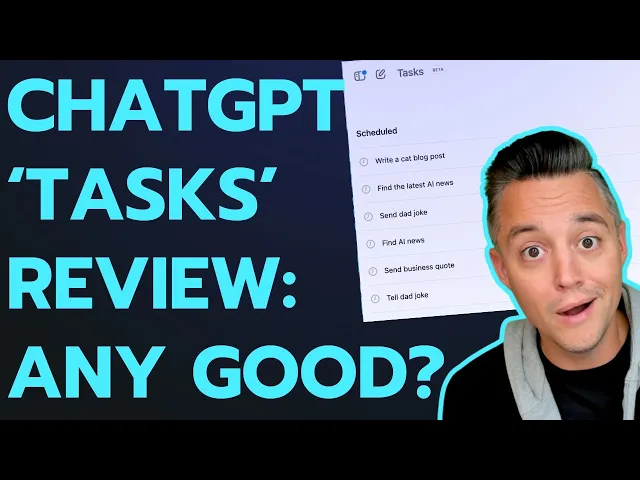
open AI just release chat GPT tasks so I'm going to very quickly show you what they are how they work talk about what I think are going to be some of the pros and the cons and some Advanced ways that I think this can help really automate a lot of the work that you might be doing anyways so even if you're not a heavy day-to-day user of chat GPT I actually think this tasks can be a huge Bo to Growing your business all right let's jump into it I promise you this is going to be a somewhat quick one all right but if you're new here what's going on my name is Jordan uh I run this thing called everyday AI it's a daily live stream podcast free daily newsletter helping us all learn and leverage AI to grow our companies and careers and most day I do a little AI in five which is a five minute tip trick or tutorial so uh make sure subscribe to this channel let me know if this is helpful all right so let's get into it and rather than just tell you everything I'm going to show you uh because I also uh want to kind of give some um little bit of background on how I think the best way to do this is and to what better way than just showing you how this works so first uh this is right now it is slowly being rolled out to chat GPT plus uh teams and pro accounts I have free I have free accounts I have the $20 Pro accounts I have $30 a month uh chat GPT teams accounts and I also have the $200 a month Pro account so right now this is only showing up in let's see this is my teams account so you'll see right here I have tasks so uh you won't get a normal popup like you generally would for a new uh feature from cat gbt you should just be looking at this new mode the dropdown or um in your um kind of settings area there will be a new task so either look for it there uh or just go into gbt 40 with schedule task so you have to add them in the same way that me works so uh I can't go in here into this task section and just start adding new task new task new task so you have to actually go to the mode selector click gp40 with schedule task and do it there so here's what this is great at so you can use anything that you can think of any of the built-in features and functionality of chat GPT you can use those within tasks but the advanced thing I'm going to show you here is take advantage of the context window let me show you what I mean so here uh let me just put a time for this so I'm going to say at 310 p. m. all right I'm going to go ahead and send this and I'll show you exactly what I said because I need it to schedule in time all right so uh all right I'm going to do these all backto back and then I'll explain to you uh what I did but I want to show you that I'm doing this all live uh and hopefully this will make sense so I'm essentially scheduling in these uh and then I want to make sure that they all work this says notifications aren't working in my browser all right I'm gonna hit Refresh on that one all right there we go and then I'm going to do this last one at 312 all right so I'm going to go ahead send that and so at each one it's creating a test don't worry I'm going to walk you through exactly uh what I did here uh so but I want to get out of this uh this window so I'm going to go here and I'm going to go to tasks okay so these are the ones that I just added at least my time it is 39 uh so I scheduled these to go off at 3:10 p.
m. 3:11 p. m.
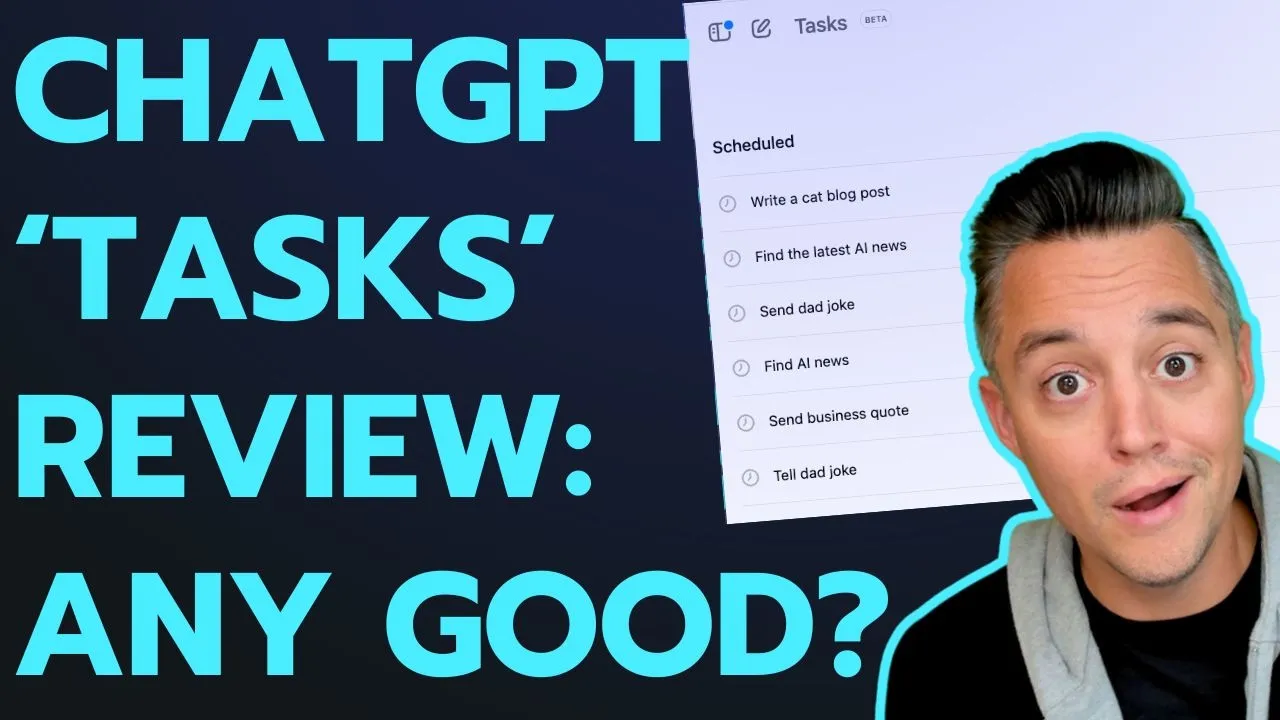
and 3:12 p. m. so you saw I did them all in the same chat which is important because here's uh here's essentially what I did okay so I'm GNA open up a new window here and I'm going to zoom in a little bit so we can see exactly what I did okay so for the first one uh and these are the three tasks I just scheduled I jumped into another window see you can well we can hopefully all see that this is just going to happen autonomously right I don't have to do anything else so I said find the latest AI news for today do not tell me trends or speak in generalities only focus on pinpoint specific updates on new AI features model updates and actual news happenings regarding the AI industry reply back with full five bullet points of the biggest AI news stories be extremely specific uh yet do not waste words please research at least 10 different websites with chat GPT search and or browse with Bing please do this every day at and then I put in 310 p.
m. okay and then the next the next task that I scheduled I said every day at 311 pm. please tell me an inspiring quote about growing my business but add a somewhat strange antidote so it sticks with me and tie it into the news stories in the context of this chat all right that's why I'm doing them all in the same chat because the CH the tasks that you schedule they actually run in the chat or depending on how you set it up in the context window of the chat that you originally set it up in so keep that in mind and this will make sense here in a minute and then for this one I believe I put this one at 3:12 PM so I said every day at 3:12 PM please tell me a dad joke based on the context of this chat all right so let's go back and look at these chats so here we go here they are 310 311 and 312 and the good thing is is this is natural language right you don't need any you know Chrome extension this isn't you know RPA robotics process automation right it's not super tricky it's natural language you tell chat gbt what you want it to do when and the frequency and then at any time you can go in here and change this as well so um again this is in the task uh kind of sidebar setting and then I can go in and I can either edit it so I can name it something different I can update the instructions uh I can change the schedu ual to do doesn't repeat so one time daily weekly monthly annual or custom all right and then in custom it kind of tells you what to do right uh so I'm just going to go ahead and click cancel right there all right hopefully that works still hopefully it already ran and then I have my send business quote here oh I just went into the wrong one so yeah if you click it it actually takes you back uh to the chat where that task originated from so that's like a super uh sneaky detail but you have to be very intentional not just about you know the frequency and which you're running these tasks but where and what other context uh is within those chats all right uh and then my last one here again here's the dad joke or you can just click at any time you can click on the three dots and you can pause a task or you can uh delete a task all right so I'm gonna give this uh a couple more minutes uh but a couple things there's also this was called Jawbone originally so right so if I go into new tasks and I switch from you know GPT 40 to GPT 40 with scheduled task as an example you won't be able to see this in the screen share but it actually says model equals gp40 Jawbone so if you listen to our uh you know daily daily podcast livestream or our newsletter you probably heard me talk about Jawbone and this task feature before uh because it was codenamed Jawbone so you know here we are and we actually have it so I wanted to give this a couple of minutes here because my last task was going at 3:12 it's 3:13 so what I've already seen uh what I've already seen and uh I'll just pop open uh my Twitter account which is uh super cringey I'm not trying to be like fun or anything on the Twitter account but uh you know I'm already seeing there's been a lot of like delay days on these so far right so again this did Just Launch it's a very slow and gradual rollout um but yeah like a lot of mine that I did testing on and then I deleted them you know they were already kind of saying like delayed or sometimes they didn't run right away so just just keep that in mind uh you know this is brand new it is a little buggy but I think it's super powerful all right let's go back and let's see if our three concurrent tasks all ran all right uh so here's what I'm going to do I'm going to go back and I'm going to go into my chat here we go so you'll see here this is where I scheduled the task but it ran it here as well so you'll see the first one uh it said delayed all right so that's a bummer uh and then that one said delayed as well but it did then run it so you'll see down here uh it says or maybe delayed uh that's a little confusing maybe it should say scheduled so I'm not sure if this was actually delayed in the example I showed you on Twitter it just took an extra like five minutes and then it and then it eventually went so I'm not sure if it said delayed uh because that's saying like oh it's scheduled but it hasn't run yet so I'm not sure all right so let's go ahead and look at the results so here we go here's the first scheduled task so I said find AI news I said don't give me you know these these big pictures Trends I want actual hard-hitting new news right so I said give me five so one two three four five great job gave me bullet point sourced everything and it also used chat GPT search that's key all right so I can go and click anything and go you know read read that article if I wanted to right all right so good first task done all right let's go back and look at second task so here we go second task and I can always click that and it's going to bring it up up right so it says Tell me an inspiring quote about growing my business adding a somewhat strange anecdote to help it stick I did think that I told it to maybe I didn't okay so it looks like for whatever reason maybe it didn't keep the second part where I said add a somewhat strange antidote so it sticks with me and tie it into the news stories of the context of this chat so for whatever reason uh maybe it cut that part out so yeah you are going to let me see if I actually put it in there I did I said tie it into the news stories of the context of the chat for that one it didn't work I did a test before and it worked that's that's how this always goes right um so here we go uh the second one should be the business quote uh success usually comes to those who are too busy looking for it I don't even know if that's a real quote all right uh and then it says imagine a squirrel trying to hoard acorns for the winter but getting distracted Ed by shiny objects don't be a distracted squirrel stay focused on collecting your acorns business goals and avoid chasing irrelevant distractions even if they seem exciting so uh let's see the dad joke and I want to double check uh and I did say please tell me a Jad dad joke based on the context of this chat so let's scroll down uh and see if it did this so it did so tell me a dad joke based on the context of this chat so it said why did the AI refuse to play hideand-seek because every time it tried to search it kept revealing all the latest updates all right so not very funny but it did it correctly there so I really wish that second one would have worked correctly but you get the point all right so uh this is brand new it's a little buggy I guess uh you know story uh takeaway is go back and make sure your tasks are set up correctly and if they're not right so this one I know um in this context I wanted it to bring in other things from the chat so that is the key right uh and I'm going to be doing more tests but to be able to schedule different parts of what you do anyways on a daily basis think you probably do the same things over and over each day and maybe sometimes you decide to do those things inside of chat gbt maybe you don't but the fact that you can schedule all these different tasks and they go to the con they go to the window or the chat that you originally scheduled them from so unfortunately uh I did test this uh they do not work with projects so if I go here it says GPT 40 with scheduled task doesn't support projects so uh that's a bummer however I'm going to do some more testing to see can I put in a bunch of my own information in here can I upload documents right and run schedule tasks every single day as an example keeping my brain guidelines in mind right um I'm assuming it's going to work within the context window of that uh particular chat right so for most accounts that's going to be you know 32,000 tokens about 26,000 words so think what can you automate today things you do over and over and over and over again but here's the advanced tip or trick play with that context window when you write out these tasks have them rely and work on each other and learn from my small little mistake make sure you go check them to make sure that Chad gbt took all of the context that you ask for and is running it in the task all right I hope this was helpful if so this is what we do every day so go to your everyday ai.