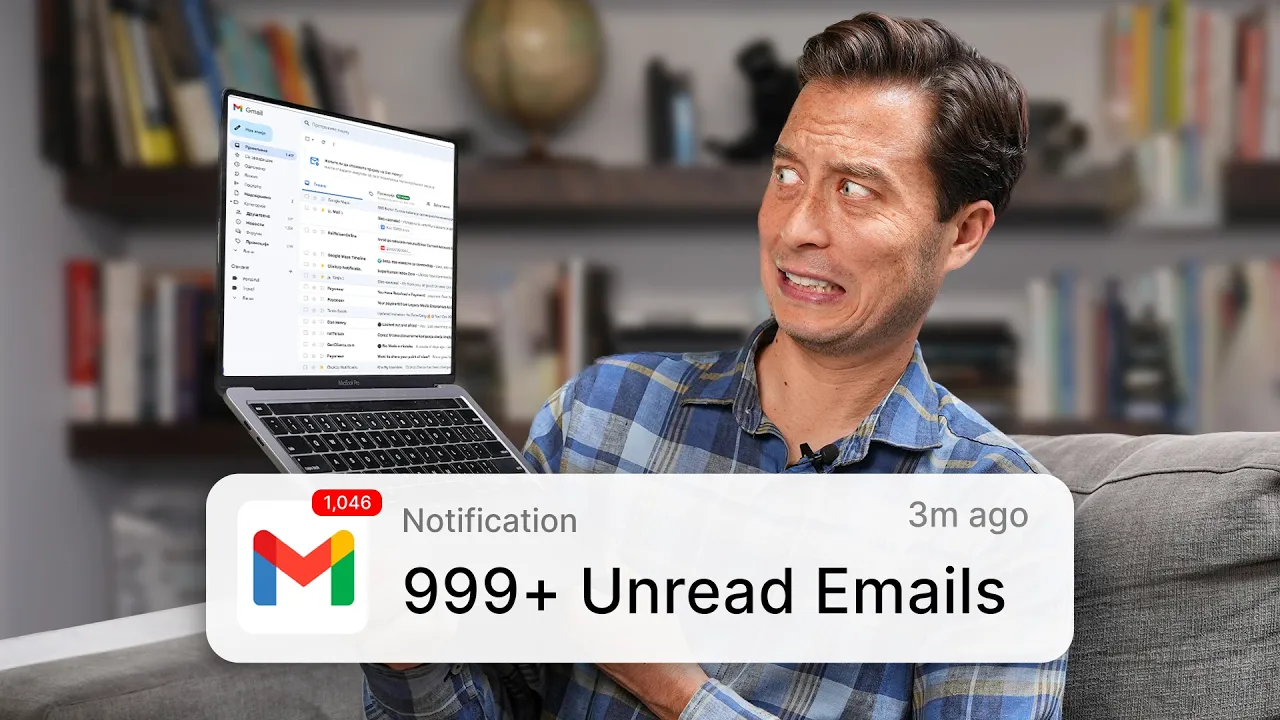
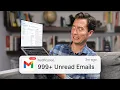
[Music] we've tried to kill it slack teams WhatsApp they were all supposed to replace email yet here we are still staring at inboxes with hundreds of unread messages email the 50-year-old dinosaur of communication refuses to die but maybe we've been looking at it all wrong What If instead of trying to replace email we could revolutionize it in this video I'll share tips that will transform your relationship with email I'll even show you my secret to achieving all this superhuman my favorite email app I've been using for years hi there if you're new here I'm Thiago
Forte I've helped thousands of people people like you organize their digital lives and become their best most productive self through my book and online course building a second [Music] brain I have been using superhuman for I think over 5 years and it has completely changed my approach to email that was honestly already pretty good I promise once you experience the speed the AI assistance the Fulfillment of reaching inbox zero so much more easily and effortless L you'll wonder what took you so long let's start with the most important thing I want you to forget folders
I am generally a big fan of folders when it comes to things like documents or notes on your computer but even I have completely given up on trying to organize my emails using folders here's how to do this the first thing I recommend is to archive all the emails in your inbox I don't care if you have 10 unread messages or hundreds or thousands you really want to periodically start over with a blank slate to do this just hover your mouse over the latest message hit command a on the keyboard and press the E key
on your keyboard to Archive everything in your inbox from this point forward I want you to rely on search to find what you need this has become especially even more effective now that we have ai powered search because you can not only look up certain words or a certain sender as with other email programs you actually ask questions you can ask questions using natural everyday language like you would use with a personal assistant and get a coherent succinct response back let me show you the three ways you can use the ask AI feature the first
one is to Simply click the AI button down here on the bottom right of the screen you can see a little window pops up with a few recommended or suggested questions you could ask I'll go ahead and try one of the suggested questions which is when is my next flight so you can see it tells me not just a list of search results which I would then have to click through one by one looking for the information I'm looking for no it extracted and presented to me exactly the information I'm looking for now the other
important part is that it does site its sources so if you click here where it says sources I can click through to the specific email if I need to find other details there's two other ways of activating ask AI the second one is to do a question mark which will bring up that same window or alternatively you can hit the forward slash button which activates a traditional search and then simply ask a question you can see that it automatically detects that you're asking a question and then offers to use the AI to answer it here's
what the ask AI feature looks like on mobile let's say I have an email about an upcoming flight and this reminds me that I want to ask a question about the last time that I flew into LAX so I can remember what terminal I'm coming into how to get an Uber or something like that all I have to do is to drag the screen down which brings up a series of different options and then tap the ask AI button right here in the middle of the screen then I can ask when was the last time
I flew into LAX and there you go you can see the succinct response to my specific question and then if I tap sources I can see exactly what those emails are what the subject line was from and when I received them if I tap one it will take me straight to that email now let's move on to tip number two which is never ever write emails from scratch how mentally draining it is to respond to sometimes even a single message have you ever noticed this it really takes a surprising amount of cognitive effort to sit
down and kind of fully absorb everything this person is trying to say and everything that they want from you and these can often be quite high stakes Communications you want to make sure you're addressing each point while also being polite and professional right now multiply that mental effort by dozens or hundreds of emails per day and it just demands too much of us this is where AI can now be so powerful you can use these new AI features to do a lot of the heavy lifting and save yourself a ton of mental effort in superhuman
there are three separate ways to do this depending on how much control you want and how much of the writing you want AI to do for you the first option is called instant replies many emails just need a quick confirmation or a quick response so the AI within superhuman will just offer you three suggestions for example let's save for this email right here which is from a designer that I'm working with about our upcoming conference this is a quick message that I can read in just a few seconds and once I've done so I can
choose either a quick thank you a question like oh any more updates or just tell them great work if one of these three is appropriate all I have to do is click it the reply is inserted directly into a draft and then I'll just hit command return on the keyboard or hit send right here your second option is called autocomplete sometimes you really need to write the response yourself but could just use some help on the word by word and sentence by sentence level let's say for this email right here which as you can see
is quite long and complex if I hit return to draft a reply all I have to do is start typing and you can see it automatically suggests either the next word or sometimes an entire sentence based on the context of the email that I'm replying to if I'd like to accept this suggestion I can just hit Tab and then continue writing as you can see it will suggest a word or sometimes a full sentence which just helps you go a little bit faster and not have to do all the thinking yourself your third option to
not have to write emails from scratch is a really powerful relatively new feature called write with AI let's take this email right here which as you can see is quite a long complex thread going back and forth between our team and an external partner using right with AI I'm actually going to have it draft a complete customized response for me to do that I'll just hit return to draft a reply and then one of the several ways to call up the AI feature is to click this button right here or you can use the shortcut
command J so I'll go ahead and click that and then I'm just going to tell it a few of the bullet points that I want to be included into its draft so for example I'll say for making an exception to their policy promise to send any feedback we have on their product and express how much we've enjoyed working with them so far so it's really just three points that encapsulate what I want to say but it would really take a lot more mental effort to put this into kind of human understandable writing so I'm just
going to let AI do it I'll go ahead and hit return and you can see it's pretty much exactly what I said just put into a presentation that is a little nicer and more professional now at this point I have a couple options if it's perfect and it's ready to send I can just hit accept I could also ask it to just try again if I'm not satisfied with what it came up with I can ask it to improve the writing or shorten it or lengthen it or simplify it or fix the spelling in grammar
or even and this is the coolest one I think rewrite it in my voice since it knows what my voice sounds like from all the emails I've sent in the past so let's actually try that I'm going to rewrite in my voice you can see it's a little more informal which is how I tend to write in my email communication alternatively I can click right down here where it says describe how to edit the text and I can even tell it how I want the draft to be different for example I can say make it
much more friendly and informal and warm I'll go ahead and hit return you can see it's just giv me a new version of the draft with a kind of warmer more friendly tone now that this looks perfect I'll hit accept and then I can go ahead and hit send you want to know one of the absolute secrets of being productive when you're working with others it's to follow up I'm always amazed how often someone who didn't even reply to an email I sent them if I just follow up once or twice are happy to give
me what I need following up is a superow but you definitely don't want to try and remember with your brain everyone you need to follow up with there's three awesome super human features that help with this the first is called remind me sometimes right as you're sending an email let's say asking for a piece of information you can already suspect that you may not receive a reply soon maybe it's someone who's busy or who tends not to get back to you very fast what you can do is set a reminder right then and there to
remind you to follow up with them by a certain date if you don't hear back for example in this email where I'm asking for more guidelines about a project that's coming up before I hit send I can just hit remind me right here or use the keyboard shortcut command shift H and as you can see here I can ask it to remind me in 2 days or by tomorrow or by Monday or by this weekend if I don't hear back so I'm going to say within the next 2 days and and that reminder will be
activated as soon as I hit send right here the second feature that I'll talk about that helps in your follow-ups is called smart send this is actually really cool what it does is the program will recommend a specific customized send time it'll basically tell you when you should send this email to maximize the chances that it will be opened based on everything from where the recipient is located what time zone to their past email Behavior here's what it looks like let's say that I've just composed this message is replying to someone that I'm partnering with
so instead of hitting send I'm going to hit smart send which you can also activate by hitting command shift l so let's go ahead and hit smart send and you can see based on our past Communications it's recommending that I send this email at 303 p.m. I'll go ahead and click that option and then command enter to schedule and as you can see down here the message has now been scheduled third we have read statuses sometimes it's useful to know if an email that you sent has been opened at all read statuses tell you whether
you can even assume they've read what you sent and also how many times they've opened it which kind of helps you gauge their level of interest and engagement this is super useful for any kind of cold Outreach whether that's sales or wanting to collaborate with someone or inviting them to be on your podcast or to come to your event or even just to request a piece of information for example with this email that I sent just this morning at 7:33 a.m. I can see that not only has my recipient opened it but I can see
when he open it which was 5 hours ago and even on what device on his computer this just gives me a lot of context where if I were to follow up with him I can know whether he's even interested in what I'm talking about I want you to split your inbox this is so key to make sure that you never miss the important emails but also don't get interrupted with things you don't need to see here's a list of the default split inboxes that superhuman creates for you which you can find in the settings there's
team which is all the emails from your colleagues which you may want to prioritize there's VIP which is anyone you've labeled as a VIP such as a manager or boss and there's calendar for example for all calendaring or scheduling related emails you can also create a custom split based on basically any criteria you want for example let's say I click on this email from my colleague Julia and I think you know what I would like a special dedicated place for emails from her so that I'm sure not to miss them all I have to do
is hit command K and then type split and then down arrow key and hit enter or return where it says new split inbox it'll then give me a few options do you want to create a new split inbox for all emails from this sender or for anyone who is on this email domain or for all emails that have these exact recipients I'm going to say new split inbox with sender support at for labs I want to prioritize these because if any emails are being forwarded to me from our company support address it probably means that
there's some special situation or concern that they need me to resolve pretty quickly so I'm just going to call this support and then hit return again and you can see a new split inbox has been created right here at the top with only emails from that specific address unsubscribe instantly anything that you do online to purchase something to sign up for something to access some kind of service requires usually that you sign up with an email address which of course then triggers unending series of emails directly to your inbox unfortunately unsubscribing is not something that
you do only once it's continuous you have to get in the habit of more or less constantly unsubscribing yourself all the time from emails that you don't want to receive and I would even say blocking senders that abuse that privilege and keep sending stuff to you let's say for example that I'm getting too many emails from Marriott bonvoy and that's not something I want to see in the future it's so important here that I'd be able to do this using only my keyboard without having to hunt around for a tiny little invisible unsubscribed link all
you have to do is hit command K on the keyboard just start typing unsubscribe just UNS you can see it pops up right there you can also use the command U uh keyboard shortcut as you can see on the right once it's selected I'm going to hit return and then it gives me a couple options I can simply unsubscribe I can unsubscribe and also at the same time archive all the emails that I've gotten from the sender which I probably want to do if I don't want to see their emails anymore in the first place
or I can unsubscribe and send all those messages to the trash I typically choose this one so I'm going to to go ahead and hit return it asked me to confirm because it's going to be doing a lot of actions on my behalf I'll hit return again and you can see unsubscribed and marking done all from this email address all of that with just a few keyboard Strokes now in many cases unsubscribing actually isn't enough they can keep emailing you if they want to which is why I really love blocking people so let's say I'm
getting two many updates about this small business program and even after unsubscribing they still message me this is one of my favorite things to do I'm going to hit command K again start typing block you can see it pops up with a couple different options I can either block just this specific sender this specific email address but in some cases even that is not enough and I actually want to block anyone from this entire domain which means anyone from any email address that is using this domain like what comes after the at symbol in an
address can never email me again I actually love doing that so I'm going to go ahead and block just the sender I'll hit return confirm by hitting return one more time and as you can see right down here they are now permanently blocked from sending me anything finally we're at tip number six which is to streamline team communication one of the Banes of Modern Life is those super long NeverEnding email threads with more and more different people cced especially when it's a mix of internal parties and external parties who has read the email and who
hasn't who's supposed to reply how do we decide what to reply how do we reach consensus the current suboptimal solution that I see everywhere is to move to a different tool to move the discussion over to slack or to Google chat or somewhere else or to a meeting that you have to schedule but the problem with that is not only are you creating all this extra work there's no easy way to reference and to discuss specific parts of that email thread there's a few ways that superhuman makes this experience so much better the first one
is read statuses which I demonstrated earlier that tells you who has seen an email and how many times another one is team reply indicators which tell you if someone on your team is already responding to an email so you don't have to another much more advanced feature they've rolled out recently which I've actually never seen in any other email program is that you can now share an email with someone on your team even if they're not actually cced on it kind of like when you share a link to a Google doc and give them the
ability to leave comments by sharing that link that person will be able to see the message they'll be able to add their own comments and you can have a discussion back and forth without having to start this separate discussion thread or a separate document in some other place and what's awesome is this works whether or not the person you're tagging even uses superh humanid you both get to benefit from that capability just do an at symbol mention their email address and they'll have access these strategies I promise especially when they're paired with superhumans features will
turn email from a struggle into a part of your day that is efficient and maybe even enjoyable but don't take my word for it I want you to try this yourself find the link in the description and start a free trial and see what it's like to take on these new superpowers when it comes to emails if you enjoyed this video give it a thumbs up share it with someone who might benefit and don't forget to subscribe [Music]