so log into the iris portal uh with the yma account credentials now you have to access my draft submissions and this is basically present under the submission tab on the top bar now basically in order to be able to register an ispoc you need to create a new submission so basically taking into account the standard submission procedure you have to complete the first step and here basically you need to choose the applicant type form so please select the organization and then click on the next button now as a second step you have in this particular
submission type form to basically select the organization and the location id to which you are affiliated to now in the field submission type you have to click on the search button and here you have to select the submission type that is defined as icebox click on select now in order to be able to further progress click on the next button now basically the system does navigate the user to the next form which is named add managers and contributors now for this particular icebox registration there's actually no user action that is required for this particular form
so you can immediately click on the next button and basically proceed to the next screen so now in the next screen you have the possibility to click on the button that is labeled as add multiple images so here the system basically will display to you the list of your affiliated organizations so here basically companies that may wish to maintain a nice book for example at company headquarter level have the possibility to select multiple organizations so basically select the organization for you for which you basically want to register your ice box at that particular organization and
now you can basically click save and next and move to the next screen now basically after the selection of the organization the the system is basically prompt a user to um basically select the ice box person here you'll have the list of basically all the affiliated users with a manager or with a contributor role that can either be selected as an ice box so basically again you have a display of all the affiliated users for uh possible selections so you i just filtered a particular example iris test so basically i'm going to picking up one
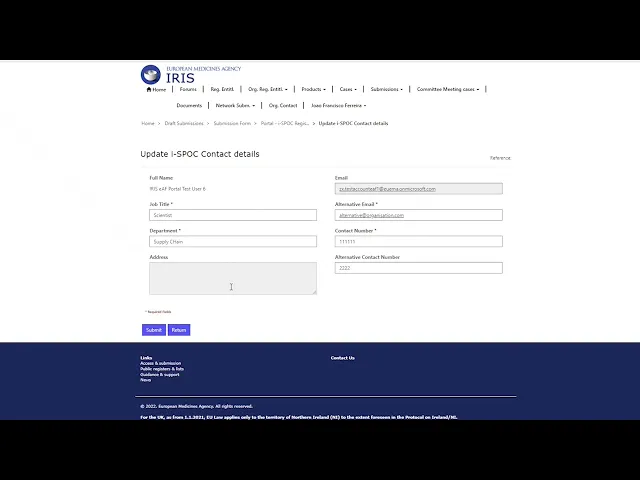
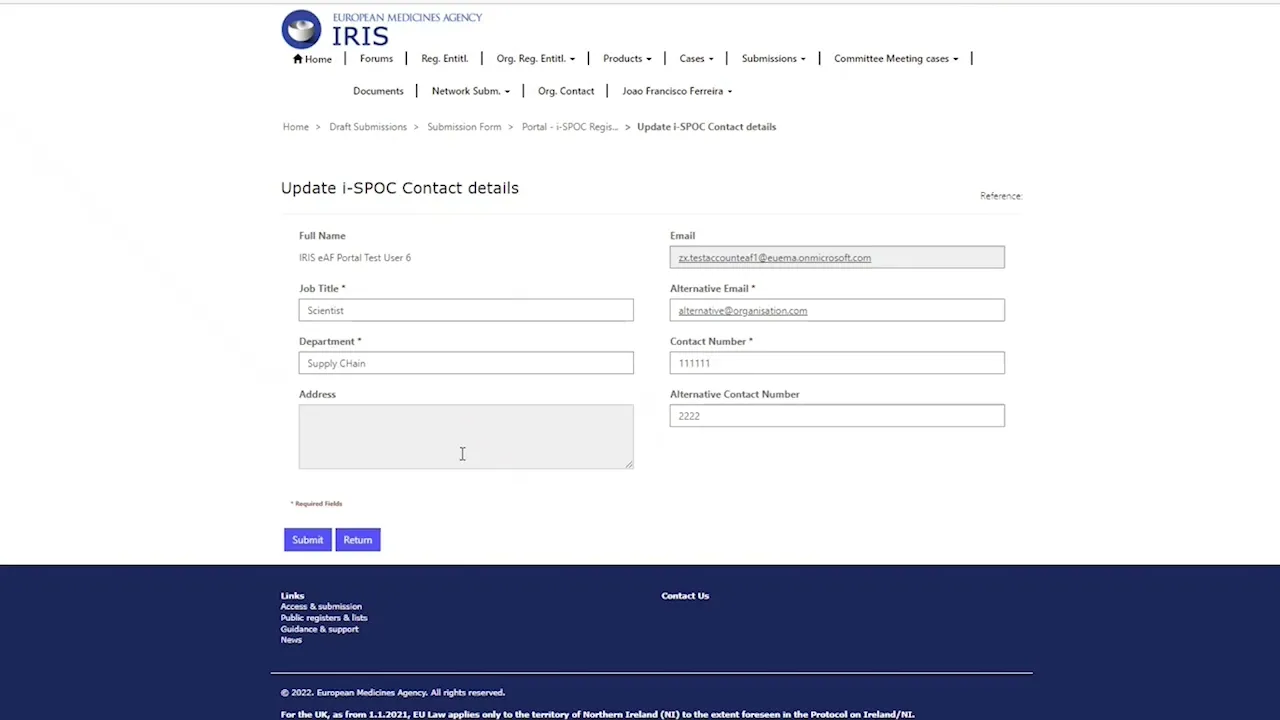
of these users as the icebox person so i will select this individual record and now i will click on save and the next button so now basically we get to the landing area where the user can update the ice box contact details so here you can fill in all the additional information that is required when it comes to the contact details of the mah icebox so feels like a job title um also department and alternative email are actually fields that are actually compulsory in nature also in alternative you have other fields that although not being
compulsory can also be filled in yeah what is important to mention is the fact that in case some of the compulsory information is missed basically the system is going to prompt an error message with the information that is compulsory that has to be basically populated so all this information that's a compulsory basically is marked with with an asterisk you can now click on the submit button and basically the system does notify at this stage the user about the registration outcome so that is this message basically that's displayed with an outcome with a particular summary screen
message so he indeed we can observe a valid i spoke registration outcome because indeed by selecting an ice book to an affiliated organization this triggers indeed a successful outcome message i will finalize by click on the return button and basically another possibility to be able to visualize whether the register icebox contacts are successfully registered or not is by looking into this particular organization contact tab and this concludes the video demo additional instructions on basically on how to register the industry a single point of contact in particular in line with the regulation 22123 is basically available
on the iris guide for mages thank you