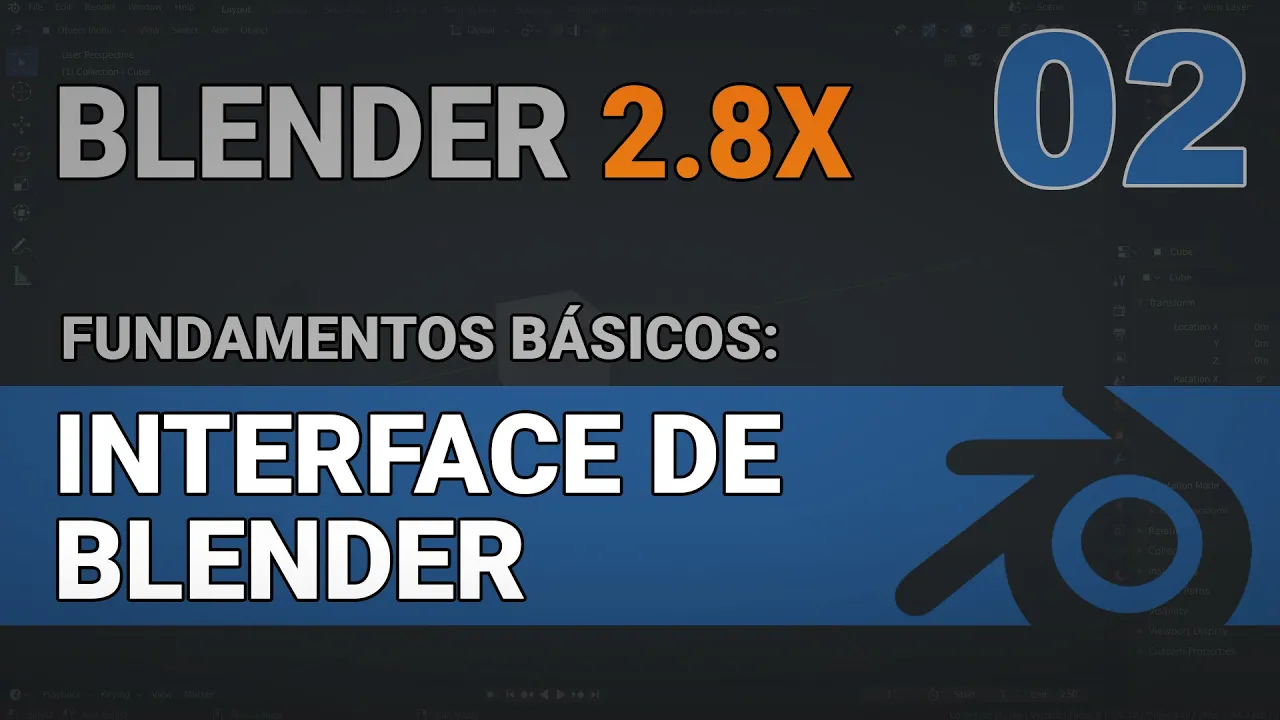
Basic fundamentals: Blender interface Hello there! Let's continue with the blender 2. 80 course This lesson is about the interface The first time you execute blender, these objects will appear Last video we chose how we wanted to select so now we can select them with left click They are a cube, a camera and a light Everything we see here it's an editor, in this case, the 3D viewport It's the editor we use to view 3D objects in Blender Blender is composed of editors In this case we have here the 3D viewport Here we have the outliner, another important editor It shows everything we have in the scene.
Everything that is here We have them here aswell For example, we can select the camera with left click, also the cube and the light. It will select in both editors etc This editor it's for organizing our ojects also for managing things like visibility If i click in this eye the visiblility of the cube will toggle This can be done on the outliner and also on the 3D viewport this is just a more visual way to do it The people who comes from previous Blender versions will notice the lack of the rest visualization options Like show on render, making an object selectable or not. .
. That is now here in this list of filters Now we can choose what we want to have in this menu For example, let's activate selectable An extra button will appear and if we click it on the cube We won't be able to select the cube as much as we click on it. We can select the light and the camera but not the cube I don't want to complicate thins right now so I'll leave it as it was.
So I go to filters, I deactivate selectable and let's move on with another editor What else do we have? Here we have the properties editor This one is also very important. It is right here.
It shows all te options in the scene and of particular objects These are the scene options And over here we have the object options This menu is context based. This means it changes based on what we have selected. For example, now we have a camera selected so here we have a camera icon And, of course, we have camera options too But if we click on this box, an object.
The options here, as you can see, have changed So context based on selection. The same happens when I select the light As you can see The icon changes along with the options All of the editors can be switched. For example, if I'm in the 3D viewport and click here and I don't want to see the 3D viewport, I want to see, f.
e. , the UV editor. I click on it And now we are on the UV editor.
If we want to go back, same as before, we select 3D viewport. All editors can be switched and moved as we see fit. Also we can configure and change the interface as we like We can drag from any border, here or here We can set the size as we please Moreover, if you move to a corner You left click on and drag.
Now you have split you 3D viewport Now you can change the editor here. As we did before, you click here and select the one you want. You can have a UV esditor, shader editor.
. . Whatever you need All this configuration is saved in tabs called workspace And they are right up here Blender has some predefined workspaces So we don't have to configure them ourselves But there is one that is the default, it's called Layout It's where we can change and configure everything as we want Also we can rename it I will name it Odin3D, and it will be my default interface Right now it's a little bit caothic I would like it tobe organized, so I'm going to do is collapse one editor to another Removing the ones that I won't use This one that we created earlier, for example.
You move the mouse on top of this line, right click and select join area An arrow pointing left will appear, if you move right it will point right This means that we are going to collapse one editor against the other The arrow represents wich one will be gone, we can move it to the one we want to take out. Let's collapse this way We have also this one which is the animation editor. In this one we have, play, stop, record.
. . etc I do not use it so I will do a Join area and I'm going to drag down.
Another way of deleting an editor is the same way we created it. We move to a corner and drag to create And we move to the corner again the same arrow will appear and we can collapse. The editors can be split horizontally or vertically, it doesn't matter And we can also split them like this Keep in mind than now I can't collapse like this.
I'll have to collapse this way first. And then we can collapse bellow. It should be like this.
As you have seen I have eliminated everything related to animation. That's because we won't be using it on the course during the mollelling or texturing fase. You will use it afterwards with Álvaro in the animation fase.
So don't worry you can simply drag here and select timeline Each editor has it's own keyboard shortcut Shift+F3, Shift+F8, Shift+F2 All these are shortcuts work depending on where your mouse is You can learn the if you want or just look for the editor you want in the list and click it I personally don't use them I'm going to collapse this editor so I can have this interface which is the one I'll use We could split this editor here, for example There are some editors that you can lock with this pushpin icon How does it work? If I want to keep visible the options of this light I will click on the light. I will scroll down clicking and dragging with mousewheel, up or down This works horizontally and vertically If we shrink this part Now, if we can't see the menu we can drag with the middle mouse button Like i was saying before, if we want to keep the light options we click here on the pushpin and we will always have the options of that object If I click on another objects, the pinned options won't change unless we unpin them And it will be context based again, it will change with every selection Let's collapse it again.
Finally, I will show you 2 important menus in Blender. The first one is the Toolbar menu which is te T key Is this menu over here which contains the tools and here the N menu or sidebar where we have a series of tabs with different options that we will see during this course Don't worry if you see that have an extra tab here. It'ss an add-on that I have to be able to show down here the keyboard sortcuts so it's easier for you to follow Basically almost all addons add a tab here so keep it in mind.
To show and hide this menus you tap each corresponding key T or N We also have the tool menu on the spacebar. Remember that in the previous class, we chose what function we wanted oon the spacebar and we chose tools So, basically it will be a duplicate of the T menu but a little bit more accessible Now we can hide the menu and press spacebar as we need it If you made a mistake or you changed your mind or you want another option, you can do it easily. You click on edit and then preferences and now we go to keymap We have these options that we can reconfigure.
They are the same options we saw the first time we executed Blender We have how do we want to select What do we want on the spacebar key play, tools or search In blender 2. 7 you had the search on spacebar by deafault I will keep it on tools for the time being When Álvaro gives you animation clases he will change this to play for sure We will see almost all the options here in the course. For now you can close it, don't worry it has autosave Lastly, before I forget.
If you open a 2. 79 file in 2. 80 and save Be careful because sometimes you cannot go back and open them in 2.
7 Users that are still in transition keep this in mind, make a backup or something like that But be careful because you can lose progress Although Blender 2. 8 is very stable right now And most likely it will be a final version available by the time you watch this video That's all for now. See you in the next class, greetings!