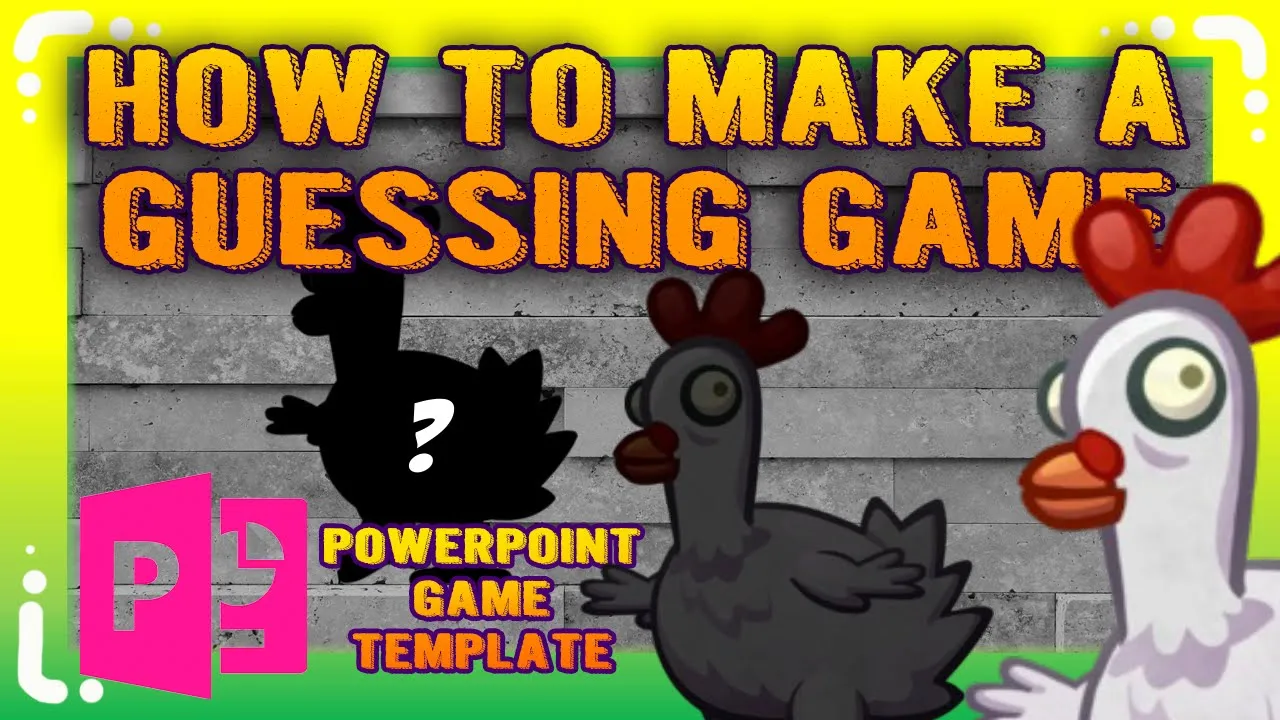
[Music] hey guys it's Mr B here again thank you for checking out my brand new PowerPoint game tutorial I hope you guys are having a wonderful day over there you can grab this free template in the description box below this video also I want to say a huge big thank you to all the viewers subscribers and contributors without you guys this channel wouldn't be possible and if you're new to this Channel and want to get more awesome PowerPoint Games and materials don't forget to subscribe and smash that like button also don't forget to turn on
your notification Bell to get the latest materials when I post them on this channel so let's go to file in your PowerPoint presentation and we want to choose new presentation right here and once you have that let's go to picture let's drop in a background you can choose whatever background you want I'm just going to choose this one this um stone brick background here and we just want to drag the corners here and here until it aligns with the canvas size all right awesome looks good and now we are going to drop some pictures in
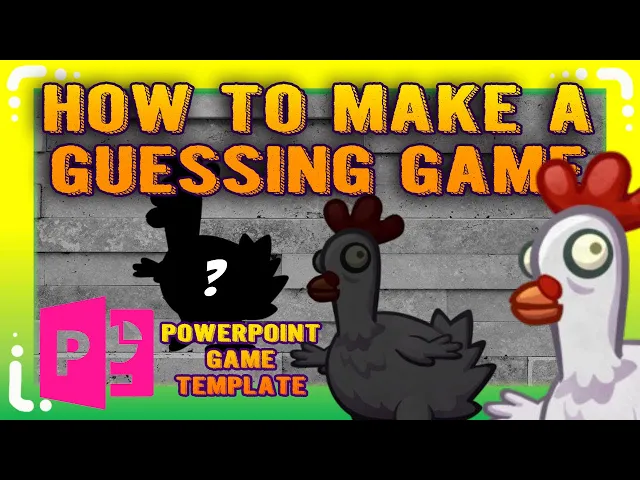
here could be any picture you want food fruits vegetables books games whatever it is you want to use for your own um guessing game so I'm going to choose chicken here insert it and just move it to off to the side here and let's just give it let's just make it a little bigger here and also choose middle here all right that looks good drag a little bit here and now let's open our selection pain and let's give it a name I'll just give it a generic name chicken and this is the back image and
oops let's put a name for the background as well so I don't confuse it all right now that we have our picture here we need to make a duplicate of this picture we need two one for the back and one for the front I'm using a Macbook contrl + C contrl V for me or you can just right click copy right click paste with your um on your computer and make sure chicken back we'll give it a name and call it chicken front cuz this is the front and make sure they're both aligned correctly you
don't want them to be um Mis misaligned so align Center and Aline middle and now you click on chicken front here and go to format picture right click go to format picture and we want to choose this option over here this one right here click on that and then click on picture correction and scroll down where it says brightness you want right here brightness and let's make it all the way down down to minus 100% so now it's just black okay so that's the front all right now click on it and we're going to animate
this so go to animation here and we're going to go to exit effect and choose whatever animation you want but I'm just going to choose fade but you can choose whatever you want for your animation all right and now we go to animation pain you click on the that animation you just created go to trigger and we want this to happen when we click on the um front here so let's test it out so when you click on the front image here it will set the exit animation off and now we want it to come
back so you want to click on the back image and then make the black silouette appear so here uh oops let's um click on front here and we want to choose the front image here and now we want to make it appear you can choose whatever animation you want but I'm just going to use fade here and let's go back to animation and we're going to move this under trigger back okay like this okay we got front for exit animation and back back for um the enter animation so let's check it out so you click
on this it'll fade click on it back and it'll fade Back to Black okay now the tough part is done all you have to do now is make a copy of what you just created so copy both front and back and just move it somewhere on the slide here until you're happy with the positioning and now we right click go to change picture from a file and now you can insert whatever image you want uh this is an image of a hot dog and we'll call give it a name we'll call it hot dog front
so that's all you have to do and we Al also have to change the back image so click on the back image here choose change picture from our file and insert your own picture again the hot dog and that's all you have to do and now give it a name we'll call it hot dog back all right um let's adjust the size a little bit here I want it to be a little bigger so I'm just going to adjust size and you can do that in the picture format or you can dra just drag the
image uh to whatever size you want until you're happy uh with the size all right I think um I think I'm happy with this size so let me just shrink the back here as well I think maybe the size is okay maybe here all right now that we have um edit our image make sure we align Center and align middle make sure everything's aligned right and now we have to change the front image to make it black black silhouette so we click on that this front one and you can either right click and go to
format picture or just just's go to form a picture here and make sure you choose this option and go to brightness and lower that down to minus 100% and now we can test it out great looks like it's working perfectly and that's all you have to do and now we're going to do the same thing for the third image um we're just going to copy this front and back and paste that in you can do this several times um you could put as many images you want on one slide it's really up to you um
but for this demonstration purpose I'm just going to make three examples for you guys to show you how easy you can do this in PowerPoint so right click on this image here go to change picture from a file and let's put a fruit in this time let's choose pomegranate all right just's choose something hard for the students to guess let's give a name here so you can find it easy um easily and we'll call it pom pomegranate front and [Music] let's do the same for the back image change picture from the file and choose pomegranate
here again great and now let's give it a name and uh let's call it pomegranate back awesome all right now that we have the image here and uh let's also change the size okay choose front and back and now you can adjust the size and just move it until you're happy with its positioning maybe I think here is okay all right um again you can use whatever image you want it could be uh Toys books subjects anything you want you can put in your game and again you can put as many of these objects on
one slide if you want all right go to format pick and choose this option right here and make sure it's a front image and we're going to change the brightness here to minus 100 great all right uh now all we have to do is test it out by hitting the play button all right let's see what is it it's a chicken what is it it's a hot dog what is it it's a pomegranate all right looks good so clicking on the black silhouette will reveal it and clicking on the back image will bring the silhouette
the black silhouette back all right now you can do more to your PowerPoint game if you want you can even put like QA or hints at the bottom of the image to help your students um I'm just going to move my image a little bit here I'm just like everything centered in the middle all right you can also put in um some questions if you want um I just went to Tool shape and Cho I I picked this tool and let's just move it under one of the images here I'll remove the outline and I'll
just fill in with white but you can fill in with whatever color you want it's really up to you and I'm just going to change the um the transparency a little bit here maybe 20% I think that's good and then you can write whatever you want for an answer here okay so this is the back part of the question so this there going to be a question in the front and then the answer revealed in the back all right so let's choose a font you can choose whatever font you want um oops let's just make
let's choose one here and whatever font you want it's really up to you and uh whatever color you want for your font that's also um that's up to you all right so you can put in here the answer and make it a little bigger and I don't maybe this font that one was a little difficult to read and uh okay I think this is great and then we just copy it and paste it under the other object just like that all right and let's give this the same thing it's a what is it it's a
hot dog all right and we'll just copy this name uh the name holder and just paste it and move it under this object here that looks good and we'll just give it a name what is it it's a pomegranate oops it's a little big so let's just shrink the font a little bit okay and let's do the same with this one as well just keep it all unified all right now we have our answer here and let's make it so that it will reveal the answer when you click on the image so just copy paste
and let's take this out and let's put a question here all right for now we'll just put the question mark here and uh just adjust the font a little bit change transparency to 0% so it's hiding the or the answer in the back all right copy and paste and just drag that over here to cover the answer here again copy paste and drag it over to the right to cover the answer and make sure it is aligned correctly so you can highlight both front and back align Center align middle so the students can't see the
answer and do the same for the other two as well all right super right we just have one more to go a line Center and a line middle great all right now that you have the Q&A here we want to animate it so click on the top here good animation and let's give it a exit animation which is whatever you want I'm just going to choose this one fade all right and let's give it a name so just give it whatever name you want 1 2 3 anything you want it's up to you a question
one question two question three it's just easier for you to find it later when you go to animation and oops appears like it's they're just question marks so it's really hard to find so easy fix just go here and just give it like a name inside here let's call it q1 for question one oops question one and this one is uh Q2 for question two and this will be Q3 and then you would write your question in there and also give this the same name Q3 Q2 and q1 and for the answer you can call
it answer one answer two answer three um but this is all we need for [Music] now all right so we have the animation now and the name correct uh now let's choose another animation fade in here so we have Fade Out and fade in and go to timing with previous now we'll drag this under the here under chicken front here and we want to choose this one drag it down here and do the same for Q2 and Q3 so Q2 goes under here so when you click on the hot dog it will reveal the answer
and when you click on the hot dog again it will hide the answer and let's drag this one down to um oops over here and drag this one down here all right I think we're ready to test this out and see what it looks like so let's head down here and hit the play button let's click on the chicken here again for q1 maybe you could put like hints like uh it's tasty it clucks it lives on a [Music] farm this one has a lot of seed it's red outside it's sweet and sour so you
can test it out by clicking on any of these images here to re the answer and you click on it again it'll hide the answer I hope you find this PowerPoint game tutorial useful and if you do enjoy my PowerPoint game don't forget to comment below and let me know what else you guys uh would like to see uh for a PowerPoint game or a PowerPoint tutorial and I'll do my best to help you guys or answer your questions if you want to help this channel out even further you can like share and comment again
I want to say a big huge thank you to all the viewers subscribers and contributors without you guys this channel wouldn't be possible and if you're new to this channel don't forget to subscribe and turn on that notification Bell so that you can get the latest materials when I post them up on this channel I hope you guys are having a wonderful day over there I just want to wish you the best of luck luck in your classes [Music] [Music] [Music]