welcome adors effective project management is crucial for any business as it helps you to stay organized meet deadlines and achieve your goals a good project management application is a real powerhouse that will allow you to manage your team's workload via projects and tasks simplify team collaboration and allow for time tracking and Reporting in this course we will show you how our powerful app can transform your project workflow that sounds amazing because here at the Dinosaur Museum we're just getting started to work on our biggest project yet an authentic fossil exhibition wow that sounds interesting all
right let me show you how our project application can make your life easier so in this first tutorial we will set up your project and handle our first task together so here we are in our database we'll go right into the project module and we can see our existing projects but we're going to go ahead and create a new one for the upcoming fossil exhibition and here we have a couple of options to set up we can uh decide that we want to Time Track uh the time spent on tasks we can also Mark our
project as billable but because this is more of an internal project we will not do that so we'll just go ahead and create our project and right away we are taken into the Canan view okay what view so Canan is one of the several ways to organize and view your project it's essentially a whiteboard that allows you to create um kind of Post-it style card for each one of your tasks the board is divided into stages that you then use to track uh the progress of your tasks with a simple drag and drop so let's
create our stages we can see examples here if we wanted to but I will just create my own stages we will say ideas ideas um for when we're brainstorming um what to do in the desk then we will have assigned which is for when we have assigned a specific person to start working on the task we'll have ongoing when the bulk of the work is done and at the end we will have review let's add it um and now we can go ahead and start working on our first task well that's nice um now could
you show me how to handle a task from start to finish please of course let's go ahead and open our first task so we will click on new right here um and we uh are prompted to fill in the task title so we know that we will need to find a consultant because we will need to find a paleontologist who will help us uh review the fossils that we have purchased for the exhibition and uh we also have a possibility to assign it to a person we will actually do it right away we will assign
it to our colleague Dina and our task is ready we are immediately prompted to create another one but let's let's just go ahead and start working on this one um so normally we have our task a little bit longer in the ideas stage uh before it's assigned to a person now we already assigned it to Dina and let's say she started working on it already so we'll put it in ongoing and before we head into the specific task um I just want to show you that there's actually a couple of things that we can do
from The kban View without even opening the task so we could for example start it as high priority we could schedule an activity directly from here if we wanted to uh we could assign more people um we could even color code the task that could help a little bit let's say we'll put it in purple um and we could do some more things but for now let's go ahead and open the task so we have some more uh things that we can do here uh we could really customize our task uh by putting in a
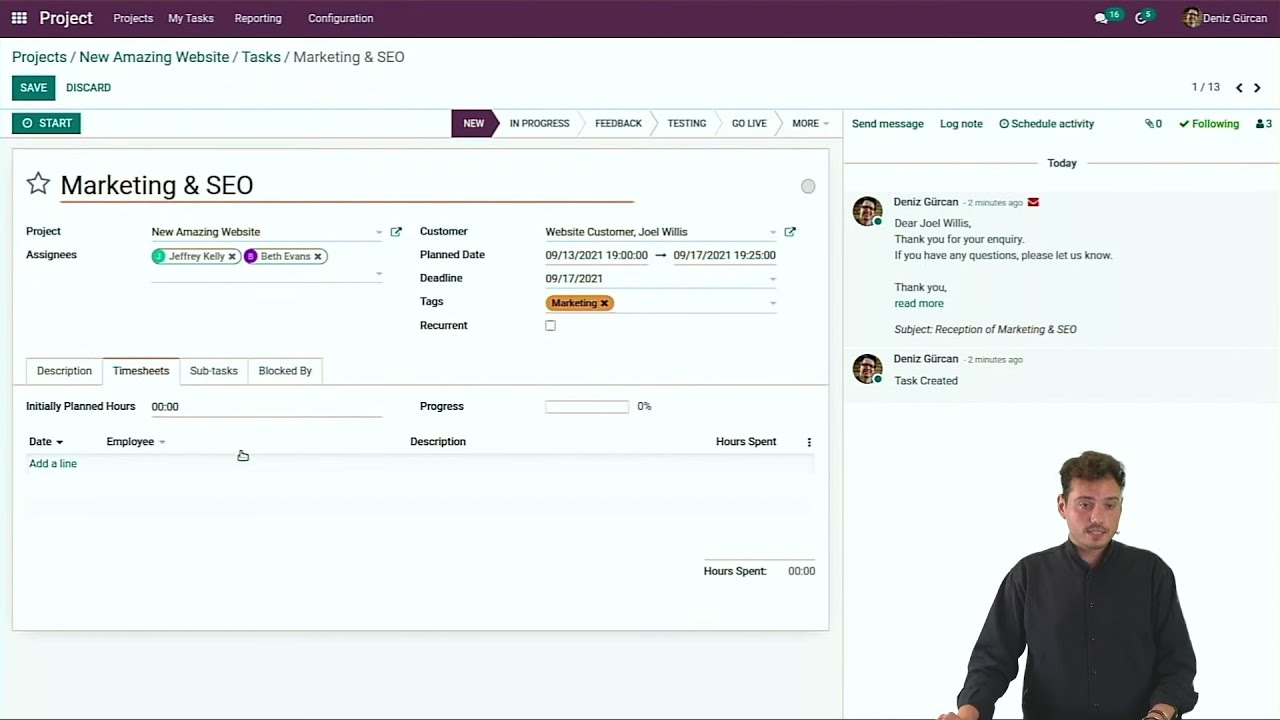
description what I like to do is put in a checklist uh just for the person working on the task to really know a little bit how to structure their work um so maybe um select top three consultant uh call them ask for rates so we know how much they charge for a uh consultancy we could add tags from here as well so let's say that this task is urgent for example just so we can see it immediately when you look at Canan we could allocate some time so we could say that a task like this
from start to finish normally would take maybe about six working hours we could also select a deadline so let's say that normally by the end of next week we should um be done with the work and what we can also do is schedule our first activity so this is quite handly when we um to structure our work as well so we know that we will have to call someone and uh our first person to call will be professor professor digs who's an very famous paleontology Mastermind so we're really hoping that we'll get to work with
him uh let's schedule the task and now uh let's say that our colleague Dina actually called the professor and he maybe offered a rate that's a little bit too high so we will have to either rework our proposal a little bit or maybe change see if we can um offer a little bit of a higher rate um but before we move forward with the rest of the task we will actually keep it a little bit longer in the ongoing uh canand stage uh but because we want this to be clear and visible for everyone that
looks at the task we could actually say that this task uh has some changes requested so um we will update the task status from here uh let me go back to the canman view and show you what it looks like from here so here uh we immediately see that something changed so we see that we have the little exclamation uh icon on the task and also the status bar here is in yellow so we can see that there's one task actually all of our tasks because we just have one in the U changes requested task
status uh now once we have called the professor and we talked to him a little bit more again and he agreed to go forward with working with us we would put this task as approved and since actually this is this is all that we had to do in the task um we can move it to the next Canan uh stage which is review so this is just for us internally to see what went well what went wrong maybe how we can improve our workflow a little bit in the future um and again once the task
is in review uh we could uh excuse me we could update its status a little bit to changes requested or approved uh but since it's our last it's our last last um canman stage we will just mark this task as done let me go into the task and do it from here Mark the task as done and once we have done this if we go back to the canman view we actually see that the task is grayed out now because it's not active anymore it has been archived uh but we can still see it and
um since we finished our work the task is in review we are actually done with the entire workflow one more thing that we could do actually that I um Will Show You Is We could decide that this whole review canman stage uh is not that important we don't actually need to see at all times the tests that are in it so you could decide that we want to fold it and then we will only see U the test that we're actually doing the bulk of the work in um so this is just a little trick
to keep a clear overview when you're looking at your canman view um so hopefully this gave you a little bit of an idea on how to handle your tasks from start to finish uh that is it for this tutorial and we will see you for the next one thank you so much for watching