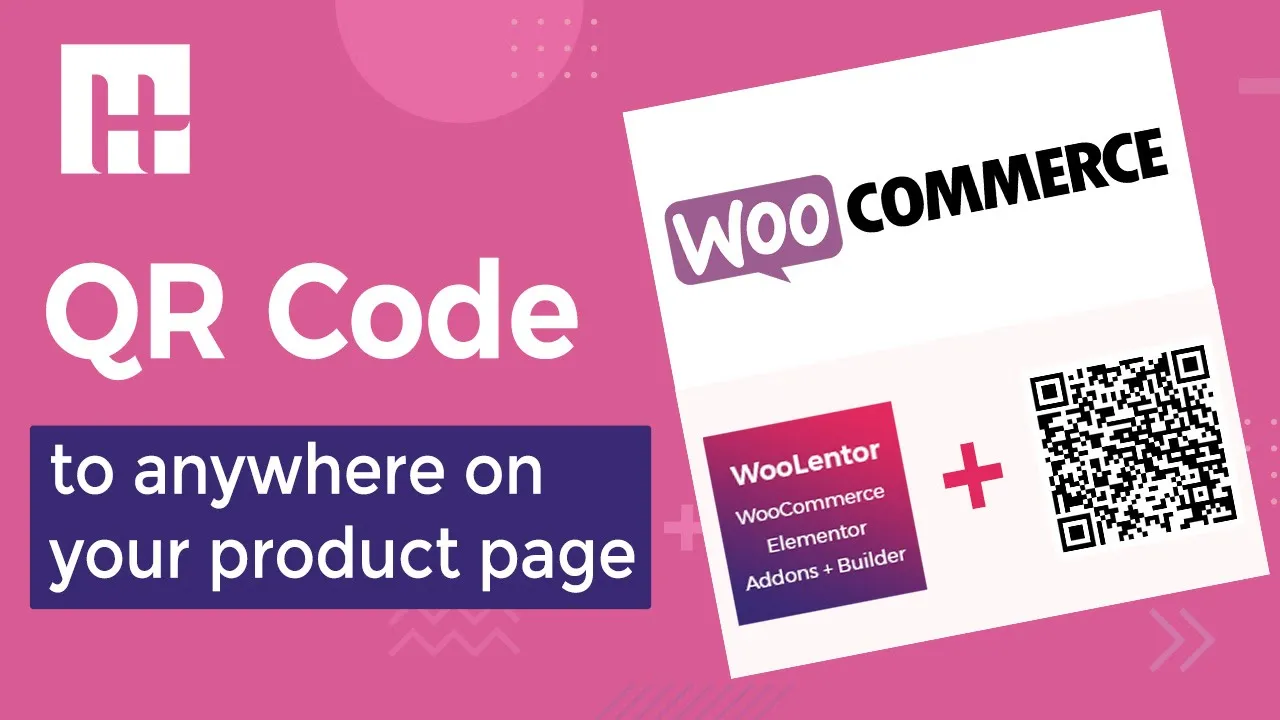
hey everyone welcome to this tutorial have you heard about the term qr code or quick response code a qr code is a two-dimensional barcode that stores a piece of information using black and white squares that is quickly readable by smartphones or any other qr code scanners when a qrs code is scanned it can instantly convey a wide multitude of information today i'm going to show you how to use the qr code widget of our wu lenter plugin but before moving forward i'm going to talk about some of the advantages of adding a qr code on
the product details page your customers can view or purchase a product by scanning the qr code from their smartphones without any hassle the qr code will also allow your website visitors to copy the link so that they can share the link with their friends and family while increases the overall sales now let me show you how you can add a qr code on the product details page of your website i think you may have already built a custom template for the product page using the elementor page builder well if you haven't already don't worry about
that you can easily create a custom template for the product page from the wool enter template library here we have added some pre-built templates for your convenience let's go to the wool enter template library here you'll find a lot of pre-defined templates for the product details page select one from here and import the template to edit the template click on the edit template button now you can add any widgets to this template based on your needs since our main goal of this tutorial is to show you how to use the qr code widget so without
further delay let's add the qr code widget you can add the qr code widget to anywhere on your product page to do this go to the search panel and search the qr code widget drag the widget to the respective position here you can set the size of the qr code in pixels enable the option if you want the product to be added to that card automatically when someone scans the qr code from a smartphone you can also specify the car quantity from here here you can change the alignment of the qr code after making all
the necessary changes to this template click on the update button to update the template now go to the woo linter settings and select the customize template for the single product template let's check how the product details page looks when a visitor of your website scans this qr code the product will be added to the cart automatically if you have your own custom template built for the product page then you don't have to use one of our pre-defined templates that way you could just edit that template and add the qr code widget to the required position
so this way you can add a qr code into the product details page of your website easily if you have questions regarding the widget please leave us a comment below that's all for this video and i'll see you in the next one