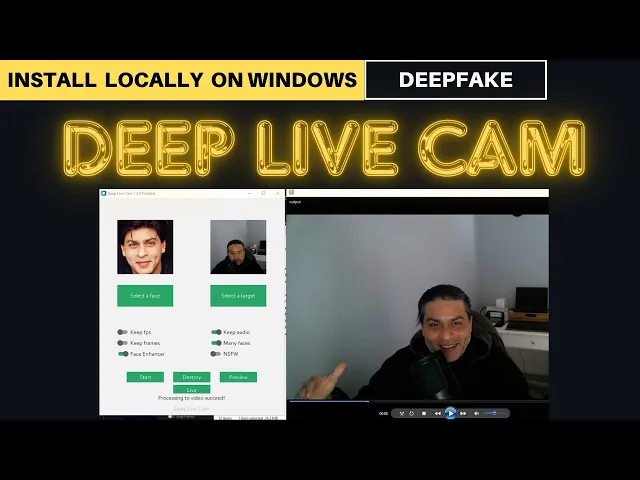
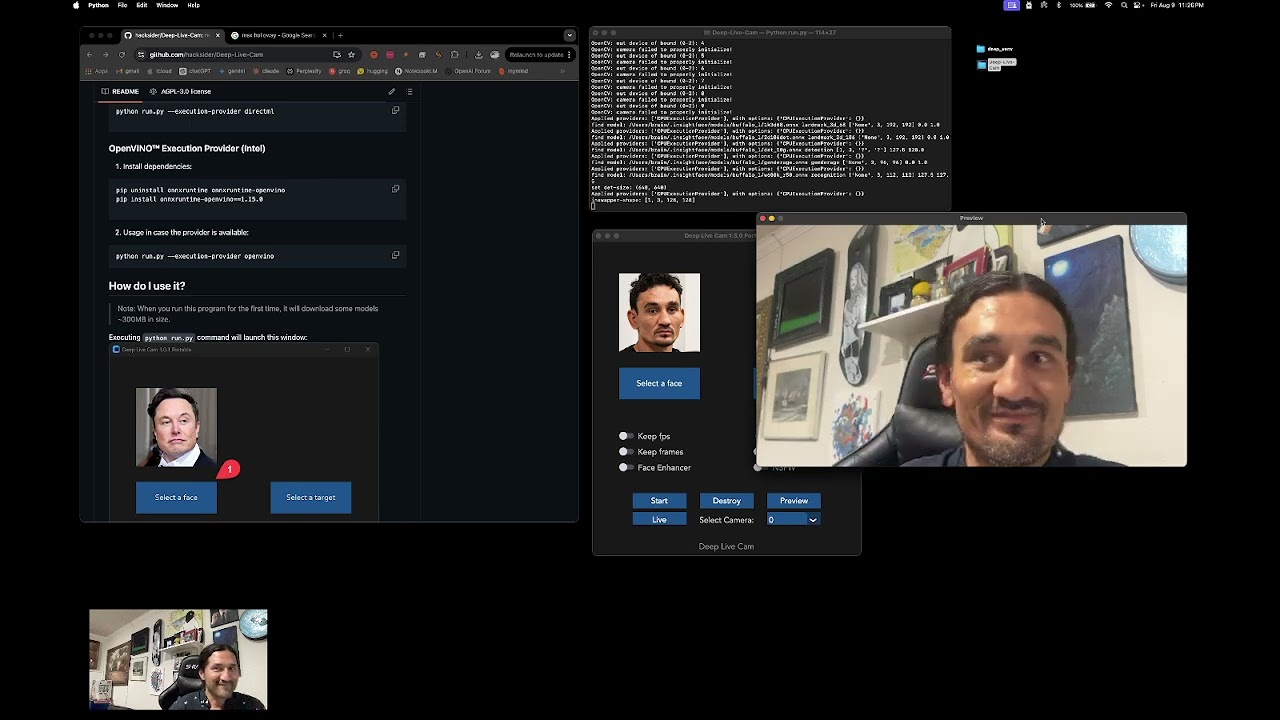
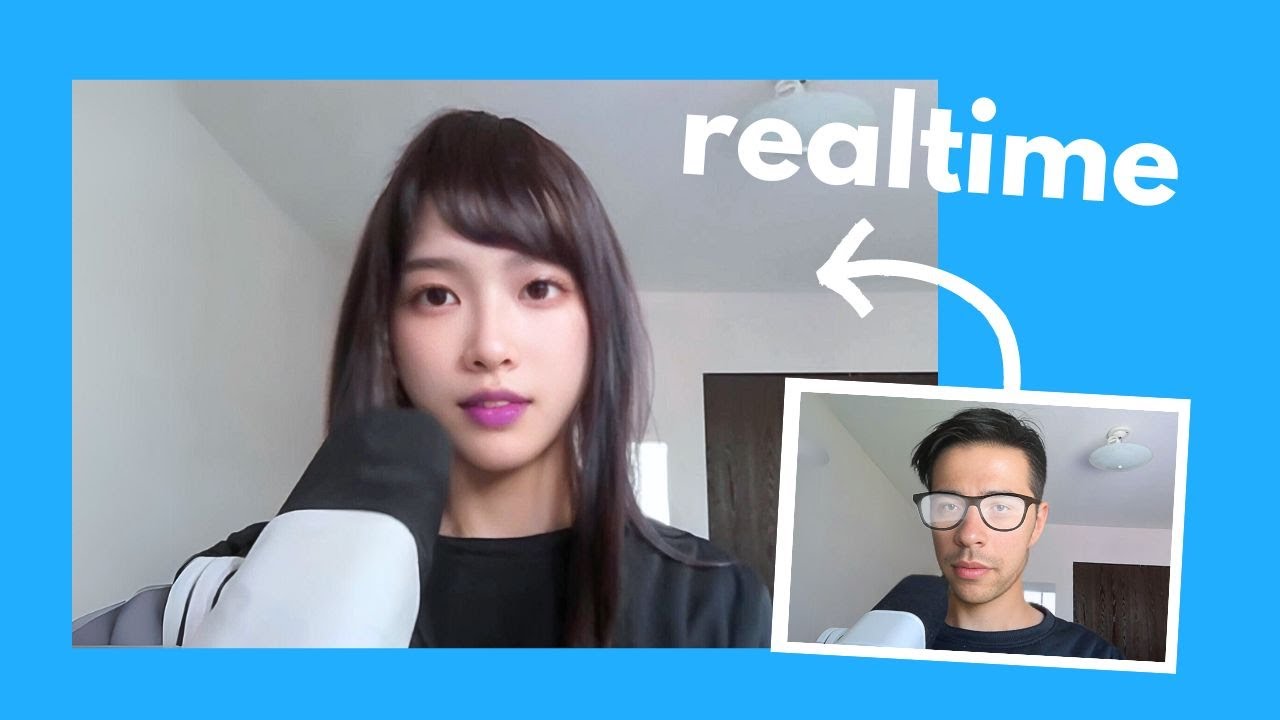
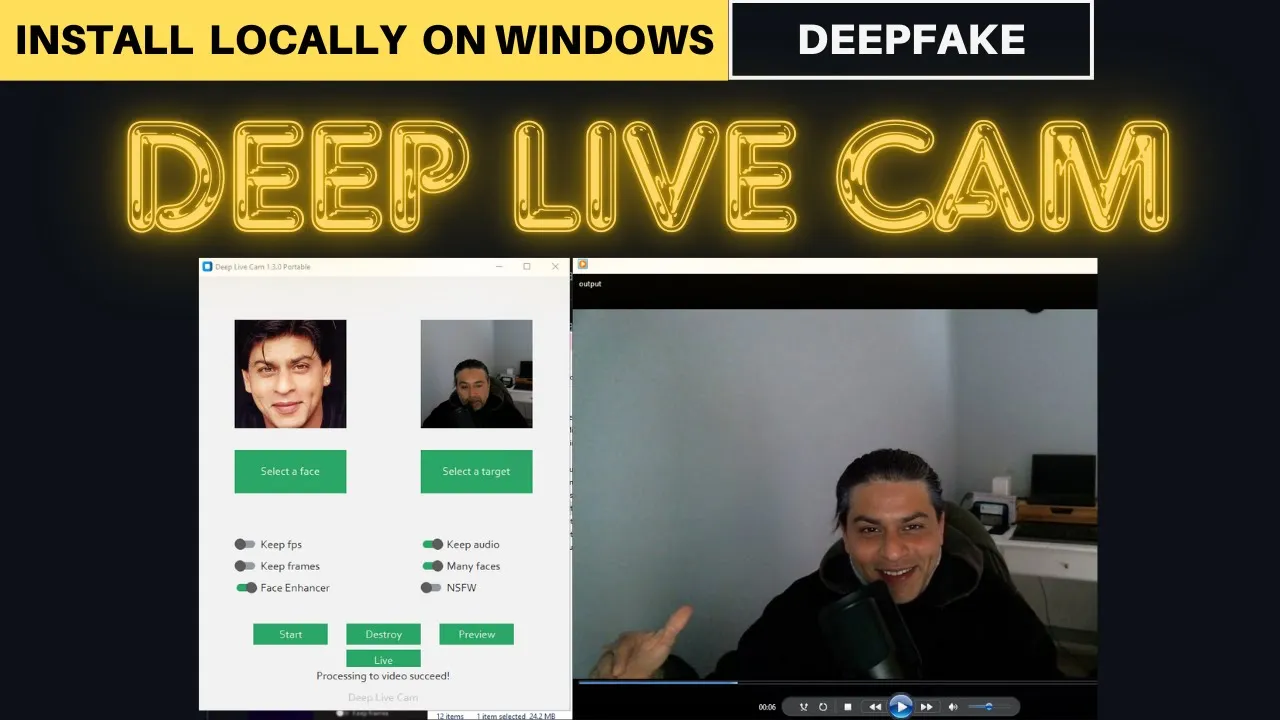
hello everyone and welcome to the channel in this video we are going to locally install this very popular software at the moment deep live cam let me play this video to show you what is happening here so you see on the left hand side we have this image selected on the right hand side webcam video which is streaming live is replacing the person's face with the face you selected on the left you can not only do it in live webcam but also you can do it uh statically you can just replace the face in any video with the help of this software and this is what we are going to do in this video where will will be first installing it locally on our Windows system and then we will we will be playing around with it you can use and install this software on Windows and on Mac OS at the moment now before I show you the installation one word of caution yes this is a realtime phas Swap and one click video deep fake with only a single image but this is only for educational purposes and just a productive contribution to the rapidly growing a generated media industry as per the creator of this repo this software is going to help artists with tasks such as animating a custom character or using the characters as a model for clo cling Etc okay so that out of the way before you get it installed there are few prerequisites which you need to meet and those prerequisites are that you should have python 3. 10 installed on your system you should have Pip installed get FFM Peg and visual studio 2022 run times on your Windows system I mean and I will show you how to do that to make things easier I would highly recommend you to install chocolati on your Windows system which is a package manager makes things very easier in order to install chocolate go to your left just type Powershell here right click and then run as administrator I think I already have two windows open so I'm just going to close this one now in order to install chocolate just type this command and don't worry about it I'm going to put all all of the commands I'm using in my blog and I will drop the link in videos description so what this command is doing it is installing choco on your local Windows system I already have it installed so I'm just going to say choco DV so this is my choc version at the moment now next thing we need to install is python 3. 10 in order to do that simply run this command choco install python Das D version is equal to 3.
1. 0 again I already have it installed so I'm just going to show you python version so you can see that my python version is installed second uh third thing which we need to install is get so simply do choco install git and it is going to install git on your system I already have it so I'm just going to say g-d version next up what you need to install is FFM Peg Library just type choco install FFM Peg I already have it so I'm just going to say FFM Peg version and this is my FFM pack version at the moment so I don't need to install it so let me clear the screen here now if you don't know what FFM Peg is FFM Peg is simply a multimedia tool which enables you to handle audio video format and then you can Rec C save stream it the video audio with it okay so we already have all of these installed and now you know how to get them installed so make sure you do it once you have done it we would also need Microsoft C++ build tool tools so for that go to this link simply download from here and then click on X and next next next you should be able to install it fairly quickly so if I just go to my system and I see Visual Studio or just install Visual Studio you should be good you see I have this Visual Studio build tools 2022 installed this is what we need and this is a version uh we would be needing so make sure you have it installed from this link another thing is that you can use it on CPU but it will be bit slow not bit quite slow so if you have GPU I would highly suggest you go with GPU for GPU you can install c. toolkit from nvidia's website so go to this link and I will drop all the links in video's description from there click on Windows and then download the X this architecture and then whatever your windows version is minus the server 2022 and I'm just going to go XY local and then just download this XY and then run it next next and it is going to install the Cuda toolkit which is nvidia's library to handle and accelerate GPU on your local system I already have it and the way of checking it is simply running nvidia-smi and you can see that I have the latest version of Cuda installed okay so let me clear the screen so these are all the prequisites which you need in order to get this thing installed so once you meet all the prerequisites next step is to get clone the repo of this deep live cam simply run get clone and then this URL and again I'll drop the link in videos description press enter it is going to clone it on your local system let's wait and the repo is cloned on our local system next step we would need to go to this hugging face website where this deep live cam repo is from here you see we need to download two model one is this gfp Gan V version 1.
4 and the other one is this ins swapper so first up let's click here click on uh or right click on download save link as and then wherever you have cloned that repo I believe I did this in see and then users administrators and here um there was this deep live cam this one go into the models and then save it let's wait for it to save so first file is saved again click on these files and versions go to this last one fp1 16. nnx right click on download and then save the link l in the same directory in the models in deep life gam repo click save and let's wait for it to get downloaded and you can see that now both models are present locally on my system in the models directory okay that is good let's go back to our poers shell screen now here we need to install all the requirements within this repo so simply run P install dasr requirements. txt Okay so it is asking us that I just need to reinstall that so let me install the PIP okay I just checked my pip is fine I think I just made I didn't CD into that directory so I should be into this directory let me clear the screen and now let me install the requirement this should work now there you go let's wait for it to get installed this is going to take bit of a time all the installation is done now if you are using CPU your installation is done and all you need to do is to run this command python run.
py from this root of repo and you should be able to use the software but as I'm using a GPU so I'm going to install a couple more prerequisites so I'm just going to remove this and then install these o NX and just capital Y and that is all done let me clear the screen okay sorry I just needed to install this one hang on shouldn't take too long it's quite lightweight and that is done now let me clear the screen now in order to run the application all I need to do or you need to do is to run this python run. py execution provider provider Cuda which is for GPU so let me run it and first time it will open up like this and you see that it's very simple nothing fancy there from the left hand side you need to select a face and then from the target you could either um use a video or if you want to do the Deep live cam you can simply click on live here and it is going to use it and you can start it and then from my local system I have just selected on the left hand side the image of Einstein and on the right hand side I just recorded my own video which I have given it as a Target so that it will replace this my face with Einstein's face so let me make it bit bigger and then see we'll see how it works I'm just going to click on start here and then it is asking me where to save the output so I think I'll just go with this one let's save it let's wait for it and it is going to take Fair bit of time as you can see on in the bottom of the screen it is showing you the progress like extracting the frame and now progressing so let's wait for it it is uh takes bit of a time and you can see that now it is creating video with some 30 frames per second and then it says processing to video succeeded and now let me show you the output video so this is output video which it has created uh so how about if I first play my original video so let me play this original video so this is my original video right okay let me close it let me play the output video now she go so this is Einstein face can you believe that it is it isn't it a magic really oh my God even the teeth are Einstein's oh my goodness so this is crazy let me let me play my uh video again there you go so this is me and I replaced it with Einstein's face there you go this is Einstein's oh my goodness crazy crazy crazy crazy okay now because this is a VM I'm using I'm not sure if my live web game cam is um enabled let me click on live but it should work so if you have it on your system so I'm just clicking on um live here because my I don't have my webcam but I should won't work here but all you need to do is just click on live and it will it will start working here cool now for another just for fun let's select the Merlin mro photo let's for Target and just drop down video and then let me select my own and then let's click on start maybe before that I'll just rename this one I'll just call it output one so that it creates the new one let's click on start yep let's save output here and then let's wait for it to finish and if you want to close this uh either press on top right on this X or just click on Destroy okay so let's wait for it to create it and you can see that it has started extracting these frames and another bit is that if you remember I told you that if you are using GPU uh you can install CA 11. 8 but you saw that my Cuda is uh the latest one the 12 so you can go either one of them but shouldn't be less than 11.