in this video I'll show you how to upload and share files on Google Drive if you found this guide useful then please consider subscribing and once you've done that then please consider to leave a like and let's get right into this guide Google Drive is a great way to go and share files with other people so I'm going to show you how you can do this the first thing we'll need to do is of course come to Google Drive just like so and just make sure you tap on my drive in the top left like
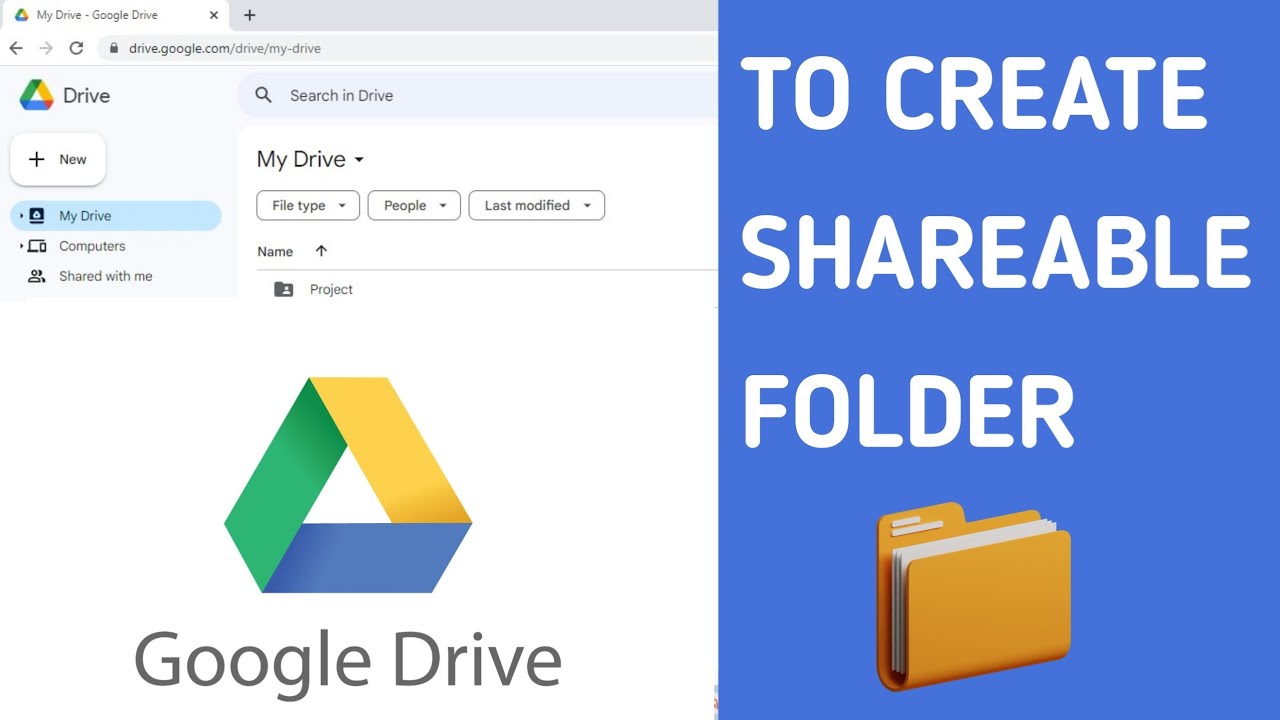
this now your drive will probably look different to mine because I've got my own files on here but all sort of the buttons and layouts should be quite similar so the first thing I like to do is go and create a new folder because then what we can do is upload all the files we want to go and share to this folder and then go and share the entire folder with other people so let's go and create this folder so go to the top left and go and tap on new just like so and go
and tap on new folder and then you can go name this so I'm just going to go name this files to share you can name us anything you like so then I'll go and tap on create just like so and it'll take a moment and as you can see here is the new folder so then what I'm going to do is go and double click on it like this and as you can can see this folder is empty because we haven't uploaded any files yet and then to upload the files we then need to go
to the top left again and go and tap on new and then go and tap on file upload this time and then what we can do is go and select the files we'd like to upload so in this case I'm in my YouTube thumbnail folder so I'm going to go and select a few of these now when it comes to selecting multiple files what you can do is just hold and drag like so alternatively you can go and hold Ctrl on Windows or command and then you can sort of Select what files you'd like so
I'll upload just a few like this and then to actually upload them just tap on open in the bottom right it basically means upload then in the bottom right of Google Drive you can then go and see the upload progress as you can see it shouldn't take too long but it is going to depend on the size of the files that you're uploading so we've now gone and uploaded the files which I want to go and share if you want to go and upload more you can all you need to do is go to the
top left and tap on you again and then go and tap on the file upload so now once you've got to uploaded the files which you want to go and share in the folder now now let's go and share this folder so all you then need to do is go to the top left to where the file name is just here click on it and then what you want to do is go and tap on share and the share menu will then load so we've got a few different options here what you can do is
go and add people or groups which you want to go and share the files with or what I prefer to do is go and change this restricted option here just to anyone with the link so this means anyone with a link can go and view these files and go and download them I just find that easier as otherwise you've got to add everyone and then you can tap on copy link like so and then what you can do is go and share this link say in an email or whatever you want and as soon as
they click on it they're going to be taken to this folder here and then you can go and view the files and go and download them it's that easy guys if you found this useful then please consider leaving a like peace

![I Replaced ALL my ADOBE APPS with these [free or cheaper] Alternatives!](https://img.youtube.com/vi/5EfqHg49kMk/maxresdefault.jpg)