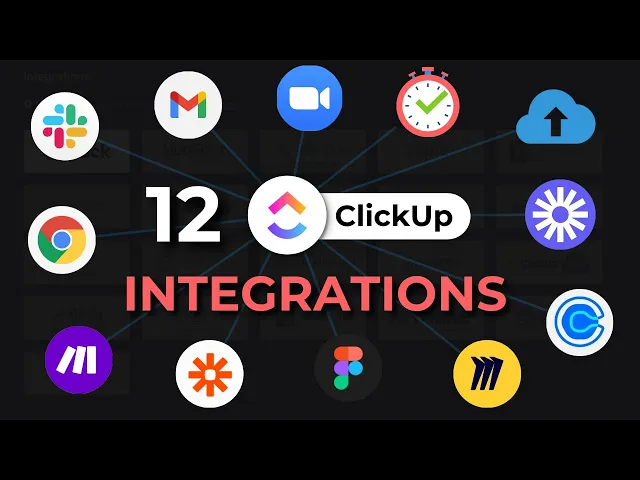
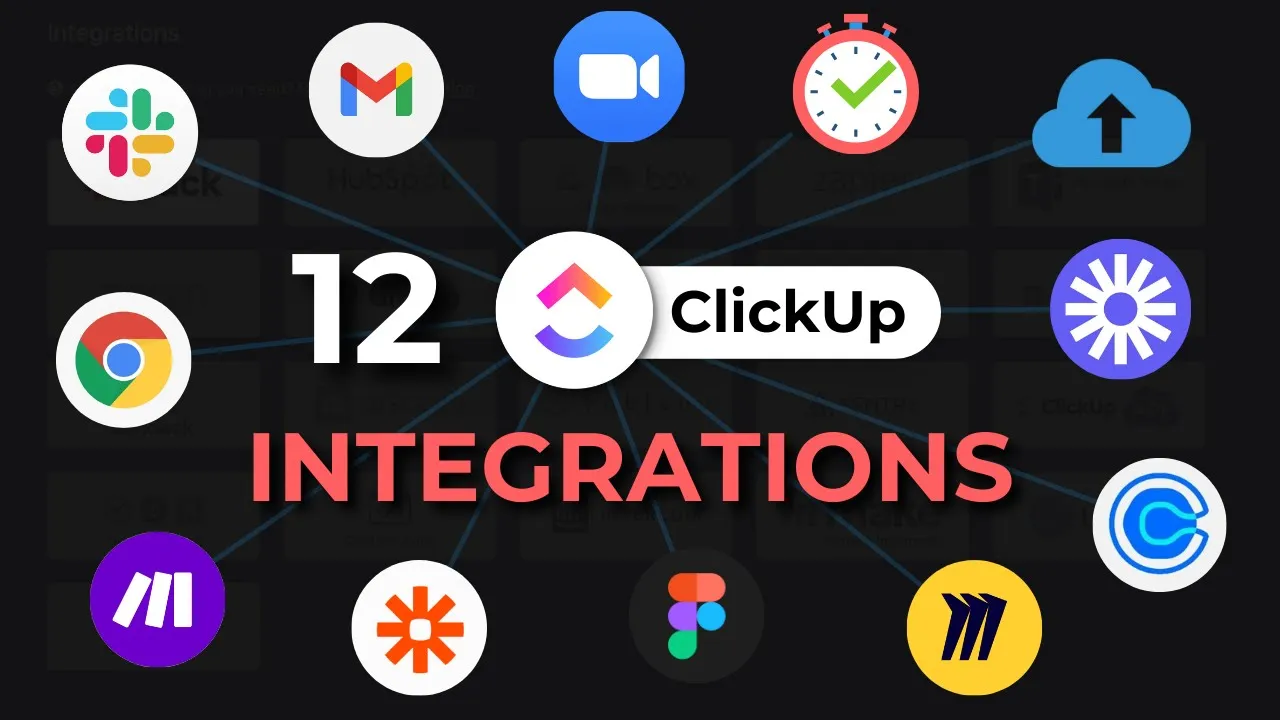
if you are using a lot of tools aside from pickup you'd be happy to know that click up has a lot of native Integrations that you can actually integrate with so in today's video I'll be walking you through what are those 12 tools that you can actually integrate with click up my name is Shirley from the clickdown channel and let's get started as Freelancers business owners or even just employees reuse like a lot so that's our communication tool for communicating with a team with everyone remotely so that's the first tool that we will actually integrate
with click up so if we will go to your click up then you just need to go to your settings here and you will see Integrations and then go ahead and select slots so since I've already integrated my slack I already have here my notification setup but you can go and click add notification and then select what space you'd like the notification to come from so like yours to like Channel where you want the notification to go and then click save and if you see this gear over here you can also select what type of
notification you want to receive so you can receive four tasks that are created status change or in my instance I just selected whenever I have a new comment or whenever I am mentioned so you can go ahead and save that so if you'd like to test this one then all we need to go is Select that location where we had the integration enter and enter a comment so once I selected that comment and I go to my Slack and I should be able to see a new comment this is a test so at the same
time this is not just a one-way thing where I'll be able to see notifications from click up to slack so I can also create tasks from slack to click on so these are for these people who don't really like going into click up or they're not used to using click up as much so you can encourage them to create tasks from slack so again as long as they are already integrated you can simply go ahead and type forward slash and click on new so I'll go ahead and do that if I click on enter it
will say options create a task and so I'll go ahead and create a task right here and click on so I just need to select the workspace that I need to create the task and again choose the space choose your folder and choose your list and the task will be created in that order so aside from slack you can go ahead and integrate the second tool which I also love it's your email so again go to your settings or Integrations and you will see here email so let's say you can go ahead and integrate whatever
email platform you're using it could be Microsoft Outlook or Gmail you can go ahead and integrate one email for the unlimited plan and that I believe two emails on the business plan so right now I already have my business email linked to click up as well as turning on my email quick app in here so that I can also send and receive emails inside click off so how does that look like so for example in this task I can go ahead and actually send an email from here as long as I already have my email
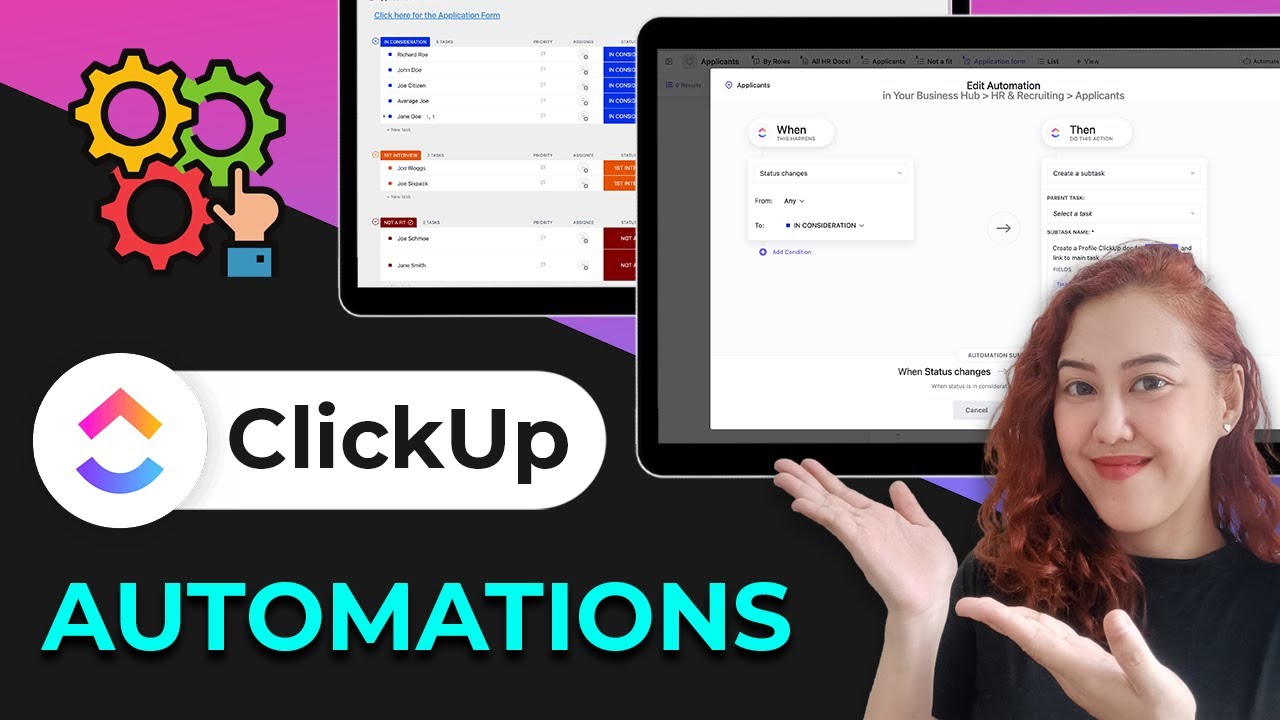
enter a subject line and then create an email and send it from here so this is also useful if you would like to set up automation emails because since your email is already integrated with click up you just simply need to go to automate and go ahead and create an email automation so we have a lot of email automations in here we have custom for example when attached is moved to a certain location when a status is changed so let's say when a status is changed we want to go ahead and send an email now
let's say if a test isn't complete that's when we want to go and send an email so just go ahead and select the email where it should go subject line and the body of the email and go ahead and create the email so with this email automation this email will already be triggered every time you actually change status to complete so it's easy as that another tool that you can integrate with click up is zoom so we always use zoom whenever we have meetings so why not integrate it with click up right so all you
need to do again is to go to Integrations and connect your Zoom with click up once you have that integrated you can actually start and end meetings from inside a task so all you need to do is let's say you have a meeting at the beginning of every week every Monday at 10 am so you just need to choose this Zoom icon in here and it will go ahead and open or start a zoom meeting and the best thing with that is that people who also are assigned to that task who needs to go to
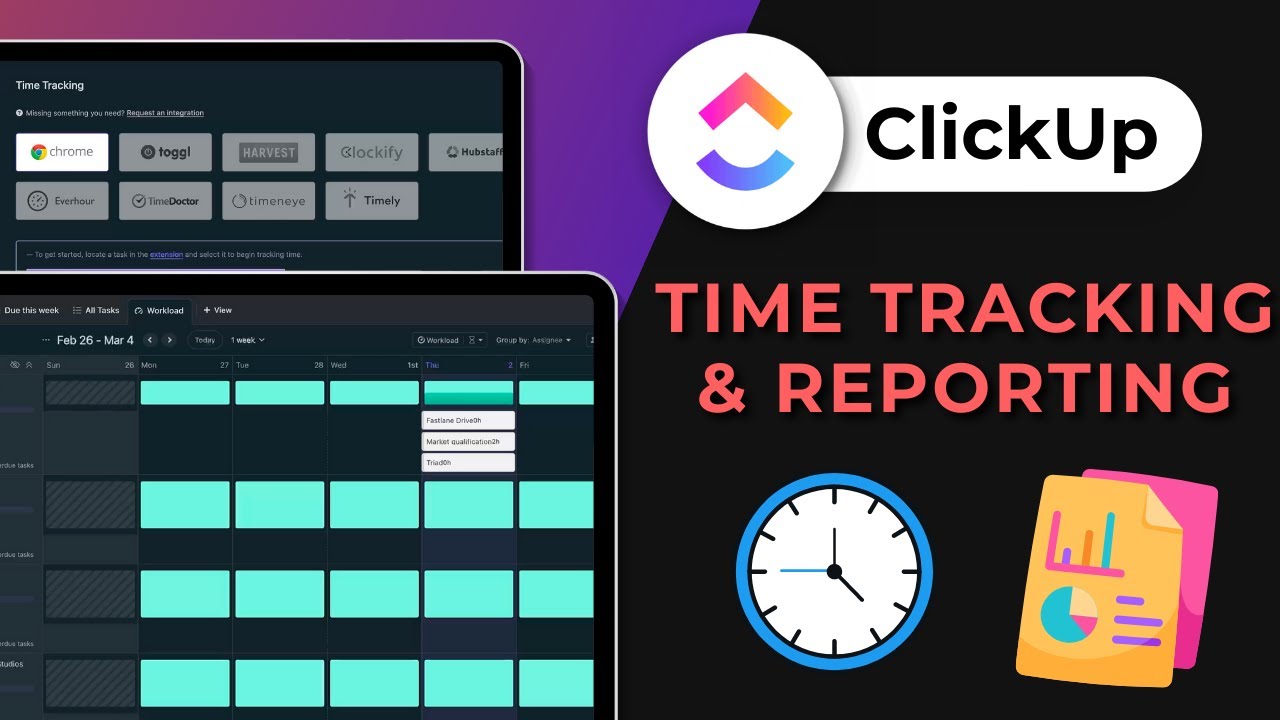
the meeting will also see the link to join the meeting so there goes the question of where's the sort of Link or where's the recording for this Zoom meeting because after the meeting ends the recording for the meeting also gets saved inside is Task another tool you can integrate with click up is time tracking so most of us may want to choose a third-party time tracker but just so you know click up also has a native time tracker you just need to add it as a new column so if you click on their show hide
and make sure that your time tracked is showing in here so you can go ahead and just go ahead and track time using their native time tracker but if you prefer using third-party time tracker then you can go ahead and go to Integrations and go to time tracking so there are now more tools that you can integrate with click up compared to before you now have toggle Harvest clockify Hub staff every hour time doctor so you're not without a shortage of time trackers so with this one just make sure again that your time trackers are
on the paid version so that you could have them integrated so if you're also using Google drive or Dropbox a lot you'd be happy to see that we have Integrations with those cloud storage in Click up so make sure that these are all enabled so that you can go ahead and attach them to items inside of click up so whenever you put a Google Drive Link it will show up as a clickable link that will be open right inside your Google Drive so another tool you can use in Click up is Loom so Loom is
for recording videos and if you have here a little video I just need to copy it and paste it inside of your chat so if I go ahead and paste it you can see that the whole room video is already showing and not just a simple text URL so you can go ahead and save it this way inside a task inside a comment so it's going to show up as an actual video or you can add it as a view if you want you can embed the whole little video in there but just so you
know pickup also has its own recording tool so with loom you need to have a paid account if you want to record for more than five minutes or if you want to have recordings for more than 25 items so with click up you don't need to have a loom account so all you need to do to record your audio or video inside of quick up is to either you can go to a comment here so it will delete balloon video we just did and you can see here that there's an option to record a voice
click and also you can record a screen clip if you just want to screen share so you can record as long as you want and clip of storage is pretty much unlimited if you're on the paid plan so it's a pretty good deal so aside from going inside a test you can also report by clicking on this icon over here and click record clip so make sure that when you're recording you actually save it somewhere because it's going to be pretty hard to find where exactly the recordings are saying another tool that you can integrate
with click up is calendly so calendly of course is a calendar scheduler if somebody wants to book a call with you and the purpose of having it integrated with click up is so that whenever perhaps somebody books a call you want it to go inside click up as a new chat so that you're kind of notified whenever a booking is coming up another tool you can integrate with click up is Miro so mirror board is a pretty powerful tool that you can use for mapping out workflows so I have a mirror board here for a
hiring o chart so what I'll do is I will embed my mirror visual workflow into PHR folder so I want my Azure team to be able to refer to that workflow so they don't have to go outside of click off so I simply embed URL and add View and the mirror board will be populating here inside click so this should be pretty useful for your team if they prefer using mirror or an external party or external third-party tool whether mapping out workflows says click UPS workflow or pickups a whiteboard is still pretty in better stage
so it's not that fast yet but right now you can definitely embed other workflow mapping tools here inside click up so aside from that you can also integrate figma so figma is a tool that graphic designers usually use so I have here a meeting agenda for big man so what I'll do is that I will embed it into our meeting folders so that our team can follow that meeting agenda whenever there's a meeting so under embed you will see here the link to figma and just go and enter the link in add View so figma
is now embedded as a new view or page so your team can definitely just open this view or list or page whenever you're having a meeting agenda without going outside of Quaker and of course you can definitely use zap here or Instagram at or make to integrate tools with click up so zapier can help with automations and if you want certain tests built out with certain information from Custom Fields then you either need that or what we call make poor automations so that's particularly useful whenever there's a form that's being submitted or when there's a
change in a certain task and you want to get certain data from another party or another tool then zap here or Instagram will be kind of the middle person to integrate it and automate tasks easily and last but not the least if you haven't downloaded it yet please download The Click up Chrome extension and this is really a lifesaver for me so if you have a Google Chrome go ahead and search for the click up Chrome extension so it should look like this one go ahead and install it so it should be this small icon
here and what it does is that it can create a task for you wherever you are you don't have to have a browser open or you don't have to have your app open as long as you have this click up Chrome extension you can go ahead and take a screenshot create a test track time send an email with this Chrome extension how it works is for example I am in my email then I just need to look for this icon the click up Chrome icon let's say I want to be able to take a screenshot
so I'll take a screenshot of this and then I want to add it to a test so let's say I want to add a new task I hope you have it registered yet you should definitely register for the click up level up conference on Feb 28 so I just go ahead and create a new task right from this Chrome extension and I can even attach this whole email through that task that I just did so you can see here that this is a attachment and I will go ahead and attach it to the to the
task here I will assign it to me that's it it should already be attached to this task as well so you can see that the name of the task appears here on top of the email so if I click on the task then it will have all the attachments that we just entered now which was the actual screenshot and we also have the email attachment so there are a lot of cool things that you can do with click off and with Integrations and automations and so I hope that you're able to maximize and optimize the
tools that you're using on top of Click Up's powerful features and if you want to know more you just go ahead and subscribe to our Channel and watch out for more click up videos foreign