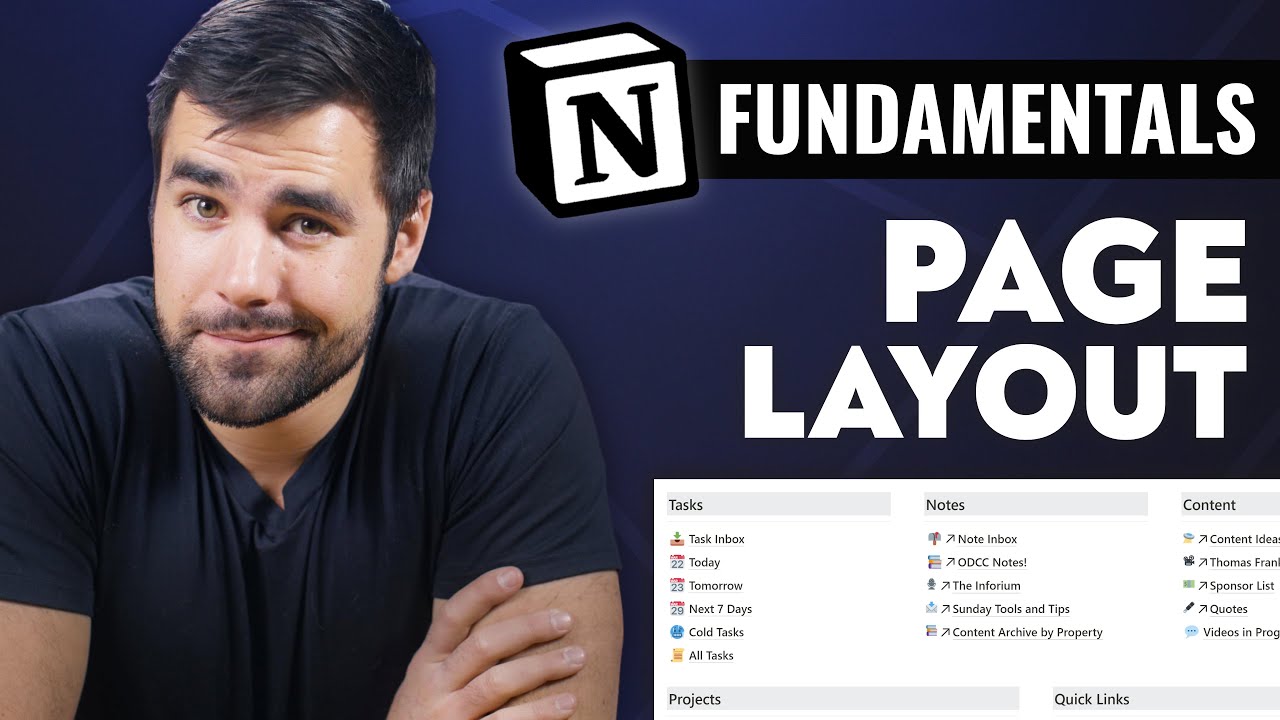
hello and welcome back to thomas frank explains in this notion fundamentals video we are going to talk about notions page feature it's one of the most basic foundational features in notion but understanding how pages work is key to understanding all the more complex features in notion so specifically we're going to be building this example page right here which i've also made available as a template if you go over to thomasjfrank.com fundamentals which is the hub page for this entire free notion fundamentals course what we're going to do here is start from a completely blank page
and work our way towards building this example page here along the way you're gonna learn how to create pages how to navigate around them in your workspace and how to edit them and customize them just a little bit we're gonna keep things intentionally simple here and then build upon what you've learned in this lesson in future lessons in this course so you can work up to the more advanced layouts and pages that you've probably seen other youtubers or even me using so with all that said let's dive into the lesson [Music] okay so here we
are looking at a completely blank page in notion this is probably not what you've seen if you've watched other youtube content on ocean you've probably seen much more complex page layouts like this and you're seeing people like maybe even me going through all these pages at a breakneck speed and you're not quite sure what to do this is where we're going to slow things down and break things down to the absolute basics starting with this first question what is a page in notion well this giant crazy dashboard we're looking at here is a page in
notion if i click this database row here and open this up this is also a page in notion and this blank page is a page in notion along with this example page which we're going to be creating in this lesson so a page in notion is really a canvas you can kind of create whatever you want on it and crucially canvases or pages in notion are also used to navigate around your workspace if you'll notice here i've got this page which i'm just calling page stage one and if you look at the bottom we have
a link to page stage 2. if i go over here to my navigation and i twirl into here i see page stage 2 as well this is kind of fundamentally different from more traditional note-taking apps like evernote where you have very separate content areas and navigation areas in notion your page actually defines your navigation structure because pages that live within other pages are just little blocks here if i click this i see the next page another question that i've received is what's the difference between a page and a database so we're going to go over
that really quickly here pages exist within databases or outside of them they kind of have three different positions they can either be top level pages within your workspace so this page stage one is an example of that it's a top level page they can exist within other pages so this page stage 2 exists within page stage 1 you can see that from the breadcrumbs here or pages can exist within a database so if i go here i've got two pages database page one and page two i can click open and now i'm seeing a page
you can tell if a page exists than a database because it's going to have properties here in this case the only property in this database is the tags property so that's what i'm seeing here and that corresponds to this property right here we're going to go over databases much more detail in the database lesson later on in the course i just wanted to clear that up so let's talk about how to start creating pages we're going to create this example page here which is very simple it's a single column of text it's got a couple
of other things going on here it's got an icon and it's got a header we're going to go from a completely blank page and get to this stage in this lesson and then we're going to build upon we learn here to start making more and more complicated things culminating at least for this example in a page that's very similar but has a lot more blocks and from what you learn here you're going to be able to start creating and understanding more complex layouts like this which are a lot more useful in many cases so let's
start with a completely blank page and i'm going to go ahead and delete this one so you can see exactly how to create a new page you can do it from this add page area right here you can click new page down here there are all kinds of different ways to do it as well so i'm just going to click open this page up here and now we have a brand new page let's call this sample page the most interesting page title ever created by human beings we have a few different options here so what
we're going to do is go with empty but i do want to go through these options just so you know they are we have a templates option right here and this is where you can actually import a ton of different templates that notion has built for you so if you want you can start implementing these in your workspace and use them or you can also use them just as learning tools so go through these if you're curious there's also an import tool so if you want to import content from evernote or asana or from csv
you can do that as well or you can make databases again we're going to talk about databases later so hold your horses if you're curious about those for now we're going to click empty so the first thing i'm going to do is just paste in the text that i had from earlier you can paste in text you can type things like whew i'm typing cool stuff [Music] that's how you spell this all right and now we've got a page we can also delete this block because i don't want type and cool stuff wazoo in my
cool little script here so this is kind of the simplest version of a page that you'll have a notion just a title and some text right now we're going to start gusting up the page with some other things to make it look like this you're going to learn about page features in the process so the first thing we're going to do is add an icon if i click add icon again it's going to grab a random emoji from the standard list of emoji that every computer system has i've got some other options though i can
link to one from the internet or i can upload one of my own and i'm going to do that so i can make it more fun let's go with my pixel llama and there he is the handsome little devil and you'll notice when we add an icon to a page it shows up the top of the page it also shows up here in the breadcrumbs and it also shows up here in the navigation so that's pretty cool we can also add a cover so i'm going to go ahead and do that and what covers come
in it's kind of the same deal as with icons you get a random one that is assigned and then you can change it and position it so when you hit change you've got a bunch of different default options some colors some gradients some random photos that they have included you can also choose from a bunch of photos from unsplash which is this huge database of completely free to use photos on the internet i use them all the time in blog posts or we can link and upload our own stuff so i'm going to once again
do that and now that we've got it here i'm going to go ahead and reposition it to make it a little bit more nicely positioned a bit more aesthetic and now our page is starting to look quite a bit like this one over here except you'll notice that the font is actually different here and the text is smaller so if you want to change your font or your font size you can go up to the three dot menu here and you've got a few options we've got a serif font which is very old-timey looking good
for novelty things i suppose a mono spaced if you like code or your default so we can change it to serif and we can also change our text to small which is good for very text heavy pages we do also have the option to make this page full width which if i do this on a single column of text isn't super useful these lines are a bit too long for comfortable reading but it does create a flexible layout if i collapse the sidebar here you'll see that it flexes outward and then compresses back in which
is very good for multi-column layouts that we're going to talk about later on in the course so i'm going to go ahead and turn that full width off here and then the last two things we'll go over here are comments and backlinks so on pages i can actually add comments and that's a comment that is added to the entire page you can also add comments to blocks or to even selections of text which we'll go over in later videos but this is a comment on the page we can also add backlinks to pages so if
i link to this page from anywhere else in my workspace it's going to create a backlink so i'm going to go ahead and hit control l and then go over to let's just say our database page one and paste this and when i do this i have a few options dismiss mention or link to page we'll go over exactly what these mean in future videos but i'm just going to hit mention for now and create a link and if i click that link we go right back to where we were but now we see that
we have one back link if i click this we see that now database page one is linking to this page i have a few different customization options for how these areas are displayed as well so if i go to customize page for backlinks i can show them in a pop over like i just did or i can expand them or i can completely turn them off and with page comments i can expand them or i can turn them off so if you want a really clean page turn everything off here or if you want to
see stuff go ahead and make sure everything is expanded to wrap this lesson up i do want to go over a little bit about navigation within your workspace as it pertains to pages so let's first twirl open this template page that we used as a sort of example here and go into it and if i open these up we can see that we've got multiple pages nested within this page just as the universe works on a turtles all the way down principle with the earth resting on the back of one giant turtle you can make
as many nested pages within notion as you want so page three exists within page two and page two exists within page one you can make this nice hierarchical setups and when you're at a specific location in your workspace you're going to see these breadcrumbs up here so you can easily tell where you are in your workspace there is one useful thing to note here if i'm in a database and let's just create another page in here now you're going to see that we have the exact same thing going on with our breadcrumbs zangief cosplay ideas
database page one database but if i twirl in to my database here in the sidebar i'm not going to see these pages listed because in the sidebar instead of listing pages within a database you see the views of your database so if you're ever looking for a page and you're not going to find it that way you would want to go to the database itself and then either do some sorts or do a search or all kinds of stuff we're going to cover all these concepts later on in the course but for now we've got
our example page built and we are pretty much done all right so that is about going to do it for this lesson once again if you go over to thomasjfrank.com fundamentals you're going to find the hub page for this entire free notion fundamentals course there you're going to find written versions of all the lessons as they release and you're also going to find number one uh duplicatable versions of all the example templates we build in this course so if you want to duplicate them into your own notion workspace you'll be able to play with them
tweak them change them and on that page you'll also have the opportunity if you want to sign up for my notion tips email list to get even more tips along with notifications when i publish new videos here on thomasfrank explains in the next video we're going to talk about notions writing system which is a hybrid markdown system we'll go over how to format text go over some of the tricks there so it's going to build upon what we learned here in this page lesson and fittingly we're going to take the example a simple page we
created here and make it just a bit more complex over time we're going to keep doing this we're going to keep doing projects so that you get something useful out of all these lessons and you learn in an iterative process how to build more and more complex and useful layouts and even systems with a notion so hopefully i will see you in that next video thanks for watching you
![Notion Tutorial - Full Course for Beginners [2024]](https://img.youtube.com/vi/kOf3QSBV29Y/maxresdefault.jpg)