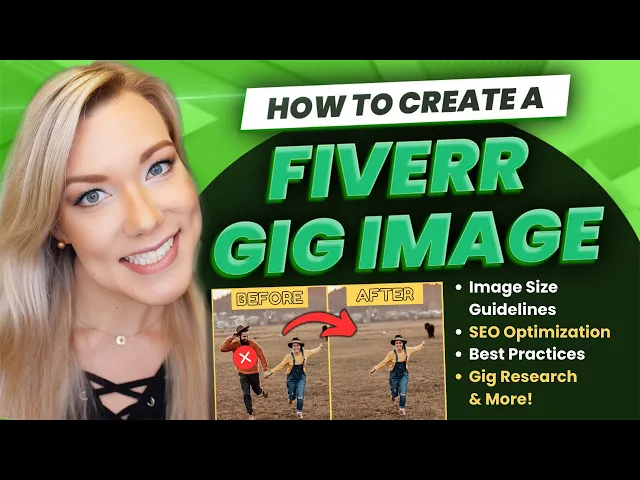
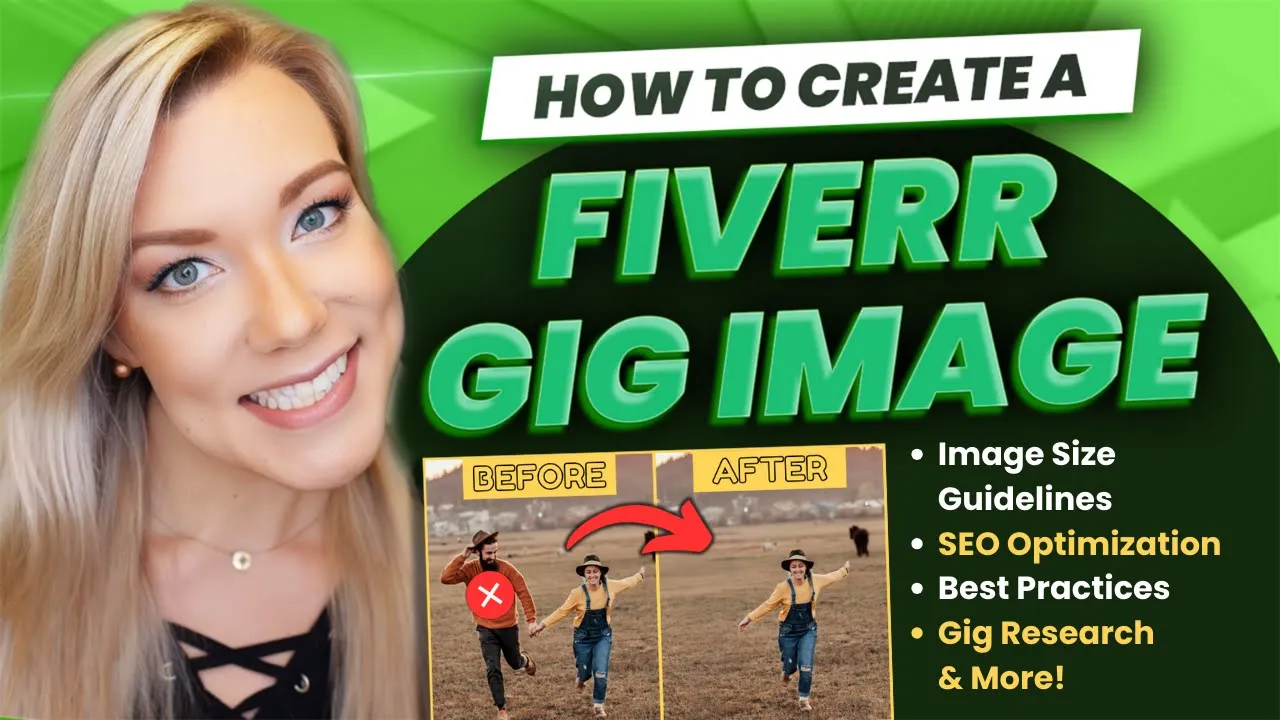
hello everyone and welcome back to my channel Jennifer Marie where I teach you how to become a work from home freelancer in my last tutorial I taught you step by step how to create a Fiverr seller account and in today's tutorial I'm going to teach you how to create a professional gig image that follows fiverr's guidelines so that you're most likely to get your gig approved and also to help you get more sales so before I show you how to create your own gig image for free using canva we're going to start with the most
important step which is doing some Niche research you want to find gigs that are performing well in your Niche so to do some research just go on to Fiverr and then just look for whatever service you are in so let's say you're a social media manager you type that in and I want you to look not at the ones that say add because obviously these people are paying to be promoted so you want to look at the ones under the ads people that are performing well let's say you're going to be an AI image editor
that seems to be very popular right now you can just go through and get an idea of what people are doing to create their gig images now one thing I want you to notice is you can see here that the text is cut off in a lot of these gig images which doesn't look very good to me so I'm going to show you how to use the proper Dimensions so that people will be able to see your entire photo and not a cut off version which doesn't look as professional and just as a quick example
of what to do versus what not to do if you see this image here it's not really obvious what this guy is selling I know it says I will do AI image editing but here we only see a before we don't see the after and then when you click on it because it's so small and the way it's laid out I can't really see much of a difference between these two images whereas if you look at this one for example or this one or this one obviously here it's a pretty obvious difference because we have
a blurry photo and a non- blurry photo but in this gig image for example you know he's made it very obvious he's going to remove flaws from your AI art and you can see here he's actually circled what he has done both fixed the eye and the text here and you can see this guy has over 136 reviews so his gig is doing really well so let's just get started what we're going to do is go to canva.com you do not need a paid account you can do this using the free account you can use
my link in the description below if you don't already have a canva account and then we're going to click create a design from here you're going to click custom size and where it says width we're going to put 1280 and height we're going to put 769 pixels okay so 1280 by 769 then create new design so we're going to create a gig image from scratch and let's start with picking a background color just click on the background then click here on background color color you can choose any color you want choose a gradient if you
have a custom color you want to choose just click on the color wheel you can make your own custom gradient I'm going to choose solid color and paste in the color code that I know I want to use so let's say for this gig I'm going to sell my services as an image editor I want to have a space for a before and after and I want it to look even so what I'm going to do is go to element and then here type in frame click see all beside frames but you're going to want
to choose this square or a rectangular one from here go ahead and position it you can hover your mouse over the side to change the width I want this to go to around the halfway point and then just drag it at the bottom as well and I want to leave a little bit of a border so now what I'm going to do is click on it and then contrl C to copy or rightclick copy and then rightclick paste or contrl + V to paste and now I have before and after on either side you can
even click and adjust this if you want to leave a border in between okay so now we're ready to add our images so you're going to click here on uploads then click upload files and just upload your before and after image now if you're just getting started on Fiverr and you haven't done any work for anyone yet you'll want to create examples of your work so build a portfolio of images that you have edited even if it's not been for work just edit some images for your friends or family or yourself and then include them
in your portfolio so now you want to put your before picture here just drag and drop it and then doubleclick on it to reposition it within the frame so if you want to zoom up on the image just scroll to one of the edge points here you'll see this circle and then drag on it and you're going to reposition it like that within the frame so let's say my gig image is that I remove people from photos I remove ex-boyfriends from your photographs so I'm going to remove this guy and I want to show that
I can do that with my after image so now I'll click and drag my after image once again double click on it to adjust it within the frame so something like that now we want to add a before and after so we're going to go to elements this time I'm going to type in rectangle just click here where it says add a rectangle so you can change the color as we did previously to whatever color you want and I just want to do something like this and I'm going to put before over it so now
I'll click on text and just click add a text box and then type in before I'm going to double click on it change the font size to 70 and then change the text font I'm going to do fredoka you can click here on effects if you want to add a shadow or an outline I'm just going to make it Hollow so now I want to copy this and place it over here so the quickest way to do that is click here on position and then click here on layers and this is how you access all
of the objects and layers in canva so I'm going to click on the before text then hold shift and click on this rectangle you can see how it's outlined both of them in purple and then I can rightclick and select duplicate and then click and drag and now we have before over here so I can double click on this and change it to after so now I want to add some elements to make it really obvious that I removed this guy from the after photo so I'm going to go to elements and for example type
in an X and then click on Graphics so any of the graphics that have the pro icon you must have a pro canva account but for example this one here is free free to use so let's just click on it and when you click on it it will add it to the image now this is really important because I want to show you something that you might have troubles with so I'm going to click to resize this X and when I click and hold it and reposition it look what happens you can see it's trying
to fill into the frame and I don't want that to happen because if I release uh-oh well now it's replaced my image so up here you can click undo or contrl Zed to undo so to move an element without having it replace the frame click on the element and when you click it to reposition it press down control on your keyboard so press and hold control and now we don't have this issue anymore okay so that's a little trick once again just when you're dragging it click and hold control all right so I'm going to
just do that make an X here you can also add a shadow to your element or an outline by clicking on the element then click edit then click Shadows so you can add a colored Shadow or an outline or a glow and finally I want to add an arrow so I'm going to type in Arrow you can change the color by clicking on the color wheel I'm going to add a shadow once again when you're clicking and dragging it just press control and that way it won't interfere and there you go that looks great so
you can add some more text if you want it or just keep it like this if you look at the Fiverr guidelines you can see that rule number eight is used as little text as possible they want you to keep it simple avoid repeating text that's already somewhere in your gig card they also tell you not to use Fiverr logos or badges so if you add badges or logos like this your gig will be flagged and removed so make sure you don't do that also they say be accurate don't use clickbate or any misleading content
and one thing that's really important that a lot of people don't realize is it's important what you name your image file as so it says make your gig easier to find by using a file name that's clear and relevant this can be valuable for search engine optimization so your gig can be found in search result so for example if I go to this gig here and you can see this guy is doing really well if I right click on one of his images copy image address and then paste and go to it you can see
the file name of his image fix your blurry pictures and make them HD um this guy here his image file name is enhance AI art fix flaws and edit photos by using AI so Fiverr doesn't change your file name so it's really important that your file name is not just image one you want it to contain keywords that people will be searching for so if I go back to my image I can download it and then rename it or if I want to download it with my file name already ready to go right here beside
my image icon I can just rename this file to remove objects people from background in images or image editing and then to download it share download and then I'm just going to click download okay and just like that we have our gig image we also have it ready to go with our file name and now that you have created this this can be your template for other gig images within each gig you can put multiple images and I recommend you putting as many as you can so what you could do here is right click on
it Go duplicate and now at the bottom you can see you've got page one page too so you could go ahead change the color and change the color of all the different elements upload new images drag and drop other images and use this as a template for all your before and after photos for your gig you can also rename each image with something a little different so that you're targeting multiple keywords with each image for when people are searching for gigs so that's it for this tutorial I hope you guys learned something and you were
able to see how easy it is to use canva if you have any questions for me feel free to ask me in the comment section below I will be creating a tutorial on how to create your first gig with all the different steps now that we have our gig image and now that we've created our seller account so stay tuned for that thank you all for watching and I'll see you all in my next tutorial