hello guys today i'm going to show you how the authorization process works here in tendanube to begin you will need to register as a partner in tenenobe and all the links you will need throughout the video will be available in the api documentation after registration you will see the main page here and a couple of options here above you then selected the fifth option here that says applications click on create an app and if you don't have any app created this list will be empty and view all fields all of them are required so i'm
going to stop the video right now and i'll come back once i'm finished okay i use these urls here just as an example so you have to fill all fields according to the urls of your web application now that all the fields are filled we have selected a category for our application and the permissions we click create app here's the app so the installation fields is contains the number of installation of your application and the client id and client secret will be used to generate the access token that we're going to talk about right now
let's check the documentation and follow along all the steps first it says the user which is basically the merchant from histiendanube admin clicks on a button to store your app and this is only applicable if your app is already published in case you're still developing will access this url here to obtain the authorization code so we copied paste it in the browser and replace the variable app id by the actual app id of your application and this app id here is the client id of the app in the partners portal so i copied paste it
here and hit enter as a merchant i'll be prompted to accept permissions requested by the partner as well as see what are those permissions i'll accept and then i'll be redirected to the url configured in the partners portal right here this is basically the url where we redirect the merchant after installing the application along with the url we'll send the authorization code first this off code expires in 30 seconds and second we're gonna do this process very fast which is but you should do it automatically in your back end and now let's hit acceptations as
you can see i'm redirected to the url that i have configured in the partners portal with the off code as a parent so now we open postman go to the get store id and access token from a store request as you can see i have already filled the client id the client secret and grant type and now we're gonna get the off call from the redirect url paste it here and hit enter the response begins with the access token that you're going to use to make requests on behalf of the merchant the token type the
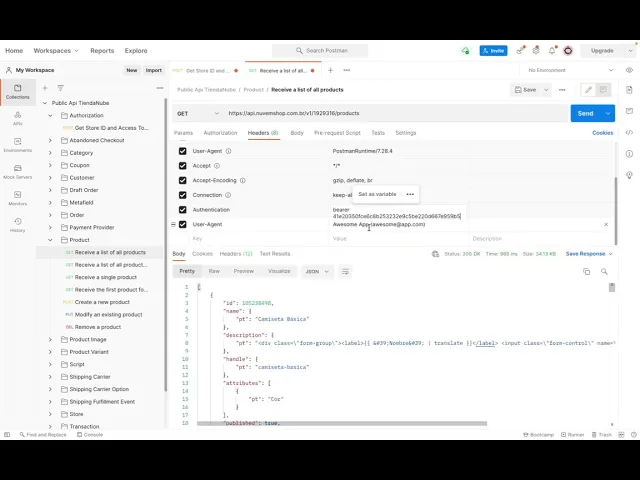
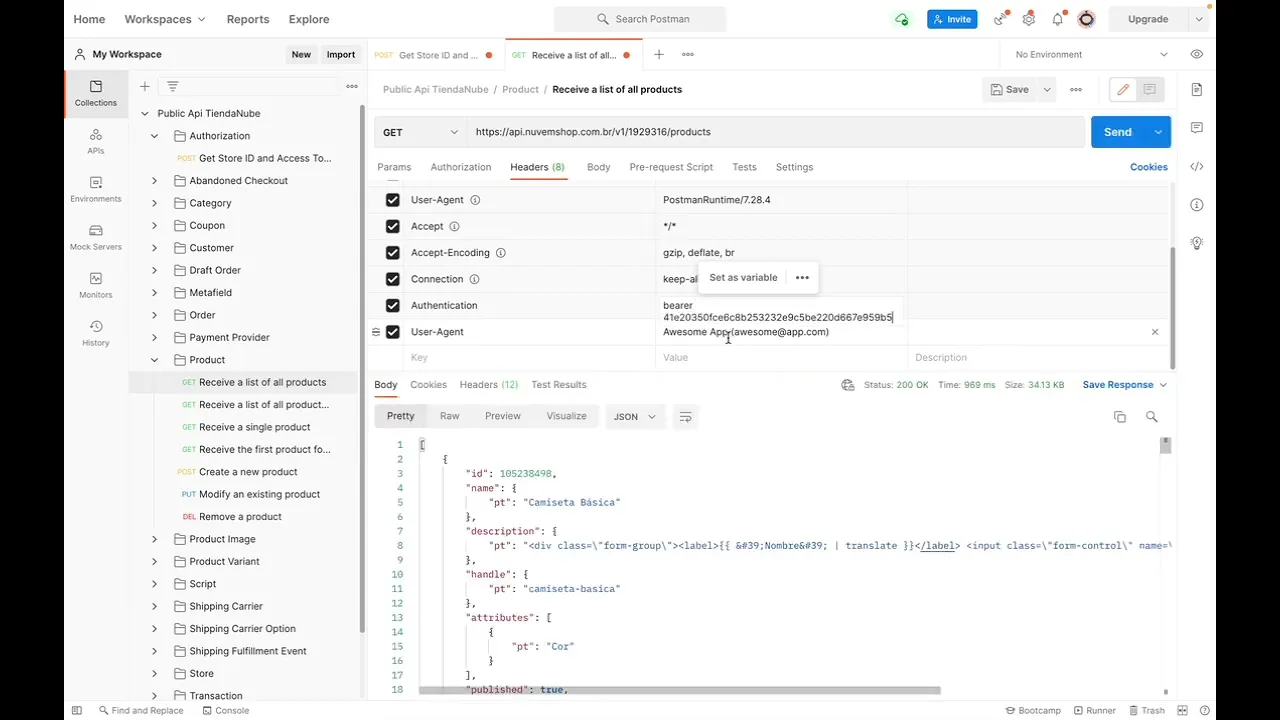
scopes that you previously selected for your application and finally the store id that you're going to use in every request you make to our api and now if you would like to make a request to the product endpoint you first select the get method here here in the url you replace the variable store id by the actual store id of your store here in the header section you uh add a key called authentication and a value bearer app token this this app token here is the access token and hit enter now you should have access
to all products from the store and all end points with the scopes that you selected during the app creation in this video we saw how the authentication process works here in tiananube thank you