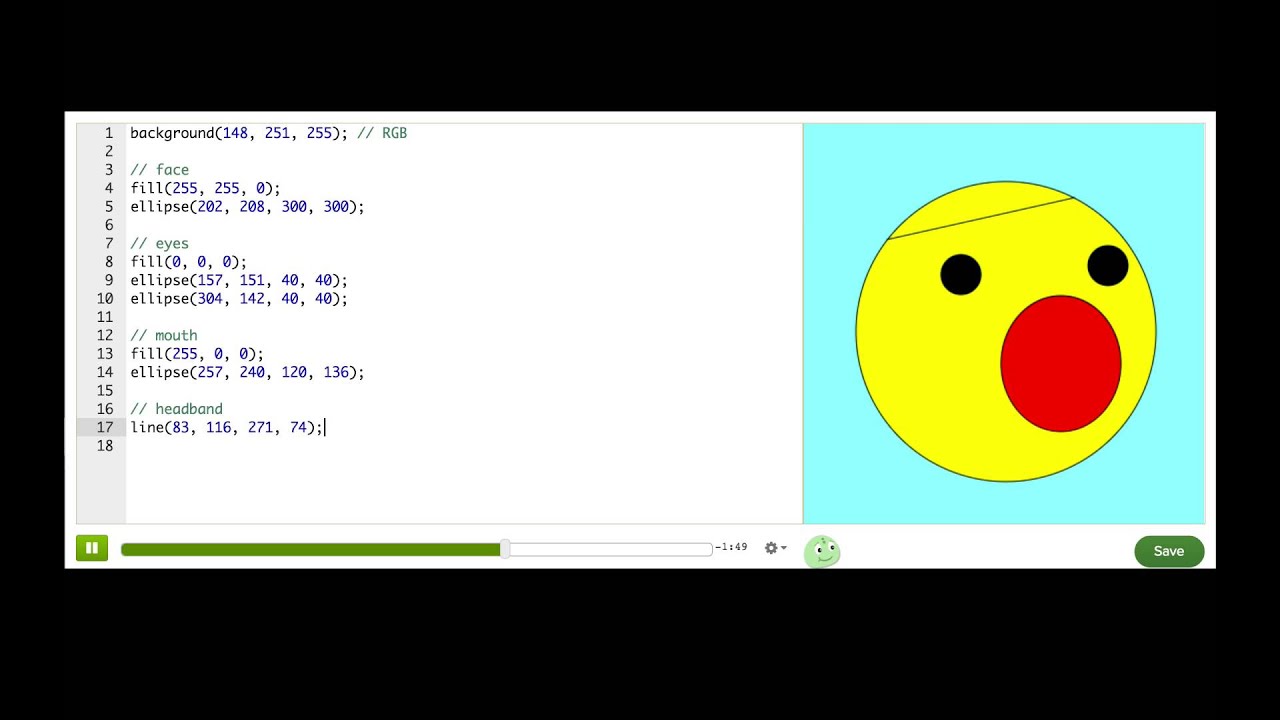
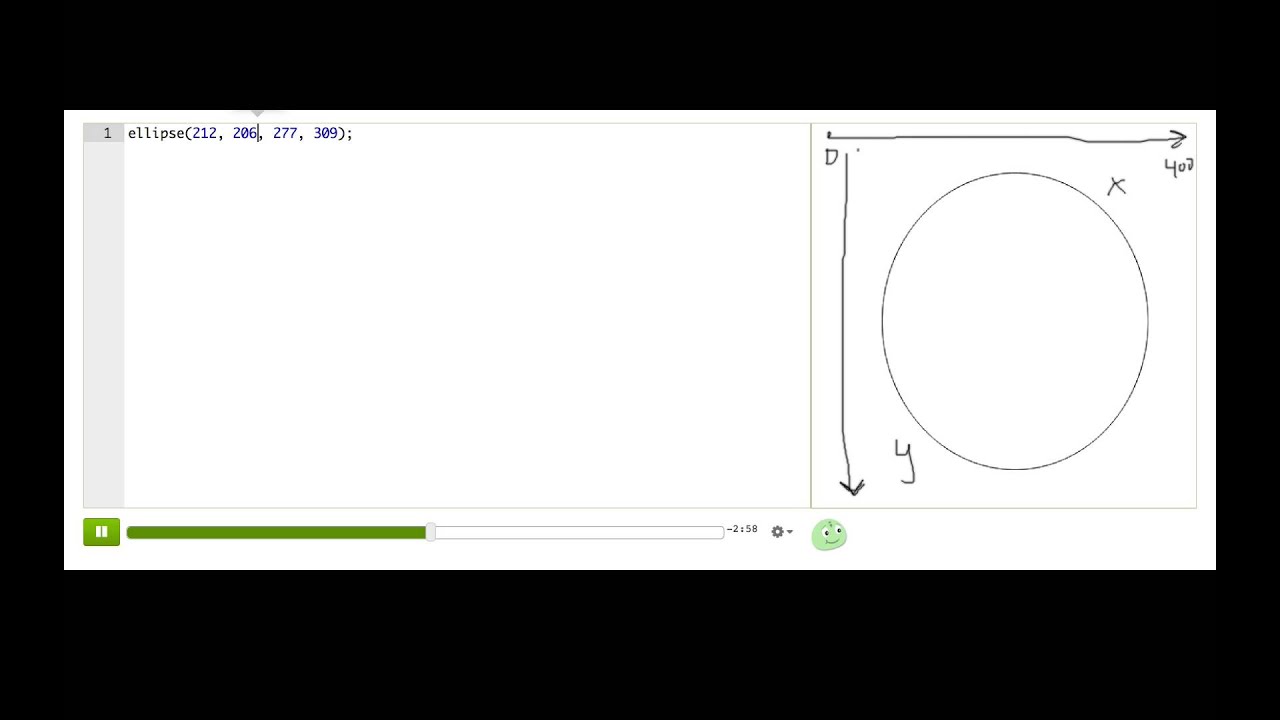
- [Voiceover] Let's review what we already know, the 'ellipse' function. I have four ellipses drawing a face. If I want to change something about this face, like make the mouth open wide, then I just need to find the right number and change it.
Let's see, the mouth is the second 'ellipse' and the width is the third parameter, so I'll just increase this. There we go. Nice and wide.
Okay. So we understand ellipses. What else can we make?
Well, we can make rectangles using the 'rect' function, another command that our programs here know how to obey. Here, I will draw a little neck for a face and I already know some good numbers for it. There we go.
Just like 'ellipse', the 'rect' function takes four parameters and they're pretty similar. The first parameter is x, the second parameter is y, the third parameter is width, and the fourth parameter is height. But the parameters don't work quite the same way as they do for ellipses.
Let me show you what I mean, by turning this human face into a robot face, which means turning all these ellipses into rectangles. I will start with the top one and just type 'rect' instead of 'ellipse', keeping the numbers the same. Woah!
Okay, the rectangle's half way down the page, even though it had the same parameters as the 'ellipse'. Why is that? Well, the x and y parameters of the 'rect' function actually control the upper left corner of the rectangle, not the center.
So this rectangle now starts at what used to be the center of the face. So that means I need to do some adjusting of the x and y. I'll just decrease the x and then decrease the y.
There we go. That's pretty good. Now I'll change the rest of these rectangles, change the rest of these into rectangles too.
So this one like this. Just move it over. And as you see, it's totally okay to not have numbers perfect on the first try.
You can come up with some numbers, try them out, see if you like 'em, keep changing them 'til they look good. And if you have any graph paper handy, you could actually draw out your drawings on graph paper first, which I think is really handy for getting the right numbers. And just gonna move this over there.
All right! Looking good! So I'm liking this robot but I don't like the fact that there's so many rectangles and I'm having a hard time remembering which of these rectangles draw which part of the face.
To help me, I'm going to add something called a 'comment'. A 'comment' always starts with two slashes and after it is a bit of text to help humans understand what the code does. So this draws the face, this draws the mouth, this is a left eye, right eye, and the neck.
Okay. Great, now this code makes sense. Let me show you one more shape, a 'line', which I will use to draw a unibrow over the robot's eyes.
I'll start by typing 'line' and once again, I need to type in four parameters. The first two parameters are the start point of the line. I'll start it where the left eye starts.
140, 150. Okay. Now you might think the next two parameters are the width and height?
But actually, lines don't have width and height. Lines have start points and end points. So the last two parameters will tell the program where the line should end.
I want the unibrow to end where the right eye ends. So that would be 240 plus 30, 270, okay? And I want this unibrow to be a straight line across.
So I'll use the same y coordinate for the start and the end point, 150. Let's try it out. There we go!
Looking good! But also looking a little bit mean, like, I get uncomfortable around mean robots 'cause I worry they'll, you know, take over the world or whatever mean robots do. So we're just gonna get a little happier.
There we go. Okay. Now let me show you one more thing about drawing shapes.
Do you see how our function calls are ordered in the editor? The first one is 'rect' and the last one is 'line'. That order is actually very important because that's the order that our program will run the code and draw the shapes.
Watch what happens if I cut and move the mouth command so that it's above the face. It's gone! It's disappeared.
Or at least looks like it disappeared. What actually happens is that the program draws the mouth but then draws the face on top of it. So we can't see our mouth anymore.
Keep this in mind as you make your drawings because you'll probably want shapes to be drawn in a certain order on top of each other. And if you can't find a shape you've drawn, you might discover it's hiding underneath another shape. Since you probably don't have x-ray vision to see that, one thing you can do is just rearrange your code to figure it out.
And now we have our mouth back. Okay, so we covered a lot in this lesson, but stick with it, keep exploring, and you'll get the hang of it soon.