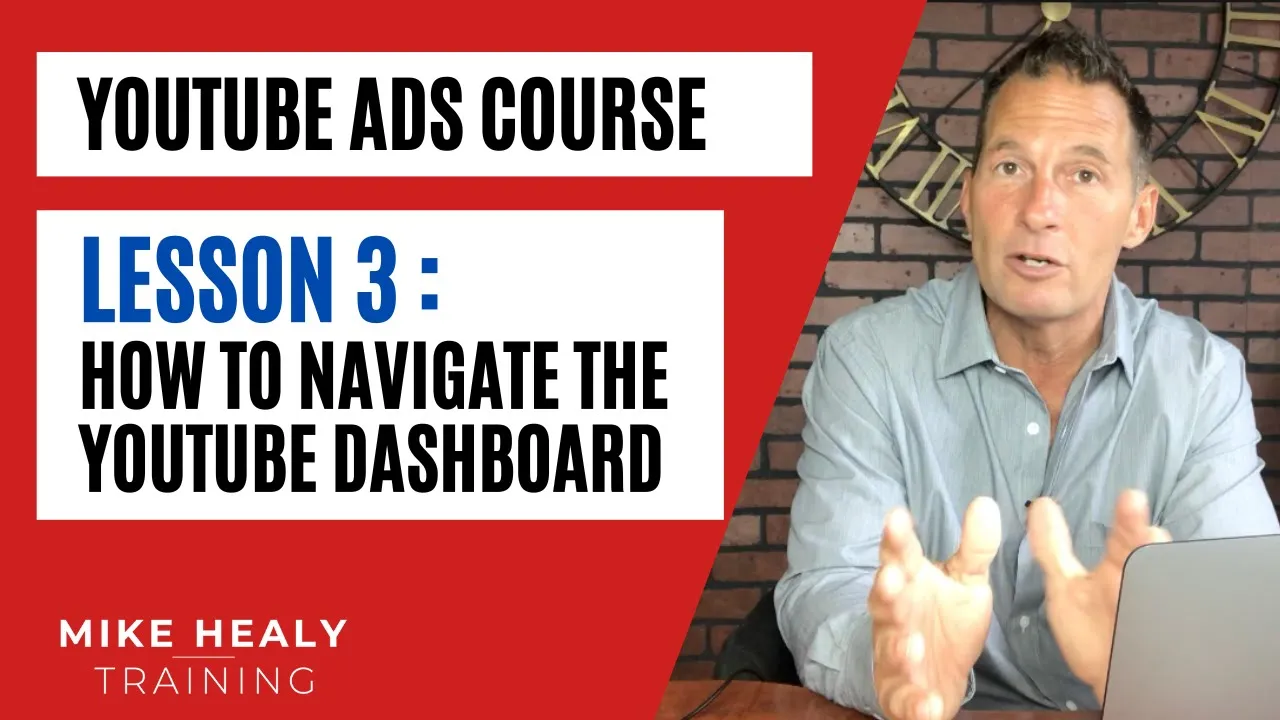
okay now what we're gonna have to do is we're gonna do a little dashboard navigation kind of uh I'll give you shortcuts on how to find everything in the back office of YouTube and obviously it's going to be an expansion every time you're there but um once you're signed into your Google account you'll obviously you'll see your profile picture there and everything we're going to go directly to youtube.com and because I'm already signed in right here I've got this account right here and then I'm going to click it and you'll see that it shows my
channel I can switch accounts right here I can sign out I can use a different theme I can mess with my settings okay typically once I once I you know go to YouTube and I click my here I'm typically only going to go to the YouTube Studios where I usually just click to okay and this takes you into the YouTube studio so this is the back office of YouTube and really the dashboard is okay so just real quick let me tell you about this they have a new beta dashboard coming out YouTube Studio beta that
I'm not a huge fan of yet but I'm sure we're going to end up having to learn it but it does allow you to swing back and forth to the Creator Studio Classic is what they call it but let's since I'm here directly we're gonna we're gonna look this one over first it's real simple to navigate your dashboard by looking at these things a lot of times you can scroll down and they'll probably end up putting you add stuff to this page and look at it and so on but on the you got your dashboard
which is your basic stuff right out of the gate your analytics you know refer to your latest video that you put up and maybe some news you know because they have they have a really good uh Creator uh Channel by by the people that you know do the YouTube videos and stuff like that it's kind of cool to check those out but then if you click on videos any videos that you have uploaded are going to be right here now let me navigate a couple things real quick just so you know when uh in the
uh in this new beta Studio when you hover over something okay you're gonna have the you've got your link that you can click on that will take you directly to the video to edit it okay I'm going to go back to that you've got these little options okay where you can edit you know the information you can share it you can promote it which is advertising you can download the video or you can delete it okay so that's kind of cool you can do these these these types of things right here in most cases you're
going to see that it'll have your views your comments your likes versus dislikes depending on what you what you have okay and then if at any time you need to delete something you can obviously click on that if you check it we're gonna have this pop up it's going to give you an edit you can title it get a description add tags and so on and then uh maybe you can't delete it on here uh one of these is but that's why I'm trying to learn this new back office as well or you can create
a playlist if you got a bunch of videos in there and so on but anyhow what I need to do is I need to take you to the Creator Studio Classic which is my favorite one to be to be using so we're going to go there I don't have time I gotta move to get you going real quick all right so it's going to flop flip over to the Creator Studio Classic and I only have in this account I only got four videos into this but I just wanted to give you some examples okay now
real quick just let you know um the dashboard you can see that one's usually what it'll default to depending on where you're at um you can see on the dashboard I basically have videos and then I've got some other information on here now it says add a widget I can either here or here what I can do is like let's say I want to look at my analytics I just click to press press button or plus button and now it's got the analytics but let's say I want my videos to be up here so I
can see them immediately you see this little hover over and it's got the cross you can just drag this and move it around and it'll do that for you if I don't want this notification there but I want my analytics there I'll put that up there uh actually let's do it again maybe I'll just x that out that's what it was that was just a notification aha um what's new let's go with tips so we're going to add tips to it but I don't want my tips there I'm gonna put the tips down here Maybe
here we go no I'm not there we go I moved it down so anyhow sometimes you just got to play around with these things get there but um the primary places that you're going to visit in most cases is you're going to go to your dashboard so you can kind of get a quick up to speed thing look at your views your subscribers and so on these are not on your channel unless you add vid IQ which I will show you in a later video so just ignore that for now video managers where you're going
to primarily spend a lot of your time because this is where you're going to be able to do similar to what I just showed you in the new betas version this is where you can go in here you can edit your video you can other pull up other things this is why I thought that it would have a delete button on that other one because it's on this one um hey so you can go in here and see these different things this uh just so you know real quick when it shows a globe that means
that it's public when it shows a lock it means it's private and if I click on that I might be able to uh and the other one is unlisted okay let me let me explain the difference to you real quick just so you know public means anybody can search it by keyword or anything like that and it is shared with the public private when I set something as private only if you are logged into my account or your account or if you share it directly with someone's Gmail or email account and give them a you
know kind of a login can you see the video okay so you know in that case you might have like Home Videos you want to keep privaters on unlisted I use a lot of videos unlisted when I do my advertising or training videos that I don't want to put on my primary YouTube channel but maybe I did something that I wanted to show somebody and I have it uploaded on YouTube I can just share the direct link to uh to it with them but it's going to be as as kind of it's going to show
as unlisted okay so just so you know that now let me let me keep navigating here um on here you've got on the left hand side then when you click playlists you can do a few things I do not have any playlists on this channel to add a new playlist all I'm going to do is create a playlist by clicking that and I'm going to go new playlist and you click create and then what it's going to do is it's going to ask you to add videos to it so when you click add there's the
add videos button I click it it's going to either one find my YouTube videos so let's say I added this one and this one and this one so all three of those and if I don't want one of those I change my mind I can click on it it'll go back out add videos to that you'll see them populate here if I want to move them I might be here let me see if I can oh I see what it is it's a oops my bad if I want to move them you see this little
drag button I can make that in the first video or swap it out okay now I want to add a video to this one because I only had three on here I can go by URL paste a YouTube url here so if I actually went to YouTube and let's say I wanted to add someone else's video to it let's say I want to add and when you first get it this is going to throw some bizarre stuff on what you can well let's get a football video I'm going to copy the link address here and
then I'm going to paste it there and that's it so if I wanted to make a playlist with my favorite motivational videos but they're not on my channel I could do that add the video and you'll notice that it'll populate right here greatest trick plays if I wanted to move it real simple just drag and drop okay so I want to go back to the studio because we're going to keep staying back here so basically making a playlist pretty simple and that's how you do that okay I gotta go back to Creator Studio Classic usually
in most cases it'll probably continue especially if it's a new channel it's going to default you right to that one okay so the other thing is so video manager that's what we're just in you can get to it a couple ways but we're going to use this as an example right here show you playlists live streaming you can do live streaming let me click on that where you can actually just do it just like Facebook lives and so on where you can get started record yourself it'll have a actually comment section on the side and
so on okay community community basically is all the people that you have in your organization or people who've liked so you've got your you got your subscribers you got settings you got your credits that kind of thing and you can go in and like if if you want you can have certain you can set it up to where your settings Community settings you can actually put words in here that moderate like a YouTube channel approved users hidden users block the words like if you don't want a bunch of people you know people commenting with f-bombs
or you know cuss words and stuff like that you can actually put those in here and it'll automatically will block those and you would have to uh you know uh un unblock them for those comments to be set the other thing is default settings you're going to kind of go through here and look allow all comments whole potentially hold all comments for review if you've got some uh you know you know in a lot of cases most of the time I'll just do allow all comments you will typically get a notification from YouTube in an
email form when somebody makes a comment on your channel that way you can go in and reply to it which is what you definitely want to do make sure you keep keep engagement on your Channel or if you see something that's inappropriate that you got anything if somebody didn't like your video and made some stupid comments which happens quite often you can go in there and delete it or disable the comments if you got a video that's you know getting hammered by some people that are being really bad you can just disable all comments on
that video or and so on okay or for certain videos you can do that you don't have to do them for all this is actually would be all comments so don't do that here but in a video you can actually do that okay next thing we're going to go to channel I'm going to skip the credits there in your channel you're going to see that it's got a few things in here copyright status here's the thing is if you ever use music in your videos such as you know like your favorite songs or whatever in
a video you will not be able to monetize that video yourself but you might get an email that says you have a copyright status copyright infringement but the good news is it's not going to shut your channel down because what will happen is like if you put in a U2 song in your video and the algorithms figured out that it was a YouTube song in your video you too will claim a copyright infringement and they will monetize your video on their behalf so you don't have to do anything but your video is going to have
an ad running on it because they're going to get paid on their their music one-way shape or form so it's not a big deal so if you ever get one of those don't freak out and in a lot of cases the emails will say don't freak out you know in better better terms of what I just said Community guideline status this is basically you know if you do some things wrong you can kind of go in and look at what things you can and can't say in YouTube videos you know they're pretty lenient I think
I only had one strike in Us in 11 years online and mine's about to expire so it takes a bunch of them to really mess the thing up before your channel gets uh you know deleted I will tell you this you want to obviously not use this for you know terrible things and calling people out and making fun of people they'll obviously they'll obviously shut your channel down now there's also some other things here is there's some extra things you're going to notice down here that says uploading is enabled monetization is ineligible the reason it's
ineligible for me to get paid when I you know if I run ads in front of my videos or if you did is because there's not enough people on my channel yet you have to get at least a thousand subscribers before you can do that stuff I can I am all automatically eligible in this account for uh you know for live streaming you can just click enable sorry it's a big word for me now the other thing is is once you start getting some traffic on here and getting your channel built bigger eventually I actually
I'm sorry you can it's defaulted to where it's not going to allow you to put a video more than 15 minutes on here if I wanted to I could click enable that way I can do longer videos same thing with these I got something to do in Nails you're going to have to just build up your Channel with some stuff first and as your channel gets bigger and bigger a lot of these will give you the enable buttons enable buttons enable buttons and you can kind of put those in here same thing with a custom
URL so at the end of this instead of it saying you know this weird weird stuff at the end of it you'll be able to put your your name there or whatever you want to do okay now upload defaults this is going to save you a lot of time right here upload defaults is basically whenever you publish a video and I'll show you that in a second whenever you or whenever you upload a video it's going to default as either public unlisted or private based on what you leave if you lifted that you can you
know whenever you upload a video it will not go public okay and you have the option obviously when you're doing the video to do it but this is just defaulted as public okay it stays like that categories if you'd like to categorize your stuff maybe I typically do mine as education because I'm you know kind of trying to educate people it's kind of more of a training channel so thing the standard YouTube license I leave that on and then titles the reason for a title is if you wanted to put a default title for all
your videos you know Mike Healey's Channel and then Dash whatever the title of your video is I would not put anything in here if I was you okay now here's the thing I would do is I would put a description in here that I typically replicate in every video that saves you time as you start doing it okay what the description is is it's the if you go to a video and this may or may not go there's no such thing as but what happens is this is the description area you see how they have
the title and then they've got the you know subscribe to the Seahawks channel that kind of thing is what they're what they're doing in theirs so they just copied and pasted that and defaulted it there so that's what I would recommend tags are basically keywords for your channel that you would want to have on here so basically if you were doing specifically as an example of myself and never marketing uh dominant Channel I would put like MLM comma network marketing comma multi-level marketing comma and so on now I typically what I do is to before
I do all this I typically type it out on a Word document so I can just copy and paste it and drop it in and we're good to go okay again comments and ratings you can leave this all out all comments or you can actually uh do what you have to do you can only you know allow the comments that are approved and so on but I typically don't mess with a lot of this stuff right here my important thing that I like to have though is leave it on public I put a description of
my tags in there so I don't have to keep doing it and you know copy and pasting and so on okay um and it's just the statistics are basically the how many views you have on that channel likes dislikes that kind of thing I always leave that under because people like to look at that number uh branding real quick um yeah we're gonna leave this because I did make some edits in there you can add a watermark to your channel which basically overlays in your video and you would use what they call a p n
g image if you wanted you can create those pretty much for free on different websites you can just Google that and figure out how to make a watermark image or have somebody on Fiverr do that if you click on advanced real quick what Advanced are is your channel keywords now these would be basically allow you to kind of allow Google to segment you where they want you as far as like you put Channel keywords if I put like network marketing multi-level marketing and so on that would be kind of something you I would have there
advertisements if you want eventually you can allow that on here disable that AdWords account now once you start advertising uh with with Google you know using AdWords and I have obviously a training on that which is spectacular I mean I just advertise like crazy on AdWords with this you have to link an AdWords account to it the cool part is if you don't have one you can just click it and it will take you directly into setting one up okay with your primary account and so on and I would highly recommend that you do that
because I'm going to show you some videos in here on how to advertise uh YouTube videos to get even more bang for your buck not just waiting for organic traffic to show up but but definitely how to get paid the other thing Channel recommendations allow channels to appear in other channels recommendations I usually leave all these uh the way they are analytics it's not going to mean much to you in the beginning but eventually you want to kind of check this out because what you're going to be able to do is go in and see
what kind of you know what kind of content you're putting out what kind of Engagement you have like watch time in minutes and the other thing too you want to notice is that up here in this by top right corner you'll be able to click on this and actually pull up certain statistics based on the where the last 30 days last seven days for seven days you know comparatively if I put in a lifetime it'll give me kind of a rough estimate and obviously I took off some videos that were on here but you know
as an example I actually was growing this channel pretty fast and then I put a put a kibosh on it because I didn't uh I didn't want to publicly put this one out there and so I kind of hit everything and that kind of thing but you can kind of see how we just went from like that to boom boom boom oops click the button on here and obviously you can click on just about anything and go dive deeper into it same thing it'll show you what your popular videos are the demographics things like that
so the analytics page overview you can see stuff in real time which is once your channel starts to get some pretty good growth on it watch in real time is pretty amazing because you can see people coming on they're going off and stuff like that that you can do you know watch time reports premium traffic sources devices and so on so you can go through all these and check them out and then the last thing is uh you know translations and transcripts we'll see on here you can actually they will typically allow to to you
know um I'm sorry you can get translations of your videos like it'll transcribe them is what it will do and then in the create area um there's different things in the create area which is cool is if you don't have music this is all free and you can look it up by category like genre mood instrument and so on and let's say I wanted to make a you know uh let's say I wanted a holiday you know Jazz and blue type sound and the mood would be happy and it will start to sort these out
and then you just click the play button and maybe I don't like that one I'll try this one oh I love that one and then all you do is you click download and it downloads and you can actually add music that is non-copyrighted the music that YouTube gives you for free same thing with sound effects okay you can go in here for sound effects and you can actually type in here so let's say I wanted to oh 50k 50 caliber shell drops right so if somebody was making a 50 caliber gun fly by 18. [Music]
okay so you can see you can go in here and again you can just download all these things and upload them and so on so let me go back to dashboard real quick I know this was kind of a long thing but it just you needed a little browse um one other thing right here when you go into the account for the first time this is where you're going to click on this little movie but or movie thing and it says upload a video and then uh this like I said I I added vid IQ
so it's not going to show on yours until you add that but then when I upload a video it's going to be public I can it's automatically at public or whatever oh and you can schedule something which is kind of neat so if I click scheduled once I upload this it will ask me when I want to schedule it for publication so if you become consistent with like putting videos out there for like you know on Tuesdays at two o'clock then what you're going to do is you're just going to upload it click schedule and
it might be Sunday afternoon you do it but it publishes at that exact time and then all you do is you basically find find a video on your uh you know your your computer and you drag it in there and it gets set up so I'm going to show you the details of that in a minute in the next video or next couple videos whatever it is and then and so on so that was just kind of a long version of your dashboard again click on here YouTube Studio it's going to default back to Beta
because that's where it's at if I want to go to Creator Studio Classic I can go ahead button and go through here so that's kind of a little tour of back off of some of the stuff you're just going to get in there and play around with but I'll show you the important things here in a minute thanks see on the other videos

![The Best Virtual Dollar Card For International Payments [Pay for AliExpress, FB &Google Ads & More]](https://img.youtube.com/vi/QP5M5S9Lm1I/maxresdefault.jpg)

![Google Ads Tutorial [Step-by-Step] Adwords](https://img.youtube.com/vi/SNjqe9GT9mw/maxresdefault.jpg)

![I Replaced ALL my ADOBE APPS with these [free or cheaper] Alternatives!](https://img.youtube.com/vi/5EfqHg49kMk/maxresdefault.jpg)