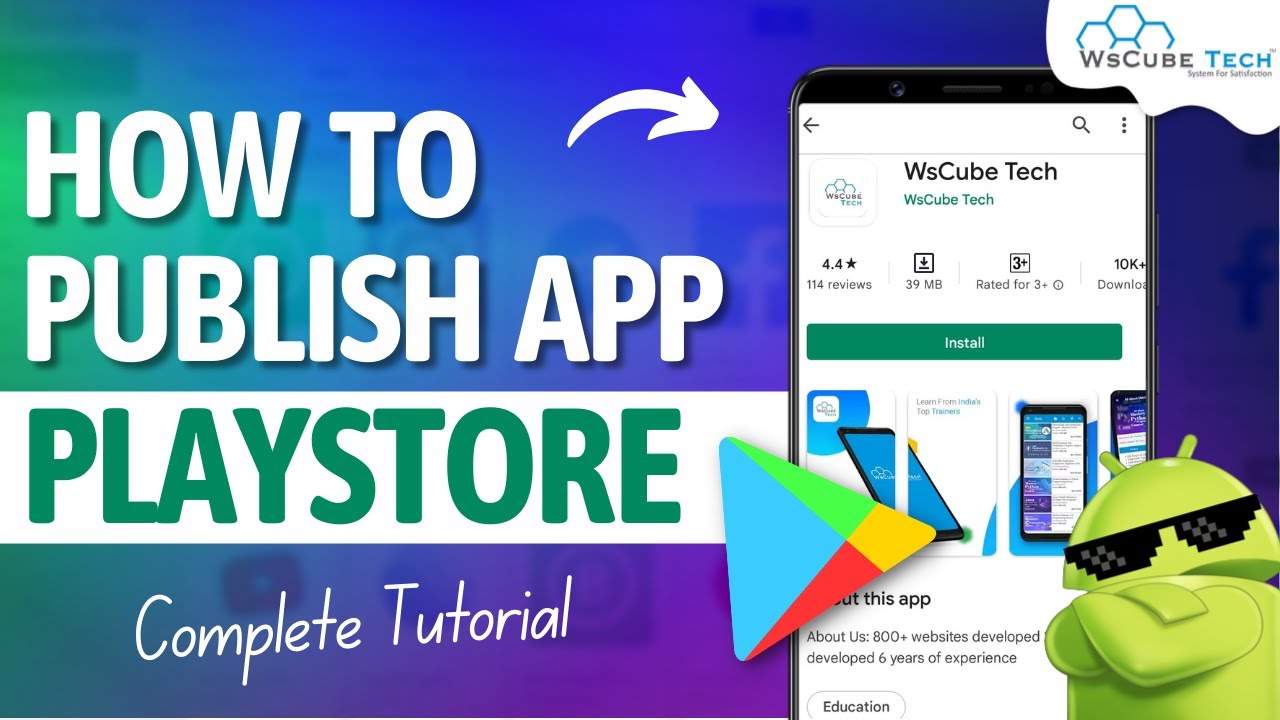
Hello friends today in this video I am going to show you how to publish an Android app to the Google Play Store with the recent changes in the testing requirements Google is making sure the developers with the personal accounts created after November 13 2023 test their apps before those apps are eligible to be published for distribution on Google Play In other words if you have a newly created personal developer account to publish your app to Play Store you you must run a closed test for your app with a minimum of 20 testers who have been
opted in for at least the last 14 days continuously this is actually a challenge for individual developers but by doing this you can verify your apps correctness functional behavior and usability before you release it publicly which minimizes the impact of any technical or user experience issues and helps you to release the best version of your app coming back to the video this video is bit lengthy but it gives you the clear picture on the release prerequisites creating and setting up your app on play console releasing the bill to close testing sharing the download link to
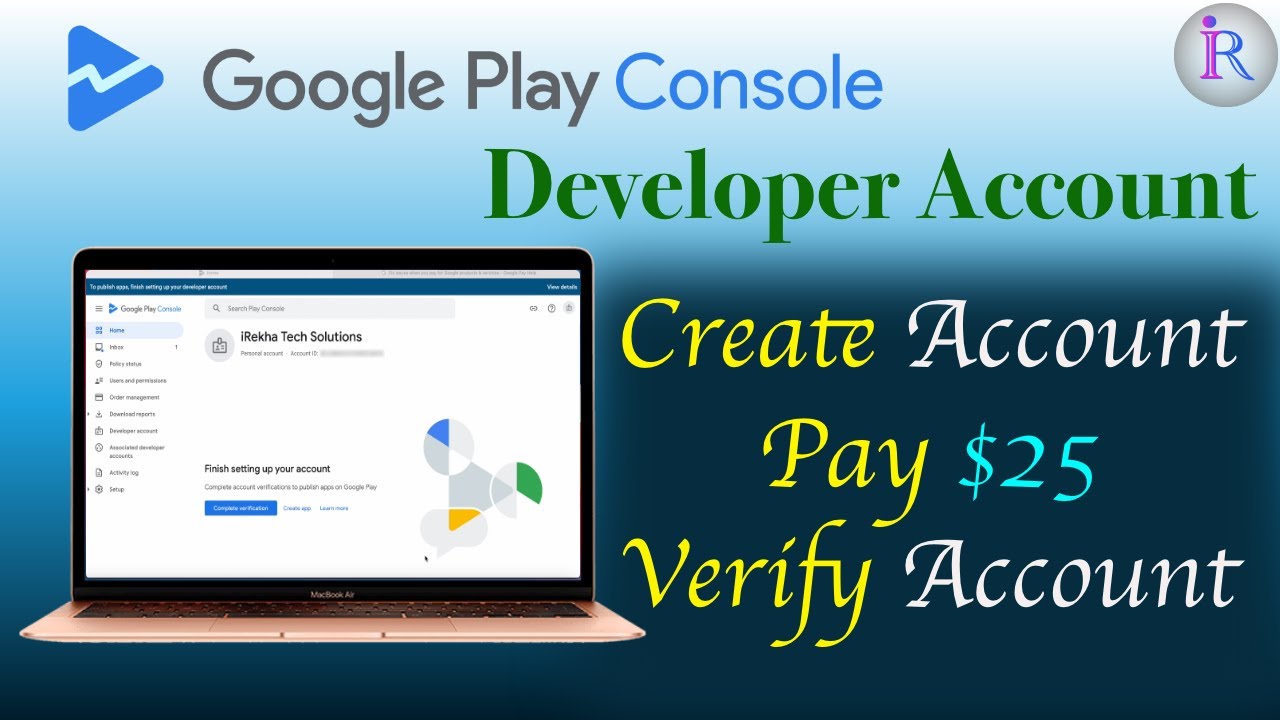
your test group apply for production access after 14 days and finally make your app available to users on Google Play Store by releasing it to production so without any delay let's get into the actual video Hello friends welcome back to IA Tech Solutions before going to the first step of the app release process you need to do one important task that is creating the Google Play console developer account you can use your Gmail ID to create one pay $25 of registration fee and verify your identity to access Play console I have already uploaded a video
on this I will give the link in the description box for your reference now the first step in the release process is making your app ready for the release Here I have listed 10 important points that you keep them ready to publish your app from the Google Play console developer account those are Android app build file and app signing key app name short description full description app icon feature graphic icon video on your app features but this is optional app screenshots on phone or tablet or on both privacy policy URL publish your apps privacy policy
and keep the URL ready and finally 20 email IDs of your app testers okay let's discuss about them one by one first create signed Android app bundle file many of you would have created signed aab file by now but if anybody wants to know how to create signed Android app bundle file then you can follow this video I will give you the link in the description box here select this checkbox to create app signing key if you want to upload your own app signing key for published apps give signing key export path and create the
release build so my aab file is ready for release and also my app signing key file also created next give a name for your app which will be shown on Play Store my app name is true translator this is Telugu to any language translator add a short and full description about your app mention about your apps features and uses keep this content ready beforehand next app icon feature graphic icon and app screenshots this app icon size is different from what you use in your app this app icon is used only to promote your app on
Google Play so the dimensions has to be 512x 512 and the feature icon Dimensions has to be 1024x 500 I have used adob X software to create these two icons you can use any software but make sure those icons are added to Google Play icon design specifications and take the screenshots of your app with important features if your app is a simple app then you can take screenshots from the emulator itself run that app then click on this camera icon adjust the frame settings and click on Save the screenshot will be copy to your desktop
so take 2 to eight screenshots to upload in Google Play next privacy policy I have already uploaded a video on this how to create free privacy policy for your app I will give the link in the description box go through the video publish your app's privacy policy and keep the URL ready finally 20 testers for close testing collect minimum 20 email IDs of your friends family relatives or of any dedicated testers and keep them ready once you are ready with all of these we'll go to the next step that is create and set up your
app in Google Play console sign into to your Google Play console account this is the home screen click on this create app here give your app name the limit is 30 characters select the default language of your app select whether app or game select whether your app is free or paid these selections you can change later also in Store settings until you publish your app accept the Declarations and click on create app this is your app's dashboard page here they have listed the tasks you need to complete to release your app internal testing finish setting
up your app close testing then production once you complete the above tasks then you get an access for production okay the first section is internal testing this is not mandatory but if you want to quickly distribute your app with your testers for initial checks then you can go for internal testing I have already uploaded a video on this to how to upload build for internal testing you can check my link in the description box and this internal testing you can do even after finishing the setup also next finish setting up your app this is mandatory
in this section you are going to provide the app information for store listing so these are the tasks you need to finish let's do it quickly one by one first one set privacy policy so I have already mentioned this in prerequisites so copy that published privacy policy URL here and click on Save go back to dashboard see one of 12 tasks completed next one app access here you need to mention that if your app needs any special access like login credentials to use the app because this information is required by Google to review your app
completely before approve it for close testing my app is a simple Telugu translator app so it doesn't require any special permissions to use my app so I'm selecting all functionality in my app is available without any access restrictions if your app has restricted access for any functionality you need to select all or some functionality in my app is restricted and also provide information on how to access those restricted parts of your app then click save next ads does your app contain ads if you have implemented ads SDK then select s or else no and save
next content rating click on start questionnaire enter the email address to receive your app's content rating results select the category whether your app is a gape or social or communication app or any other app types here they have mentioned some examples also so choose the best option and click next here you need to answer some questions with yes or no selection they are all related to your app content and usage so read the question carefully and answer if you have any doubt click on learn more link given under every question once you finish the questioner
click next this is the summary of your apps content rating based on your answers click on Save here now go back to dashboard again next target audience select the target age group gr of your app if your app targets kids then you need to comply with the Google Play developer policies so Google will check your app for those policy violations if your app Don't comply with those policies then they may remove your app from Google Play so make sure you verify your app for Kit safe once again before publishing so finish target audience selection and
click on Save now go back select next task new app is your app a news app select yes or no then save next covid-19 contact tracing and status apps this was introduced in covid time select the option my app is not a publicly available covid-19 contact racing or status app and click on Save next important task is data safety form this was added to help your app users understand how your app collects and shares their data this is overview page I have already uploaded a video on how to fill data safety form please check the
link in description box for detailed explanation here I will fill the form based on my current APP features my app is a translator app I don't collect or transfer any of the user sensitive or personal data through the app so I am selecting option no here and click on next okay this has taken me to directly fifth step that is preview page but if you select s for that question in Second Step then you need to answer some more questions on third and fourth Pages related to the data types that your app collects or shares
okay this is by apps store listing preview page which will be shown in the Play Store no data collection declared and no data shared with third parties Okay click on Save come back to dashboard select government apps is your app developed by or on behalf of a government select yes or no option here and click on Save next select Financial features select all of the financial features your app provides if your app doesn't deal with any of these payments related features select my app doesn't provide any Financial features and click next here we need not
submit any documents so click on Save okay manage how your app is organized and presented select an app category and provide contact details click on this okay here click on this edit option and set your app type and category select from this list of categories which category your app falls under this is useful to discover your app on Google Play after selecting click on Save now select manage tags you can select up to five tags based on your apps content and features this is also useful to list your app under user search on Google Play
based on user Search keywords so select appropriate tags and apply but this is not mandatory okay now come down edit store listing contact details enter the required field that is email address phone number and website is is optional this information is shown to users on Google Play so if you don't want your phone number visible to public then don't enter and click on Save now go back to dashboard again okay only one last task is pending set up your store listing this is the main store listing page where you enter your apps information like apps
name icon description screenshots Etc to increase is discoverability of your app on Google Play store okay let's fill the details we have already entered the app name while creating the app in Play console but if you want you can change any time here copy other details short description and also full description of your app come down click on upload and select your app icon or drop icon here next upload feature graphic icon if you have prepared a video on your app then upload it on YouTube and give the link here this is not mandatory next
phone screenshots to be eligible for promotion include at least four screenshots okay drop the screenshots taken you can upload maximum eight screenshots here next if you have taken screenshots on 7-in tablet then you can upload them here but not mandatory same way you can upload 10-in tablet screenshots and Chromebook screenshots also if you have then click on Save now go to dashboard page yes the setup has completed so the section was removed from dashboard now the next section is close testing but if you want to update your app store listing data any time even after
publish then you can go to this store presence option in left hand menu and click on this main store listing page and to update your app content go to policy and program section and click on this app content option oh there is one declaration still still pending if you click on action tab you can see all the Declarations those we have submitted as part of the app setup process so anytime you can come here and change your declarations okay let's complete this declaration as well advertising ID click on start declaration does your app use advertising
ID if your app is using any third party ads SDK such as Google mobile ads SDK then you need to answer yes my app doesn't contain ads and I am not using any sdks that contains ad ID permission so I am selecting no here if you still need to understand better on this topic then check my video from the link in the description box Okay click on Save yes app content section doesn't have any pending declarations now let's go to the next step that is close testing unlike the old play console account here you must
run a closed test before you can apply for production access even open testing is available when you have production access only so let's upload the app for close testing click on close testing there is one default active track created with the name close testing Alpha if you want you can create a new track and give a name to identify your close testing track but here I'm uploading to Alpha test track only so click on manage track it says no releases Okay click on this create new release to upload a bundle you must provide a signing
key or generate one using Play app signing Okay click on this choose signing key option here you can choose Google generated app signing key which is recommended or your own app signing key which was generated while creating your app bundle in Android Studio to be on the safer side I am selecting use Google generated key which was recommended okay done now drop your app bundle here wait for the bundle to upload this might take some time it depends on your internet speed and also the size of your app bundle file okay file got uploaded come
down mention release name this is to ID identify your release build so I am keeping the same version number only as my release name next write the release notes you can mention the changes included in this release but because this is my first release build I am writing as initial release now click on next oh one error no countries or regions have been selected for this track add at least one country or region to roll out this release okay I missed to complete the pre-release release tasks let's go back okay go to close testing manage
track before creating a new release set up your track first I missed this actually select countries and select testers click on the select countries add countries or regions select your app targeted countries from this list and click on save so your targeted countries list will be shown in this tab next task select testers I have already mentioned under prerequisites you need to collect email addresses of 20 testers so if you have a Google group created with 20 testers add them as Google group or create email list here write list name to identify your testers list
then add all the email IDs with comma separated and click enter or else add the mail IDs one by one when you press enter after adding a mail ID this gets listed under email addresses added so finish by adding all of them or you can upload a CSV file also with all those mail IDs once all the mail ID is added click on Save changes create email list yes create I got 21 testers so I added all of them you can add a feedback URL or an email address here to receive feedback from your testers
and this is the link that you are going to share to your testers but this link will be visible only after the review is done and your app is published to close testing okay save changes so setup was completed now click on this pending task preview and confirm the release see the error was gone two warnings are there but we can still release with warnings I am ignoring them for now click on save this is the release summary and it is ready to send for review so click on this go to publishing overview they have
given some tips on publishing overview page because we are using this feature for the first time okay click on go to publishing overview these are the changes ready to send for review close testing Alpha track main store listing app content and Store settings okay send all the changes for review these changes will be sent to Google for review reviews are typically completed within 7 days but may take longer managed publishing is off so these changes will be published automatically I Ally as soon as they are approved Okay click on this send changes for review so
all these changes are in review now go to all apps after publishing the app for Clos testing your app status shows as draft and update status shows as in review and the apps dashboard page shows only the production task pending okay let's wait for the completion of Google review after 2 and half days the app has been published and the app status changed from draft to close testing if you go to inbox you can see the messages my app was sent for review on 22nd December and app was published on 25th December okay finally my
app is published now let's see how to share the build with the testers s select the app go to close testing select manage track go to testers tab here you get two links to join from Android and to join on the web any link you can share but if you share the second link it will open the page in the mobile browser then your testers has to click on this become a tester button then they can see a download link option by clicking that they can download the Clos testing build from the Play Store instead
if you share this join on Android link with your beta testers this link will take the testers directly to the Play store from where they can install your app you can use any channel to share your app link like Gmail or Whatsapp here I'm sending the link to my Gmail ID first and in my device I open the link from my Gmail account see it goes to Google Play Store app from here we can install our apps Early Access build click on install it installed successfully so the same link you can share with all your
20 testers as well and here your testers can give the feedback but this is private feedback only developer can see the review rating and comments given by the testers okay now come back to your Google Play console account go to your apps dashboard see the first task has completed because the app was released to close testing after review now the next task is have at least 20 testers opted into to your Clos test here you can see the count how many are opted in means how many of your testers have installed your app currently I
am the only one who has installed and I shared the link with my 20 testers through WhatsApp let's see okay after so much of followup all my 20 testers installed the app onto their mobiles so the second task also completed so we are only one step behind to release to production that is run your close test with at least 20 testers for at least 14 days so ask your testers to test the app or keep the app in their mobiles for at least 14 days and every day you can see the days count here to
check your testers feedback go to this left menu under quality section expand ratings and reviews here you can see testing feedback option where you can check your testers rating and feedback and in these 14 days if you come across any errors and quality issues you can fix them and upload the new version once again from second time onwards it won't take much time for review so you can ask your testers to update to the latest version from the same link shared and the days will be counted from the initial version itself means your testers should
have any version of your app on their mobiles for at least 14 days meanwhile you can be ready with these preview questions which you need to answer about close testing while releasing your app to production so wait for the 14 days of Clos testing review okay after 14 days we can apply for access to production let's see how to apply for production access click on this apply for production button here we need to answer the questions about our Clos testing experience and app Readiness state for production there are three sections of questions in this first
section you need to answer the questions about your close testing like how easy was it to recruit testers how did you recruit them how did you get the feedback from your testers Etc and in the second section you need to answer the questions about your app like the intended audience of your app your app's purpose to the end users and the expected app installs in the first year this information is required by Google just to review your app testing experience it will not be shown anywhere in the Play Store and in the last section you
need to answer about your app's production Readiness State finally un answering all the questions click on apply so this is the message shown in the dashboard screen you have applied for production access this usually takes 7 days or less but may occasionally take longer and after 2 days the dashboard message changed to congratulations your app has been granted Google Play production access so on getting the access to production we have reached the final step of the release process that is publishing the app to play store we need to complete these tasks to release the app
to production or go to production and create a new release to upload the production build version if you have any changes after Clos testing review or if you want to release the same Clos testing version then go to close testing manage track click on this promote release to production so the same close testing app bundle version is taken to release to the production update the release name and release notes if you want then click next oh again no countries or regions have been selected for this track so the same way how we have selected for
close testing we need to select the countries even for production track this is only onetime task from next version updates onwards you don't get the release error for Country selection after selecting the countries for production release click on Save close the message now go back to dashboard okay select countries and regions was done create a new release also done so click on this preview and confirm the release click on edit release click next this is the app bundle version which is taken from the Clos testing now click on Save go to publishing overview these are
the changes ready to send for Review production roll out and open testing country selection click on send five changes for review changes will be sent to Google for review reviews are typically completed within 7 days but may take longer send changes for review now click on all apps see the update status changed to in review yes after 24 hours my app got published to production on 17th JN I released the app to production and on 18th JN it got published to Play Store select the app in dashboard you can see the production State active and
you can open the app in the Google Play Store hope you understood the complete procedure and how to publish your Android app to the Google Play Store unlike the old play console account the individual developers created the new play console account after November 13 2023 must run a Clos test before releasing the app to production so all the best to all creative developers and keep coding if you like my explanation please comment like the video share and subscribe to AA Tech Solutions thank you