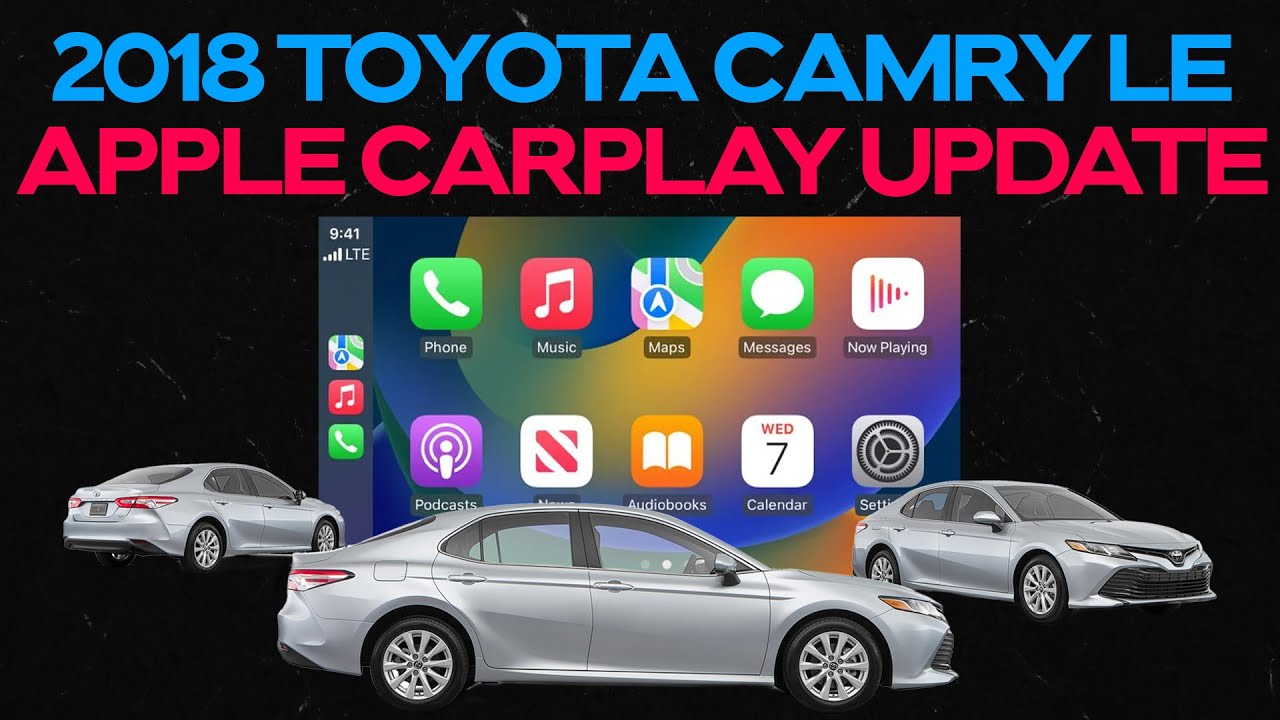
uh my point here was to give you guys a behind the scenes of uh how it gets done when you take it to the dealership of course if you have an aftermarket radio then completely disregard the entire video [Music] what is going on guys welcome back to the channel this is the Vikings garage today's episode is going to be a short one and hopefully an entertaining one nonetheless although software updates how entertaining can this possibly be so guys basically as I'm sure most of you know on your forerunners and I'm going to include everything else
also on the theater lineup and Lexus feel free to watch the video because it does apply to you as well most people don't know what your radio does have capability of getting a software update um and I'm gonna show you with this video I'm basically going to bring you behind the scenes so that you can see what is it that we as technicians do to your radio and your software when you do bring it in and in many ways to explain to you why they charge you whatever it is that they charge you so sit
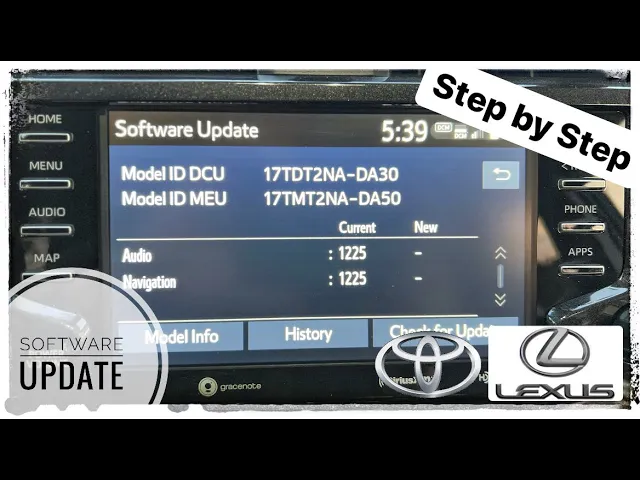
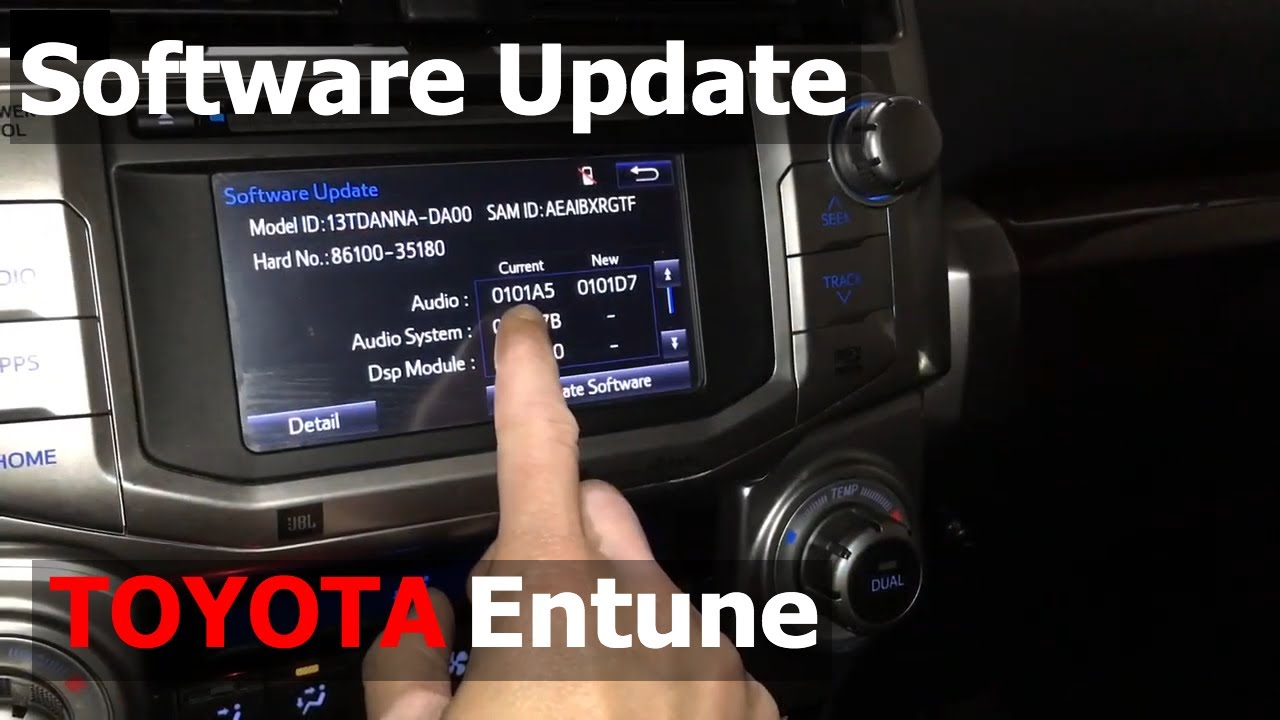
back enjoy and hopefully this is going to be pretty straightforward and um easy to comprehend so first things first let's turn on the ignition and I'm gonna show you guys how you can check for your software update or in this case us as technicians this is the first step so you come in here and you're gonna Press menu well actually continue of course menu under the menu setup under setup you got that Arrow Press up so you can see there their software update you're gonna go to the top one once you press in there you
want to go ahead and write these numbers down because this is going to be needed in order to figure out which one is the software update to be uploaded and one more thing that is worthy of mentioning is you can check by clicking on the history if you ever had a software update as you can see blank screen means no update has been done to this car as of yet and another thing which is also important to note is when you click on software information it will tell you what kind of radio you have so
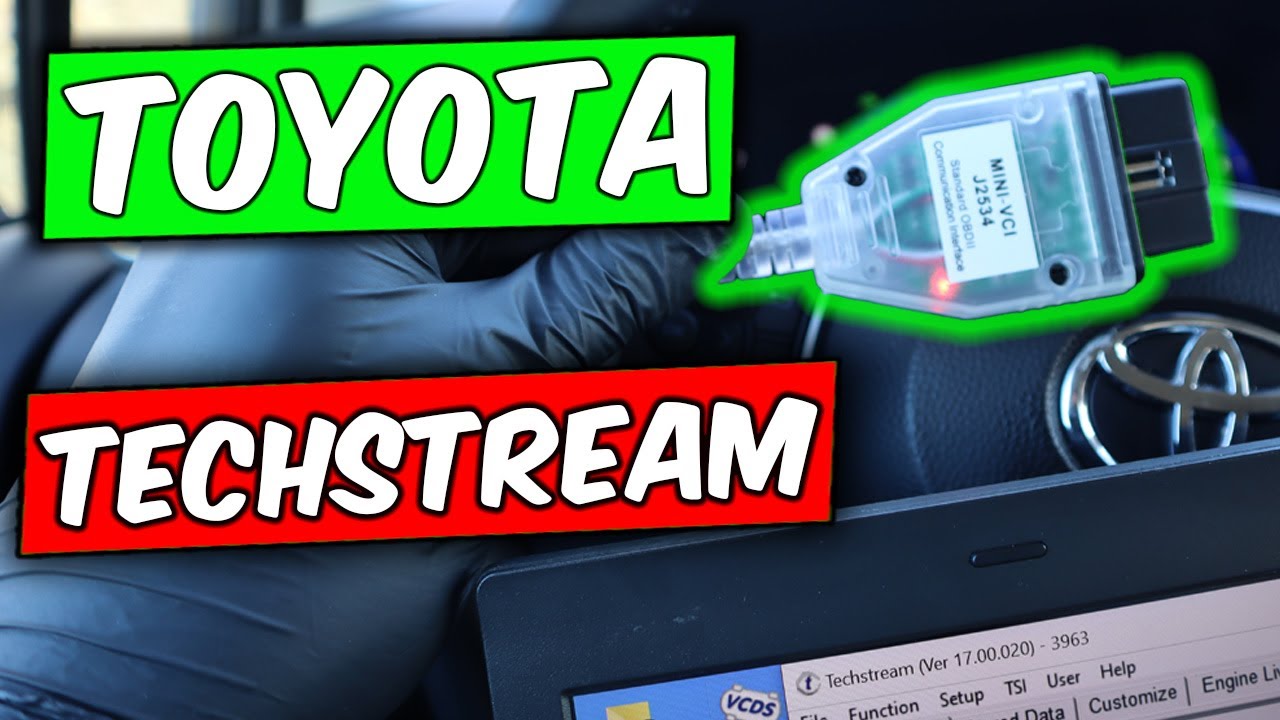
Panasonic it is let's go ahead and get ourselves the correct software update for this vehicle [Music] so the very first thing we're going to do is log into this and for those of you that are not familiar this is a short explanation of what it is you can actually subscribe to it for an annual fee of course and once you're in there you do find the correct service bulletin for the correct radio Panasonic is what we're looking for and once you're in there there's actually a lot of good reading material in this bulletin and feel
free to pause the video at any time uh it does address this software update does address quite a few issues as you can see here and I think it's a no-brainer really to get it done when they do come along I mean obviously it's a lot easier for me to say that because I have access to it but so here are the files in this particular case because I have a premium we're going to need both DCU and meu files for both the audio and navigation that is and I am currently downloading them to the
system every single one of these bulletins does have very easy to follow instructions on how to get it done you just gotta follow along and it's super simple as you can see here there's new versions in old versions you compare it to the ones that are on the car and follow along so to get this download to the car you need a USB flash drive as you can see here we're going to plug it in and transfer those two files to the flash drive super easy you click on them and drag them to the USB
section once that download is completed then you are good to go [Music] also as a side note these are the requirements as far as USB flash drive that you will have to use you forgot your flash drive you forgot your flash drive who can't remember the TV series in which the main character is singing that on a train ride but we did not forget our flash drives so first things first let's open it up let me slide it over there like so okay it's in place let's go ahead kind of key here you want to
do this with the car running the second line I warned you guys this is going to be a little on the boring side but listen oh no no no we gotta cut the sound right this way you guys will know what it actually goes on when updating a radio so set up right Arrow up software update right and you see how it says new software was found right and now you see you got the current those numbers and we're going to update it to those numbers as you can see navigation audio so we're gonna go
ahead and this is pretty cool because it actually tells you exactly what is improving You're Gonna Go press ok it also fixes several bugs as you can see it is a fairly big file and there it is what I'm going to do is fast forward this big time so you guys are not bored staring at this uh display but look at the time keep that in mind and you will see what I mean that it does take a little bit of time see you in a little bit when all is said and done you're going
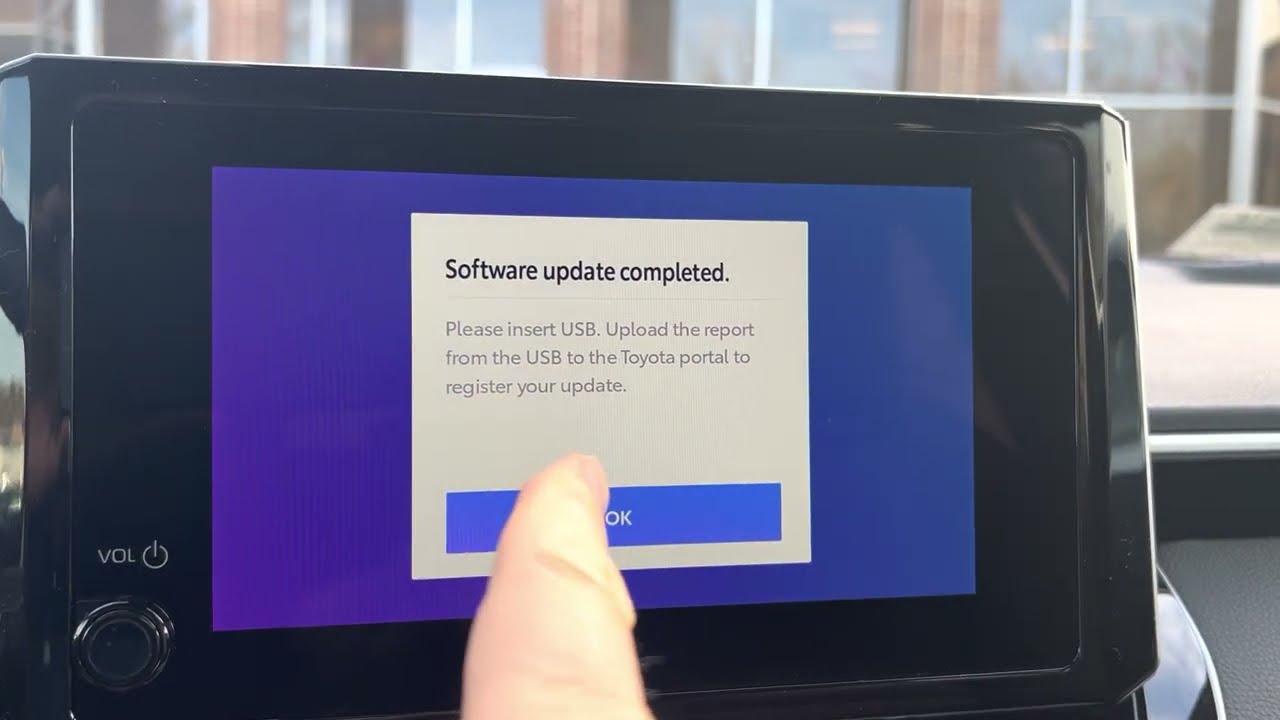
to get a message like this and basically yeah you just gotta follow the instructions there's really nothing to it so let's go ahead we are outside we're gonna turn off the engine and then what you want to do is turn it back on [Music] going to complete the update just like so I mean there's really nothing else to do it I'll show you guys in a second how you can confirm that everything went according to plan so press continue and now again I'm gonna go to menu Tom Morello man great show setup again this is
pretty repetitive and what you want to do here is software update and now check this out oh yeah baby you see how we got today's date right there that just confirms that our software update was performed as planned and there you have it this is how you do a software update on your radio as you guys can see it's a little elaborate it's really not that big of a deal it is time consuming indeed and word to the wise if you know your car is going to run out of uh warranty you know 36 000
miles if I'm not mistaken but confirm that with your service advisor go ahead and just ask them can you please check to see if my radio as a software update and we would go ahead do it and it gets done on the warranty anything after the warranty period then we of course and I hope this video helps you understand why we have to charge you a small fee but there you have it this is how you perform a software update on your Toyota OEM Radio I hope you guys enjoyed this video if you did so
don't forget to smash that like button if you didn't like it Hey listen they got that button there too but that's not nice man as always guys I want to take this opportunity to thank you for watching stay tuned there's a lot more stuff coming your way but in the meantime I hope you're enjoying your cars and I will catch you guys on the next one [Music] all right [Music] [Music]