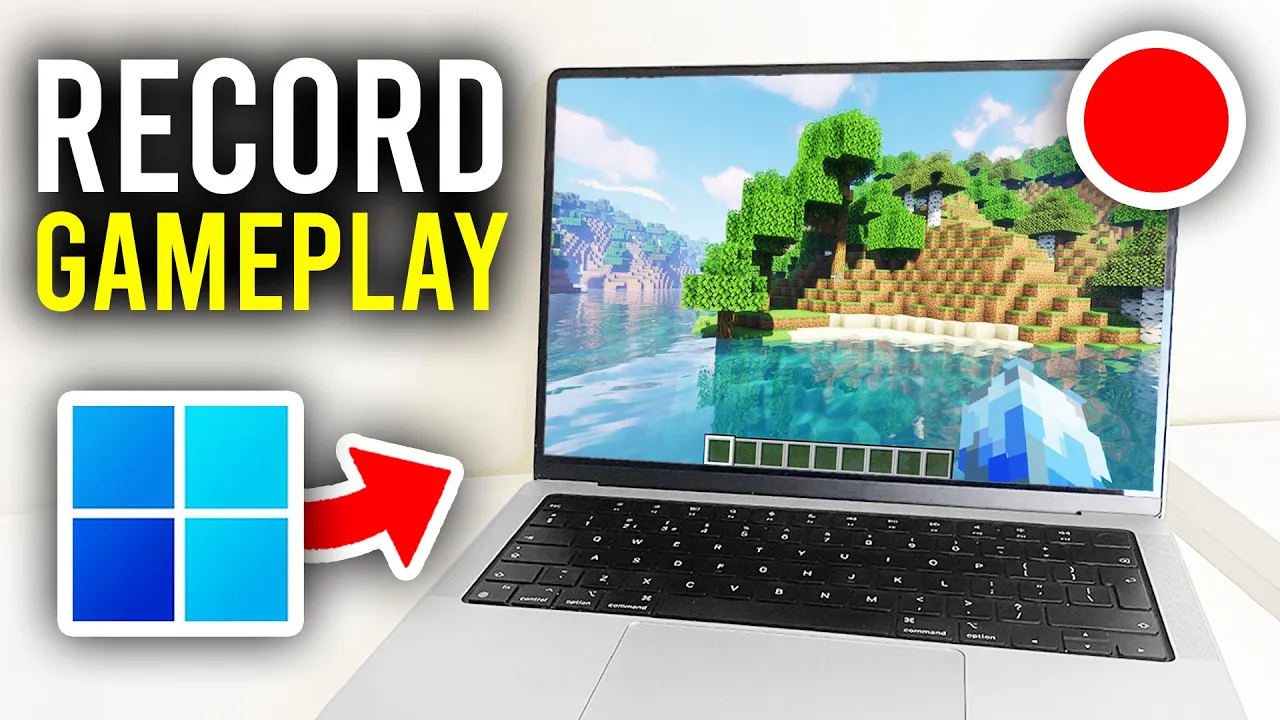
we'll guide you through how to record gameplay on your PC for free if you find this guide useful then please consider subscribing and liking the video and let's get into this firstly you just need to go and open up a web browser so I'll use Google Chrome but you can use any you'd like then go to a search engine and what you want to do is go and search for OBS so type it in OBS just like so and then you want to go and tap on open broadcaster software so OBS is a free and
open- Source software for video recording so go and choose the system you use personally it's windows for me so click on Windows and it will then go and download once it's finished downloading you can go and close off your web browser and we need to go and find the installer which will be in your file explorer in the downloads so here it is and what you want to do is go and double click on it and just go and install OBS it's like installing any other program it may require a few extra drivers but it
will basically guide you through it after you've installed it you then want to go and open it up so I've got mine here here we are in OB yes and yours should look pretty similar to mine the main difference will be is I've got a few more scenes than you so what you want to do is come to the bottom left of scenes click on the plus button and then we can name a new scene called gameplay then what you want to do is go into sources and what you want to do is click on
the plus button you can use display capture which will just go and record your entire display I'll click there press okay you can choose your monitor then click okay and there it is and now what we want to do is head into the OBS settings so go over to the right and click on settings and then you want to go into output in over on the left and you want to just set the output mode to simple and come down to recording so firstly you need to choose where you want to go and record your
videos too I just have it to my videos and then you want to come down to recording quality I just have this set to high quality medium file size it's a good blend for recording format I like to use MP4 as it's just a very widely accepted file format and it always sort of works in editing soft softwares and things like that when it comes to video encoder click here you're going to have a few different options I use this enven one which is because I have a Nvidia GPU I've got this encoder but you
can always use the x264 software one but if you've got like an AMD GPU you may have a different option there and they're the main recording settings then you want to head over to the left again and go and click on audio and by the way when you make any change make sure you hit apply in the bottom right um and in audio you can choose your desktop of audio so I'll have mine to default and then you can choose your mic so click here and you can select your mic I'll use the PMP sound
device and then of course hit apply then head over to the left again and press on video now here what I recommend you do is minus set to 2560 because that's the size of my monitor but usually I'd recommend recording 1920 by 1080 as 1080p is just a good quality to record in so you can select them both to be that um and because these are the same you don't need to worry about a downscale filter and then when it comes to FPS I like to use 60 because you just get a nice sort of
smooth recording now if you find that your game is lagging or OBS is lagging when you're watching back in the recording this is because these settings are too high so what I'd first you do is lower the fps to 30 if you're getting lag um and that should speed it up and what you can also do is go and lower the output maybe to 720p you will notice the lower quality is 720p but if it means it can be a bit smoother for you by do prefer 1080p as it definitely is smoother so yeah personally
I like to have this at 60 and I like to capture my full monitor size if you've got a big monitor like mine then you could do the same but otherwise 1080p is going to do the job then what you want to do is hit apply in the bottom right and head over to the left again and tap on hotkeys and I like to go and set up a Rec a recording hotkey so mine is F12 so when I hit F12 on my keyboard it then means my recording will start and when I press it
again it will stop so then the main settings done so you can then tap okay in the bottom right and then what I recommend you do is now set your audio mixer because at the minute I think by default your desktop audio is going to be the same level as your mic I like to have that a bit lower because otherwise if you're in a game game sounds can often drown out your voice and so you can't be heard but ultimately you can just try it and test the recording and hear how it sounds so
then what you want to do is go and get into a game I've just got Minecraft here and now here we are in a game so I could then go and tap on the hotkey I created to start my recording in OBS or what I could do is just go out of the game now come back to OBS and press start recording from here just like that but that's why I like a hotkey because you can just start the recording in your game and just like that we're now recording so then what you can do
is record whatever you want and when you're ready you can go and stop the recording either by going back to OBS or pressing your hotkey which I'll press now F12 for me it's now stopped and then what I can do is go and find the recording we just made I've now gone and found my recording in my videos folder and that's it we've now gone and got this file I could go and put it on YouTube or maybe send it to a friend or do whatever you want with it if you found this useful please
leave a like