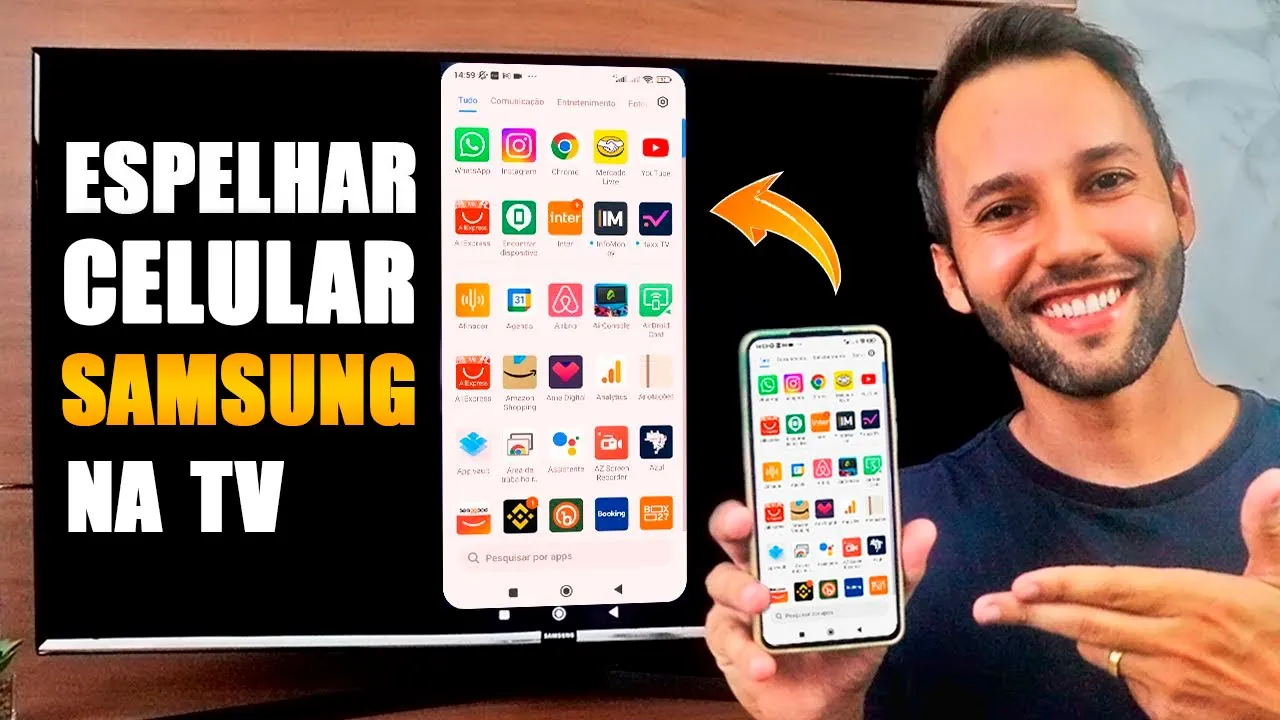
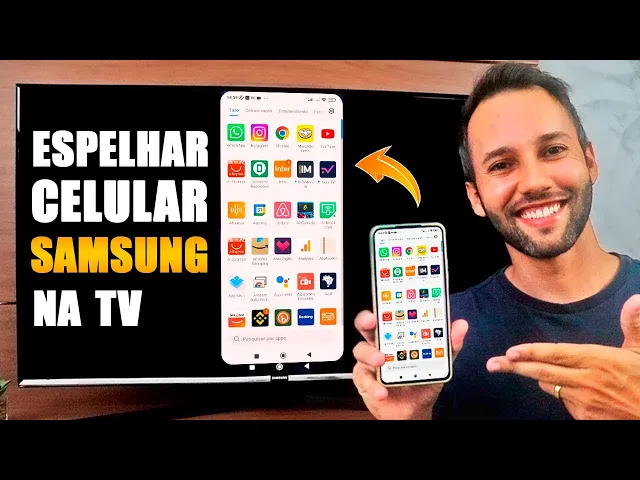
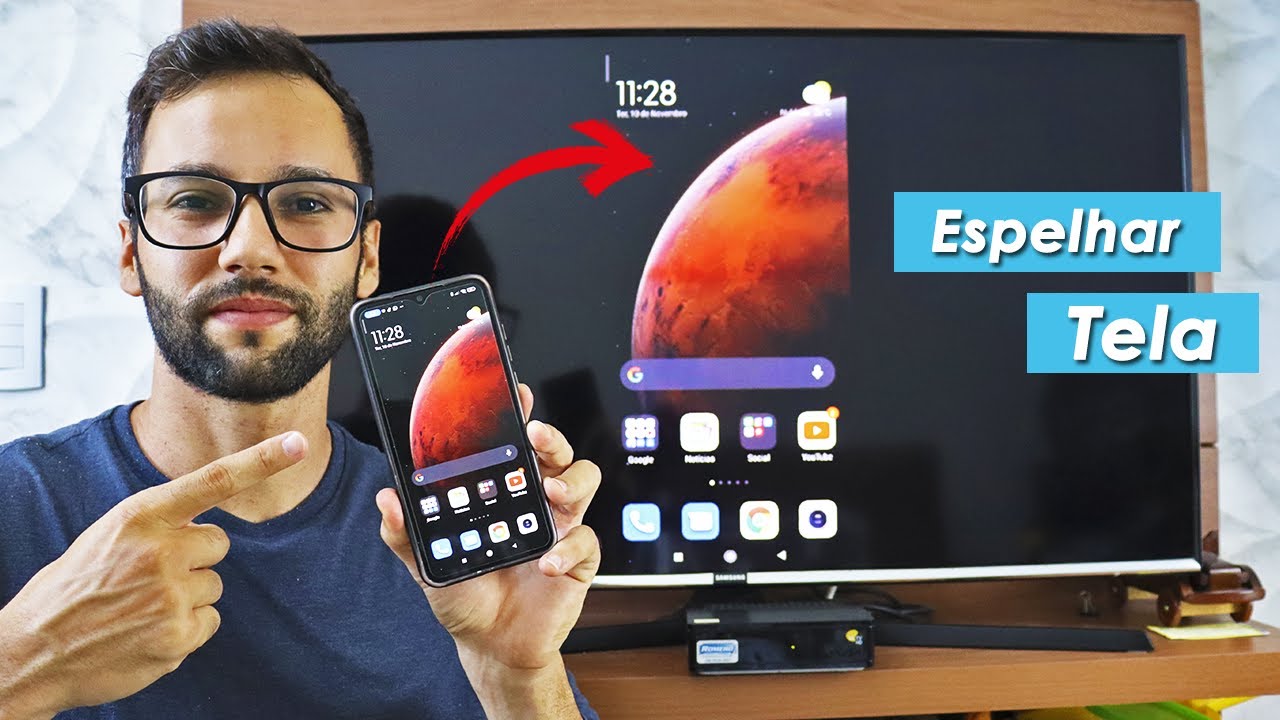
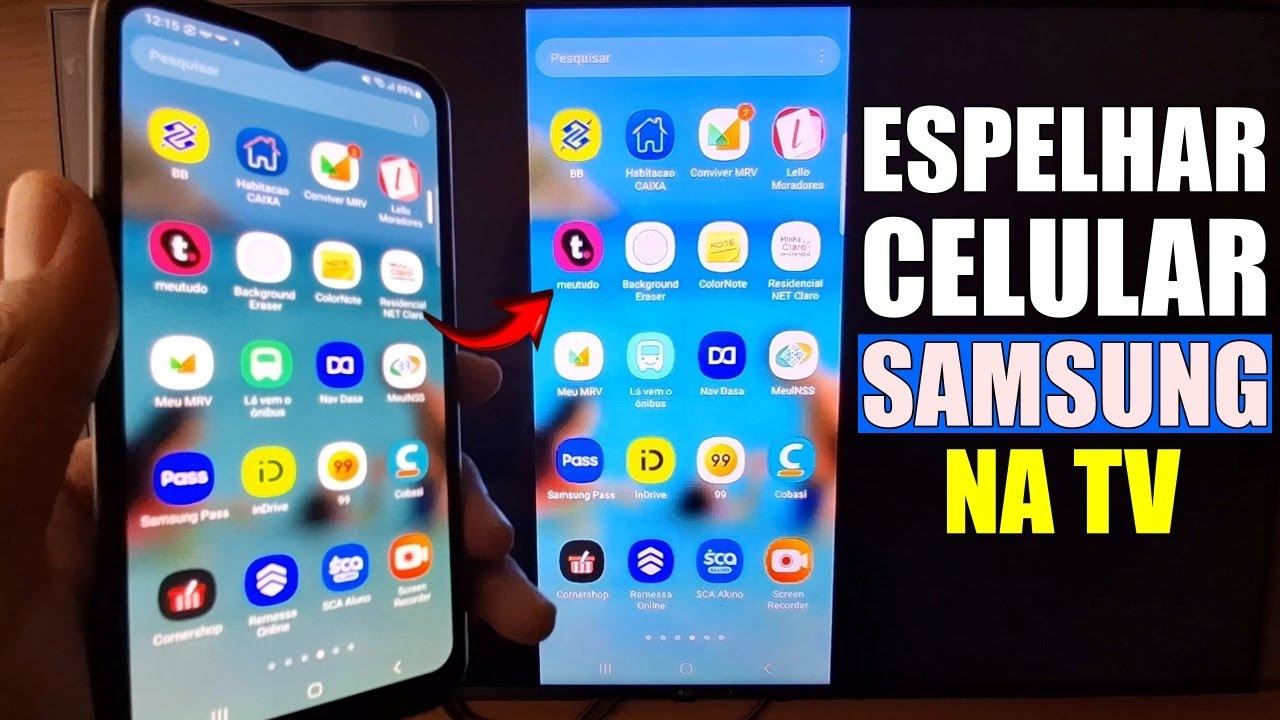
Learn how to mirror your Samsung cell phone screen on your Smart TV, it will work for any brand and model of television. I have already taught you how to mirror the screen of a Motorola and a Xiaomi on a Smart TV. I'll leave the link to this video below in the description, but in this case, today I'll show you how to mirror your Samsung cell phone screen on any Smart TV, okay?
It's very simple, so let's go to the video, so let's go. Firstly, what you have to do is the following, take your TV remote and go to the menu on your Smart TV. What you have to check first is whether your television is connected to your Wi-Fi network at home.
It has to be connected to your router, so go to the menu, go to network configuration and go to network settings here so you can scan and look for a Wi-Fi network in your home. As we can see, I am already connected here, to the tsc network, which is the Wi-Fi network here at my house. If you haven't connected, just choose the network you want to connect to, enter the password and leave it connected.
The next step is as follows. Your cell phone also needs to be connected to the Wi-Fi network at home. We can see that I am connected to the same Wi-Fi network here in my house, that my television is also connected.
With both devices connected to the same router and preferably the same Wi-Fi signal, because there are routers that have more than one Wi-Fi signal, one 2. 4 GHz and one 5 GHz. Preferably, leave it connected to exactly the same Wi-Fi network.
In my case, it worked independently of the network, but it's just a suggestion so that it has a better chance of working. Beauty? Now on your cell phone with both devices connected, you will go to Samsung in the settings and here in the settings you will see here, then in the connected devices option click here.
Now you will come down here to the Smart View option and click. Samsung will automatically start scanning devices that are compatible with this technology here on your phone. A cool way for you to know if your TV is compatible with this technology is the following, within the YouTube application where you are watching the video, Look, I'm just going to get this video here as If it has this function here, it is enabled .
This little television means that your TV is compatible because when we click here, we can mirror the YouTube video on our television too, great, but continuing where we left off in the settings. What you will do is choose your TV that will be shown in the list. In my case, it's this television here, so I'm going to click on it here and I'm going to click on start now.
Note that a message appeared on the television saying that my device was already being connected and screen mirroring had automatically started. So everything I do here you can see changes there. If by chance I 'm on television, it won't connect automatically.
What you can do is the following, on your Smart TV control there will be a button called subs, OK? You can click this button here which is an input method on your Smart TV and select a wireless input method. So you will select the wireless input method and then it will be waiting for a device to connect, OK?
So Look, I just selected the wireless input method here. It will already be waiting for the device to be connected. If by any chance it doesn't connect automatically, you may be doing this by changing the input method on your Smart TV to mirror.
So, look, I just selected here once again start now it's waiting there! Look at this message appearing below, just connecting Lucas's s23 ultra and that's it, it's been mirrored too. Once again leave your comment below saying if this video helped you, was useful for you, leave a like too and subscribe to the channel to follow more technology tips and tutorials, as well as this video here that you once needed or you may still need to see you in the next video.
It cost!


![TOP DICAS E TRUQUES GALAXY A05s [Android 14 OneUI 6]](https://img.youtube.com/vi/BDKF_JGf-CM/maxresdefault.jpg)