[Music] everyone this is Brad from DevOps journey and this is my course on ansible quick reminder that all the codes seen in these videos is available on github I've also put timestamps for the video in the description below so if you want to skip to a certain configuration element and just find and click the appropriate timestamp so ansible is a configuration management tool and we use it to help automate configuration of devices I'm on the and able websites and you can see here these are the different things that you can help automate and manage the
configuration of so you can do that for your infrastructure applications containers your networks security and cloud basically you can automate the configuration of just about anything now and configuration management is becoming very popular in the IT and DevOps realm just because the ability to rapidly deploy consistent configurations other configuration management tools that you might be familiar with our chef puppet and saltstack the reason that ansible is becoming a lot more popular than these other options is because it's completely agentless and you don't actually require any software on agents it connects up through SSH connections so
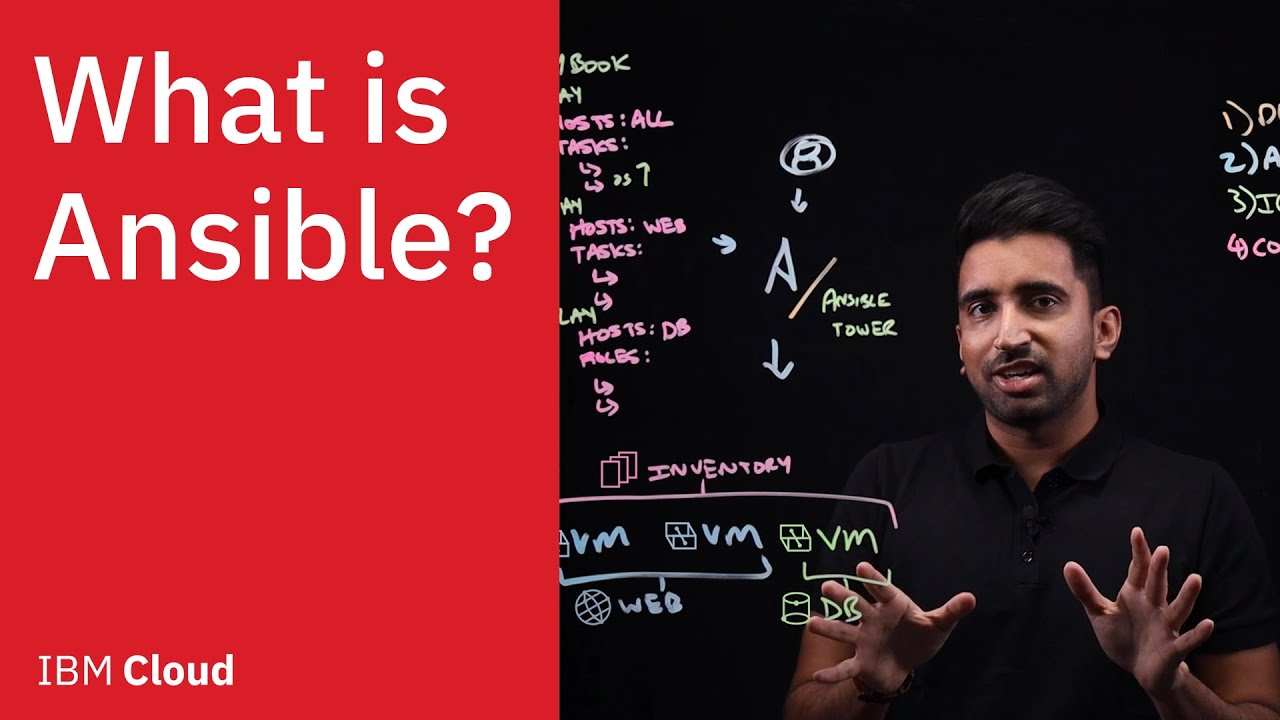
you can have old legacy devices old routers old switches and Endemol is able to connect to them via SSH and configure them so a quick look at a topology that we have here so we have the ansible control station and the control station is what's going to be running our playbooks and have our inventory file and then we have about 4 servers here so we have a proxy group with a single load balancer we have a web service group with two ooh web server nodes and a database group with a single database and the Antebellum
or all these devices and manage the configuration of all these devices by creating SSH connections and just making sure their configuration state is valid so there's two main files in any ansible configuration and that is the inventory file and the playbook so the inventory file has groups as well as hosts so this is the inventory file for the lab that we are doing and you can see that it has the four different groups and as well as the five different servers so the load bouncer the two web servers the database and then I also have
ansible control there so I can control the configuration of the ansible control station as well and then in the playbook I have the configuration of all these devices so you can see that it's configuring Apache on the web servers nginx on the proxy and my sequel on the database you these play books can get pretty deep and go through a lot of configuration this is just a quick look at what they sort of look like in the labs we'll be going in depth into creating these play books and making functional play books all right so
the first thing you want to do when getting started with these labs is to download the labs from github I have the link in the description below but the command you'll run is get clone and then here's the URL so it's Brad morgue slash Anza bull - lab start yet and hit enter and it's gonna clone the repository and if we go into and herbal labs we can see the structure of the folders here so we got about nine separate labs here and a working directory folder named lab so I'll be going you can go
into the lab folder to do the labs and the answer key for the actual lab will be in the folders themselves so by the end of video one we will be the answer key will be in this folder and by the end of lab two the answers will be in there so if you ever need to get caught up just pull the configuration from any of these labs to get started feel free to go through this folder structure just to look at how the code sort of progresses and how we sort of get more into
ansible so we're going to be using a vagrant to create the virtual machines for our environment and the entire vagrant configuration is within this vagrant file I'll pull it open in Visual Studio code and go over the configuration but if you're not sure how to get vagrant installed or setup please watch my vagrant tutorial and that'll help you out so we have the vagrant file loaded here and this is going to be building our pre staging environment where we have our five different servers so we have the control workstation and then we have the database
the web servers and the load balancer and you can see they all have a unique IP address and we're using the same Ubuntu image for all of them and we can see this is looping through setting all this setting up all the settings setting the the RAM and the host names so if you want to change any of these parameters go ahead but I'm gonna go ahead and bring up our environment with the vagrant up command next so I'm back in the command line here and you can see VirtualBox on the right-hand side and on
the left-hand side is my terminal so I'll just do vagrant up and this will read that vagrant file we were just looking up and this will bring up to all those virtual machines from that vagrant file that we just configured and the virtual machine should start populating on the right hand side I'm gonna go ahead and speed up the video dramatically because this will take about 10 to 15 minutes so as you can see each of the hosts are being configured and set up in VirtualBox and once everything is set up we are going to
SSH into the ansible control station so I'll SSH in with vagrant SSH ansible control and I'll make sure to do that in the working directory where my big rent file is and this should connect up pretty shortly here and it looks like I'm in so the next thing I want to do is copy over the hosts file which is in the vagrant slash host file and just move it here and oh wow I want to make sure that I do that is route so I do sudo copy and that's copied over and now if I
cat this out I can see all my hosts and I should have name resolution on them now so I can ping my DB can paying my web server and the load balancer so that looks good the next thing I want to do is I want to install and able so I will do that doing sudo apt install ads of all go yes and this will just take a minute to install I'll speed up the video all right so that looks like it installed I'm gonna clear the screen so we'll run our first ansible command just
to make sure that it's working successfully so we'll run a ad hoc command here and we'll do that by calling ansible and then we want to do the hostname so we'll just say localhost and the module we want to run is commands with the parameter of hostname so ansible will talk to localhost and ask for the hostname so it should return ads will control and it looks like it did and we can run basically any command we want so if we do date it should return today's date and that looks good to me so now
that we know that this is running successfully on our localhost let's go ahead and see if we can communicate with our other servers so to start communicating with other servers we're gonna need an inventory file so I'm gonna go into the lab directory here and I'm gonna go new file and I'm gonna call my inventory file hosts and in that host folder are sorry that hosts file I'm going to define all my groups and my hosts so I have one for control I have one for web servers and then database and then let's put proxy
up here so under control I just have my one control workstation under proxy my one load balancer so I put the hostname there web servers there's two web servers web will one and web oh two and for the database will put dbo one the next thing I want to add is I want to do a group of groups so I'm gonna call this group web stack and I'm gonna use the special term children and under this group is gonna be the three groups in regards to my web stack so proxy web servers and database so
how this one works is if you reference the web stack it's gonna look at the children of these groups which is proxy web servers database so it'll grab these four servers so that's all we need for our inventory file and for most of the labs our inventory file is gonna remain this simple so let's go ahead and hop back in to the command line and see if we can run some commands to these servers so I'm back in the command line here now the next thing we want to do is we want to get into
our working directory where that inventory file is so that's under the root vagrant and if we look here we have all our folders so we want to go into the lab folder and we can see that host file that or sorry that inventory file that we just created and now we're ready to run our command so let's do ansible and instead of doing localhost let's reference web stack which has all our web stack servers and now we need to include an inventory file so - I for inventory and then the module is going to be
the command module and the command will be hostname and if we run this we'll see that we're getting a lot of SSH activity let's go ahead and hit yes and you can see that all the connections fail this is because we haven't set up SSH yet so this is going to be a common thing that you see if SSH isn't properly set up so let's go ahead and setup SSH so that this command will run successfully so the setups SSH will clear the screen and we'll run the SSH key gen command and this is going
to generate an SSH key pair and we're just going to leave the defaults blank and now that we have that let's copy this over to localhost hit enter enter oops it wants the password which is vagrant so we'll put in a vagrant for the password so we copy that locally now let's run the command to copy that key everywhere we're gonna hit yes and we'll type vagrant and we'll just do this for all our hosts this command is available in the github so you don't need to type it out and it's under lab one for
creating the SSH keys so we'll just continue to accept and then quit the password vagrant and this SSH key should be copied to everywhere and it looks like that's done so let's go ahead and go back in our command history and run this animal web stack command again with the hostname parameter and it should run successfully and as you can see it ran the command successfully - well one web o to the database and load bouncer and to return the hostname for each of them and we can run the same thing with a different command
like date you can see that it returned the date for all of them so you can see how powerful it can be to manage multiple servers with just a small inventory file and just setting up SSH all right so the last thing we're gonna do in this tutorial is we're gonna set up the Python simple JSON module on all our hosts and basically this is just a module that we want installed and it will give the full functionality of ansible so it's very simple to do all we need to do is call ansible again and
we're instead of - going web stack or or localhost we're going to use the special term all so it's gonna connect to all the hosts in our inventory and we'll specify our inventory file of hosts and we'll do the command module again and the command we're gonna run is sudo apt-get install Python - simple JSON now since we're running this remotely we won't be to accept the apt prompt we need to add this flag right here so we'll add - why so sudo apt-get - why install Python simple JSON hit enter let's go yes so
this is going to take a few minutes to install so I'll just cut to the end all right so it looks like everything's installed successfully so that's all we're gonna do for this video in my next tutorial we will go over running more ad hoc commands and how to install packages and make sure the state of a system is correct and how to restart services basic administration using ansible so please check out that video if you found this helpful please smash that like button and if you want to see future videos go ahead and hit
subscribe thanks so much for watching and I'll see you guys in the next video

![Kubernetes Crash Course for Absolute Beginners [NEW]](https://img.youtube.com/vi/s_o8dwzRlu4/maxresdefault.jpg)







![Docker Crash Course for Absolute Beginners [NEW]](https://img.youtube.com/vi/pg19Z8LL06w/maxresdefault.jpg)