whether you're printing address labels for a mailing shipping address or a delivery or making name badges for your next event i'm going to show you step by step how you can easily generate professional avery labels within minutes let's get started with labelmaker the best tool to create and print avery labels from google docs and google sheets label maker is an add-on that you can install from the google workplace marketplace that's it you're now ready to start creating your labels let's head over to google docs to design your labels note that you can also use the
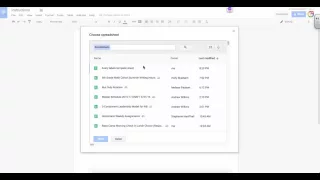
tool inside google sheets that's the same i'm using label maker in google docs because it gives me a visual representation of what my labels will look like when printed in the add-ons at the top menu select label maker then create labels a sidebar on the right appears within the label maker sidebar click on select a template then look at the available templates in the list over 5000 avery labels are within multiple categories including avery u.s letter and avery a4 now if you're generating labels for your mailing list you can connect a spreadsheet with your recipient's
information to it this step is optional as you might just want to print a full page of the same labels let's design your labels add text and formatting in the very first cell of the document this cell will be replicated all over the other labels if you have linked the mailing list you can add merge fields using double arrows for example add the name and address these merge fields must match the headers in your spreadsheet document note that you can customize your labels as much as you want add colors change fonts and insert pictures click
on create labels to create a new document with a full sheet of labels replicated from the first label if you don't want to replicate the first cell uncheck the box use first cell as model and create labels click on open document to look at your labels sheet awesome isn't it if you need to make some changes go back to the previous document make your changes and click on create labels to create another sheet of labels now that your document is ready and your labels look right click on file print in the print dialog make sure
to set the margin to none and the scale to 100 depending on the format of the label's product you might need to adapt the size of the page for example every us letter 5160 requires the size to be letter now it's your turn to design your own avery labels with google docs and google sheets