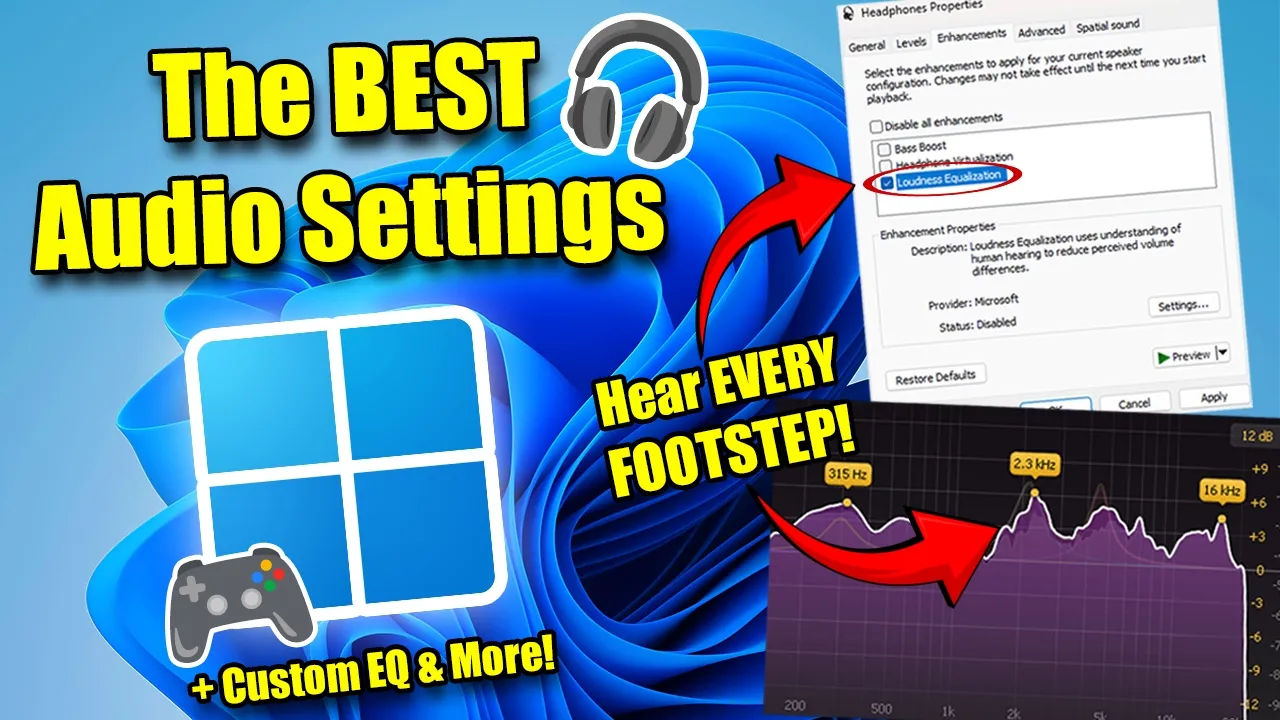
Today I'm going to be showing you the best Windows sound settings and even some good tricks all for gaming. No matter what game you're playing, like COD, Apex, CS, Valerant, or anything like that, this is really how to get the most advantages you can get with sound. Overall, by the end of this, your audio setup is going to be fully optimized for competitive gaming.
Before we dive into the settings, let's talk about headphones. In most games, the most important sounds for awareness are in two frequency ranges. The 1K to 5K range is where footsteps and gun reloads sit, especially in the higher end of that range.
And then the next range is the 150 to 450 range. That's the base body of footsteps. If your headphones naturally boost these areas, you'll have a much easier time picking up footsteps and positioning enemies without doing any work.
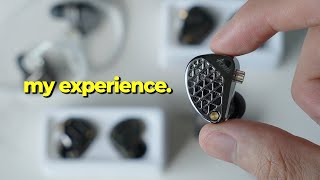
Now, I personally recommend in-ear monitors over traditional gaming headsets for competitive play. In my opinion, IM just have really good clarity, and the sound separation and isolation is a lot better than headphones, especially when comparing prices together. The pair I recommend is the Tipsy M1.
As you could see, their frequency response chart is all the important ranges already boosted. So, you can really just plug these in and start using them, and you'll already have an advantage over some other headphones that might have a more flatter range. I've been using them for a while, and honestly, just makes footsteps and all that super crisp and clean.
Tipsy's been making IM since about 2016, and they're a trusted name in Asia, and they're not too bad of a price either. So, if you want a true plug-and-play solution without really messing with EQ and all the other things we're going to be doing later in this video, these are the ones I recommend. I'll drop a link below if you want to check them out.
Now, let's move on to the Windows settings. Let's open up our device properties and go into the sound settings and choose your headphones. Let's look at some advantages that you can get out of this.
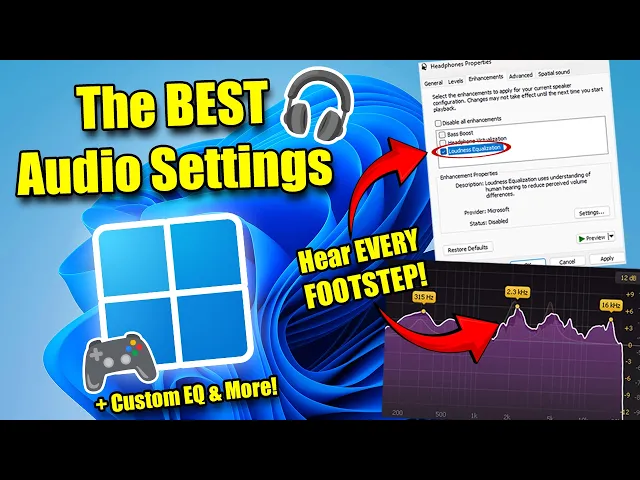
As you can see on the enhancements tabs, the only one we're paying attention to is loudness equalization. This acts like a compressor. It makes quiet sounds louder and loud sounds softer.
That means a tiny footstep way in the distance can suddenly sound like it's right next to you. It sounds pretty OP. It's even banned in Call of Duty ProLeague.
With this option, there's some trade-offs. With loudness equalization on, it's hard to tell how exactly how far someone is because everything just sounds super close. As you can see in that comparison I just showed, it's honestly pretty crazy.
If you want to hear every little footstep, this is the way to go. But like I said, it has its trade-offs. Next up is the spatial sound tab.
This is where you're going to see options like Windows Sonic. What this does is emulate 5. 1 or 7.
1 surround sound through your stereo headphones. basically just a virtual surround sound system. But the thing is, most modern competitive games, they already use their own HRTF or 3D audio processing.
So, this kind of just gets in the way. Keep this off. The advanced tab, you'll see options like 16bit 48k and 24-bit 48k.
For gaming, this doesn't make too much of a difference. Now, before we jump into doing a custom EQ for your headphones, let's look at the audio radar called sound site. You've already seen me use it, but here's a closer look at it.
Basically, it's a stereo visualizer that shows exactly where sounds are coming from. Things like footsteps and any other important sounds. You can change visual styles, adjust options, and overlay it right on your screen and put it anywhere you want just by pressing O.
If you just want an advantage, or you've got bad headphones or bad hearing, here's the perfect software for you. It can even pick up sounds you barely heard as seen here. If you want to support me, check out the link below.
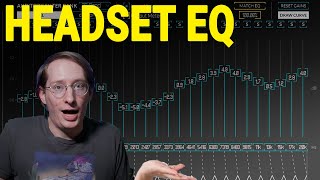
Now, let's go over EQing your headphones. if you don't have a good headset. So, you're going to have to install something called Equalizer APO on your Windows machine.
You can just click through the installation and then select your playback device, which is going to be your headphones. And then you're going to want to open up this editor and then simply just load the config file that I have in the description below that you can download. It's just a simple .
txt file. Or you can just copy down these settings here. Just click a little plus there and then add a peaking shell with these exact values.
Once you have that on, footsteps are going to sound a lot more crisp as you can see here in this before and after of what you're going to be getting. Now, we just went over all of the best Windows settings and audio settings that you can have on your PC for the best gaming experience. Now, I hope you guys enjoyed this video and peace out.