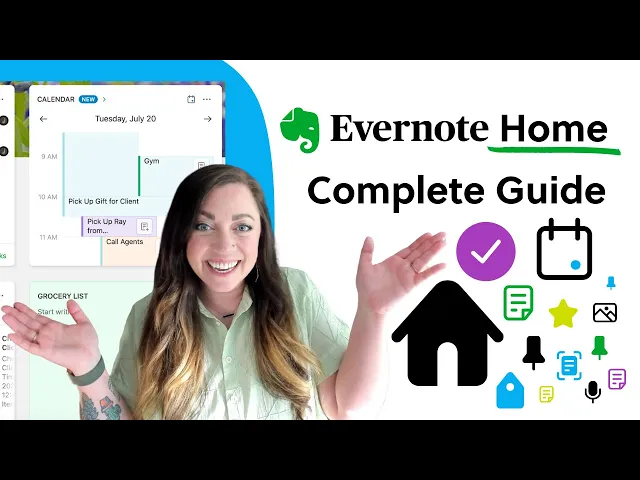
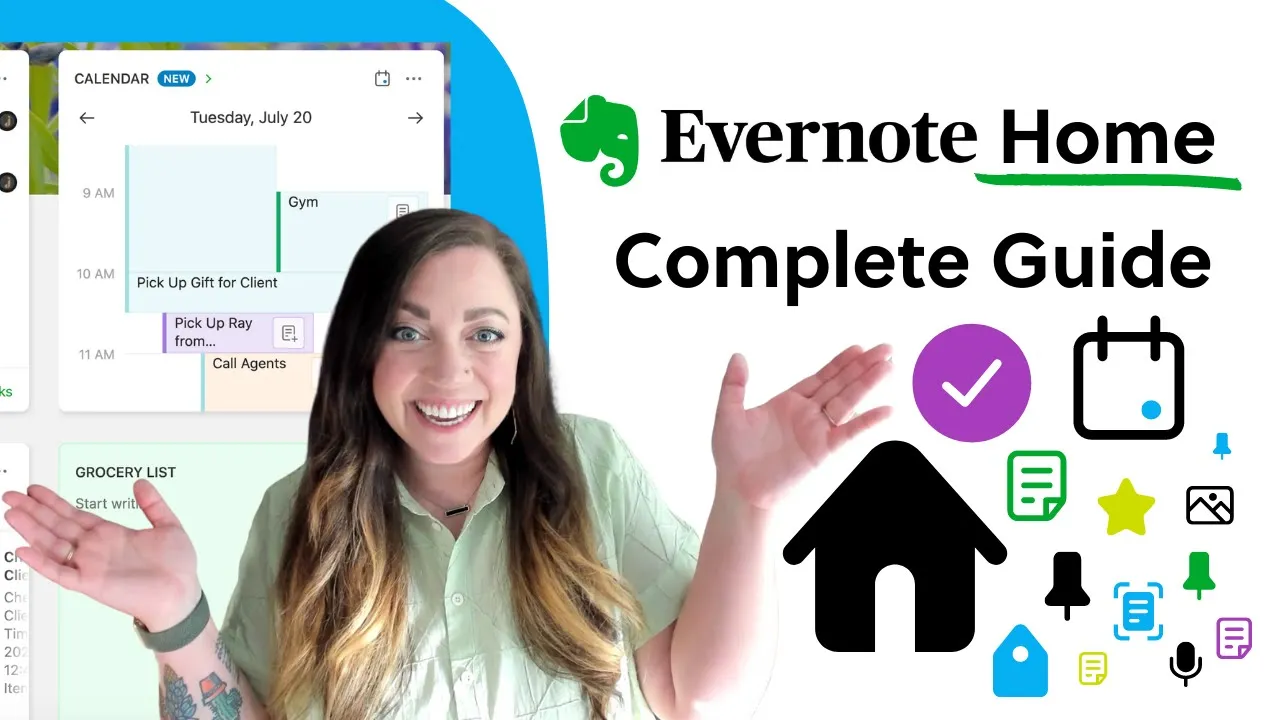
[Music] hi there it's me Britney from Evernote and I'm here to give you a full tour of Home including some awesome new updates you're going to want to check out home is a One-Stop dashboard that surfaces all of your most important content in a simple organized view with home you can choose from a variety of widgets and customize them so Evernote works the way you think in this video I'm going to walk you through a tutorial on how each home widget works all the customization options in home like background images custom scratch pads multiple widgets
and more and last but most exciting I will be introducing you to the new widgets just added to home there's so much to show you so let's Jump Right In First of course is your notes widget I love the filters of recent and suggested and honestly I just leave mindset to suggested it's like doing a search and seeing suggestions before I type anything this is a quick an easy way to see all of those most recent notes or notes suggested to you by Evernotes search engine next up is The Notebook widget much like the note
widget you have two filters for recent and suggested to get you to the notebook you need while I know I can access this list from the left nav menu I just love how visual this widget is is to prep for this video I personally collapsed my sidebar for a whole week to see if I could navigate Evernote using only home I did it and never looked back next on the widget tour is the recently captured widget this widget filters through all your notes to surface notes containing all sorts of captured content like Web Clips emails
images and more if you are someone who sends a lot of info into evernote this widget is definitely for you moving on to the tags and shortcuts widget these offer a One-Stop place to see your most used tags and easy access to your shortcuts all in one place you don't have to jump from your tags menu to the shortcut menu with these two widgets on your home I really like being able to see them all in one view with the context of home all around them one of my favorite widgets on home is the pinned
note widget you can select any note in every note to pin to your home for easy access and quick reference you can choose the note you want to pin from the widget itself or you can pin a note to home right from the note if you're working on a note you want to add to your home simply click the three dot menu in the top right corner of the note and select the option from the menu called pin to home finally the scratch Pad is an awesome way to jot a quick thought down you can
easily convert your scratch Pad into a note by simply clicking the three dot menu in the upper right corner of the widget and selecting convert to note this moves all your brilliant thoughts into a note and leaves you with a fresh and empty scratch Pad ready for your next big idea conversely if you jotted down something you don't really need to save or keep in a note you can simply click the three dot menu again and select clear scratch pad not All Is Lost with this action though the content of your scratch Pad is moved
to your trash so you can access it later just in case now let's shift gears and go over some awesome ways to really make Evernote match your mood and style you can change your background by clicking on the customize button in the top right corner of home from there you can choose from our pre-loaded image gallery or upload your favorite photo I really like this one now that I have the vibe set with my background image let me show you really quickly how to customize your widgets still in the customize menu you can drag the
widget you want onto your home from the options on the right to the exact space you want it to appear from there you can change the size of the widget from small medium or large if you want to adjust the order you can also easily drag and drop widgets around the customized view of home until you get your perfect order lastly if if you have a widget on your home you do not need simply click the X to remove the widget now there are some really exciting updates to two widgets on home I've been so
excited to show you as a personal professional and teams subscriber you can customize the scratch pad to be a little bit more you in the customize view you can click on the little pin icon to edit the name of your scratchpad or even change the color of your scratch pad I for one I'm really excited for the green option it's my favorite color another amazing new feature I have been loving is multiple widgets as a professional or teams subscriber you can actually add more than one scratch pad and pinned note to your home this is
where naming your different scratch pads can really come in handy I also love being able to pin more than one note I'm super indecisive and have so much important content in Evernote now I don't have to choose just one note your home in Evernote can hold up to 12 widgets so there is plenty of room to add as much as you'd like to really make the most out of the space all these widgets make homes super useful as a One-Stop view of everything ever noticed to you but now there's more a couple new widgets have
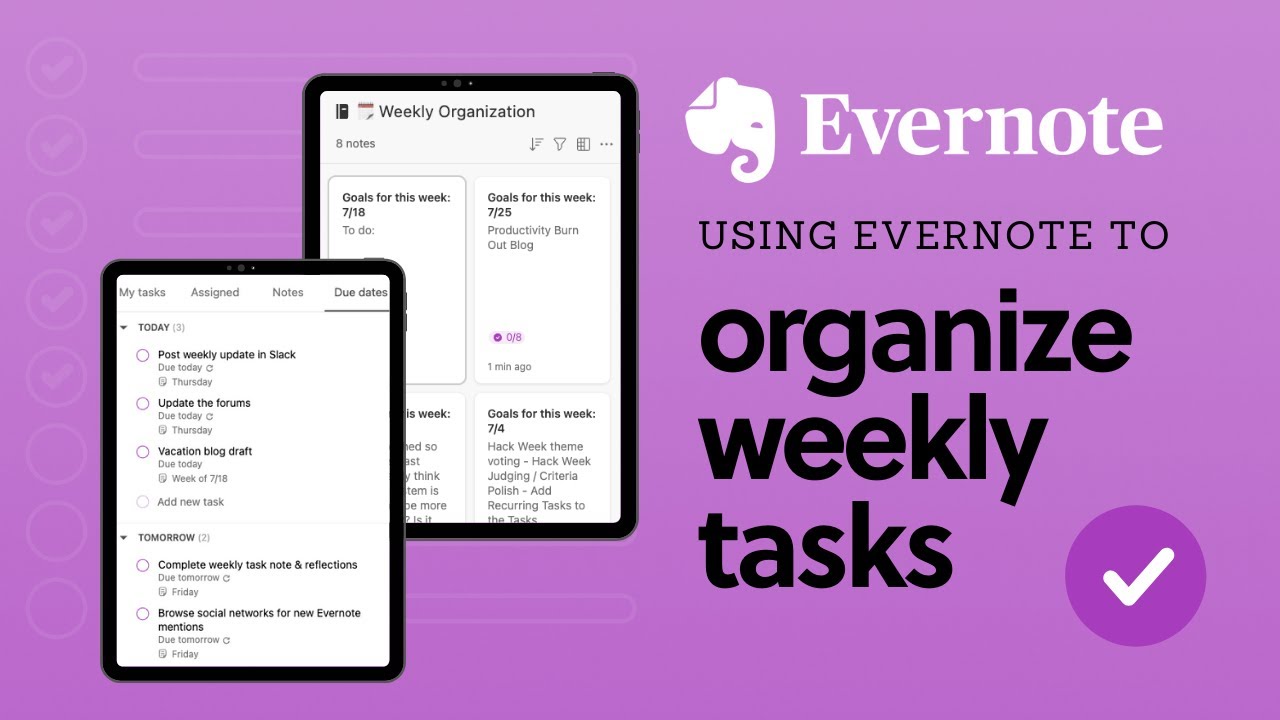
arrived in the menu and I'm so excited to give you a quick peek tasks has been an awesome new feature in Evernote helping to streamline your workflow with actionable to-dos due dates and more but now tasks comes home the tasks widget shows you your first 15 tasks in a simple to use view simply scroll to find the task you're looking for click the task right from the widget to edit it and most awesome of all you can mark your task complete right from the widget now if you think that is great give a big drum
roll to the newest member of the Evernote home widgets family calendar this little widget is insanely powerful from this widget you can connect your Google calendar to bring your events straight into evernote from there you can link your events to your notes for a One-Stop place to keep track of your schedule and all the notes for that schedule from the customization menu you can make the widget small or medium which will show you only your day view changing the widget to large gives you a super handy month view right alongside your daily view clicking on
the Green Arrow next to the widget title gives you an expanded view of the calendar with more options to curate your calendar view there is so much you can do with tasks in calendar so I will leave the links to the full and detailed breakdown videos of the tasks widget and calendar in the descriptions below be sure to check those out out so there it is Evernote home with all the different customization options home really lets you shape Evernote to work the way you do you can manage your tasks right from home with the tasks
widget and best of all a better way to start your day with the new Google Calendar widget connecting your events to notes without ever having to leave the homepage I truly hope you enjoy using home click the link in the description box below for more details on how to get the newest update and how to articles for all the features we went over in more thank you so much for watching if you liked this video please give it a thumbs up and be sure to subscribe to our channel for more videos on how to use
Evernote workflow inspiration and all the tips tricks and helpful hacks you need to make the most out of Evernote [Music]