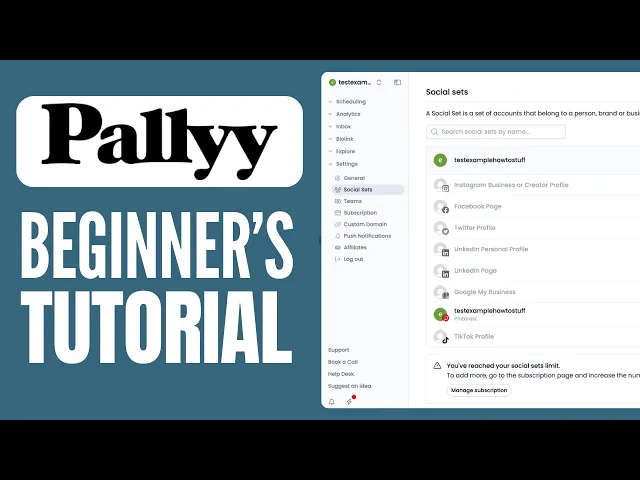
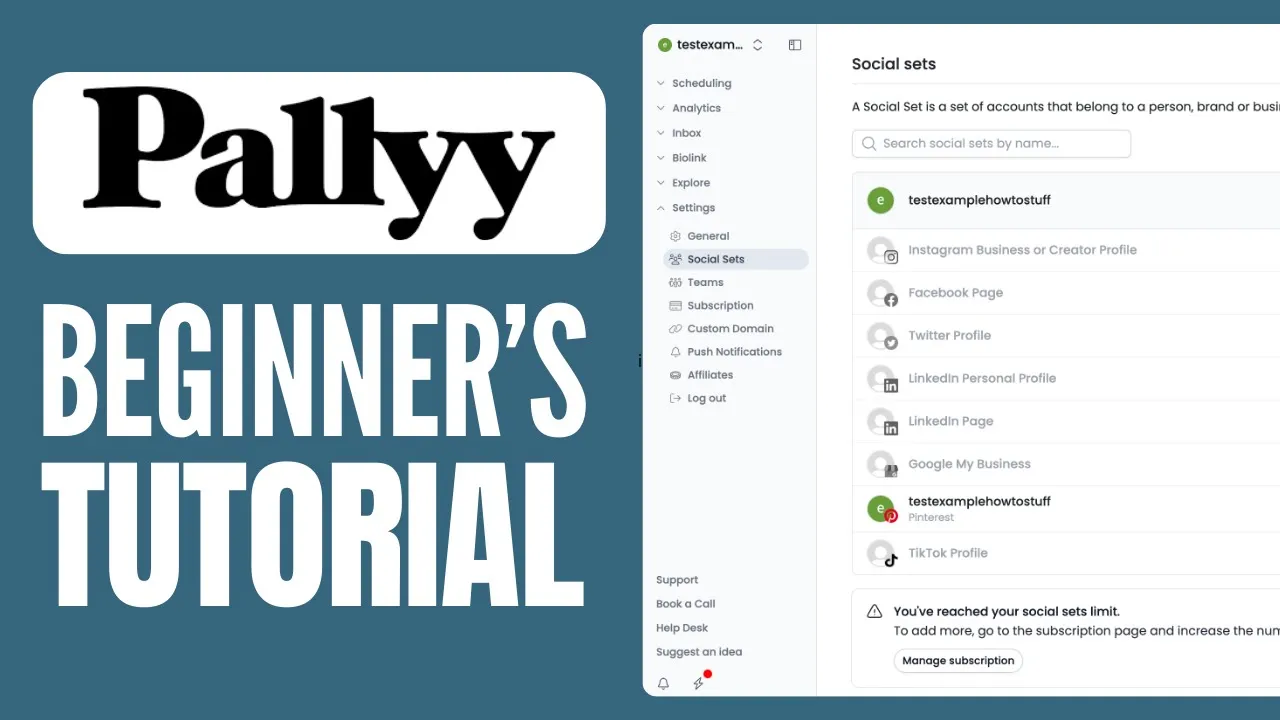
in this video I will show you how to use P for social media management so p is a pretty new popular tool that is used to manage your social media accounts from Instagram to Facebook to Twitter Pinterest Tik Tok LinkedIn and even Google my business so in this video I'll show you exactly how to use this so make sure to watch until the end so that you don't miss any necessary information now here is a screenshot of kind of what it looks like and I'll show you how you can actually set this up and they say easy to use looks good no BS and and this is what they do for you they help you with scheduling then analytics they have a Biol link tool an inbox where you can simply see all of the messages you're getting across all of your social media accounts all in this one place which is very helpful and then you can manage the teams right here for your social media so in order to get started just go to p. com and click on try it for free there is no credit card details required so click try it for free and here go to sign up by entering your email and password then next enter your name choose a theme color and select your time zone then go and click on continue and now here what you want to go and do is just connect all of the social media accounts right here that you actually use or that you want to manage so for example Instagram business or create a profile you cannot have a personal profile you want to make sure it's business or Creator then your Facebook page Twitter profile LinkedIn personal profile or LinkedIn page your Google my business your Pinterest profile and Tik Tok profile so I'll just just add a couple of these right now now next up you can select your plan so you can try premium for free for 14 days to unlock all features or continue with the limited free version so again you can select premium right here they can choose the amount of social sets you have so for example if you have a social media management agency then one social set is basically one business that you manage so let's say you have three clients then you want to set this to three now for this example I'll just keep it to one now can add in any extra users and you can see an extra user does cost quite a lot so I recommend not adding too many people but if you set it to zero right here then only you have access if you add one then you and one other person have access now you have the AI captions option this will cost a little bit extra so you can choose if you want this or not or you can simply click on free and you will see what you get in free that you don't get in premium so in free you get scheduling 15 posts per month analytics Limited media storage 200 MB instead of 10 gab you don't get video uploading or any of these other things right here so I'll just go with premium for now to actually show you all of its features however you can also just get started for free right here so in order to get started with premium you can choose monthly or annually with annually you do save a little bit of money but I'll just go with monthly then here simply enter your credit card details and you will see due today $0 and only after 14 days you will be first buil so now now my plan has been updated successfully and now I can click go to calendar now you can also follow along any free plan but you won't have access to everything you see right here for example the Biol link tool will not be available but now what you can simply do is here in the scheduling section where you will be taken first is you can click upload images and videos so now you can simply go and upload from any of these right here such as canva from Drpbox Google Drve whatever you want to do I'll just upload something from my device for example I'll take this thumbnail right here and click open and then click upload one file so now here in the media library you will see that now I have this image uploaded so now what you can go and do is in the top right click on new and then click media post and now here in your media library you will see the image that I just uploaded now you can also simply go and upload it right here if you want but I'll just select this media right here and click select one media and now you will see this now currently I only have my Pinterest account connected but if you have multiple accounts you will see all of those right here and you can simply click on the ones that you want to upload this post onto now if you want to unselect something just go and click on it and then it will be unselect so now here you will see what the post will look like and for this one I'm uploading it onto Pinterest now here you can add a description about your PIN so you can also use the AI captions right here so click generate caption with AI then here you want to go and describe your caption idea then what to do or not to do the length of the caption and the amount of hashtags then once you click generate caption there will be a caption generated right here then you can add a title for your PIN a destination link this is not necessary but you can add a link if you want and then you can select a board to add it to so for example I've got this board on my Pinterest account got kitchen so I add it to that one so now what you can go and do is Click schedule right here and now you will see it has been scheduled for the 19th right here but you can simply drag it over into any day you want for example if I want on the 21st here and if you simply want to change the time and stuff like that you can just click on it then in the top right it will say scheduled 4 and you can click right there and then just choose the date and the time that you want it to be scheduled for for example if I go with 12: a. m.
right here and then click schedule it will now be on 1200 a. m.