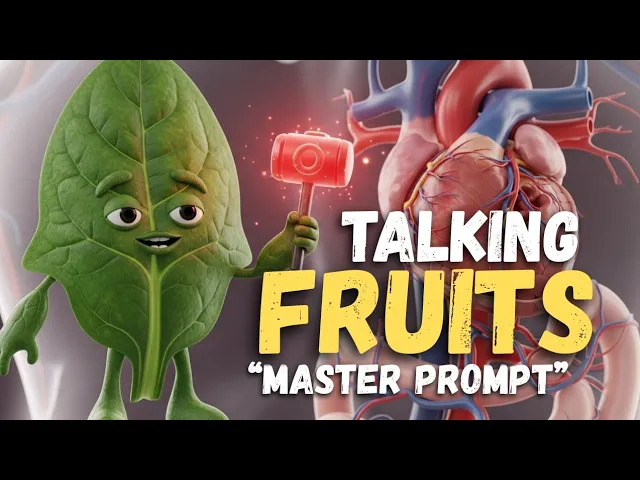
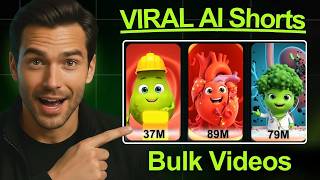
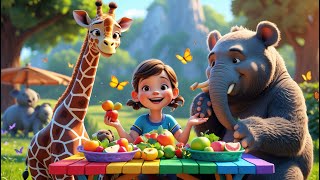
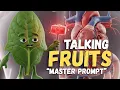
I am a banana. Eat me and I will soothe your intestines and help maintain healthy bowel function. I am broccoli and I actively patrol the airways, filtering toxins and keeping your breathing smooth and strong.
>> I am a strawberry and when I am washed before storage, trapped moisture feeds mold and causes me to spoil fast. >> I am an avocado and refrigeration before ripening disrupts my enzymes and ruins my texture. >> These videos are currently trending.
channels and accounts that are making these videos are currently going viral. I'm going to show you how to make these videos in three simple steps. Before we get started, you can choose to make this video on the medical sector, food storage, or any other sector that you fancy.
Now, let's get right into the video. The first thing you want to do is open chat GPT. You can also use cloth deepseek gemini to create this on the chart.
Paste this prompt. We're going to paste our master prompt which we already copied and then we're going to tap on enter. Now on this prompt it describe all the necessary things that we need to make this video.
It includes the fruit or the vegetable, what they are supposed to say, the image prompt, the video prompt so that it's easy for us to create. What we have to do is simply copy and paste after chachi has created the entire prompt that we need. So from here chip has provided different fruits.
We have apple, banana, strawberry, leafy greens, we have tomato and we can continue this if we want. All right. So what you want to do now is copy and paste.
It makes it very easy. The first thing we are seeing here is the speech that the apple is going to make. That is what we're seeing here.
The next bold letter is 3D image. This is the image prompt. And after the image prompt, you're going to see the video prompt.
Now, you don't need to start generating these things one after the other. It makes the entire workflow very easy. All right.
So, what we want to do now is first of all create the image. Now, to create the image, you can use any image model of your choice. If you want, you can use Google image effects, which is free and unlimited.
If you want, you can use flow. So for this particular video, I'm going to be using Google flow. So what I want to do is first of all copy this image prompt.
So I'm going to start from here to copy the image prompt up to this place. So when you open flow, you want to go to new project. Then here we are going to paste our prompt.
But before we generate, we're going to make sure we choose create image. All right. Then we'll tap on this settings.
Make sure it's on nano banana pro. You want to make sure you choose the right aspect ratio. So if you're posting on YouTube shorts, you want to choose portrait.
If it is Instagram, Facebook res or Tik Tok, you want to choose portrait. But if you're posting on YouTube long video, you want to choose landscape. So I'm going to choose landscape.
On flow, you can choose the number of output you want per prompt. I'm going to leave it at two. And um daily with flow, you can access Nano Banana Pro for limited time daily.
I think you can generate up to five images for a day for free using Nano Banana Pro, right? It's not going to charge you any credit. So now what you want to do is tap here to start generating.
So give it a little time so that it generates it. One of the reasons I want to use Flow is because it gives you the option to download your image in 2K. All right.
If you don't want to use Flow, you want to go to image FX. And to access that you can just go to your browser and type image FX. Tap on this first link Google labs.
Here you have whisk flow image effects or music FX. So you can use image effects or flow or whisk. And for these three you can generate images unlimited except for flow.
If you're using nano banana pro then it is limited. So, if you go to Google image effects, you tap on launch image FX. It's going to open up this interface and then you paste the same prompt here.
Okay. You want to come here and choose your aspect ratio. So, we're going to leave it at landscape.
You want to make sure it's on high quality. Okay. So, what you want to do now is tap on create.
So, we're going to compare both images so that you choose the one that you prefer. Okay. So this is the one from flow and this is the one from Google image effects.
So what you want to do is choose the one that you like. For me, I think I prefer this one from Flow. Right.
So what I want to do now is tap on this download icon and choose download 2K. Once you tap on download 2K, it's going to start upscaling your image. And once it is done upscaling your image, it will download automatically into your device.
Now the reason I'm choosing this image is because this is more realistic more than the one that we got from Google image FX. All right, I think this is more realistic. If you don't want this one, you can as well use the second one.
Okay, both of them are quite okay. So I'll just move on to generate the video. And to do that, we are going to use Grog.
You can also use any image model of your choice. Right. So what we want to do now that I've downloaded the image is head over to Grock.
We're going to go to imagine and then we're going to tap on this icon. Choose upload a file. We're going to select the image.
Now that the image is on, we head over to chat GPT and copy the video prompt for Apple. Remember what you're making for is Apple. So we just copy this way.
Copy the video prompt. Go back to Grock and paste the video prompt right here. So what you want to do is make sure that you read the prompt so that you are certain it's going to give you what you want.
From what we have here, the speech is I am an apple. I release it clean and I ripen quickly stored like this. I bruised and spoilers.
Keep me separate to preserve freshness and nutrients. Now I don't know if this will be said within six seconds because remember we are using Gro and for now Grock generates video for six seconds if you're using the free version. So we're going to try it out and see if it gets the entire speech correctly.
If it doesn't get the entire speech correctly, we have to reduce the speech while maintaining the main point that is in the speech. Or we can also use the copy video frame format to make sure that we get the entire speech. All right, so let's tap on generate and see what we have.
>> I release ethylene and ripen quickly stored like this. I bruise and spoil others. Keep me separate to preserve freshness and nutrients.
>> Now you see that it didn't get the entire speech that we needed because it's only going to be six seconds. Now one of the things that we might want to do is reduce the speech. So we might want to just say where it says speech, I am an apple.
I release it lean and ripen quickly stored like this. I bruise and spoil others. So what we're going to say is I am an apple.
I release it lean and ripen quickly. We're going to remove stored like this. Okay.
I bruise others. Right. So we're going to say I am an apple.
I release a clean and ripen quickly. Keep me separate to preserve freshness and nutrients. So let's try this one and see the result that we'll get.
>> I am an apple. I release ephylene and ripen quickly. Keep me separate to preserve freshness and nutrients.
>> This got the entire speech that we needed, but I don't like the result. So, what I want to do is regenerate it again and see which one is better from this one and the next one that I'll generate. So, what I want to do is just tap on redo.
>> I am an apple. I release ephylene and ripen quickly. Keep me separate to preserve freshness and nutrients.
So I think I prefer this one more than the other one that we created. Now if for instance you need the entire speech that we edited earlier, you need them in one video and Grock gives you 6 seconds. What you want to do is use the copy frame feature.
If you don't know what it is, check my last video. I talked about how to use the copy frame feature to create more than 6 seconds if you're creating a dialogue video. Okay.
So, what you want to do now is tap on these three dots at the top and choose upscale video. This would help to give you a better quality because Grock is going to upscale the video and give you an HD quality. I'll be dropping the master prompt in the video description.
So, check out the video description to get the master prompt. When it is done upscaling, you'll see the letter HD right here to show you that it's done upscaling. Then what you want to do is tap on the download icon to download it and you can share it wherever you want.
Now remember, if you're creating this video for the medical sector, make sure that you're getting your information from the right source or make sure that you are practicing medicine so that you don't end up sharing false information. Don't forget to like this video, drop a comment, and please subscribe.