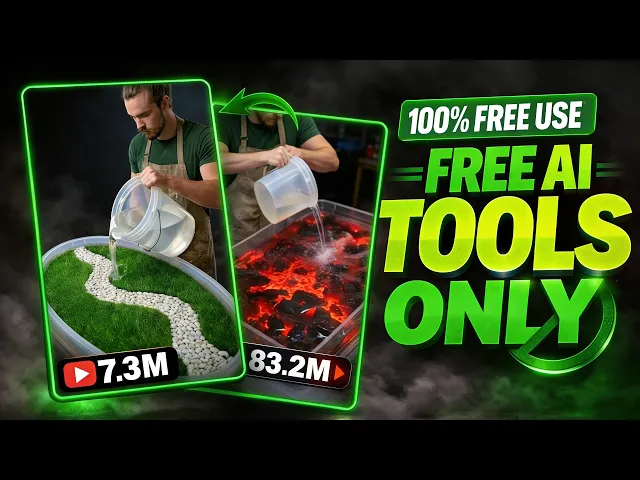
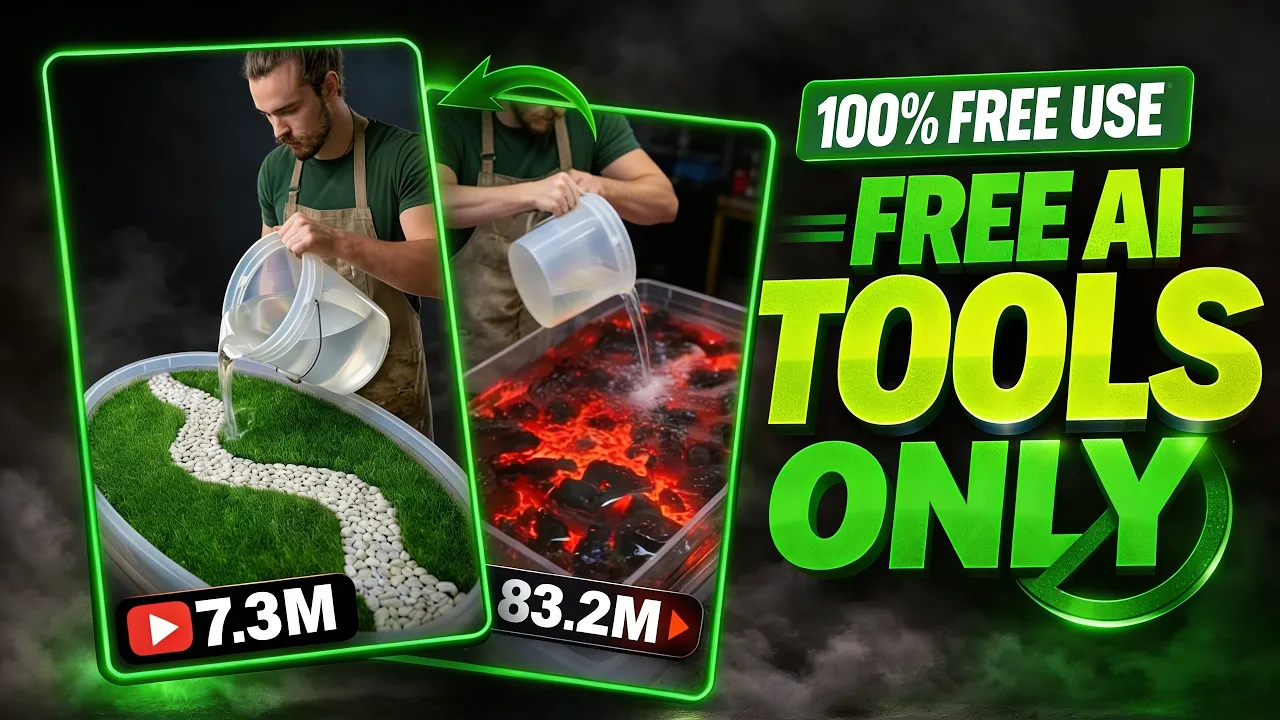
Stop making home renovation videos because the competition is too high and most of those videos are not getting strong views anymore. I found a similar YouTube shorts niche with much lower competition where channels are getting millions of views by posting simple table renovation and design videos. One channel posted this type of content and got 33 million views on one video while other similar videos reached 24 million and another channel in the same niche has videos with 9.
5 million and 6. 7 million views. This is not just one lucky channel.
Many channels are uploading simple table renovation time-lapse and design videos and getting massive reach. Most of these videos are made with AI, which makes this niche even easier to enter. Today, I will show you step by step how to make these kinds of videos yourself.
New channels are starting in this niche and quickly getting millions of views, which means there is still a big opportunity. If you follow the process correctly, you can also start a similar YouTube shorts channel and work toward monetizing it. But you need to pay close attention because every step matters.
If you skip even one part, you may not get the same results these channels are getting. So, watch carefully from start to finish, and I will explain everything you need to know to create this type of viral content. To create this type of table design renovation video, the first thing you need is the right prompt.
I have already done the hard work of preparing these prompts for you, and you can find the link to them in the description below. The prompts are provided in a Google document, so you just need to open the document to access them. Inside the document, you will find two prompts that will help you create the complete video from start to finish.
First copy the first prompt from the document. After copying it, open chat GPT and paste the prompt there. Then click on the generate button.
Chat GPT will automatically generate 10 different topic ideas related to table renovation and design. From these ideas, you can choose any topic that you like to create your video. If you do not like the suggestions or want more options, you can simply regenerate the results to get new topic ideas until you find one that fits your content.
First, choose any topic idea from the list that chat GPT generated for you. Once you select the topic you like, the next step is to create the images and video prompts based on that topic. For this, go back to the Google document again and copy the second prompt provided there.
After copying it, return to the chat GPT chat page and paste the prompt. Inside this prompt, you will see a section where the video idea is written in brackets. From the 10 topics generated earlier, copy the topic you selected and replace the text inside those brackets with your chosen topic.
[music] After inserting the topic into the prompt, click on the generate button. Chat GPT will then start creating the image prompts for you. Once the image prompts are generated, the video prompts will automatically start appearing below them.
At this point, you just need to wait for a few moments until both the image and video prompts are fully generated. After the image prompts and video prompts are ready, the next step is to start generating the images. Uh first copy the first image prompt from the list.
After copying it, you can use any AI image generator to create the image. In this example, we will use Pippet AI. You will find the link to this website in the description below.
Once you open the Pippet AI website, click on the image option, then paste the prompt that you copied from chat GPT into the prompt box. After that, go to the model section and select the image model you prefer. Next, set the aspect ratio to 916, which is ideal for YouTube shorts.
Once everything is set, click on the generate button. The AI will start creating your image, and you just need to wait a few moments until the image is fully generated. Once your first image is ready, go back to Chad GPT and copy the next image prompt.
Then return to Pippet AI, paste that prompt into the image generator, and click the generate button again. Your next image will start being created. After that image is ready, repeat the same process step by step.
Each time, go back to chat GPT, copy the next image prompt, paste it into Pippid AAI, and generate the image. Keep repeating this process until all of your prompt images are fully generated. This way, you will create every image needed for your video in the correct order.
The next step is to download all the images you have generated. To do this, first click on your first image. After opening it, you will see the download option in the top right corner.
Click on the download button and save the image to your device. Then repeat the same process for the rest of the images. Open each image one by one.
Click on the download option and save all of them to your device. Once all your images are downloaded and saved, the next step is to convert these images into videos. To convert your images into videos, you can use Flow AI.
First, go to the Flow AAI website and click on new project. After opening a new project, you will see an interface with a plus plus icon. Click on the plus sign and then use the upload button in the top corner to upload the first image from the images you downloaded earlier.
Once the image is uploaded, click on the settings option. From there, select the video option and set the aspect ratio to portrait so it fits YouTube shorts. Then, choose the model according to your preference.
After that, you need to enter a prompt in the prompt box. To get this prompt, go back to chat GPT where the prompts were generated earlier. In section B, you will find the video prompts.
Copy the prompt, return to Flow AI, paste the prompt into the prompt box, and then click the generate button. [music] Flow AI will start creating your first video clip based on that image and prompt. [music] After your first video clip is ready, click on the plus icon again and upload the second image.
Once the second image is uploaded, go back to Chat GPT and copy the second video prompt from the list of video prompts. Then return to Flow AI. Paste the prompt into the prompt box and click the generate button.
Flow AI will start creating the second video clip. After that, repeat the same process for all the remaining images. Each time, upload the next image.
Copy the corresponding video prompt from chat GPT. Paste it into Flow AI and click generate. Continue repeating these steps until all your images have been converted into video clips.
Once all the video clips are ready, download them one by one and save them to your device so you can use them to create your final video. The next step is video editing and for this we will use Cap Cut. First open the Cap Cut application.
You can find the link to download Cap Cut in the description below. After opening the app, click on the import button and import all the video clips that you generated earlier using Flow AI. >> Once the videos are imported, drag the first clip to the timeline to begin editing.
When you place the first clip on the timeline, you may notice a watermark on the video. To remove it, click on the clip and slightly zoom in so the watermark moves out of the frame and the video looks clean and professional. After adjusting the first clip, add the second clip next to it on the timeline and make similar adjustments if needed.
Continue this same process by adding the third, fourth, fifth, and sixth clips one by one until all your clips are arranged on the timeline in the correct order. Once all the clips are placed on the timeline, your basic video structure is complete. If you want to make the video look smoother and more engaging, you can also add transition option in Cap Cut and choose any transition you like.
Cap Cut also provides easy transition options that can be applied with just one click. After everything is arranged and edited, your video is ready. Finally, click on the export button and the finished video will start saving to your device.
This will be your final video result ready to upload as a YouTube short.