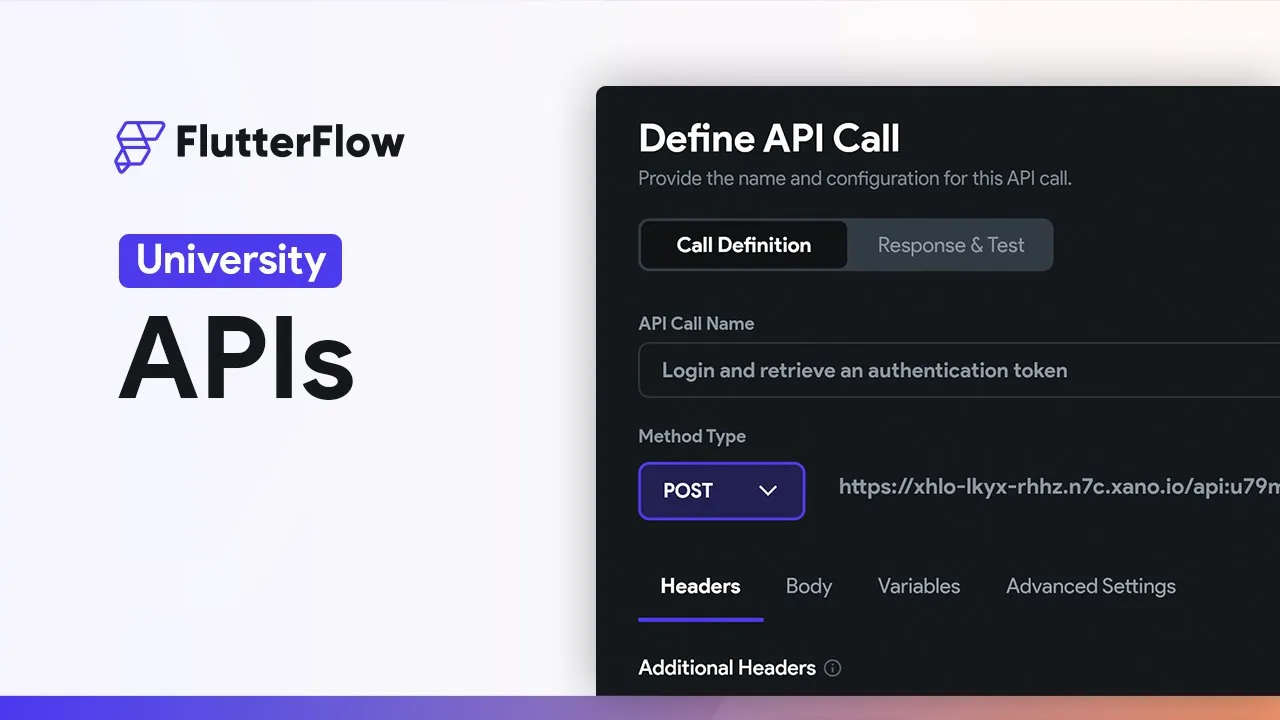
in this video we're going to show you how to set up API calls display data from those calls and update data so you access API calls in this section right here and there are three ways to create API calls the first one is that if you have an open API spec you can import your whole API Library this can be a Json or yaml file and I've got a xano project for this tutorial so let me show you that so here in my project I've got two tables a photos table and a users table and
here are my apis and let me go into my Swagger documentation here and if you just click on this right here you can see the open API file and so I'm just going to save this and then I can just import that Swagger file and so it's come in as a group here and I've got all of my calls and you just want to give it a name and you can go in and make whatever modifications you need to your calls so that's the first way so let's just delete our group here for now and
the second way is to come up into this ad menu and you can create an API Group now the idea of a group is when you have multiple calls that are going to share data so they'll have the same base URL or maybe they'll have the same headers for instance an auth token and all of these headers will propagate down to each one of your calls so you don't have to add your headers in every call Api groups also give you access to group variables that you can reference in any API call and the last
way is simply just making an API call and that's where we're going to start and the first thing we want to do is just display the photos from our database so let me show you that so let's come into my photos table right here and we just have a bunch of photos and the way we get those is we come over to our API and we can get them from this endpoint right here query all photo records and we can just copy that endpoint and let's give it a name so get all photos and put
in the URL and for this call that's it so we're just going to add that call that is we don't need any additional headers or query parameters okay next you want to come over to your response and test and then we want to test our call and we're getting the response we're expecting so we have an array of objects and each one of these objects is our photo and the metadata of the photo and so in here we are currently looking at the body the response from our call but you can also see the response
headers here and you also have access to the request header so we don't have any in here and the request URL so here's all our request information and here's all of our response information okay great so that body looks good and the next step is to come down here to our Json paths now if you're not familiar with jsonpath it's a query language and the purpose of it is that when you're receiving back the response from your server you're going to use it in very specific ways in your app so you're going to pull out
different fields different properties from these objects so if you're returning a list of users you're probably going to want to display their name and their photo and you want paths to that information and you do that with Json path but you don't have to write it yourself because we have recommendations here and the recommendations are looking at this response and listing right here the most likely paths you're going to want out of this response so down here maybe we want to display or use the photo name in our app well if you do then you
want to select it because we're in the recommendations here so we're going to take whatever we want out of this list and then when it's selected over here give it a name so photo name and then we'll be able to reference this in our app and I'll show you that in a second now if you want to see what this query results in you you can just click on preview and it'll show you okay great let's close that up and I actually don't want this for our demo right here so let's get rid of that
and what I really want is I just want this URL because I want to display my photos so let's see if we have that in our recommendations and we do that's right down here so we're going to select that and go over to selected and give it a name and we'll just call this URL and save our call okay beautiful so we've set up our call we've set up our Json paths so we have something specific to bind to in our app so let's go display this data so we're going to come into our Builder
and because this is a list of data I need a widget that can display multiple children so that could be anything like a column or a row or a list view but I'm going to use a grid view which is good for photo and let's just add in an image let's come into our grid View and we want to come into this background query and add one and what we want to bind it to is an API call and in here we have our one API call we set up and that's it so we confirm
that and so now our grid view is bound to that now the next step is we have to come over here and to generate Dynamic children and the reason we have to do this is because we've just bound this call to this grid view widget so that's just kind of sitting out there we haven't told our grid view to do anything with this data we just said hey when the page loads go get this data and so it says okay I've got this data now what you want to do well we want to display these
images that is we have these children here which for us is just an image and we want to generate one child for every item in this list and the way flutter flow does that is it's going to take that list and dump it into a variable right here so let's give it a name so we're going to call it photos and then we have to bind that to something and we want to get that from our response and then we have the option to say what from that response do we want to dump into this
variable let's work down from the top to understand what's going on here so at the top level we could bind to the Json body and that would be what we saw when we tested over here so that would be binding it to all of this this right here and it defaults to that because it's looking to generate children which means it needs to be a list so this is an array of objects so because flutter flow is type aware it says oh that's a type I can deal with now the next option in that list
is the status code that would be the status code from the call when you make it back here so let me show you that so that would be this 200 and that's in red because of course it's not a list and you've got whether it's succeeded or not get a certain response header that's what we looked at before or just the raw body text okay well we want something out of the Json body so that's correct the next option is do we want to produce these children here based on that whole Json body or some
particular path inside it and when we select that we can choose that path we defined or set up a custom path and normally you're going to do both of these and let me show you that so let's start off with that Json path we defined here so that URL and just confirm that and make sure before you confirm that you actually have a variable name here photos and confirm now this is just going to tell you that hey it's going to dynamically generate children so you say okay and flutter flow gives you this sort of
ghosted out UI here to indicate that when you run this in test mode or run mode these will be dynamically generated okay so right now we're producing children based on that Json path we set up so if we come in here and just look at that path so let's test our call again and let's take a look at this so this is what we're going to be producing children from so there will be one child for each one of these items in this array here okay so now we've generated a child for each one of
those items and the final step is to bind the data that you need out of there in each one of the children so let's come into this image here and the only piece of data out of there we need is the path to where that image sits on the server so we come down here to path and we come into our binding and what we want is not this response right here but to that photos item this is that variable we set up so let's add there and we don't have any further changes we'll look
at that in a second but because each one of these items is just the URL that's what we want and let's confirm that all right so let's test this out and there we go it works beautifully all right let me show you that other way so more often than not this isn't the way that you'll set up your API calls with the bindings like this and that's because you typically want to pull more information from each child than just one thing like the URL now this is a perfectly appropriate way to do it but let
me show you this other way so we're going to go back into our grid view right here into our generate children from variable and instead of binding to that Json path we're just gonna bind to our body and confirm let me show you what that actually means so if we come back into our API calls let's call that again here and also let's look at our response right here so you always have to bind to a list of something a collection of something and before we bound to this list right here so the only thing
we have access to is the URLs instead said this time we are binding to this whole response so the children are these objects right here so this will be the first child and this will be the next child right here now the difference is is that this way we have access to all this information in here but it means that we have to write individual Json paths for whatever we want so for instance if we want to duplicate the page layout that we currently have we're going to need access to this URL and to do
that we have to know the Json path there now this is no problem it works with DOT notation just like with objects and maps in many programming languages so to get there we're going to look for photo dot URL so let's go over and show you how to set that up so our binding here is correct the only difference is The Binding in each one of our images so let's come in right here and we're still binding to our photo item but if we did no further changes we wouldn't see anything here because this is
just returning the whole object of that image and we want something specific we want the photo URL so we want a Json path out of there and it has to start with this dollar sign and we do dollar sign dot then we go for photo and then dot URL and confirm that all right let's take a look at that so reload and it works the same way okay so that's how to set up a get request and view some data but let's look at some more in-depth things where we need headers and a body so
let's set up a post request okay let's go back to our apis here and add another call and for this call we want to add a photo to our collection so we're going to call it add photo this is going to be a post request and the URL is going to be the same as this one so we can just paste that in and let's just add our call to save it the next thing for a post call is we need a body because we're posting sending something and in your body right here you can
choose whatever type of body this API is expecting and you can just look at your API documentation to see what it's expecting now for this because we're sending a file we're going to use a multi-part and let's look at our API to see what parameters we need so we need this post endpoint right here so let's take a look and if we select this input right here we just need an image okay great so let's add a parameter we are going to call it image and it's going to be an uploaded file but we've run
into a problem because if we set it up like this we're going to be sending just whatever photo we set up in here that's because we are hard coding this value that is the value of this image is a specific value which right now is just empty but what we want is we want the value to be whatever the user uploads so we don't want this from a specific value like a hard-coded value right here we want it from a variable that is a variable that the user will upload that is whatever the user will
upload it will be variable it will be dynamic okay so let's select our variable but we haven't created the variables yet now if you select create new variable here it'll create a variable based on this name but let's do this manually so we can see the whole process so let's come over to variable here and add a new variable and we can just call this photo and it's of type uploaded file and it is not a list Okay so we've got this variable so now we can go back to our body here and when we
select our variable now we've got it one thing to note is that if you're using Json for your body your variables will show up here and you can just drag them into your body okay but we're not using Json so let's go back to our multi-part and it remembers so that's great okay so this is all set up so we've got our URL we've got our body and we'll send along an image from the user okay so now we need to set this up in the UI so let's save our call and let's go into
our Builder all right so what do we want to do well let's add in a button so that when the user clicks it they can upload that image and we can then send it along through our post request to our server alright so we need a button and we can just use a floating action button let's add in an icon and let's add in a plus sign so we get a little visual indication of what it is and let's change the color beautiful okay so let's define this logic now so we'll select our button we'll
go into our action flow editor We'll add an action and we want this to trigger an upload of an image so we search for upload and it's going to be media for us and we'll accept all the defaults right here that's fine and it's just good to rename our output here so we understand what it is so we can just say up uploaded photo beautiful so the user uploads the photo and then we're going to want to make that post request using this photo that they've uploaded okay so we need more space here let's open
our action flow editor and then we want an API call and we've got our ad photo call right here and we know we have one variable that we set up here and that variable is our photo that's that variable that we set up when we're setting up our call of course we don't want a hard-coded value we want a dynamic value and we want that photo which is in this widget state right here it's this uploaded local file beautiful next and finally let's just add in a little snack bar to indicate if our call is
successful so let's just search for snack bar and we can just say photo uploaded and we can just copy this and paste it in here and if it didn't work we want to just print whatever message we get back and so let's look at our action outputs and this is the response right here from our call and we can just print the Json body that's fine okay let's close this out and test it out okay so we've got 10 images right here let's add in another one we got this Gallery let's add that in photo
uploaded boom and we see it beautiful alright lastly what if we had authentication on our apis like what if we needed some headers how would we do that well let's look at that let's come into our apis and if we had authentication on both of these it would be better to put this into a group so let's add in a group and we'll just call this photos and let's give it a base URL and so here's our URL and the base one is just going to be up to here so we can remove this and
let's just save it add group and I've added authentication to both of my endpoints and so it requires an authorization and a bear token and I'll paste that in great now down here in advanced group settings you've got the ability to make this call Private what this will do is it'll route this API call through a cloud function and you would want to do this if you have any sensitive information in the call like for instance an API token by default flutterflow sets up proxies for testing and for run and test mode that's testing in
your API call that we were demonstrating before this is just to avoid course issues and you have the option to use a custom proxy okay great let's save this and now you can just twirl open your group and add an API call just like before we've already seen this so I'm just going to copy these in alright so we've set up these two API calls now and so those headers will propagate down to each one of the calls inside this group and you have the ability to add additional headers finally there's one other place where
you can use variables and that's inside the URL so maybe I want to get a specific photo well I've got an endpoint for that in Zano let me show you that so here I've got this endpoint that is expecting the photo ID so let me show you how we would set that up and the photo ID is just the ID and the database so this yellow one right here has an ID of one so let's grab that so we don't need authentication so we're just going to make a new call here it's going to be
get photo and the endpoint is this except for we're going to need a variable there so it's going to be slash and then the variable and the way you reference variables here is in square brackets now we haven't set this up yet so let's set up our variable and we'll just call this photo ID and it's going to be a string so now we can just copy this and dump it in here and add that call and let's test it now when you're in test mode and you've got a variable here you can add in
the value you want to test with so let's just test on that one we want to include it of course and let's test our call Beautiful there we get it we get one object and it's that photo and if we try different value we get a different photo beautiful and if we look at our API URL that we sent we can see that we've got our photos and then the ID right there of course we can change it and it'll change it in the request URL and that's how to set up API calls in flutterflow