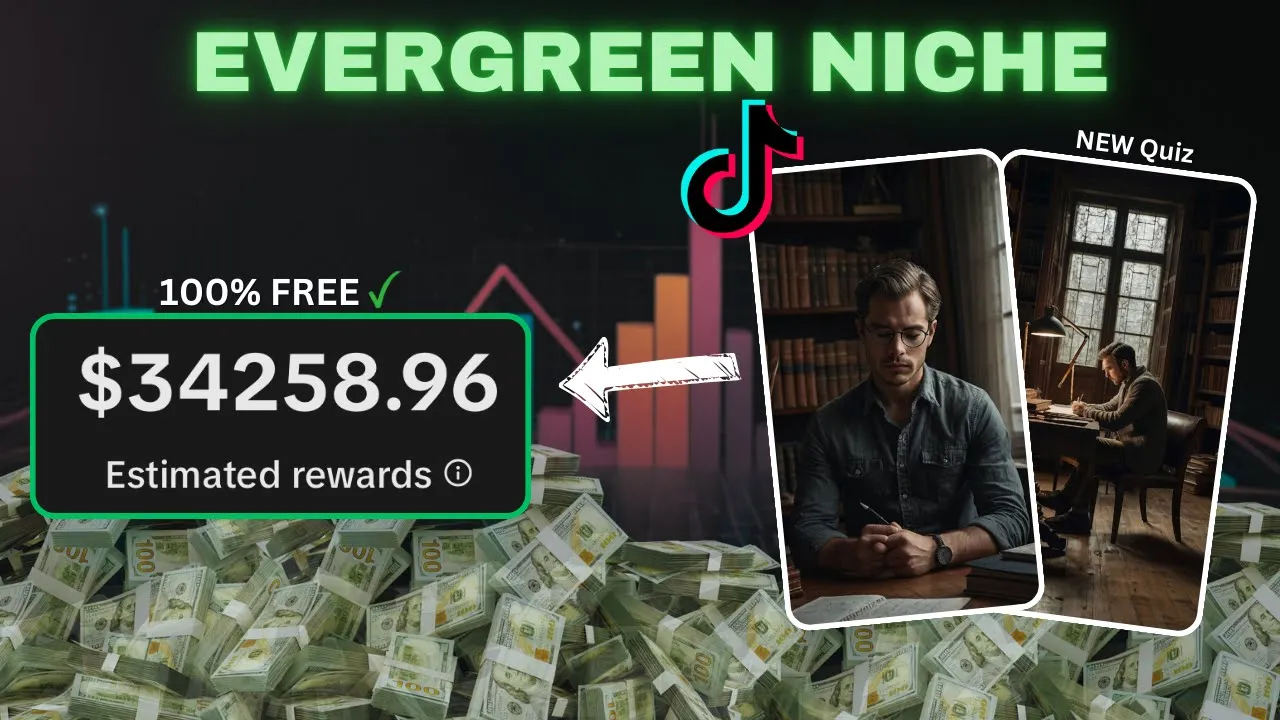
niches change all the time on Tik Tok the golden niches of today will become saturated or die off when a better one arises it's just the cycle of life this has always been the case for 99% of niches with a certain Niche making up the 1% of niches that seem to last forever in this video I'll reveal this golden Niche and also show you how to make a new style of video within that Niche the niche that I'm talking about is the quiz Niche every day it seems that a new way to make Quiz videos
pops up on Tik Tok and the niche has been around for years without ever falling off while there may be some saturation in the niche the video style that I'll touch on today is actually completely unsaturated and as a result we have a golden Niche to go viral on Tik Tok with look at this Tik Tok page they post in this Niche and have been able to scale to 120,000 followers they're posting the content we just talked about and each video is getting millions of views this means that they'll be generating thousands of dollars from
Tik Tok I'll play you an example video so that you get an idea of what we'll be making where is the snake if you found the snake without pausing you might be a genius all right it's pretty simple and by the end of this video you'll be an expert in creating this content for yourself real quick if you really want to go viral with Tik Tok then check out my school Community let's waste no more time and jump into exactly how to create this content in this video's description I've left you a Google doc which
is full of everything that we're going to use in this video so open it up the first thing we quickly need to make sure is that we can access the creativity program if you are outside the creativity program regions I have accounts for sale in this video's description with that out the way let's stting our video as the original video uses images I'm going to mix a both of images and questions into our video so I'm going to head to chat GPT and enter this exact prompt that I'll leave in the description this will basically
ask the AI to come up with a bunch of brain teaser questions we're also going to include an image one like the original video did as you can see the AI has begun to generate us a list of questions to use for our video I've asked for them to be pretty easy as we're only going to give our viewer 5 Seconds to answer each one these seem pretty good so I'm going to ask the AI to write them in the following format of putting the question and then the answer like this once again this product
will be in the Google Doc the AI has now arranged questions in a way that we can use for our voice over so you want to copy the questions and we can move over to the next step without questions copied we now need to get the image that we're going to put on the start of our video I've gone on the internet and I've searched this phrase brain teaser find the hidden object as you can see there are loads of these style questions most of them are quite hard and I've also found the one that
was in the example video so I'm going to use that for our video I want to click on it and save it to my device with questions copied and this image saved we want to head over to 11 labs to begin generating our voice over once you're on 11 labs Labs the first thing you want to do is Select yourself a voice hit this drop down here and as you can see a list of voices has come up try out a few by hitting the play button and once you found one you like select it
by clicking it we now want to paste in our script from chat GPT now this script is far from finished so copy me and we're going to make a few changes the first change I'll make is to add periods at the end of every answer otherwise our answer would just blend into our question when we make our voice over with the pairs in place I'm going to head to to the top and I'm going to add the question about finding the snake to be specific I'm going to put can you find the snake in this
image and after that I'll put here it is following on from that I'm going to put the following hook brain teaser quiz if you get them all right you're a genius I'm now going to add a few more engagement boosters throughout our video the first one that I'll add will say if you got the first two right then double tap the screen this will allow for videos to get more likes which will help it to get pushed more by the Tik Tok algorithm I'll next ask the viewer to hold down the comment button and thinking
Emoji after this I'll say if you picked any of these emojis you've lost our third engagement booster will be all about shares I'll say who is smarter you or the first person that comes up when you hit share and then more I'll lastly add a follow call to action these really do help and it means we can get to 10K followers as fast as possible with all your engagement boosters in place hit generate speech if you're happy with your voiceover now once 11 Labs has done its thing download the voice over we now need to
grab one more thing for our video real quick if you guys are struggling with Tik Tok then join my school Community booster we have a full Tik Tok guide as well as a spreadsheet with over 100 niches come join us in the description the thing we need to grab is a countdown bar head to YouTube and search for green screen countdown bar the one you want is this one right here while we're on YouTube we also need to get background gameplay for our video I'm going to be using Minecraft parkour and if you guys want
some really HD game plays that will make your content stand out I have a pack for sale in this video description if you want to get it for yourself head to YouTube and search for Minecraft Parkour you want to find a video that you haven't really seen that often on Tik Tok we now have everything for our video so I'm going to go ahead and edit it in cap cut once you're on cap cut and have hit new project you want to start by importing everything we've gathered so far I'm going to start with our
voice over select it and drag it onto the timeline like so you now need to split your voice over in between every question and answer this is so that we can give the viewer time to answer the question to do this position the cursor in between where you want to split and press the split button or hit contrl B on your keyboard you want to repeat this for every question and I'll skip to when this is done the next thing we need to do is add in our Minecraft Parkour select it and drag it in
to the time they like so once it's in place you want to put your cursor where the voice over ends and hit W on your keyboard what this will do is it will delete the excess park or at the end of our video that we don't need with that done we want to head below the parkour and hit this ratio button here on the drop down we want to hit 9x6 to put our video in the Tik Tok format once that's done the final step is to drag the parkour so that it fills the entire
screen without parkour done we need to now generate some Auto captions head to text in the top left now hit autoc captions and then hit generate if this is a pro feature for you you want to download an editor called VN and add the captions yourself at the end end of this video with our text generated we want to select all of it and head to the top right of cap cut once here we want to pick a template to use for our text we want to pick one where the text appears one word at
a time as this is always the most engaging type of captions once you've selected a template you finally want to drag the text to the middle of your screen with our captions done I'm next going to add our image select it and drag it onto the timeline like so once it's in place we now want to extend its duration so that it lasts till just after the answer is revealed now you won't need to do this with every image however I need to go ahead and drop this image so that just the snakes and bananas
are visible once it's cropped you want to resize it and position it in the top half of our screen like so now the next thing I need to add is a circle that reveals the answer to do this add to stickers and I'm going to search for Circle once you have one you like hit the plus button to add it to the timeline once it's in place you need to edit it is duration to last to when we reveal the answer now obviously drag the circle over where the Hidden Object SL animal is with our
Circle and image in place we now need at the countdown bar it's really easy to know where to add this just look at where there's no voice over now the countdown bar itself is 6 seconds long but that might be too long for our video so if you want to make it shorter had to speed in the top right once on here speed up the bar so it's as short as you need it to be with the pass pedal we now need to remove the green screen head to the remove background Tab and on here
we want to look for Chroma key select the tool and then click the green background in order to remove it you also want to increase this intensity slider to around 70 the last thing we need to add to our video is the multiple choice questions head back to text in the top left and add some default text once this is in place you want to set its duration to last throughout the entire question head back to chat GPT and scroll up and find our multiple choice options we now need to copy them all and head
back to cap cut once back on cap cut you want to paste them into this text box I'm I'm going to add a few customizations to our textt now this will include changing the color on the font once it's customized you want to drag it to the bottom left of the screen all we want to do now is copy over the countdown bar and the multiple choice questions for each answer repeat the previous few steps of adjusting the countdown bar and adjusting the text once you've repeated everything our video is now done so you can
export it thanks watching today's video remember to check out my school community in this video's description bye
![I Replaced ALL my ADOBE APPS with these [free or cheaper] Alternatives!](https://img.youtube.com/vi/5EfqHg49kMk/maxresdefault.jpg)

![It took 90 days to make $217,287 with AI on TikTok [Creator Rewards Program]](https://img.youtube.com/vi/rrpiv3pHBYA/maxresdefault.jpg)