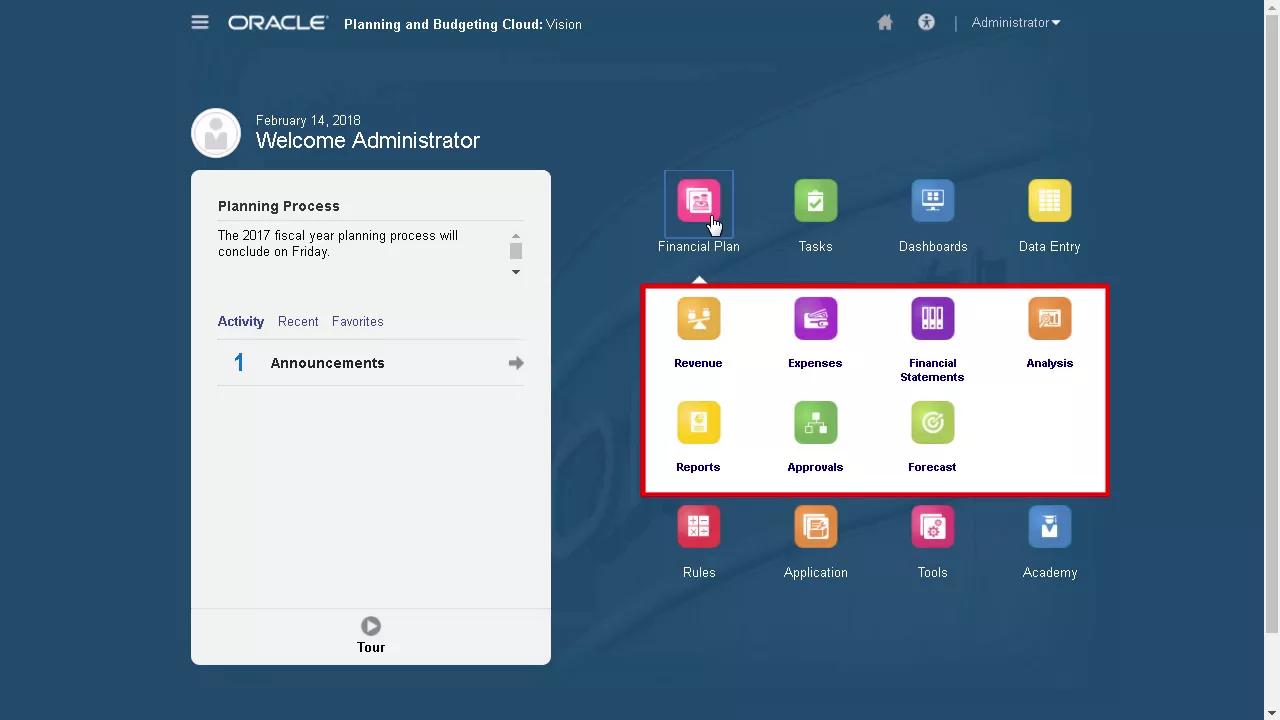
Planning effectively is the key to achieving a successful implementation. In this series of design and implementation tutorials, you'll learn design best practices and how to troubleshoot, analyze, and use the provided system monitoring tools to improve performance and customer experience. In this tutorial, you'll review best practices in designing forms for Planning applications.
Forms empower your operational planners with flexibility, scalability, and the ownership to plan the way they want, while still offering the transparency and control required for corporate finance. While it looks similar to a spreadsheet, forms are directly connected to your data, minimizing manual processes. You can design forms to support data entry, summary reporting, and review.
Then, transform them into charts to help planners analyze results. This solution strikes an ideal balance between providing best-practice planning while maintaining the ability to be highly configured for planning processes that are unique. Forms, when designed effectively, make planning easy.
Here are a few examples. For every account, you can define a planning method. In this form, we set assumptions from a global perspective to streamline the process, but allow users to update their assumptions as necessary.
Setting balance sheet drivers allows you to have a fully integrated set of financial statements. During the planning process, you typically need to compare actual data with current or forecast data. Data validation allows you to highlight the areas that you need to focus on.
Now, let’s take a look at a Smart Form. Smart Forms are Planning and Budgeting forms that you create in Smart View. You can design Smart Forms using Excel formatting features, include grid labels, and use Excel formulas and functions as business calculations within your form.
After adding business calculations to a form, your Excel formulas and functions can be seen when you mouse over a cell. Here we have an Excel formula that calculates the net present value. You can have multiple formulas and functions in a form.
On this form, we added a reference to all the Excel formulas and functions we included. Besides calculations, you can use Excel formatting features on the form, such as font selection, font sizing, cell background colors, and so on. For more information on Smart Forms, please visit the Planning and Budgeting Help Center.
These are only a few of the robust and beneficial features you can take advantage in data forms. For guidelines on designing forms, navigate to the Academy. Go to Design Best Practices.
Then, on the left pane, under Design Your Application, click Design Walkthrough. Scroll down the content area until you see the topics on forms. Let’s go over some tips and features you can use to manage forms: Separate input-type forms from reporting forms Design and manage forms with end-users in mind.
Data entry forms should contain a consumable amount of information for the users. Set up navigation flows to help users navigate through their planning process. Use dashboards to combine data entry and reporting forms to enhance user experience.
When designing forms, balance the amount of information contained in a single form and the number of forms for the end users. Form performance is based on several factors, including network and environmental factors, as well as form design. Understanding how many data rows and columns are returned when a planner opens the form is important.
Let’s go over the best practices applied to this form: Typically, accounts or periods are placed on the row or column. Other dimensions can be placed in any of the form sections: on the page, POV, column, or row. Consider the total number of member rows displayed on the form.
Consider the number of dimensions on a row. Placing multiple dimensions on the row will affect form performance. To reduce form maintenance: Use functional relationships Set up substitution variables, and User Variables for dimension selection For form properties and settings: Suppress missing blocks to improve performance if sparse dimensions with functions are used in the rows.
Selecting the Suppress invalid Scenario/Time Period option, aligns the form to the Start and End Year period set for the Scenario, and automatically updates as the Scenario is updated. You can leverage this option instead of using substitution variables. Set valid intersections between different dimensions.
Suppressing invalid combinations can be set in rows or columns to make only valid intersections available to end users. By default only valid intersections will be available to the end users when the dimensions are set in the Page selection. Use settings to control precision, display, and menus, and to associate the proper rules with your form.
Let’s take a look at options for business rules. For rules that may take longer to run: Set rules to launch from an Action menu Associate rules with the form instead of setting it to run on save To improve performance on forms using runtime prompts: Use runtime prompts to limit the scope of the rule Consider the amount of runtime prompts required and simplify a planning task Use form member selections to fill prompts Run on Save and Run on Open performance depends on the amount of calculation required on the form data. Oracle can only provide general guidelines about how to design your application and artifacts to ensure reasonable performance.
Oracle will not specify precise value ranges for artifacts and operations. You can use the application monitor to identify and resolve design flaws before an application is placed in production, and on an ongoing basis as the application evolves with new members and data is added to the application. The pie graph shows the distribution of artifacts in the application.
Let’s drill into Forms. Form design and performance are analyzed in three levels: good, fair, and poor. The content area lists the forms, displays its status and, if applicable, includes a description of its issue.
I’ll take a look at the forms tagged as Poor. Here we see that the form design, and the Copy Channel business rule are both tagged as green or good. However, we see an error noted for the Revenue Plan business rule.
With this information, I can trace back to what may be causing issues on my form. And from there, troubleshoot and modify artifacts for optimal performance. The application monitor evaluates your application and artifacts based on the user an administrator selects.
This helps identify potential problems that may occur at runtime given the individual user's variables and security access as part of the analysis. In this tutorial, you reviewed best practices in designing forms in Oracle Planning and Budgeting Cloud. To see the next video in this series, click the link on the right.
To learn more, visit cloud. oracle. com.
![Kaffara Episode 60 - [Eng Sub] - Ali Ansari - Laiba Khan - Zoya Nasir - 23rd September 2024](https://img.youtube.com/vi/ihdFNyn-Z-4/maxresdefault.jpg)