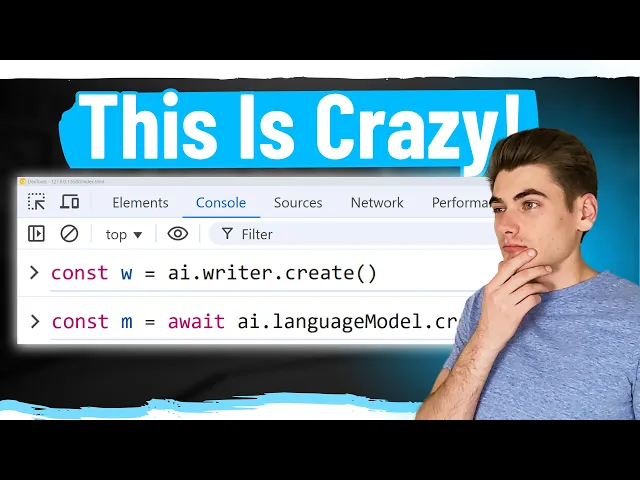
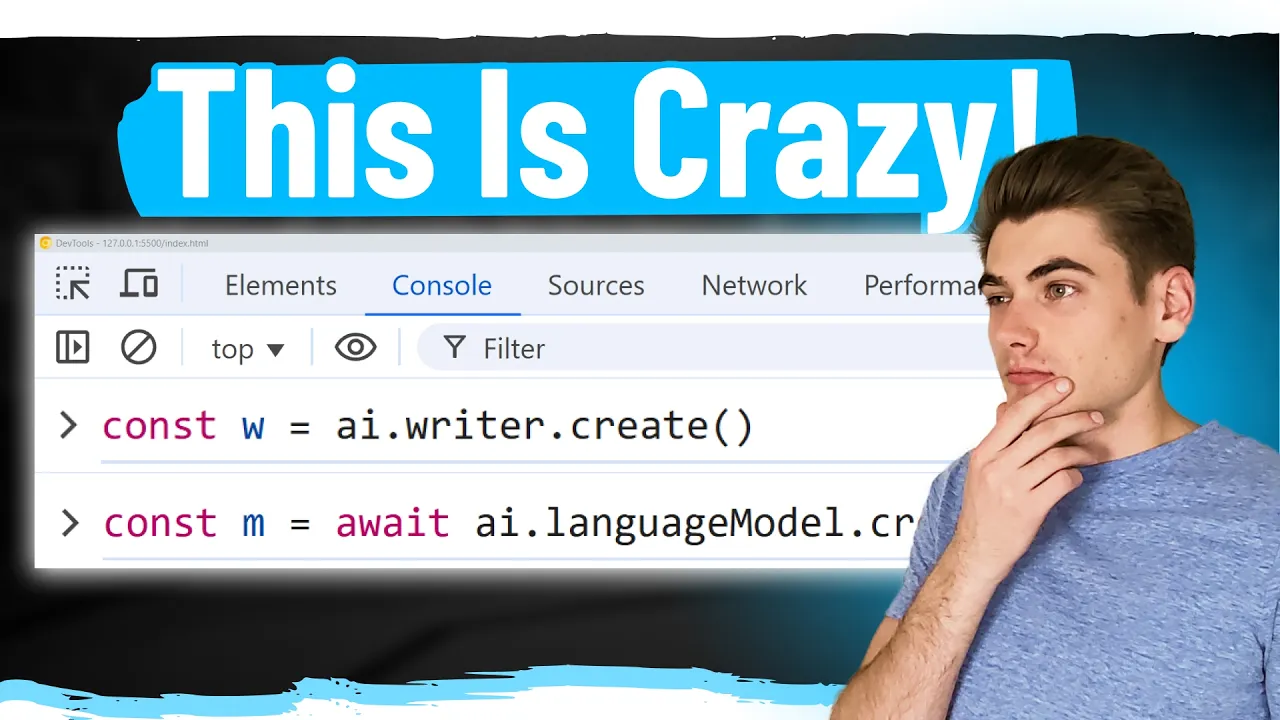
integrating AI into your application can be difficult or expensive so in this video I'm going to show you how to use tools built directly into the browser that integrate AI into your applications this code I'm about to demonstrate is only about 10 lines for example if I want to translate this message to Spanish using AI directly built into the browser all I need to do is click on this icon and it'll translate to Spanish I can click it to translate back to English same thing here this message is way too long I don't want to
read the full thing so I'm just going to click this icon right here and it's going to generate a summary of that message using AI for me again all of this is directly built into the browser and there we go I get the message and I'm like you know what that actually doesn't give me the information I want let me toggle back view this information and now I can generate a brand new summary if I want and you can see I get that summary there's a lot of fine tuning you can do and in this
video I'm going to show you exactly how I built all of this and it's only really like 10 lines of code it's quite impressive welcome back to web dev simplified my name is Kyle and my job is to simplify the web for you so you can start building your dream project sooner and all of these AI features are currently built into the canary vers version of Chrome right now there are only four different apis you can play around with but I imagine in the future there'll be quite a few more added to the browser these
are the translator API which I showed you in the introduction there's a language detector API which is kind of tied into the translator where it can detect what language a specific piece of text is written in we have the summarizer API which is again what I showed in the beginning to summarize large messages and then we have the prompt API which is kind of like your own chat GPT directly built into the browser so all these features are really nice because all of the code runs directly on the user's machine there's no information being sent
to servers or anything like that which means that all of it secure because it's only happening on the client and your user doesn't have to download a bunch of information and they can even use this information entirely offline all of that is a really great feature of these AI tools being built into the browser and they're entirely free so you don't have to pay for them that's another great benefit these are obviously experimental tools right now so if you want to enable them you're going to need to go to the chrome/ flags page I'll leave
a link to it in the description and what you need to enable is the prompt API for Gemini Nano that's if you want to do the prompt style thing this is mostly for building out extensions then we have the summarization API which I'm going to demonstrate in this video we have the writer API again this is allowing you to do specific things with AI then we have the rewriter API so writer is for like writing out specific texts like you can say hey given X Y and Z as inputs write me something that does this
and the rewriter just says Hey given this giant blog can you rewrite it in the style of blah blah blah then we have the language detection web platform and then finally the experimental translation API these are all the different apis that are currently available and you have to enable all of them inside the Chrome Flags tool just because they are entirely super experimental right now but I kind of want to demonstrate what these look like using this Discord clone that I've created over here on the right hand side so this Discord clone is built for
my CSS course actually so if you're interested in learning how to build this entire thing I'll leave a link down in the description to the course but I just slightly modified it to add in these features for translations and summarizations so if we take a look at the code on the left it looks like a lot but the actual code that deals with the AI is right here in this section in the middle all the rest of this code is just for hiding the original message and showing the new message that's all that the code
is doing but if we take a look at this code we can see how easy it is to actually write so the very first thing to do is I'm adding a loading state to this because it can be rather slow for example if I click the summarize button on here you'll notice my text kind of goes through this like fade in Fade Out style animation that's just again because it can be quite slow depending on how you set up all your different code and now we finally got the summary the next thing that I'm doing
in our case we'll go down to the summarized one so we're creating loading State then we're creating a summarizer so this allows us to actually create the AI that we're going to use instead of our tool and get all the information that we want so the first thing we can do is give it any type of context that we want in our case I'm just saying hey this is a comment in a chat about raing hiking trails because that's entirely what this Discord channels related to so I'm giving it a little bit of context so
it can hopefully summarize slightly better now there's multiple different ways you can summarize I'm choosing the tldr way because that's kind of how you would want to do summaries of comments in this style system but if we go ahead and we actually look at this documentation and I believe it's scrolled up a little bit you can see all the different things that you can do for the different types you can see here we get key points which is the default tldr a teaser or a headline so you can really fine tune however you want then
the next thing is format by default it's going to give you a markdown format so you can format this in like a Blog kind of style or you can just format it as plain text which is what I'm doing in my example then finally we can determine whether we want a short medium or long description of the summarization so depending on what you're summarizing you may want shorter or longer summaries right now I have it set to short and if we look you can see it's a rather short summary that's showing up but if we
were to change this to long for example and I just give my page a quick refresh so we can redo that summary if I click on this button and we give it a little bit of time we should hopefully see that we get a much longer summary being returned to us as opposed to what we had before which was essentially just like one single sentence this one is a still relatively short summary but the text that I imported into it wasn't entirely super massive so this is kind of how you can find to an exactly
what AI you want to create and then it's going to create that AI now I'm not doing the Code 100% optimally to how you should be doing it if we scroll up here a little ways you can see that whenever you try to chest the AI you can kind of get three states back by checking to see if you can create this API it can give you the state of no just saying hey there's no API supported in this browser currently you can get the response of readily which means that the API is readily available
for you to start using or in some scenarios you may need to download the AI information onto the user's browser cuz they've never used it before there so that information is not downloaded so you need to wait for a download in my case I'm not doing any that download waiting or anything like that but the code for it is relatively straightforward if we just scroll down a little ways we can actually see an example of that code as you can see here we're just checking if it's available if it's not if it's readily available and
you can see here we add like a simple loading state for when it's actually ready but in all these different scenarios all we do is just create the API and if it's not ready this await is just going to wait for an incredibly long time until it finishes downloading all of the information this is why generally you want to have some type of event listener showing up so people can see that there is loading going on and so on that's also why you may notice sometimes when I click on the button to actually do the
summarization it can be rather slow because it has to download all the information onto my browser if it's not already there now the next thing that we're doing is we're just calling the summarize function on this AI that we've created and we pass it in whatever message we want to summarize in our case that is whatever text the chat has in it then from there we can add in additional context if we want so if you wanted to make your AI a little bit more fine-tuned you can pass in some context give it some additional
information saying hey you are this this this and this just additional information to help the AI with its summarization otherwise you can just leave that off if you don't want to pass anything in like that and then finally after our summarization is done we remove the loading State and swap out the messages so the actual AI code itself you can see here is pretty much about 10 lines of code to create an entire summary API built into the browser now if we move up to the translate code it's essentially the exact same thing I'll show
you on this example I'll just click that I want to translate let's say up here we're going to translate that and you can see it's translated with proper punctuation and so on and you can see we're doing almost the exact same thing we're adding the loading state we're then creating our Ai and we're saying we want to translate from English to Spanish and again we can you know fine-tune this we can give it customization to the user we can even use the translation detector which you can create by saying create detector like this and that's
going to allow us to detect what language something is so we can easily know what the source language is based on that detector's abilities then we're just calling the translate function to translate that text and then finally we're removing the loading State and swapping out the translated message with the original message that was there again as you can see the code for this is relative ATIV ly straightforward now again you still have to deal with loading States and downloading information because sometimes the browser may not have specific information downloaded on it yet so it could
take a while for these translations to occur if the information is not downloaded which is why you should obviously put in different loading States and so on into your application so the users know that something's actually happening overall I think these features are really cool though especially when they start to become more widespread across a lot of different browsers because now it gives us as developers a really easy way to implement simple AI application into our code whether it's going to be chat translations summaries or anything else that's new that gets added it just gives
us a really easy way to add that into our application I mean writing this code took me maybe 30 minutes and that's from learning how everything works writing the code testing it and integrating in my application less than 30 minutes so that's a really powerful thing that we can add into our application with almost no work on our end which is nice because normally jumping into AI can be quite overwhelming or quite expensive depending on what where you go now obviously this type of AI tool is not going to cover everything that you possibly want
I think even in the documentations here they kind of give you some information about like when you would want to use this different use cases and kind of the overarching thing that you need to realize with these different apis is that they all run on the client and that means that you're not going to have like the most sophisticated AI possible because these sophisticated AIS take a lot of resources a lot of special training a lot of data and a lot of space so generally if you want to have the best possible AI experience you're
going to need to have that on a server somewhere which is why Chrome and pretty much anyone else that's talking about these web AIS they recommend that you use the client side things for specific use cases where that large model is not necessarily needed and when you need that like extra level of AI power then move something to a server and deal with these like server side models or even AI that you have to pay for for that extra power but if you're just adding some really simple like summary capabilities or translation capabilities or even
basic chat capabilities into your application this is a really easy way to do it entirely for free built into the browser so I'm really looking forward to when this actually becomes something we can start using and then it's not just an experimental feature stuck behind a bunch of fls also if you're looking to build out this Discord clone it's entirely built from scratch using just plain CSS and nothing else this is a part of my CSS simplified course which I'm currently in the process of entirely overhauling to the most modern CSS possible and it'll really
help you with learning CSS from scratch so if you want to take your CSS skills to the next level I highly recommend checking out this course I'll be leaving a link for the course in the description down below and with that said thank you very much for watching and have a good day