in today's video I'm going to show you how to clear your phone memory without deleting any necessary files that means any of your photos videos or other files will not be removed we will only delete temporary junk files left by running applications no third party apps needed we will do everything ourselves subscribe to my channel if you haven't already and let's dive in let's find out which apps are taking up the most space on our phone's memory open Play Store on your phone after this in the upper right hand corner of the screen tap on
your profile photo then scroll all the way down and type on help as feedback then in search type delete type word delete okay and here you can find delete apps on your Android device tap on that after this tap on tap to go to application settings then tap on soft sort and here choose sort by size and tap okay here we see a list of applications sorted by space they occupy on the phone's memory these apps don't take up much memory on my phone because I only use it for filming YouTube videos on your phone
these apps will probably take up more storage first of all to free up memory you should clear out junk files from the applications at the top of this list let's do it for example for Google Play services type on Google Google Play services after this scroll all the way down then tap on storage and here you can see Clear Cash tap on clear cash that's all after this tap back then tap back again and do the same for other applications at the top of this list everyone will have different apps here but I'm going to
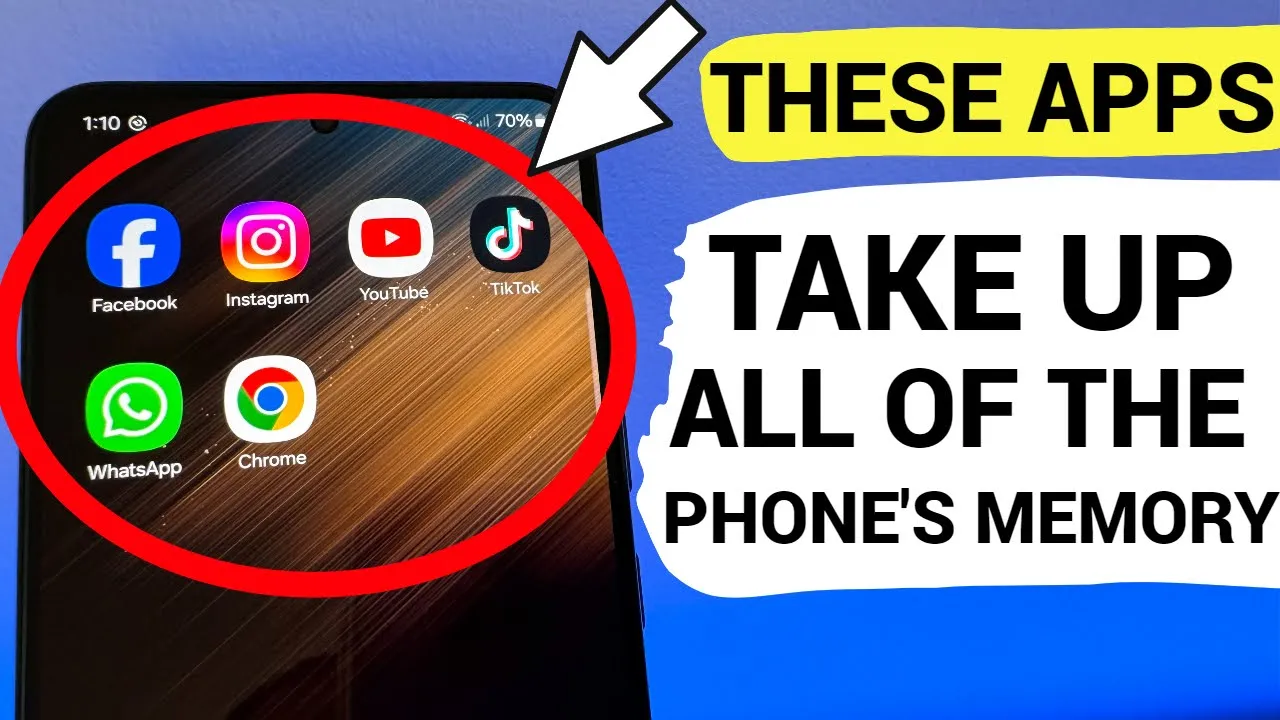
show you which ones typically take up most of the storage and because of that your phone's memory is always full let's start with the Facebook Instagram and YouTube press and hold Facebook icon after this tap app info then scroll all the way down and tap on storage here you can see clear cach tap clear cach after this you can tap on clear data to free up more memory but you need to know that if you do this you will need to log into your Facebook account again using your email and password so if you don't
remember your password only tap clear cash let's do the same for Instagram press and hold Instagram icon after this tap on app info scroll all the way down and tap storage then tap clear cache and if you remember password for Instagram account tap clear data if you don't remember your password for Instagram account tape only clear cash next one YouTube on YouTube you can Tye clear data even if you don't remember your password because after clearing you want need to log into your account again so press and hold YouTube icon then tap app info after
this scroll all the way down tap storage tap clear cache and tap clear data tap delete next let's move on Tik Tok Tik Tok has a built-in tool for clearing memory to use it open Tik Tock after this in the bottom right hand corner of the screen tap on profile then in the upper right hand corner of the screen tap on three lines here choose settings and privacy after this scroll down little bit and tap on free up space to clear memory tap clear cache clear and tap clear downloads tap clear and now let's clear
memory of WhatsApp WhatsApp also has a built-in tool for clearing memory so let's use it open WhatsApp on our phone after this in the upper right hand corner of the screen tap on Three Dots here tap on settings scroll all the way down and tap on storage and data and here you can see manage storage tap on that here we can see how much memory WhatsApp takes up on our phone I have little because this phone is only for filming YouTube videos you will likely have more and below is a list of your chats each
chat shows the name of the person you corresponded with to clear memory tap on a chat to see its files for instance I tap on a chat with John after this select photos which I no longer need by tapping and holding and in the upper right hand corner of the screen I can tap on the thrash icon to delete them if I want to delete everything at once I can tap select all and after this tap on trash icon after this go back and repeat it for every charts next let's move on to the last
application which also often takes up a lot of memory on our phone this is Google Chrome press and hold Google Chrome icon tap app info scroll all the way down and tap storage after this tap clear cache and tap clear data then here tap clear all data and tap okay after clearing this apps you will free up a lot of memory on your phone comment below how much memory you freed if this video helpful like this video and thank you for watching