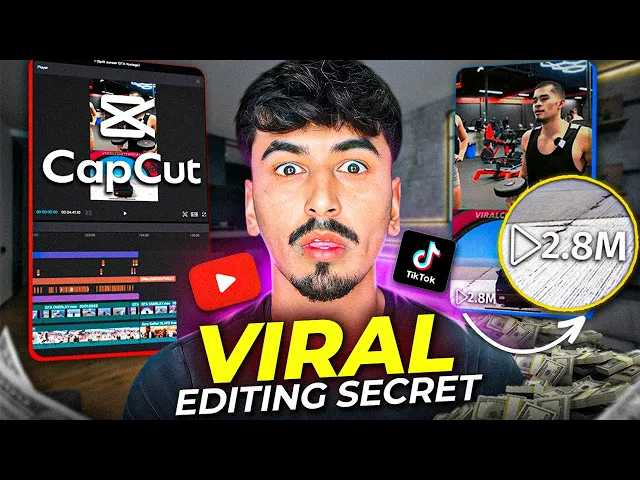
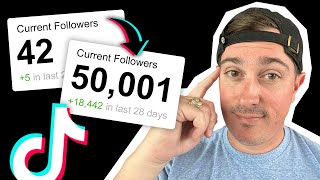
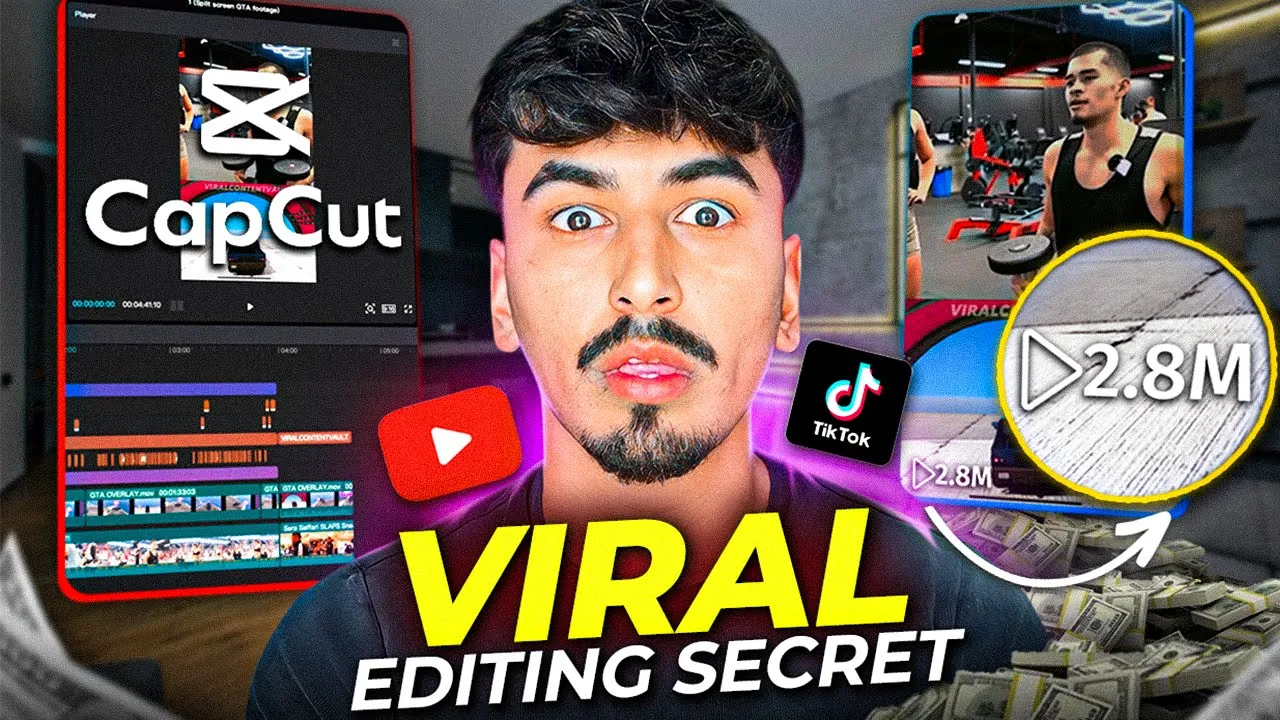
short form content is making people an insane amount of money right now all the social media platforms are literally begging for creators to move over to them and then incentivizing them with a lot of money this kid is making $20,000 per month just from editing videos on his phone and posting them to Tik Tok so this is a brand new opportunity that's just come to the UK which is the Tik Tok creativity program beta now if you don't have it in your country don't click off it could be coming to you so you need to
be working right now to grow your account to meet the threshold so when it comes to the country that you're in you'll be able to do it Musa gives instructions in his videos on how to do it but he says grab a viral clip put some GTA footage over it put some captions and Bam post it on Tik Tok but I know for a fact that a lot of you don't actually know how to do those steps and it's only for the people who are already at a decent level of editing so that's where I
come in today I'm going to show you how he actually assembles these clips and not only that I'm going to set up a brand new count with you guys and show you how if you wanted to take part in this opportunity to make some absolute Bread on Tik Tok how you do it step by step I'll provide you guys a Google doc in the description below with everything that you need to follow this along additionally I'll give you guys GTA gameplay overlays viral sounds and some podcast Clips so you can get started right away with
growing your account sounds valuable make sure to like the video and subscribe to the channel and let's jump into the step-by-step tutorial so step one of the process is you need to go and find your podcast clips now I recommend that you actually grab a mobile device and you go on YouTube and you basically search whoever your streamer is I always recommend going on your mobile device and screen recording the YouTube video from there this is what I found to be the best way because when I've screen recorded on my laptop I get a weird
horrible echoey sound I'm actually going to go through watch the podcast Clips while it's screen recording and take time stamps and I recommend that you do this so then we know exactly where it is that we want to clip when it comes to the video editing process so I'm going to go do that real quick and then I'll jump back in with you guys so now I've screen recorded a bunch of clips and I got all the time stamps ready so when it comes to editing process I know what Clips I want to use I've
even come up with a few titles of the clips that I want to use and to save you guys as much time as possible I'll draw all the podcast Clips in a Google Drive below so you guys can jump straight into the editing portion now it's time for step two where we literally repeat the process and get ourselves some GTA footage I recommend going on your mobile device typing in YouTube and then in the filters you just want to put in that the Creative Commons license this means that it won't be copyrighted then you just
want to search GTA gameplay clips and again you want to screen recorder it I'll also put a screen recorded like 3 minute GTA clip in the description box below that you guys can use and now you're ready for step three okay guys so I want to remind you that all of this content that I'm editing will be in the Google Drive linked below so you can literally follow this step by step and also there's a Google doc as well that I basically explain all the steps in and the editor I'm using for this tutorial is
Cap cat which is free to download in the top Link in my description first one we're going to do is the half screen overlay so let me jump into cap cat and then let me go open this up because these are all pre-done I'm going to try and show you the steps in the fastest way possible to be the most valuable but also not to take forever because I am dropping full guided stepbystep real slow time zero edited videos real soon so watch out for those um they'll be in my Discord so this is what
we did as you can see the editing timeline if you don't edit it at all looks complicated if you do edit then you'll notice that is really not that much going on we've got the base clip which has just been as you can see look this is the clip that I've just screen recorded on YouTube all I've done is just literally just just gone like this there we go easy as that and the aspect ratio here guys if yours is still in 16 by9 you should want to go to 9x 16 all you do at
the beginning is literally just get this into position so let me show you let me start here so we've got our GTA gameplay and we've got let's just say whatever podcast clip we're going to use so first of all let me drag the podcast clip over here and I want it to be 50/50 so that's good enough for me and then the GTA game play is literally just an overlay over the top and whatever you're going to do simple as this I'm going to make that a tiny bit bigger and then when that blue line
means it's centered okay so that's literally the Baseline of the whole video so the next step let's go over here what have we done we've got some text viral content Vault that's literally as easy as The Branding so all we do is we add some default text let me put my cursor in the right spot so add some text and for this one I've literally just done the Avenue next F and then and I've put whatever your brand is here brand name easy as I've dragged it into the bottom here bottom half and then all
you want to do is just drag the opacity all the way down do like 40% and that's it that's it that's your branding done that's your Upstairs Downstairs or your split whatever you want to call it and if you're on capot uh desktop you can literally click add this to your brand kit and you can just call this your branding name and then at okay and then when you want to do this you go into text and then presets and let it will have it here so mine if I click that it'll automatically add my
viral content Vault and I can just literally drag this all the way across so step two of the style one done we've got the top clip we got the bottom clip we've got our branding what else did we do so I've gone and actually put this filter over and I mix between a few of them so let me go into the filters and then I either use clear or I use quality one or quality 2 so these three varies and I'll show you in the other Clips which ones to use but honestly it was quite
hard to pick what to use on this one one because the clip that I actually screen recorded wasn't the best it was super washed out super bright so I should probably bring the exposure down there we go uh saturation sharpen I should probably try and actually do it within look add a bit more Shadows reduce the highlights contrast contrast down maybe brightness down there you go something like that I should have really done so it's not super bright and washed out but that was a bad clip to use but anyway so step three easy autoc
captions we're going to go text autoc captions create and it's easy as and it's going to automatically drop in captions and I just don't want to run it again cuz it's going to delete my current ones so what I will do is I'll show you what it would look like I'll create a new one new project import Okay cool so then we're back to where we were then we want to go into text Auto captions and create and look it's going to slap Auto captions right here but as you can see if I zoom in
on the timeline look they haven't got any sort of branding or anything they're very simple Des design so what I've been using for this one is the Avenue next then I go into the animation I go into captions which you're going to need cap Cut Pro for unfortunately but this is definitely the one I like the most at the minute I'm using the expand one and then go back onto text I'm going to click this style which is a preset one glow and then I'm going for this yellow glow but I'm maxing it all the
way up intensity 50% turn that a little bit down right and then we want a size font size not that big we'll go for 16 and then we're going to drag this up in the middle here and let's see what that looks like okay uh the only thing I want to do is I want to make this smaller because after seeing it on mobile they doesn't need to be that big so let's go for 12 and then that's going to be the middle screen and honestly guys that is literally as simple as it is all
you need to do is add your overlays your then your branding then your auto captions and that's it so that's style one now for people who want to add some additional things you would have noticed on my editing that I actually added a few extra bonus things so I'll show you those things I added throughout the clip look I've added some additional captions just to go along with the humor of the clip so let me show you how I added those captions it's super easy but so huh so there's literally a section there where I
want to add it so all I do is go to text add text default and then when that comes up there I'm going to do it the same branding as the one before except because it's a sneaker so I'm going to create a style for him um he's going to be blue and then we're going to go down to stroke outline I want it to have a black outline and then I want it to glow blue as well so I just literally click on the same thing and then we're going to go to and I'm
going to bring this down to like 35 and then all you want to do in here is literally just type whatever he says huh let me locase and then drag over to roughly in sort of like the top third because this is going to draw the eyes up from the Middle where the text is and that is it so really top tip again here is you can add that to Brand kit and then you can call this sneaker or whoever you're going to add in your Clips so that is overall I've shown you everything what
else have I done additional that I think is worth adding so this is a really important bit for retention because when you're looking at growing and increasing your reach you want to make sure that you're hooking people in so because this video right at the start is literally just like going into their Vlog their Gym training session this is like the What the fu so look that is weird that's some sus Riz from sneaker so all I'm going to do is in Tik Tok once this is all edited I'll pop up a video on screen
right now so basically what I do is I go into the editing section within Tik Tok and then I cut this section out I move this to the start this will now be my hook and so it'll be on screen playing right now so I move this to the start this will be my hook and then I'll do a little transition where it's like a camera lens shutting with a shutter sound effect and then go into the video and before it gets to this point at the end it will end and it will create a
loop because it'll go back to the start which was the hook and then it would play the video you've probably been caught out with this quite a lot of times on Tik Tok it's a really on YouTube shorts is a really good strategy for retention but that is strategy one that's the main strategy strategy 2 is probably the simplest method in which you can upload podast Clips it's literally just aspect ratio of Instagram one by one with a bigger blown up version with the blur effect over it in the background so let me show you
how to do it let's open up caput okay people so it has been a few days since the first video so I've actually posted all three of these Styles and I'm going to get back to you which style I think is the best that you should learn so the style that performed the best was in fact the middle section the 1ex one ratio and then you just do your call to action like this on screen if you want to try cap cut for yourself it would be the top Link in the description so back to
the video this one is is here as you can see this one has a hook at the start which I showed you how to do in strategy one which is basically the peak of the video so let me play it so the video is going to be leading to the point where okay so let me exit out of this to start a new project import resources for video and then you guys are also going to have these so for this one I just need to add it drag it to the timeline go to the ratio
again it's going to be 9 by 16 as you can see this is now so we want it to roughly be in the center like that and then all I'm going to do is contrl C or command C depending what you're on command V and then I'm going to click the back one and I'm going to drag that fully over the top there and then I'm going to go on to filters or effects and I'm going to search blur and it's going to come up I'm going to drag and drop this onto this clip here
and as you can see we've got the perfect blur effect and ask it could do with them actually being a bit closer really so there you go I've literally been seeing I'll pop a screenshot of the example here people just doing this and then all you do is you just add on the top in fact I've got it in the Google Doc so look here we just add on the top whatever the video is going to be about so the hook or the the main aspect of why you think people will watch in just Tik
Tok or YouTube shorts is native text you can literally just add that caption there and that's enough to have people watching and is probably the least effort for editing it gives people a lot of Engagement for some reason in Tik Tok now a lot of the videos aren't full-blown they're actually like being minimized to the center portion of the screen because that means then all your focus is on that Center portion so honestly I think this is a really untapped strategy now like the other ones for the higher level of editing let me show you
what I did to this to make it a little bit more so for one we've already got our presets of our branding so let me just click plus slap that on there and drag that across and then I'm just going to put this at the bottom here because I don't want it to interrupt the clip secondly captions now I've noticed a lot of videos don't actually add captions but I definitely think that autoc captions adds a lot so again go to text Auto captions and it will generate everything for you in cap cut which is
absolutely brilliant and then again we're going to go to Avenue this one we're going to go to preset that we did earlier which was the yellow one a glow a yellow glow and we're going to do 35% % 100% range animations captions expand and then all I want to do with my captions is I want to drag and drop them probably like here and there you go don't have there you go that's literally as simple as let me show you a little additional thing that you can do for retention so that's the section of the
clip that is great we're just going to literally just c c c okay and then that's the end of the section cut c cap then we're just going to copy these all three and then we're going to drag the timeline but put it at the start so let me put it here here and then here there you go so now you got that okay now you've got the hook there and I would honestly recommend you guys then finishing the video just before it gets to I love you and then you create this infinite Loop YouTube
shorts and Tik Tok auto replay that strategy do done now time for strategy 3 this is now the third and final strategy in the Google Doc this is basically just like a full screen the Tik Tok style and I'm going to show you like the really basic version of how to do this because I honestly think it looks really good and then I also just mention here that if you want to learn how to do like the mid Journey style where it's like AI images that slide on screen and are all animated and stuff I
actually have a full step-by-step guide that you can watch here on how to do that so let's jump into cap cut I'll show you what I did for this one these are my favorite type of content to watch in this format and I think you'd be able to get away with posting this on Instagram Tik Tok and YouTube cuz it looks really professional and actually you can even post this on X formerly known as Twitter because they're trying to get people over there posting and trying to monetize so yeah definitely spread this around everywhere so
let's have a look what did we actually do s so basically this one simple and I've just done the normal Auto captions with the expand animation and then here I've tried to highlight Sarah's key hook which I'm going to actually leave as the main hook of the video where she's talking about sneak a something to do that he said it sha sah and then I've added a big popup Emoji here just to sort of bring the audience to it but how do I get like generic quality and style of this one because this one I
think looks really high quality so let me show you how so let's create a new project import the resources for the video input all and then it is this video so we go again into the ratio we're going to do 9 by 16 then we're going to drag it this time the full length across and then I'm going to get to the section of what we want to use so this is really important when we go through with our pen and paper at the start we're actually screen recording them we want to note the time
stamps that we want to take Clips out of so I know there's quite a few funny bits in this clip what we have to do because we've zoomed in and obviously it's a 16x9 and we want to make it 9 x 16 is we literally just frame it to whenever whoever's speaking then we click a key frame and then drag it across there and look you'll notice there's a key frame on the timeline there and a key frame there so when you see it see so then it pans over to the person speaking and you
basically go through and then when that happens again you then drag it across to so he's not in the shot yet and then and you see all the way along you literally just pause it drag drag it pause it drag it pause it drag it and on mobile this literally works exactly the same you got a key frame feature also so this is probably why this one's the most time intensive SL difficult one to do because you kind of have to go through and watch the whole thing again and key frame the right people in
cuz it's obviously wider than the narrow phone screen but I think this is really worth it for not necessarily Tik Tok Clips but outside on YouTube and on Instagram it looks way more professional when you've actually fill the full screen so what else did I do to make it look good obviously I had my branding so I go on text presets and let me add that cuz we've already done this before and I'll just drag it across so that one I want to keep it nice and small just literally in the center of the screen
here just so people don't come and just basically screen record your clip and then reuse it with all your with editing and your hard work then the next thing I did I think it's filters I found that this filter when you've got like slightly washed out but high quality footage like this this filter looks really good so let me show you most of the time I'm using clear when I'm not got like mid jity edits or AI imagery but I think for this style of footage quality one where it darkens I think it looks really
really good like look at the colors that it's changed so that is definitely top tip then we're going to go to text we're going to go to auto capture and then I'm just going to cut the clip off here just cuz it'll take a just to generate the captions and then I'm going to click create and now we've got the auto captions so this again this one's going to be really important that we don't have these captions too big we want them to have a few words in the sentence showing up not go word by
word but line by line so the way we do was the same as what we've been doing earlier then again I am actually really liking this glow I don't know why but I'm I'm really feeling it so this is what I'm going to use for The Branding for my page age uh let me put that down to 35 and then all I'm going to do is pump this up to 10 and let's just move it to the middle of the screen left that's the middle there so a little bit lower than the middle okay and
let's watch that back so top tip on Tik Tok SL YouTube you don't want to be breaking the terms of service so sexual nudity anything to do with inferring discrimination all of those things you want to try and blur out so either use emojis or just mute it out of the actual script so for this one like intercourse you can literally just change that to like the eggplant Emoji what I think will make this one stand out and is a really really top tip and it can be done quite quickly if you're going to obviously
pick a niche and you're going to have people talking so for example my Niche I'm going to have obviously Sarah and sneo and other streamers add text presets I've gone in and actually made a presets for each one of them so I've got a voice for like a random Outsider a voice for Sarah a voice for sne and then when he says something funny and I want to bring it to it so I could say don't talk to my girl like that and then I could click add and it's going to pop up so here
I literally would just put in the subtitles don't talk to my girl like that and then I will just literally delete this one underneath and then as you can see this will just basically draw the eyes in cuz it's a changing effect and then again I'm going to change the glow and then 35 wide stride okay let's don't talk to my see so it just like adds a level look it looks really cool so if you don't know how to actually create these effects let me just quickly show you again you just go default text
make all the changes you want to do and you just click add a brand kit and then call it whatever you want to do and then once you've saved it it will appear here the final thing for all of these videos is adding trending sounds now I am literally trying to grow a lot of these accounts myself and so I'm going to be playing around with either using pre-made sounds or using the sounds actually in Tik Tok and in YouTube shorts to see which one actually gets me further reach that is a wrap on the
video now I said i' take you through setting up the Tik Tok account but honestly I don't think there's much value that I can give to you the only thing I will show you is my new account I've created so you guys can hold me accountable and I've also got a couple secret accounts that I'll be working on because they're going to be social proof for a big thing that I'm launching in the near future Okay so the brand new account that I've got called the viral content Vault and this is basically something that I've
been working on wanting to launch because I've somehow got myself in the short form content tutorial editing Niche so I'm going to be building this account if you want to follow this along I basically came up with the name by using chat GPT and asking it to list me a bunch of names for clipping and I literally came up with the logo by searching bcv logo so it's literally that easy I set up the account with my bio but it says my mom said if I get to 100K followers I can drop out of school
and then a Target Zer out of 100,000 followers you're watching this because you want to start making money online and you feel like short form content is the one we've got the Tik Tok creativity program beta that's pushing people to make one minute long videos to draw people to Tik Tok you've got YouTube shorts upping the amount that you get paid as a Creator cuz now they're running ads on the shorts you've got x with Elon Musk promising that people are going to start earning the equivalent of what YouTube is paying RPM for the views
so this is a lot of potential here not only this you've got affiliate marketing you've got this as a way of outreaching to people to show your skill set not only are the social media platforms all begging for you to become a Creator there's also creators like myself always looking for new talent to buy and that means that if you're creating content that's good all of all the same standard I come on on your page and I'm interested in that style of editing I'm going to reach out to you so if you're looking for a
skill to develop in 2023 going into 2024 start video editing right now short form content start understanding how to story tell and make sure to join my Discord because honestly I'm trying to level you guys up as much as possible this is going to be my main focus all my videos leading up to Christmas right now are going to be showing you guys everything that I'm doing behind the scenes to grow five t Tok accounts and YouTube shorts accounts as fast as possible in the most unique fastest growing niches as possible so you guys can
see exactly how you can possibly do this and actually start making money but I would recommend starting now so that is a wrap on the video I hope you guys have enjoyed I hope you found value in this I'll drop everything like normal in a Google doc if you found it valuable make sure to leave a like subscribe to the channel I'll see you guys next week your boy gonis