Welcome to this new tutorial, in this video you will discover How to get a virtual number for WhatsApp in less than 3 minutes If you have ever wanted to maintain your privacy, use multiple numbers or even use WhatsApp on devices without a SIM card Well, you have come to the right place, I will show you the best method to get a virtual number easily and quickly Now let's start, first of all we must have a good Wi-Fi or data connection so that we do not have any inconvenience having the WhatsApp application available to enter or register it with the virtual number As a third requirement, we must enter the Play Store and type this name that is seen on the screen. Once we have acquired this application that is shown, we are going to open it with a single click and we are going to click where it says to start. We are going to add an account of Gmail, which is the one with which it works correctly, once we have registered the Gmail account, we are going to click on allow, it will bring us to this screen where we are going to select a state, we are going to click on the little arrow that points downwards and to I am going to take this example, for example, this one that says California, then we select any code, I am going to select, for example, this 415, we select where it says get a personalized number if you know This error is due to a bad connection, again we select the state and the code for this For example, I am going to change from WiFi to data to see if it works for me in this way, I click again there where it says get personalized number and we only have to wait if there is a good connection for the virtual number to show us, it brings us this screen where they notify us that it has been activated our virtual number we are going to click on Send message we wait for the ads to pass and we are going to skip them once this process is done We are going to click on the x that is in the lower right part and in the upper part you can see a message which contains our virtual number is not shown to me, they simply click on the arrow that shows on the left in the upper left part but we are going to concentrate on the lines that are in the upper right part we are going to click there and then we press where our virtual number is at the top we have pressed to copy it then we are going to go to our WhatsApp application And we start the activation process we already know how this process is done we are going to accept it and continue later we click on allow we have pressed the telephone number and we are going to paste the virtual number that we have copied before it can be seen automatically it goes to the United States since it recognizes it by the country code which is the one we wait for them to connect here we go OK, don't worry, it's nothing bad, we're going to click next, we wait for it to connect.
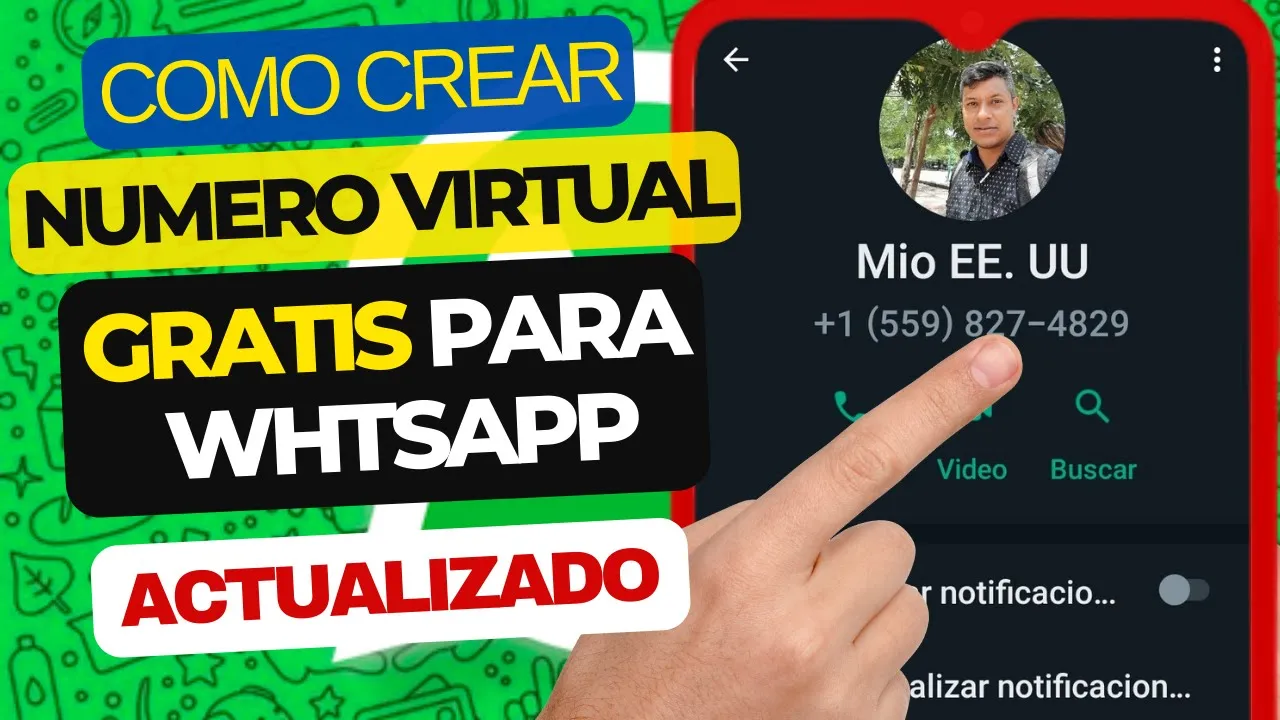
In my case, it shows me an error since I have a bad connection, that is, the internet is somewhat slow and I have to carry out the process again here. It tells me that it is not available, we are going to click on Ok if this error appears, we also click on next again, we will click on it repeatedly until we can activate it, if it does not present us with any other error, activate the wi-fi to see if it is soon the connection improves and it allows me to register this telephone number we are going to click on ok next again this notification will appear and we click on ok then we are going to click where it says you did not receive the code we press the green button where it says Call me we click on ok we press again on you did not receive the code and we wait for a minute and 40 seconds to pass I am going to speed up the video a bit so that it does not become so long until it reaches zero once it reaches Zero is going to start ringing our cell phone at this moment the cell phone has already started to shake here we have already requested the call when the cell phone starts to ring they are going to leave it to ring we return to the application and press the call button on this moment Here is the message that we forwarded a while ago where our virtual number sends us, we just have to wait for the call to end once the call has ended, they will send us a voice message with the number verification or the verification code, just wait a while if you don't get it, they will repeat the process that we did previously, waiting for the minute, but look here, I already received the voice message with the verification code, we entered WhatsApp and We listen or write down on a piece of paper what the code is and we write it down in WhatsApp once we have written down the verification code we do the entire registration process and our virtual number would be registered in WhatsApp, only what to do in the pertinent settings in our application As a profile photo, the basic configurations that you need in our profile so that it is well configured. At this moment, I am going to proceed to place a photo of the status or the information and as we can see, the virtual number that is associated with the United States appears there.