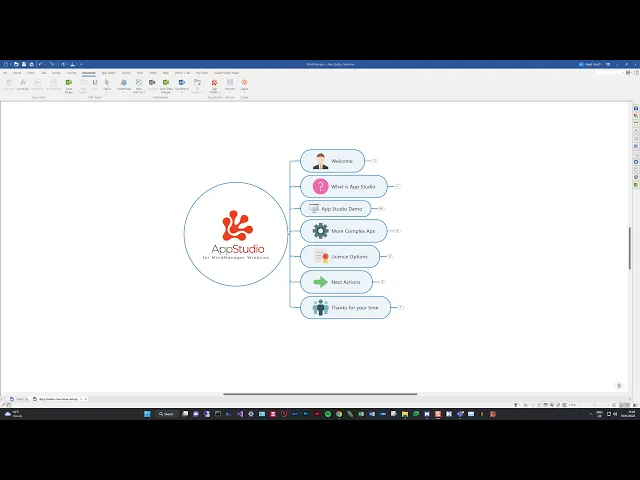
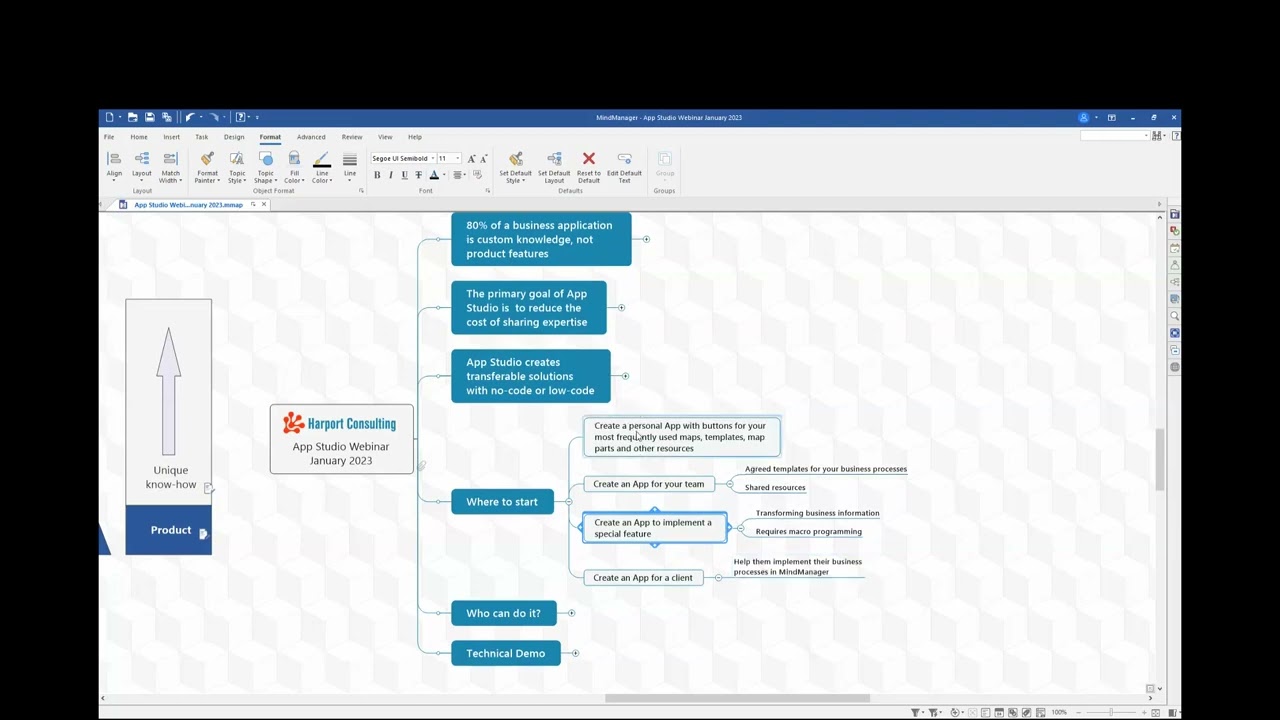
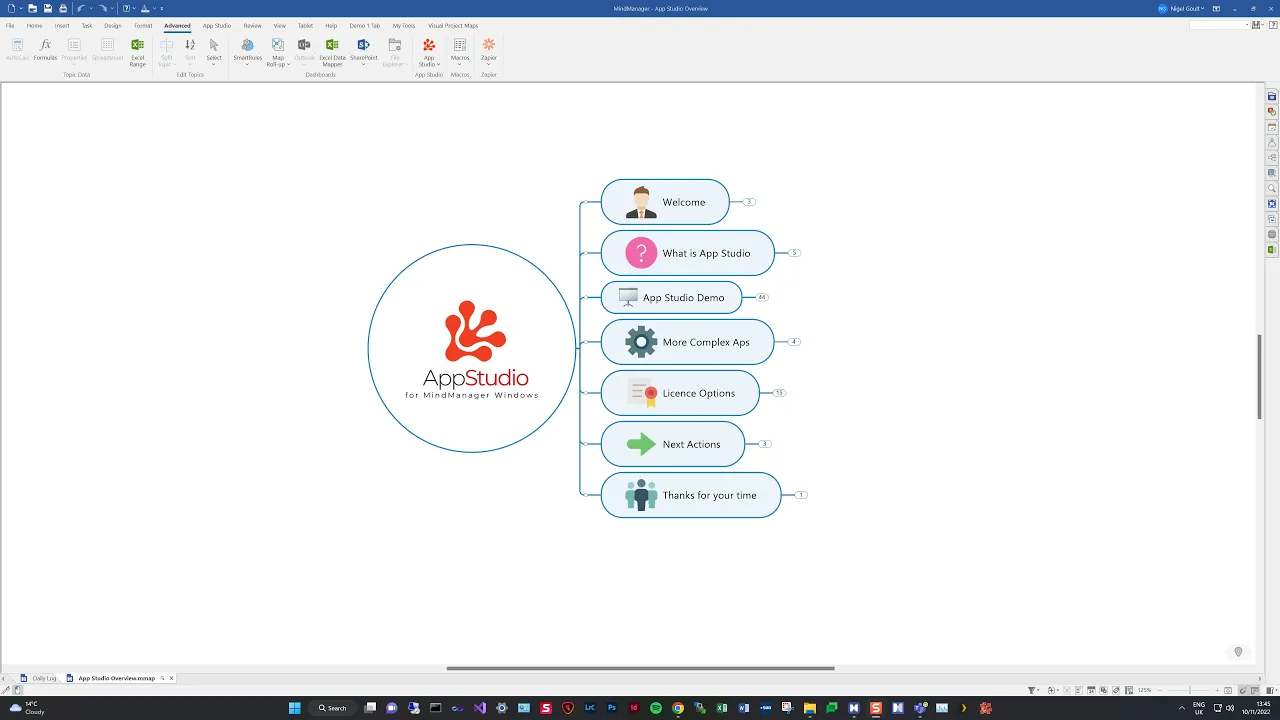
hello everyone and welcome to this overview video for the new add-in for my manager called app Studio my name is Nigel gold of Olympic limited I've been working in the my manager field now for upwards of 20 years both using the product and also developing add-on add-ins for the product uh some of you have probably used our map add-in which is very very popular has a lot of users around the world and various other add-ins that we've done such as task queue Etc the purpose of this video is to give you a quick overview of app studio and what it can achieve app Studio was developed by Nick duffel of harport Consulting and I'm sure some of you who will watch this video are aware of Nick May well have met him he is probably the the world's best uh coder and has the most knowledge of uh developing mine manager uh add-ins in the world um and has been doing it for probably upwards of 25 to nearly 30 years so this particular ad in app Studio I have to say is is an absolute uh active brilliance by the man um it's just it's just astounding so and I think you'll agree when you see what it can enable um nearly any user really to uh to extend my manager for their own uses so what we're going to look at in this in this video is is what is app studio and what it can achieve I'm going to show you a small demo um of an app that I just put together in about an hour which was used completely with uh app studio uh we're then going to take a look at a more complex app so you can see just the sort of thing that can be achieved uh we're going to then cover license options uh next actions and at the end we're going to thank you for your time um I think this video is probably going to run to about 30 minutes so I'll try and keep it short um so what is app studio app studio is basically a platform for creating and delivering simple no code solutions for my manager users can create customizations for either personal use use within a company or corporate organization and also by Consultants to work with third parties or any other my manager user app studio is only available for the Windows desktop versions of my manager it's not available for my manager for mac and it doesn't work with any of the web versions so let's have a look at an app studio app so with app Studio installed uh you will install what's known as the base app the base app is free there's no license to to run with it with the base app um and basically that it enables you to receive app Studio maps from other users or uh from yourself if you have a license copy to be able to create app Studio apps once you install app Studio you'll see the base app is located under the advanced ribbon tab in the app Studio group and this works as a platform for installing and uninstalling your apps activating and deactivating your apps and controlling the base settings so if you look through the menus here there is a help file which is in map format that will give you some overview of what you can do there's some about information to do with release notes there's a license key option so should you purchase one of the three license keys to unlock further features this is where you can view that key or enter it we have the option to install or update an app again an app is basically a my manager map everything is done in my manager Maps here there is no external developer environment required and the option to uninstall an app as well under the options side of things we have an apps folder this is the base default folder that app Studio creates when it's installed and if you generate or if you create an app this is where your apps will will be stored unless you change it uh you can change the location of this you might want to do that if you are developing apps that are going to be distributed to other users uh sometimes it's better to create a second app studio folder where effectively you can install your apps to and from to test them so that you're not actually using the the folder that you're doing the development in you have the option to enable or disable apps uh if you if you're running multiple apps on your system basically by checking either of these boxes here I can actually make an app appear in my manager in real time it gets reconfigured before your eyes and we'll show you that in a little while there's some other options here which I'm not going to really cover at the moment best to just leave them checked if you want to and at the bottom here we've got an option that you can change the number of previous app builds to keep so it gives you a bit of a history so if you want to roll back from something you've done then you can do that and obviously you can change the quantity of those of those backups if you like through this interface so that's basically on the base app if you have purchased one of the three licenses um you will see an app Studio ribbon tab on its own this has got much more functionality built into it and it's this menu that you would be using when you actually build out your own apps some of these features are are not enabled in all license levels we will cover that at another time but it's not really as in the scope of of this of this video so we'll cover that in a future video or a webinar so let's take a look at a demonstration app so I created this my tools demo it took me about an hour as I say I've only been really using App studio for just shy of about six weeks I would imagine um and although it does have a learning curve uh it's worth persevering with because once you actually get enough knowledge and capability and you're able to see what you can achieve with it then building apps becomes very very fast indeed so let's take a look at this the as I said the app Studio apps are basically combined of three things there's there's a configuration map um which we'll look at in detail uh there's an installer map and there's also basically the collateral that you need to enable the visuals for that and the and the operation of of the of the functionality of perhaps the the app through my manager macros so what happens when you install an app so if I uh click this link you'll see that when you open an app Studio installer map you are presented with a dialog if the app's not already installed you'll be prompted to install the app if you do already have the app then you'll be prompted to update or refresh the contents of it so I'm just going to click install and if you watch the ribbon menus up here you'll actually see some changes take place as that happens so I click install and then you can see we get a confirmation dialog of what's been done so it shows me the the collateral that's been installed for my app I'm just going to okay that away and you'll now see that we've got a my tools uh a ribbon menu added to my manager and you hopefully saw that going in real time just going to flick back to here so we've confirmed that the result the install and viewed the results so if we look at the elements uh of the my tools demo as I mentioned we have a configuration map we have an installer map and we also have a folder which contains the collateral that's needed by the app so I'm just going to show you what this app does so if I select a couple of topics here the first um feature that I've put in is actually something that's in our map add-in and that's the ability to lock or unlock topic text so with topics selected I can now run that command and you'll see that these two topics now have had a read-only attribute applied to them so I can't change this text which is great if you want to create maps with topic structures that you don't want anyone to change the namings of you can't protect the whole topic you can't stop it being deleted but you can stop it from having the text changed again if I reselect them and run it the second time then the read-only attributes are removed so that's one simple thing that was done the other one I've put in here for demonstration purposes is is the folder map so uh if I select a topic that has a hyperlink to a folder in this case I'll do the the actual app folder so you can see if I run this we now get a list of all the files that are inside the my map the my tools app Studio demo so these are the files that the the app is utilizing so there's three macros for the commands that run uh and there's also the three uh images of either Ico icon or PNG format that create the uh the visuals for the ribbon so that's that and if we look at the final one the final one is just a simple command that basically when clicked opens up a blank Word document ready for editing so you've accessed that directly inside my manager obviously you could do that with any form of other external application on your system if you wish to do so so that's what an app looks like when it's installed that's the kind of thing you can do you can also do an awful lot more so as you can see what's happened here is we've created excuse me we've created a ribbon menu for the my tools app or a ribbon tab if you want to call it that we created the tools group within that ribbon menu to hold the commands obviously the commands that we've actually added in here and there's also some topic properties which we're going to show you uh in a little while um so now what we're going to do is I'm going to show you how to create an app so I'm going to go to the app Studio tab and under here and we're not going to cover all of this because some of this well a lot of this is really outside the purview of an overview demo but we will be covering these in individual webinars or demonstrations that really show you how to get hold of and utilize each of the features that app Studio provides so if I come over to the left hand drop down you'll see that I can create new apps install or update or I can actually uninstall an app so for this one I'm going to create an empty app okay I'm going to give it a name we just call it uh demo one click OK and app Studio has created a blank configuration map so the configuration map is where we build out the interface for my manager uh each of this these elements here we're not going to cover the first two again they're outside the scope of this demo but the tabs button or tabs topic is the initial area that we want to build out so this is this is where any ribbon tabs we want to add to my manager will will start so with that selected excuse me I can now go up to the insert menu and decide what I want to do now depending upon what you have selected these options will either be enabled or disabled so for this demo I want to create a new tab so I click on that it shows me that the element type that I'm using here is a ribbon tab as you can see there are other things that we can create but at the moment we want the tab the properties enable you to change things like where they the tab appears it's display level shortcuts and Uris if you need them again outside the scope of this demo so what I am going to change is the caption so I'm just going to put a demo one tab and I save that an app Studio builds a new topic which contains certain properties that I can change and edit if I wish to edit this I can do some of that editing within the properties on the topic or I can come up here with it selected I can select edit the element and it will then once again bring up that editor window Okay so we've got a tab nothing's changed yet we've only Built it out in the configuration map so the next thing we do with that topic selected we're now going to insert a ribbon group so again we get a similar interface I'm only going to change the caption and I'll just call that group one save that and once again app Studio gives me my ribbon group with that selected I'm now going to start adding commands so I go back to insert and I can add a ribbon button so on this there's a few more options here we want to button the action is what's going to happen when we click the button so for this particular one I will do something very very simple so that just to give you a demonstration of it um the caption I will label as a limb pick website um I want it to be enabled always and that's okay you can change some of these elements to mean that the buttons or the commands are only available depending upon what is selected or certain elements within the map again that's slightly outside of the purview of this demonstration but there is comprehensive developer documentation when you trial or purchase a developer license at any of the three levels so I want the button enabled I won't put an image in but basically this is a default image that is stored if you wish to use your own images what you would need to do is store them in the base app folder as you saw when I ran that folder map functionality and you need to make sure that the uh the naming of the button is basically underscore 16 underscore and then the name an extension or underscore 32 underscore and then the name and the extension the difference is for those is if the uh when it's compiled uh it looks at either a if it looks at the underscore 16 uh images it realizes that that's going on a small uh Sub menu or small button so it's not a main button if you wanted to have a full button such as this refresh installer button here you'd need to make sure that that was an underscore 32 underscore image I'm not going to change that just for the sake of this demo and the other thing we can add in here is the tip this is the other thing that you mainly use it for so I'm going to go visit Olympic website uh so that's the button there and the last thing I'm going to do is on the action I'm going to select that you'll see that we've got some properties here that are already defined and I'm going to go to open link and I'm going to change this to https Olympic limit 10. co. uk so I'm going to give that the URL for our website once I click that you'll see now that we have that command button uh represented as a topic in this configuration map again there are a lot of properties here which you've seen are all obviously from the the options that we've selected so it is possible to edit this topic by using the edit element option up here on the left of the ribbon or we can actually change it within the properties as well so that's how you would build something out if I wanted to duplicate a button I can actually copy that topic and paste it in here and I'm doing this just very quickly to show you just how versatile this is once you start getting used to it what I'm going to do now is I'm going to actually rebuild the configuration now when I do this the app studio add-in is actually going to compile everything that's contained in the map we've used no other external development tools and it's going to configure a button so what I'm going to do is rebuild that configuration you'll see we get an overview of what's happened this is to do with some other uh things I've done previously and I haven't cleaned up so you can ignore that so once we close that you can now see I've Got My Demo tab if I click that I now have my group one and I have two buttons with tips and if I select the button for the website hopefully you can see that that has opened up the Olympic website let's close that back down excuse me so that is very quickly how you build out a simple uh change or addition to the my manager interface obviously you can do a lot more uh once you get used to what the capabilities are you can extend my manager much further than simple uh buttons to web URLs or buttons to portals and things like that you can run macros that will interact with the map and create changes in real time so if I wanted to I'm just going to check on here so we've created the new app and I've showed you how to build out the configuration map so let's just look at editing as I said before editing is um relatively straightforward we can we can copy and move elements of the configuration map around but when we make a change so for example I'm literally for the just for ease and speed I'm just going to add that button again Okay so once I've made those changes as you can see at the moment the demo tab still has three buttons on here but what happens is when I go to app studio and I rebuild if you keep an eye on the menu on the ribbon menu of my manager you'll see bits of it changing in real time I okay that and if I go back to My Demo tab now you can see I've got that third one likewise if I wanted to take two of these out I can either delete them or under the app Studio ribbon I can block the tree so if I block the tree and now I re-configure and click OK and I go back to the demo tab you can see I've only got the one command so that's an excellent feature that enables you excuse me to have multiple commands that you're able to choose whether or not they actually compile when you reconfigure this configuration map so as I mentioned everything is done within this map at a personal developer license level you basically have the ability to build out these configuration Maps um run them to create and change interfaces in my manager to your own use but they're only for your own use you can't build these configurations out and share them with other people because they they're built to work on your on your system if you purchase a uh corporate developer license or a consultant developer license you then get access to being able to create installer Maps which can be distributed so that's basically how you create a new app you build it out you can edit it obviously there are quite a lot of options there there's more than we we want to cover in this we just want to get you to be able to see how quickly you can build a little ribbon menu of your own and start adding things to that I found that once I'd started to use app Studio that um my brain started picking up thinking oh that's great I could possibly apply that to do this so it starts to get you thinking about other ways that you can utilize app Studio to make your my manager experience much much better so let's just have a look now at uh an installer map okay so what I'm going to do here is I've lost the map that I want to show you which is great okay so over here we have the installer Maps I'm going to reopen that and we'll have a little look at what this contains so this is basically something that's generated um from your configuration map it takes the configuration map information and it packages it up into an installer map so an end user of app Studio doesn't necessarily get your configuration map which would allow them to make changes to the interface you would deliver and install a map so the installer map would install everything that you wanted the user to see but wouldn't enable them to change it even if they had a licensed version so what we've got here is some default folders that are already created so these are things that are going to actually install onto the user system these things here such as the um let me just get rid of that these things here such as the templates and map parts are already standard my manager folders and the apps folder is the base folder for your your app Studio apps and as you can see here this is now built a tree out of topics which include the um collateral that I need to put into uh the to to use with the app sorry getting a bit distracted by Nick messaging me funnily enough uh so as you can see um it's basically created topics for each of the files that I'm using it's attached the actual file to the topics and that's what app Studio uses when it compiles and a lot of things are compiled into this app Studio configuration XML which helps keep some things protected and hidden away so again with this type of map uh when you wish to uh install things like perhaps you may have uh custom map parts that you've created that are relevant to your organization or there might be some templates you can actually build these installers out so that when a user receives the map and it is only the map that they're receiving with app Studio installed as a base app they can open that it will run the install and it will populate all of the collateral that they need on their system so that at a high level is how that works you can do much more complex things than this but again that's really outside the purview of this video for today so we've done that let's have a look we've uncovered that so that's the overview of the demo of the uh the my apps demo so what I'd like to show you now is um visual project Maps now this was built with app Studio it's took I don't know probably a few days to to actually build out once I uh understood exactly what I was doing I think the biggest thing that took me the time was that most of my commands in this in this app studio app have uh macros behind them so the actual programming of the macros is what took the time the building of the interface was very very straightforward and very very easy um so I'll just show you the configuration map um for uh the visual project Maps app and as you can see here I've got a few things that I was using when I just close that one down when I was building out on over here over demo project so I've I've basically uh cordoned that one off so when when this gets run it doesn't actually uh build in these commands um and then basically I have a visual project Max tab different groups here which you've got commands in you can see the icons the macros that are attached to them that run when those those options are run and as you can see this is very similar to what I've just shown you with the my tools demo and it's built out in a very logical manner all within the map so that's the configuration map for uh for visual project Maps the installer map for visual project Maps and I'm just going to cancel that looks somewhat different so here you can see that I've got the main apps folder with visual project Maps gets installed this is a flat folder so the the there's there's only files in here there are no subfolders the elements that I've highlighted with uh uh the attention Mark are elements that allow me to filter this map off and create a separate installer maps that don't install certain types of functionality if we look here we've got some mind maps things I've actually added uh in some actual files they are map files that support the the project management add-in that we've built with this and this installs all of these files you can see some of the systems files here for the user guide and it's a version text file and then these are subfolders that then contain other maps that build out the framework uh and down here you can see under the map Parts uh node I've actually installed uh or I'm installing depending again on licensing or version level I've actually installed some my manager map parts for the use with this app so if I'll show you this app by going to Advanced if I come up to options I've got visual project Maps here so if I select this and if you watch the uh when I click OK if you watch the my manager ribbon interface you'll see it hopefully change in real time uh it takes a little bit longer this one because there's more in it so as you can see I've enabled that and this was the add-in that was built or the app that was built with app studio for visual project Maps so this includes a whole load of commands that do various things from Simply opening up uh I don't know if I can do this oh yes I can if I open up uh this is the project management desktop from an example project of visual project Maps once this is open I can now interact with other things so for example in this if I want to look at my issue register I can click that and it comes straight into this this map so I can start working on that I have one for a daily log again so all of these templates are built so when you build a new project from the new project command all of that information is is extracted and the new project is built using macro code all wrapped up in app Studio I mean it's a very very clean the thing that I like about it uh the most I think is that because that of the way app studio compiles and installs apps it's very easy that if something's not right or you need to add something or amend something you can do that within the configuration map recompile and install a map send that map to a user and they can just literally open that map update the add-in or the or the app rather and have those new features or those changes displayed immediately so it really cuts down on the time to uh to actually make changes and distribute them across users whereas with an add-in if you're using visual studio and that any of you have used that will know that actually it's quite a complex task and time consuming task excuse me to continuously be rebuilding things for changes um so this actually means that the way that this works it meets makes it a lot easier and a lot quicker to actually deliver changes or updates to end users um which is absolutely fantastic so that really is what I wanted to show you from the actual sort of Hands-On aspect the last things I want to look at really and talk about are the different elements of license options so I'll try and cover this quickly basically the bass app is is as I showed you this is the one that gets installed under the advanced ribbon group here um that's free to download no license required and that will work there are downloads available for my manager 2020 21 and 22.
um it may be possible for us to actually um produce app studio for some earlier versions of my manager such as 2019 2018 because much of what app Studio does is core to my manager versions and they haven't changed that much across releases so this provides the base platform for users to uninstall as we've seen or install the apps the first real tip of license level which obviously is a paid license is a personal developer with a personal developer license it enables you to build configuration maps for your own use with my manager but it doesn't allow you to compile installer Maps so you are unable to share those apps with people the apps can only be configured and compiled and run on your on your installation the next license level of Cooperative developer level um basically app Studio licenses work on a license key that's provided which includes your email address if you're a corporate developer license level what it means is you are able to configure and build and compile uh application of apps rather keep doing that so you can build and compile apps that you can distribute to people within the organization if they're using my manager with the free download of of app Studio as long as my manager in the user options has their company email address then the app Studio apps at corporate developer level will pick that up so basically anyone who's in the email domain will have access to those apps so it means that the license is only actually required for the person or persons who are going to be creating the actual apps or editing and updating them and distributing them other users in the organization use the base app Studio which has zero cost so again it's a very cost effective way of Distributing my manager content and functionality within your organization and the highest level uh at the moment is the consultant developer um this basically enables you to configure and build installer maps that you can freely send to uh to any user of app studio so it's not restricted to your company or to your system you could build an app to do certain features and actually just publicly share that through social media with a link to the app Studio base application and anyone who receives that map as long as they've got my manager and they install the correct version of app studio will have no problem running that app on their system so as you can see is a very varied level of uh of ability within the license structures so that's really about it for now I mean um next actions would be that you can visit our website uh which is www dot Olympic hyphen limited. co. uk um this is a new add-in uh for us I'm working very closely with Nick Duffield to uh improve it and extend it further than it already is um and as we do that and we build more content around it we will hopefully be giving you more videos on individual elements of using App studio in detail and we're also going to be scheduling some upcoming webinars where we will cover various topics around app Studio based on user feedback as well you can request an app Studio personal developer trial from our website as I mentioned before app Studio works with license keys that run from your email so if you do request a key please make sure that the email address that you're using in my manager is the same email address that you request a license key for and with obviously the personal developer license that lasts you for 30 days and will enable you to create and build configuration maps on your own system so you can get a feel for what uh for what app Studio can do and as I previously mentioned the other thing you can do is register to attend one of our upcoming webinars which we hopefully will have a webinar coming up within the next few weeks which will be our initial one um again covering uh bits and pieces that we've we've probably collated from the trials that people are currently using and feedback that we've received so if you've got the time for those when they start coming up I would recommend that you uh you jump on board and view those I'm sure they'll be very entertaining and I'm sure that the knowledge that Nick will be sharing as the presenter will will really make a difference to your to your my manager experience so with that all said uh I just want to thank you for your time we appreciate your interest uh I really look forward to working with you as I said app studio is very very new um we we hope there's going to be some great things coming down the road with app studio and it would be great if you uh jump on board and be a part of that Journey with us and and help us make app Studio the best possible uh solution for my manager that suits your needs so uh so with that I'll bid you farewell if you have any any problems or questions please visit our website there are forms on there that you can fill in to register full trials and and webinars but if you do have any uh specific questions or anything like that specific requests please feel free to email me my email address is nigel.