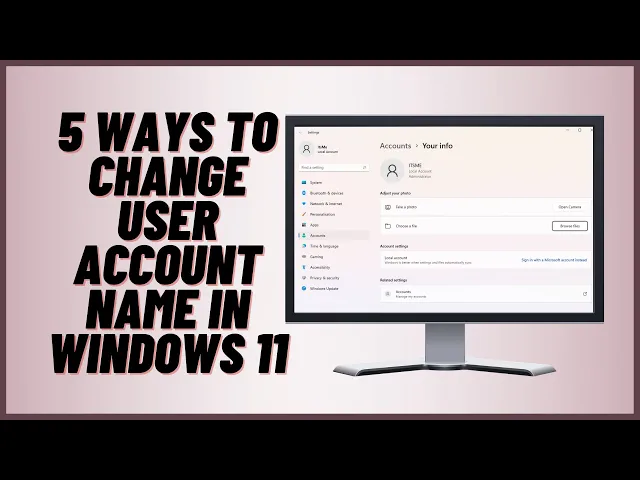
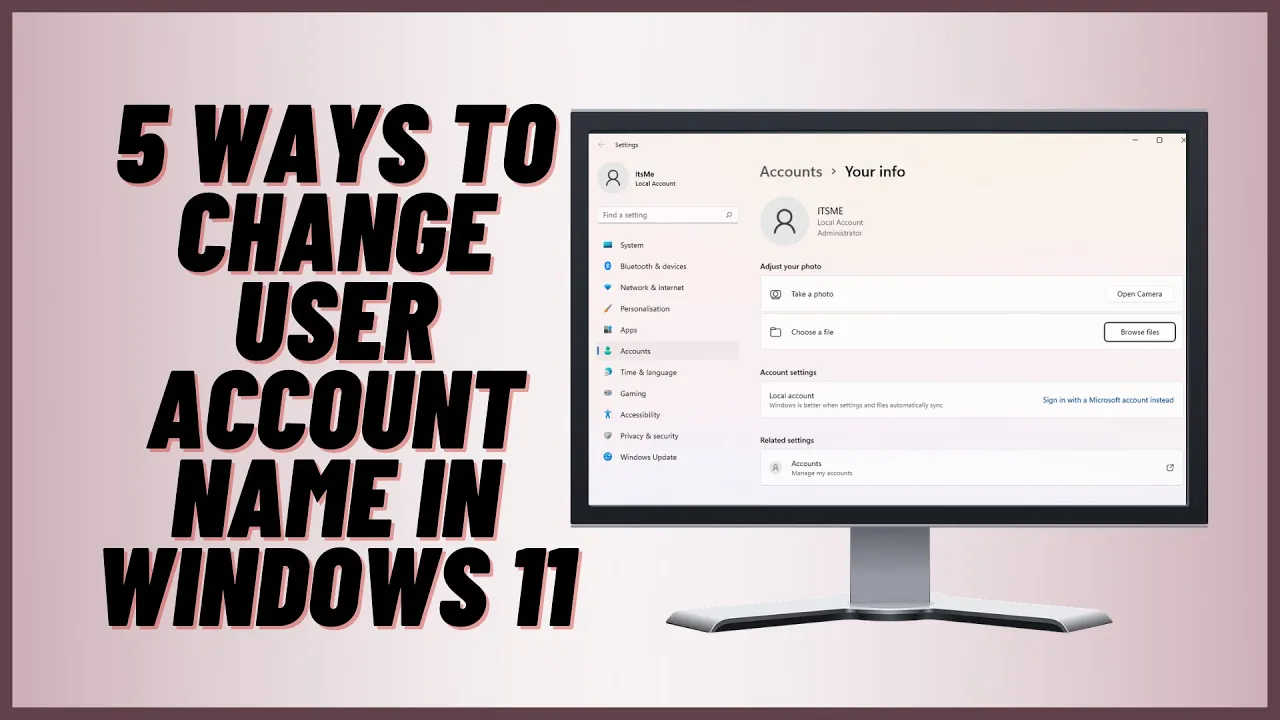
but you guys got a couple of requests for how to change your username in windows 11. this also works in windows 10 so let's go ahead and take a look so if you've got a username here whether it be your first name or a name that you like to use here and you want to change it you can do it's pretty straightforward and i'll show you five ways to change it in this video so first up there's go ahead and right click and go to run and then we need to type in this inside the
run box t p l w i z and then click yes this will open up this little box here which is for your user accounts and from here you can see the user account name click on the properties here and now you can change the username inside here you can also give it a full name if you wish and give it a bit of a description if that's what you want to do here but that's basically how you can change it they're very quick and easy to do you will need to log out and log
back in to take effect so let's go ahead and quickly do this with a sign out and sign back in and when you sign back in you should see the name has been changed here so let's sign back in here let me show you another way to do it just in case you want to learn a little bit about how to do this in multiple different ways so right click and go to run and you can also now type in this command here which works as well so that will be l u s r m
g r dot msc push enter and you'll see this box popping up say yes and this will open up this window here which gives you access to the local users and groups click on users and you should see your user name here all you need to do here is right click and click rename and you can rename your user to whatever you want to call it so let's go back to brian here and make it bright so let's go ahead and finish this off all you need to do here is log back out and log
back in and that will make a change so it should go from brightech to uh brian here so let's go ahead and just quickly log out here let's log back in and it's now changed to brian so it's very simple and easy to do so when i'm building computers people always ask me why you leaving a username called change me or whatever it is it's because i don't always know the person's name next up we're going to go to the search box and type control panel inside control panel we can now go to the user
accounts here if you're looking at the classic one here or category you could just click on user accounts and go to user accounts again and this is the account here that's changed the name once more by clicking on change your username and you can basically just go in here and to put in the name you want to put in on your system now obviously just click change name and that's now done and we now have our username changed for that so you will need to obviously log out and log back in to take effect so
let's quickly do this and we can now log back in there you go so that's three ways of doing it so let's take a look a more complex way which is using the powershell or windows terminal as it's known now run this as administrator right click on the start button and run that as administrator and you're going to need to type in this command here so let's go ahead and type get dash local user just as you can see here type this in push enter and this will tell you the username that you're using on
that account in this case you can see it's brian so what we need to do here is type out this name to change it it's pretty straightforward so let me just type this out it's a bit of a longer a command you're going to have to type out here so it'll be rename a dash local user and then space and then you need to do a little dash and then name and then space and then uh quotation with the name of the account that you're using right now which in this case is brian then do
space and then dash new name and this is going to be now our new name we're going to be putting in and then we need to do space and then quotation and then give it a new name we call it jimmy with a quotation mark to close it off there that is what you'll need to do and then push enter and basically you'll need to log out and log back in and your new username will be uh jimmy or whatever you call it and that's how you do it now if you're using a microsoft account
you will need to go over to the microsoft account page login and change your profile name there there's a little button on the edit button and you can basically change it if you're using a microsoft account on your computer very simple and easy to do and that will be the only way you can change your microsoft account with microsoft is on their website anyway that's going to be about it if you like this type of content and you want more then head over to my youtube channel and check out some of my other videos there's
over 2500 videos on here you can check my playlists and also if you want to subscribe hit the subscribe button and hit that bell and click all to be notified when i upload new videos again if you want to support me a little bit further you can hit the join button and join my youtube members group you can cancel any time it is 4.99 a month and this will give you some loyalty badges some custom emojis and some special access on my discord server anyway if you want your name rolling up on the end credits
just like these awesome people here then by all means head over and join my youtube members group and you will have your name rolling up on the screen on every end credits of my video my name is ben bryan from brighttech computers dot co dot ek hope you enjoyed this video i'll see you again real soon for another one bye for now [Music] [Applause] [Music] [Applause] you