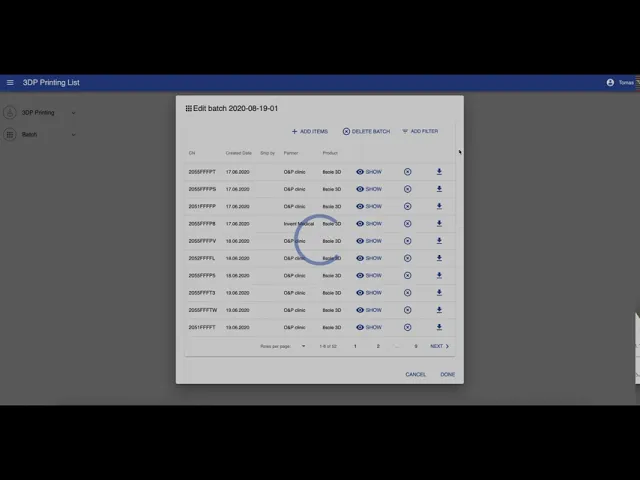
in this video we will look at the entire process of 3d printing order from the perspective of inventmedical platform 3d printing order represents parts of the final medical devices that should be 3d printed where batch represents grouping or of 3dp orders that will be put in the same printing chamber or in other words will be printed together with the same printer configuration this is very important because if there is a defect caused by the printing condition we need to be able to check down all orders that were printed together in the same time the grouping
will help you do the preparation batches like for instance all gdp orders states will be changed at the same time when the batch order state is changed and also you can download all files together like for instance stl files and quality assurance documents if you look at the information that are available for 3dp orders its control number which is uniquely identifying each order it's the state create a date of the gdp order and the date where the order should be shipped to assembly partner sometimes the assembly partner is different than gdp partner so that's why
these dates is very important so you have to ship by this date to the assembly partner then we have information about the partner clinics that where the order was originated the customer order and information about the product that will be 3d printed so you can have an idea of the size of the product when grouping together gdp orders to create a batch you can also download manufacturing data for individual gdp order here but i will later show you how to make this process more easier so you can download all the files together for one batch
each 3d printing order comes with different manufacturing data it also depends on the on the type of product for instance if you look at the eight sold 3d product we go into the to the detail we will see a different documents it's left and right shell that will be 3d printed it's stl files and it's quality assurance document let's start with the quality assurance document if we download it by clicking on the name and open it you can see that there are different information it's a dimensional inspection visual inspection post processing this that must be
done and also the address where the shell should be shipped if if the assembly partner is different than the printing than the 3d printing partner you can also have their information about the where the product was were printed and the list of the files if we go back we can we can try to download also the manufacturing data so let's check the left shell so we can download it yeah so it's the it's the stl files of the of the product that will be printed you can see that the information for instance the control number
is also available in the shell and the name of the product now we will have a look at how to create a batch in other words the gtp orders that will be printed together inside the same printing chamber we can do it in many different ways the simplest way is to click on the checkbox on the left side of the gdp order and you will see that there is a create batch popups in the ho in the top menu so you can select as many orders as as you know that you will be putting them
together and then click on the create badge you will be asked for the name of the badge so you can select batch as you want it can be usually a date and the number of the patch in the day if you have more batches coming during the day if you click on the save new batch is is created and also the state of the gdp order is changed to printing you can now go to to batch to check your new create newly created batch you can see it here so that's the name of the patch
state is printing it means that you are preparing the the new batch that will be printed created date and number of products that are inside the same batch and id you can go even into detail where you will see the gdp orders and you can see that also the state of the 3d individual 3db order was changed to printing so it will make the process simpler for you then you can see all the manufacturing documents that are available for for the grouped gdp orders and you can download individual files but i will show you a
better way how to do it if you go back to the list you can download all the manufacturing data at once clicking on this button it will download all the necessary documents that will be used for for preparing the the batch for for for the 3d printer you can even change the batch here because it's still not in the process so you can click on edit and you can add or remove the gp order from the batch if you click it i add items you can add more orders into the batch or you can you
can simply remove one order from the batch if you know that it will not fit into into printing chamber so the next step is to download the manufacturing data and you will start your manufacturing process so it depends on on your own process once the products are printed and you will pull the 3d printed chamber from the 3d printer you can click on finish which will finalize the process of the 3d printing so if i click now on a finish it will ask me to upload the document this is optional this is supposed to be
a document there is uh describing the condition of the of the 3d printer that was configured for the for the actual printing so if you have such a document you can upload it here if not just click on finish this will change the state of the of the 3d of the batch to the state printed and also all the gdp orders that are inside the batch will be changed to state printed once the batch is finalized this is the final step for the batch itself so you don't have to do anything else with the batch
but you can still download the attachments that was uploaded during finalizing the patch or you can still check the manufacturing data you can also go into detail where you will see the 3dp orders that are also in the states printed so this is this is all for the batch but there is still a work to be done with the 3d printing orders if we go to the 3d printing and try to use filter to filter out based on the state we can select all the gdp orders that are printed and you can see the name
of the batch they were printed you can still go into detail and you will see a new button here shipped this this shift means that you you have sent the gdp order to to assembly partner or if the assembly partner is the same as 3dp partner then you click the shift to mark this order as a ready for for assembling so all the necessary inputs are available for the for the assembly process you can do the shipped also by clicking on multiple gdp orders to make this process in batches and if if you select multiple
orders and click on the shift you will be asked to upload the quality assurance document that we saw before for these two orders so you can scan multiple documents at once and then upload it as a one document here let's have a look at the original 3d printing list document that we saw also before as you can see this is the original file in the meantime i printed out and also filled in the all the necessary information and scan it back to the computer so here is the final document that will be uploaded in the
next step as you can see i did all the dimensional inspection of the printed shell i also did a visual inspection and mark it as ok then check the color quality and verify that the product is ok sign the document and type in also the the date of the of the verification so this has to be done before scanning the document in the next step i prepare the scan so i scan those two documents and i can now upload them to the platform you can do it in two different ways you can either click on
the this button and select the document or you can use drag and drop functionality and just move it here so you select and now you click on finish so this will this is also the last step for 3d printing orders so you can now select the finalized orders you can see that they are in the state finalized so there is nothing to be done now and those orders will be later moved into finalized type here so if you want to look at the order 3dp orders that were printed before you can go in the finalized
and find the orders there you can do the same also for batches so if the batch you can see that our batch was already finalized and moved to the finalized so you can check it there so it will now list the batches that were already printed so you can hit you can see it here so and this is this is all for the for the gdp order module