I'm going to show you the fastest possible way to build a SaaS product and start making real money we're going to look at using vercel's subscription starter template and set up a hosted production environment of nextjs Supabase and an activated stripe account that can take very real payments let's get into it so here I have the stripe subscription starter which is from versel template gallery and there's a list of steps that we'll step through most of during this video but we're going to start by clicking this deploy button so this is going to Fork this
repo to either your GitHub gitlab or bitbucket account I'm going to choose GitHub I may already have a project with this name so I'm going to call mine subscription starter demo you can call it whatever you'd like we could leave this one as private but people are probably going to want access to at least my demo so I'm going to make a public repository and click create and now we need to add the Supabase integration so this is going to install the integration in one of our organizations I'm going to choose examples and say install
integration and now this is stepping through creating a new Supabase project I'm going to call mine subscription starter demo I'm going to generate a new secure password make sure you copy and paste that to a password manager cuz we'll need this one again shortly the region should be geographically close to the majority of your users I'm the only user so I'm going to select Sydney and then we want to leave this create sample tables with seed data tick box checked cuz this will set up everything we need for our integration with our strip customers and
products and all of the other things in this template so let's click create project and this has automatically set all of our Supabase environment variables we just need our three for stripe so let's head over to stripe.com and either sign in or create a new account and I'm going to create a new account for this example so I can say new account and give it the name subscription starter demo and make sure you choose the country where you live because different rules and regulations will apply to how you take payments I'm in Australia so I'm
going to click create account and now we can click API keys for developers and copy this publishable key and go back to our versel tab paste that one here we then need our secret key so if we go back to our strap dashboard and click to reveal our secret key and then take that back to Vercel paste it in here and then to set up our web hook secret we actually need the URL of our deployed vercel project so we'll add this later for now we'll just make this too and then click deploy and once
that's deployed and we see this beautiful confetti we can continue over to our dashboard and then click our new domain make sure it's the domain and not just the deployment as this one will remain consistent across all of our deployments so let's click this one to open it up and we can see we don't have any subscription pricing plans yet but before we go and create those in the stripe dashboard we need to copy this URL and then go back to the stripe dashboard and go over to web Hooks and then add an endpoint the
endpoint URL is going to be that versel URL and then /i/ web hooks we can then select the event we want to listen to we're just going to listen for all events and then click add events and then if we scroll all the way down to the bottom we can add that endpoint this then generates this signing secret which we can click to reveal and copy this one go back over to our versel project click settings environment variables and scroll down so we want to edit our stripe web hook secret so we can click these
three dots and say edit we can then add the value instead of to-do which will be our web hook Secret from the stripe dashboard we can then save this one and then we also want to add a new environment variable so the key is going to be nextore sitecore URL and the value for that one is going to be that domain URL from verel so let's copy that one go back to our cell dashboard and paste that in as the value and also remove that trailing slash let's click save to add that new environment variable
and now we have these new environment variables but they're not actually available in our deployed application and if we scroll up it actually tells us here a new deployment is required for your changes to take effect so let's go over to deployments and then click our deployment drop down these three dots and say redeploy make sure use existing build case is not ticked and then click redeploy and once that's deployed we can open it up and it looks exactly the same but now stripe knows where to send those web hook events when we create our
new subscription tiers so let's go back to the stripe dashboard and then we can search for products and we want to create a new product the name for this one is going to be hobby the description is going to be can do five things if you've already got an idea for how you want to apply those limitations to each of those subscription levels feel free to make this a little bit more accurate but I'm just going to say they can do five things we then want a couple of different pricing options our pricing model is
going to be standard the price can be let's say $20 it's going to be recurring so this is what makes it a subscription the billing period is going to be be monthly and then if we scroll down we want to add another price so the idea here is that the user can either pay on a monthly basis or they can save a little bit of money and pay for an entire year so for this one the price is going to be $200 it's going to be a recurring payment but the billing period is going to
be yearly and now if we save that product we can see we have a hobby plan where the user can do five things and they can either choose to pay $20 a month or $200 a year 2 months for free is pretty good value so let's go back to all products and then add a new product this one is going to be our Pro Plan the user is going to be able to do 50 things it's going to be a recurring payment of $50 a month and if we click here to add that product then
we can click into it and add another price which will be a recurring flat rate of $500 every year and let's create that price and so now we have our two different subscription levels users can either pay for the hobby plan or the Pro Plan to be able to do more things whatever these things are people are going to want to do them okay so now back over in our application if we refresh we can now see both of our pricing options showing up so the hobby plan can do five things and is $20 a
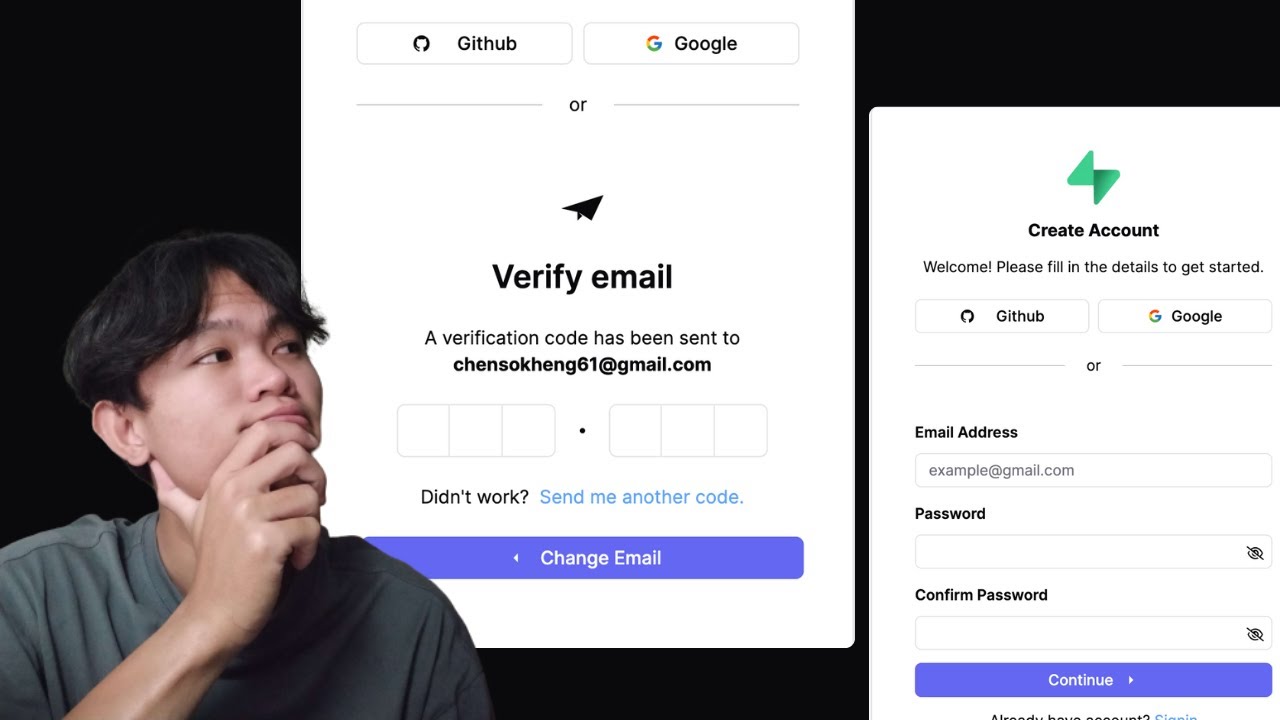
month Pro Plan can do 50 and is $50 a month we can also change this to yearly billing and both of those prices are automatically updated but before we try to subscribe to anything we need to configure or if we click sign in we can see the user can sign in or sign up with email and password this bit will already work but if we want the user to be able to authenticate using GitHub we're going to need to configure that in Supabase so let's go over to app. superb.com and you probably won't have a
ludicrous number of examples but I'm going to search for my project I think it had the word subscription and this is the one here subscription starter demo and then if we go over to authentication and then providers these are all the different ways that people can authen icate with Supabase we're going to use GitHub for this example so we can enable this one here and then we need a client ID a client secret and then this is the URL we want GitHub to redirect to after that authentication process completes so let's go over to github.com
and I need to sign in and now if we click our user Avatar and go down to settings we then want to scroll down to developer settings at the bottom select oo apps create a new oo app and we can give it whatever name we want I'm going to say subscription starter demo we then need a homepage URL so this will be the homepage of our application and go back to GitHub paste that one in as our homepage URL you can give it a description if you want to be super organized and then the authorization
callback URL is that one from Supabase so this callback URL for oo let's copy that one go back to GitHub paste it in here and then we can register our application so this will be our client secret we can copy it from here go over to Supabase and paste it in here and then for our client secret we need to generate a new client secret and now we can copy this one and paste it back over in Supabase now we can save and we can see that one is now enabled and we can test this
is working back over in our application we can click sign in and we can scroll down to use GitHub to authenticate and you can customize this in your o or app in GitHub but I'm just going to authorize this one and now I get this error cuz there's one thing I forgot to do so if we go back to the Supabase dashboard and again under authentication and URL configuration we need to set our site URL to be that versel domain so we can get that from our vsl dashboard we could just click this one to
open it up and then copy this URL and maybe close these other ones so it doesn't confuse me later so this is that one that failed before and back over in our Supabase dashboard we want to paste that as our site URL so let's click save and then go back to our application and click sign in scroll down to use GitHub and then we see this new account page which gives us all the information about our current plan the name that's been pulled from GitHub and also the email address so if we go over to
pricing we can test out that subscription flow so we can subscribe to the Hobby plan and this will redirect us to the stripe UI we can use their test card which is just all four twos we can also use that for the month and year and also the CVC so basically just keep typing for two until it stops asking the name can be anything let's say John Meers and then the billing address is going to be in Australia let's say 1 2 3 fake Street and there actually is a fake Street in oakw in the
USA so let's just use that one and then we can click subscribe and you'll see the text has changed to manage rather than subscribe and we can either click here or go over to our account and click here to open the customer portal ah which we haven't configured yet let's do that so back over in the strip dashboard we can come up here to search and look for customer and this one under settings billing customer portal is what we want we can then tweak anything that we want the user to be able to do within
that portal so they can see an invoice history they can update their billing information they can choose different payment methods for stripe to remember they can cancel their subscriptions and here we can choose whether we want that to be immediately or at the end of the billing period the end of the billing period is usually pretty standard especially with monthly billing it just means you don't refund them any money they get to keep using the service until the end of whatever they've paid for and then under subscriptions we want the user to be able to
switch plans and then we just need to choose any of the plans that we want them to be able to move between so that's all of our plans so $500 per year $50 a month $200 per year or $20 per month you can also choose whether you want to PR rate those subscription updates so if they went from yearly to monthly do you want to credit them that difference we'll leave it as invoice immediately and then under business information this is just business information boring stuff so now we can save those changes and then back
over in our application if we click open customer portal we get redirected to that stripe UA where we can do all of the things we just set up so if we want to update a plan we can go up to the Pro Plan and then continue it's telling us we just need to pay the amount that is the difference between our two plans so let's say confirm our user could also cancel their plan and when they're finished doing all of this stuff they can return to our application and we'll see that information has been updated
in our nextjs app we're now on the Pro Plan it's charging us $50 a month and if we go over to our Supabase dashboard and go to the table editor we'll see that all of our customers and prices and also our products and subscriptions and everything we've been doing over in stripe has been automatically synced to our Supabase database awesome we now have a hosted production environment of nextjs Supabase and stripe but our stripee account is still in test mode Let's activate it so we can take real payments so back over in the stripe dashboard
we can confirm this is still in test mode because of this big red banner that says you're using test data we need to activate our account to access live data so we can click here to activate the account and this will step through a collection of questions about your specific business that's different for every country and once you've activated the account you'll see that Banner is gone from the top and we can go to developers and and then API Keys copy this live key so remember earlier this was pkor test it's now pkor live so
definitely the live version and we just need to tell the cell about this one so back over in our subscription starter project we can go to settings and then environment variables and then scroll down to find our nextore public unor stripe unpublishable key and then click these three dots and say edit replace the value with our live key and then scroll down to click save and then we need our very live secret key which it's warning us you sure you want to reveal this let's do it and we can copy this key and take it
over to vercel and find our stripe secret key click these dots edit replace this test value with our live value and then click save and again we need to redeploy our application for these changes to take effect so let's go over to deployments and then click our latest deployment and then click these three dots and say redeploy making sure use existing Bill cage is not ticked and clicking redeploy and once that's finished we can open it up we see each of our pricing plans and we can sign in our user again scrolling down and using
GitHub and we're not currently subscribed to any plan so let's go to pricing and subscribe to this hobby plan for $20 a month seems reasonable and now we can confirm this is actually a real production version of stripe taking real payments because if we enter that test card of all 42s and 4242 and and 4242 and whatever name we want the address of 123 Fake Street in oakw Illinois and click subscribe we see the card was declined because stripe is currently in live mode and this is a known test card so send your friends that
URL because we now have a very real SAS running in production with Vercel hosting our nextjs app which is connected to our hosted Supabase instance and our activated stripe account but if we make any changes we're making them directly in production that's probably not great you should totally check out this video right here we set up a local development version of each of those pieces so we can make changes in an isolated sandbox and test them heavily before we roll them out to production but until next time keep building cool stuff











![I Replaced ALL my ADOBE APPS with these [free or cheaper] Alternatives!](https://img.youtube.com/vi/5EfqHg49kMk/maxresdefault.jpg)