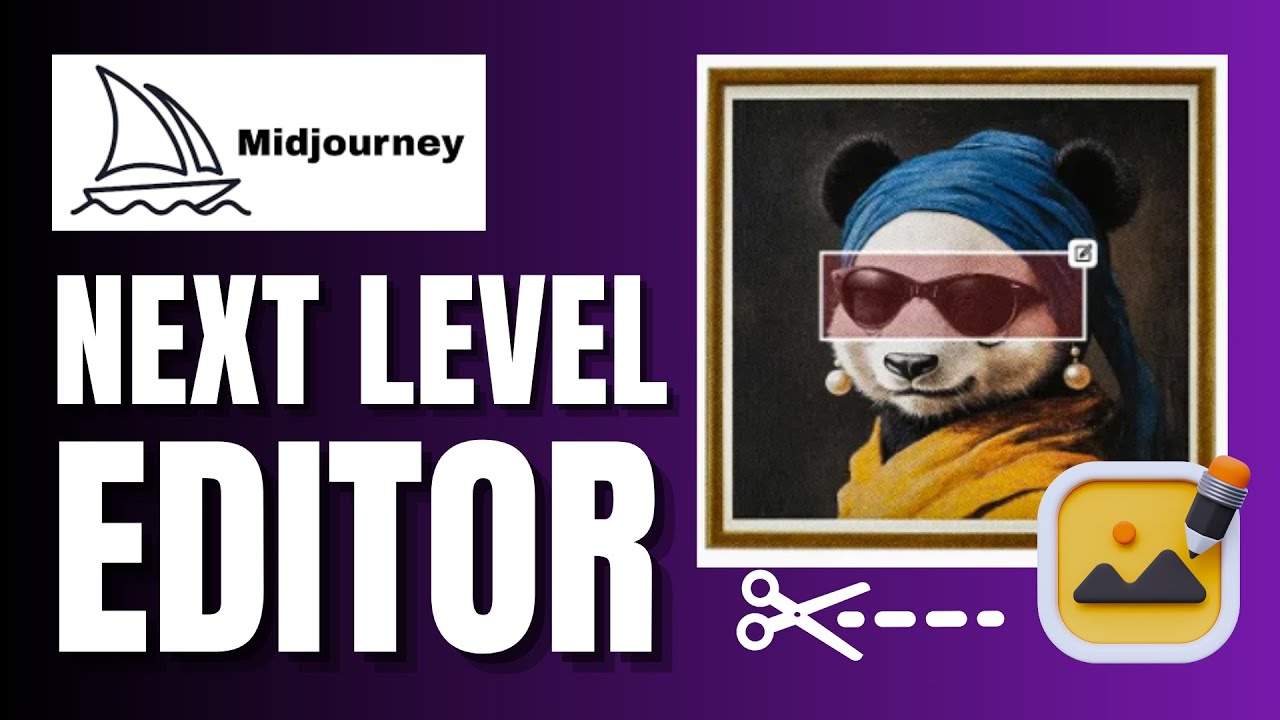
finally you can upload your own images into mid journey and edit them using their AI all you need to do is log into the mid Journey website and head to edit keeping in mind that the time of publishing you need to have generated at least 10,000 images to access this however this limit will decrease in time but essentially I'm going to zoom in a little bit cuz all we need to do is we can paste a URL in of an image to edit or we can upload one here I'm going to drag and drop an
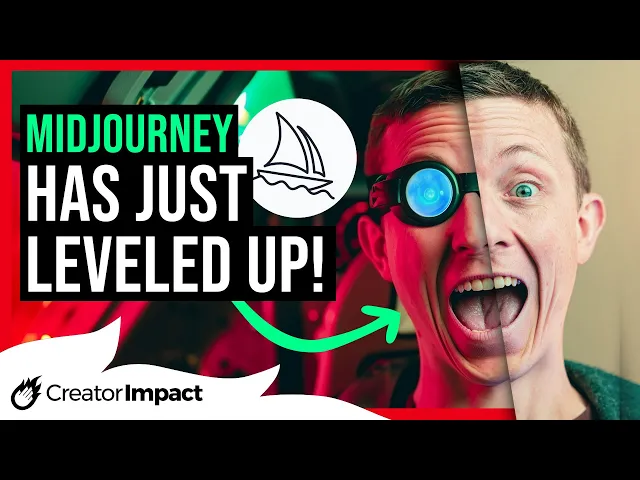
image I downloaded from pixels.com to upload into the edit up so we have this image of a man's face and essentially we have all our tools on the left here to kind of edit with our prompt bar at the top to make our changes and a bit of information on the right of the images we generate and of course we have our move and resize so which case I can drag and move this around I can change the aspect ratio a bit if I want to or I can grab my erase tool and start erasing
the areas I want to basically regenerate so I'm going to erase the background so I've erased the background and his T-shirt and maybe got a little bit heavy-handed and deleted a little bit too much so I'm going to go over here to the restore button because I can essentially add areas back in that I've erased I can also change the brush size down here to make it smaller and find shun what it is I've actually erased in the editor and go back shave a bit off here and it doesn't have to be precise cuz mid
Journey will essentially regenerate a lot of the details here anyway cuz it's got a pretty good sort of image editing AI so if I want to actually generate something around this now all I need to do is head up to my prompt bar here and type in a prompt of what I want to see I have a man with a silly face inside a spaceship cockpit hyperspace I click submit edit and you see it's generated a background but I don't have to stick to just this image cuz on the right I have my four options
I pick the one I think looks the best might stick with this one looks like he's strapped in so you can see by by removing and erasing areas just like the uh the image editor that was here previously we can upload our own images and make changes with the AI and the fact it's really referenced the Highlight on his face and added that color into the background I think has worked really well but we can also change the aspect ratio for for starters I might take this move resize and move this image over I can
change the aspect ratio here or I can come down I can change the image scale although since I've generated an image not quite sometimes I think this works when you first import the image but not all the time but I can come down here to aspect ratio and change it to something like 16 to9 or choose one of these predetermined aspect ratios I'm going to choose 16 to9 and I'm going to actually just enlarge this guy here move him over being the first a sometimes you get a little a few errors had a few errors
earlier trying to use this but it has only just been launched but if I want to generate some information over here now what I might do is come back up get my Eraser tool and just erase a bit more again because what I want to do is use suggest prompt I'm going to click that and it's going to scan my image and suggest a prompt you can see here it's created a prompt for me I'm actually going to just submit that edit and now it's generated some more images that I can check out I really
like this one with the red window so I'll keep that so already you can see the power of this tool just for editing and you don't have to just create things around objects we can also go into this so I can say get my Eraser tool and even erase his eyes wipe this out completely and just type in something like cyber Punk goggles and keep in mind I can come to my settings here and I can change any of these settings such as I can turn on personalization so I'll do that I can go from
6 to 6.1 and I can up the stylization and weirdness although it's kind of stuck in place but uh some of the options here can be changed to affect the generation but also I can come over here and use image prompts so we might experiment with that in a minute but otherwise I'm going to use my sub Punk goggles submit the edit and I can choose which one I think looks the best I really like this one here the other thing too is you'll notice we got these three stages if I click on this left
image it takes me back to that image so I can go through the different stages of the editor and go back and forth pick the image I want and sort of move through my history a little bit like that also which is pretty powerful so this could be used for any AI image editing I might go through a more in-depth tutorial later however what if I want to try an image propped such as this gears here maybe I'll go for a style reference and then I'm going to just click back here and again I'm going
to get my Eraser tool and just erase a portion of this cockpit to see if it introduces some of those gears from here as a style reference I submit the edit and using my image I'm able to create a style reference for that it's probably not the best example so I'm going to take a step back to here go back to my goggles man now when I'm done before I move on to retexture I can upscale this to the gallery like so or I can download this image here so that's a pretty quick introduction for
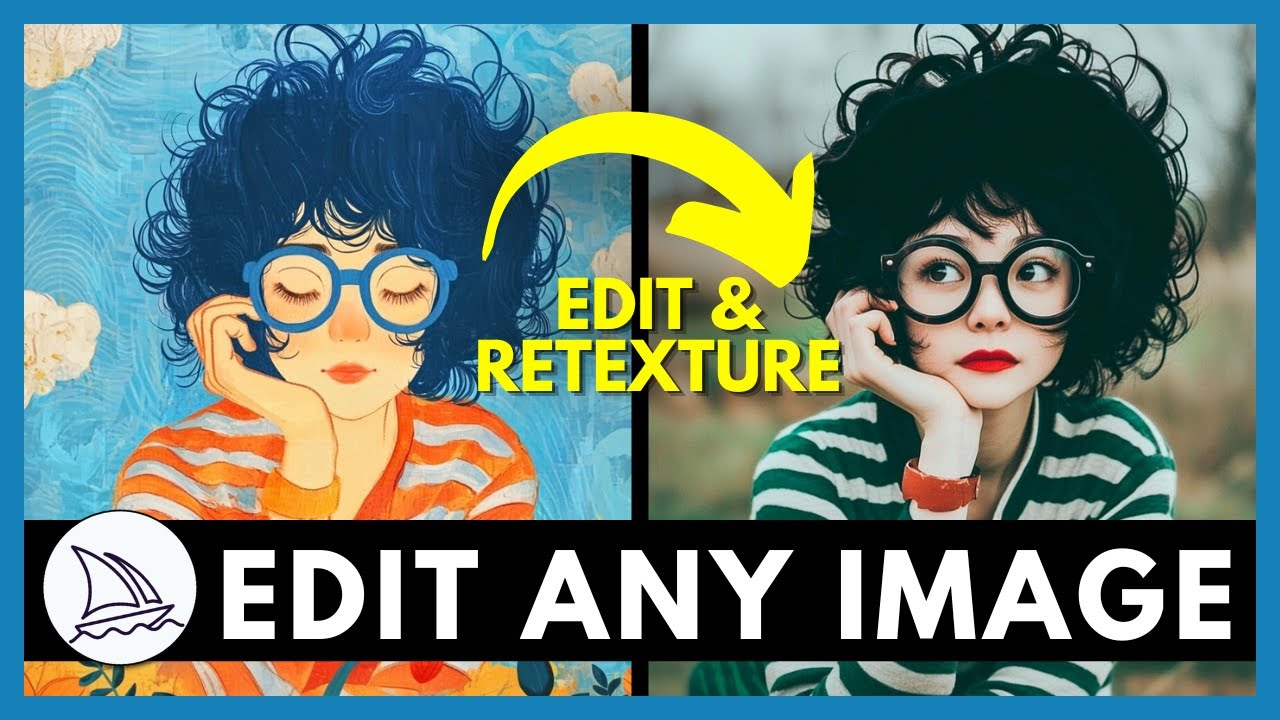
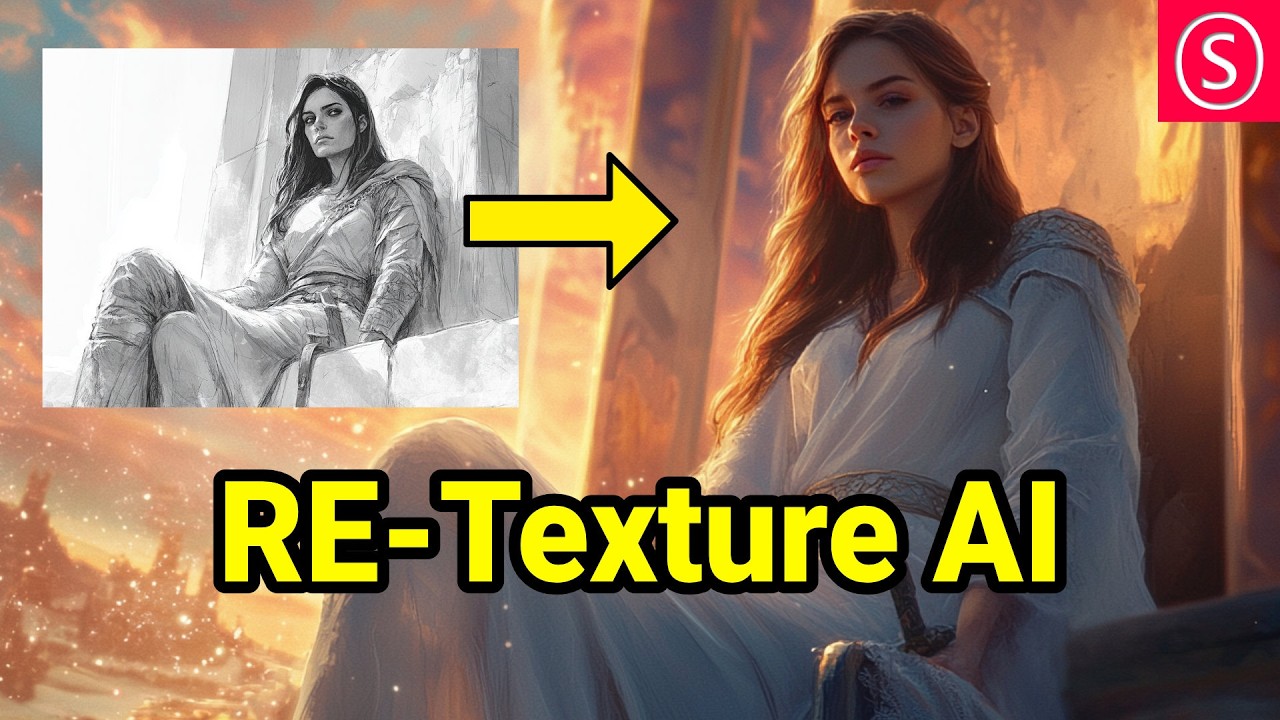
this feature which is pretty brand new I might go a bit deeper on it later but you can see how easy it is to use and edit your images based off what I've uploaded but there's also the retexture function here and it will ENT essentially scan the image and retexture it so if I were to type in something here like ink dripping drawing with red green and black ink I can submit the retexture and you can see how it's taken the existing image and change the style but I can come back to here and even
try something else such as a Renaissance painting by Leonardo da Vinci similar style to Mona Lisa submit it's half converted him into the Mona Lisa so understanding your prompt may have a good impact but let's go back again because this time we'll get rid of the prompt create an image prompt choose this weird effect here make it a style reference and submit except the prompt can't be empty so I'm going to say digital green screen effect hit enter you can see we got a few options again and they look pretty nifty this this one here
looks a bit funky I'm going to upscale that to the gallery now when you're done if I click on edit again over here it will take me to this screen and I can go back into this job but I can also see all of the recent images I've created including different versions so you can change the versions around like I said before so the fact that you can go in organize this download these as you want is really incredibly powerful but also if I head back to my create tab you'll notice it has my upscale
here from before and of course I can use some of these other functions here but ultimately I think this is going to be the result that we stick with so you can see very quickly this this new function allows you to take your own photos and edit them with mid Journey's powerful AI which is a bit of a game changer and the fact you can upscale as well is also pretty handy and then you can also retexture so until I get a chance to go through this a bit more in depth and do a proper
video I recommend going in having a play checking out what we've covered today because it's going to be a pretty fun tool to play with and definitely going to be something that's going to change the way people use mid journey in the future otherwise that's the video for today guys hope you it useful and if you did please consider giving it a like otherwise hope to see you again soon have a great day