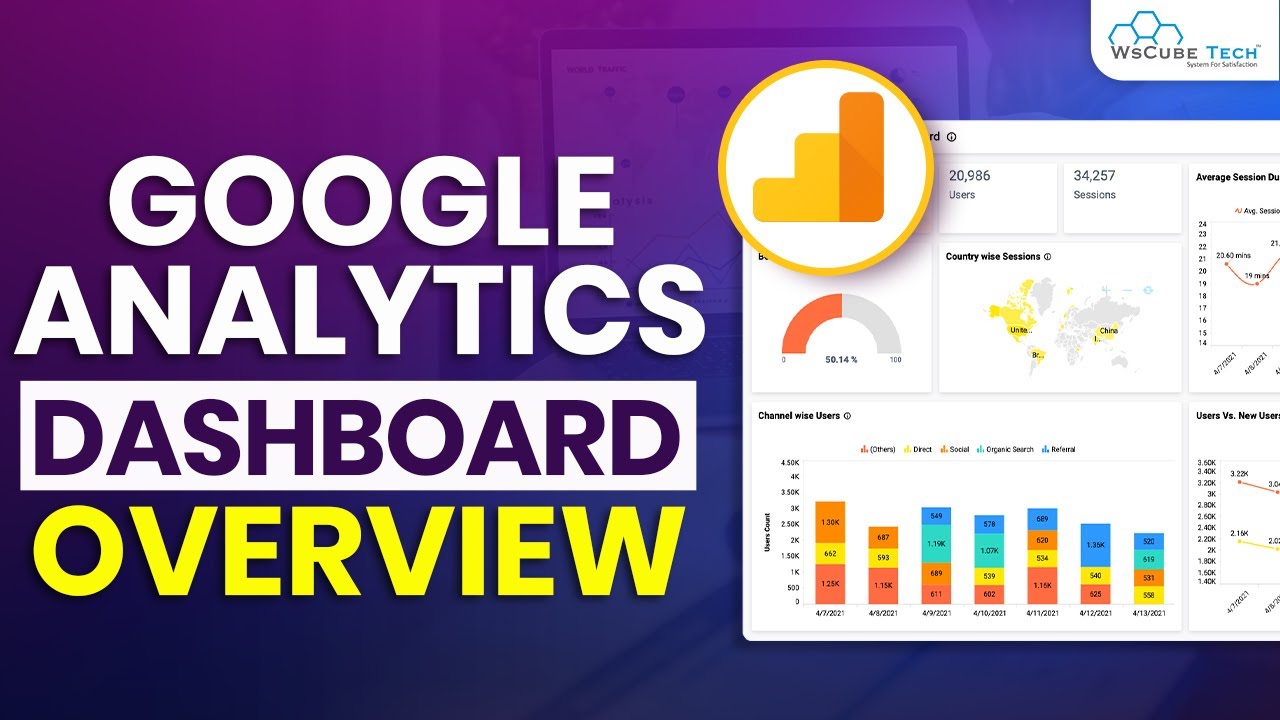
Hello everyone, I am Amit Tiwari from amittiwari. net and this is the third video of the Google series. In this part, we will see the report section of Google Analytics.
This report section of Google Analytics is the window where most users will spend the most time. By using the report section, you can analyze the traffic of your website. You can understand the destination and pattern of your traffic.
But we will not only look at the given options. We will not look at the template reports. In fact, we will learn to make our own custom reports and understand a lot of important concepts user attribution.
What is it? What does it mean? And what is the importance of it?
So let's start this third part. The sponsor of this third part of the Google Analytics series is Nautix. Nautix is a push notification service that works on both desktop and mobile.
And Nautix's unique in-house technology gives you better subscription rate and better delivery You can try Nautix without removing your current push notification provider. And what is the best thing? Nautix is absolutely free under 30,000 subscribers.
And if you take the monetization plan, then you will also get revenue from Nautix. In Google Analytics, a lot of UI changes have been made recently. And you can see a lot of changes in the report section as well.
Like if you have set up your Google Analytics series in the last few days, then your report section something like this. But if your Google Analytics property is more than two months old, then your report section looks like this. Now, if you don't watch this video fully, then it may take time for you to understand the between the two.
There can be a problem, there can be confusion. But those who watch this video fully and watch this series fully, they will understand all this So, let's go to the computer screen and understand the report section fully. So, to come to the reporting section, you have to click on the reports button in the sidebar.
And we have come to the reporting section of this website. To go to this tool, you have to search directly on Google. Google URL Builder.
And here you will see the campaign URL Builder in the first search result. You can see GA DevTools here. After coming here, you can click on GA4 from this UAGA4 button.
And then here you get a very simple UI Geyser. For your website, you get the facility to create UTM links. Now, you may not use these UTM links, but to understand GA, to understand Google Analytics, you to understand the difference between source and medium.
That's why we are looking at this campaign URL Builder. First of all, you will add your website link here. For example, let's say https://example.
com Now, you can leave the campaign ID blank here. There is no need for it. Here, two things are most important.
That is Campaign Source and Campaign Medium. Without these two, the UTM URL will be invalid on its own. So, Campaign Source and Campaign Medium.
What is the difference between these two? Campaign Source, basically, the campaign for which you are creating this URL, has a broad category. For example, let's say, you want to run a campaign for your brand for the upcoming Christmas where you want to promote your brand in the Christmas season.
You want to promote it online, you want to promote it offline, you want to promote it with both and organic mediums. So, for this type of campaign, what will be the source of our campaign? Christmas 23, okay?
Because you want to promote it next year as well. So, Christmas 23 denotes the year. And then, what is the medium?
Organic, right? For both of these, as we give these two details, the URL that is being generated here, it is us, Christmas 23 and Medium Organic. So, whenever you use this URL and someone clicks on this URL, then you will see in your GA4 report which particular campaign is your traffic for?
Christmas 23. And which medium is it coming from? Is it coming from an organic medium or is it coming from a paid medium?
So, all your organic campaigns, if your SEO team is building a link, then the URL they use will be Christmas 23 Organic. And similarly, whenever you want to promote your website's Christmas through ads, then you will let the source be Christmas 23. But the medium of the campaign will change.
It can be ad, it can be PPC, or it can be Google Ads. And if you are running your campaign on Instagram and Google and different platforms, then you can name one campaign as Google Ads in Medium or you can add Insta instead of Google Ads. And when you use these different links along with questions, then in your Google Analytics report, will see your campaign's source and medium and you will get to know that which campaign is this traffic related to?
And what is its medium? Is it coming from ads, organic, referral, direct? How?
You will get to know everything. So, you will remember the difference between the source and medium. With this, we have come to our report section and here you can see different types of data, charts.
This all seems very overwhelming, but don't worry. It will be easy in a while. Here you can see different parts of the reports.
At the top, the business object is written here. This is a collection. There are groups in this collection and in these groups, there are different types of reports.
The first report you can see is the overview report. If you look at the overview report, and after looking at the overview report, you go to a detailed For example, there is a detailed report below the overview. So, you will always see a full-width detailed report which will have a lot of data.
But the overview reports will always be seen with cards like this. You can see small cards here and there. Now, how to make these cards and how to make a detailed report, we will see all these things now.
And to be honest, all these reports, because it is a template, it has all kinds of data and all data will not be useful for your website. Your website has its own requirements and according to you should make a custom report which you can understand by looking at it. Here, you can see new users and returning users, but how does it benefit you?
Right? Maybe you need something different. Maybe according to your website report, first of all, you have to see the refund data of your You have to see the CL data.
How many people have added to the cart or how many people have clicked on the purchase button. You need this information. So, all this reporting, all this customization, you can do it.
You can see this function in Google Analytics. Now, to use all these functions, let's minimize everything once. And after that, we will click on the library button.
And after going to the library button here, you can see these different collections. And the different groups in these collections, these groups are visible. Right?
So, here you can see the business objective collection. Here you can see the business objective. It has been published.
Here you can see four folders. Generate leads, Drve online sale, Raise brand awareness, Examine user behavior. You can see the same groups here.
And there are different reports in it. Now, we can also make our own collection. To make our own collection, we will click on this colorful plus button.
And here, after this, you have to click on the blank. And we will come to a new page. And here we can name our collection.
What will we name the collection? Let's say, SEO campaign. Okay.
Our SEO campaign is made. Here we will give a new topic. The one I am repeatedly calling a group, Google Analytics calls it a topic.
Same thing. Here we give a name to the topic. First of all, we will give a name to the topic.
Traffic report. Okay. This is our first group.
Our first topic is made. And after this, here we give a conversion report. Okay.
I have made two different groups. And after this, I will save it. It has been saved here.
This is our new collection. And after this, I will click on the back button. And I will come back to this particular window.
Now here you can see that you can still see the business objective. You can see the life cycle. You can see the user.
But what we have just made our new SEO group, that is not visible. That is why it is not visible. If you see these three together, then you will understand the difference.
Life cycle has been published. SEO campaign has not been published. So how will we publish it?
Here we will click on these three dots. And click on the publish button. After this, we will have to refresh it.
The page. Now we have refreshed the page. But you can see that the collection called SEO campaign is not visible anywhere on the side.
Why is not visible? Because we have made a collection till now. We have not made a report in the collection.
If there is no report, then the collection will not be visible here. You should remember this little thing. That if you make a collection, you can make different topics or groups in the collection.
But if there is no report in them, then it will not be visible. So it is important to have at least one report so that the collection is visible on the sidebar. before we go to our new collection and start adding new reports in it, here is a small thing.
If you want to keep your Google Analytics dashboard clutter-free, simple, easy to use, customized, you can hide these template collections. The way to hide it is very simple. Here you have to click on three dots.
And don't click on the delete button. Don't delete them. It won't help you.
Your storage is not going. Click on the unpublished button. It is removed from here.
Similarly, we come here and click on unpublished on the user report. And click on unpublished on the life cycle. You can simply remove the reports that you don't want to see.
You can unpublish them. And these reports will be hidden. Right.
Now we come to our SEO campaign. We will click on this edit collection. And here we are getting the function to add different reports.
You can see all these reports on the side. You can drag any report from here and then drop it. Okay.
As soon as you drop it and then click on the save button, you will get two options. Save changes to current collection or save as new collection. That is, the collection named SEO campaign that we have made now.
In this, you have to save these reports, save this topic or make a new collection. Now, obviously, we don't want. that our SEO campaign collection has been making a lot of copies, so that's why we will click on Changes to Current Collection, but this report is not our own report, this report is a template that's why we don't want to use it, I will cross it, let's back it, we won't save it, we have it.
Now here we have seen the collection section till now, below the collection comes the report okay. And in all these reports section, here you can see some reports already made by me, i. e.
we have made them for different courses, we have used them, so there is no need to pay attention to all the default reports will be shown here like this, okay. You can see all these reports, you will get all these reports in your dashboard as well. We can use these reports to make.
Now here you are seeing different icons, there are two differences in these icons, No. 1 is this one, this is an overview report, because you can see different small cards in it, and detailed reports will be shown like this, their icon is this, okay. Now let's come back up, you can see the create new report button, okay.
If we click on the create new report button, then you will see two options here, create overview and create detailed report. If you want to make an overview report, then you have to click on this button. And if you want to make a detailed report, then you have to click on this button.
But apart from two options, there is a third option, to customize any template report or pre-made report, and save customized report as a new report. So first of all, we will use this method, and then we will use any one of these buttons. So let's scroll here a little bit, and here you can see the user acquisition report, this report also be visible in your own Google Analytics dashboard, it is a pre-made report.
Let's click on it once, okay. We will click on it, it will load, and then we will customize it and make our own report. Right, very smart.
Why do we have to work from scratch? By the way, if we work from scratch, then it will not be very difficult, but let's use this way, Let's give the report time to load, and this report has come here, okay. Now you can see here that the whole data is of the last 28 days, you can customize it later, for it will not change here.
Now here this report looks something like this, we will customize it and make it useful for right. Now because this is our SEO campaign, here we need a report according to the SEO campaign of the project, where we want to see how many organic users are coming, what is their data, etc. , etc.
So in this scenario, we have to customize this report first. Here you can see the line chart and the bar chart, both are visible, let's remove this bar chart, I can see the section of the charts in the sidebar here, I will click on this I button here, and this bar chart will be removed from here. Good, now the chart is visible only, and there is a table below which is showing the data of that line chart in But here you can see that a lot is visible, right.
A lot of things are not very clear, nothing is visible at a glance, let's correct this report. So here we will come to the report data section in the sidebar, and here we will click on the and you can see a lot of things in the dimension. Here we click on the first user medium, we click on set as default, okay, we will make it default.
Our first user medium is default, and then we click on the three buttons in front of all the other and here we will click on the remove button, right. So we are removing all of them. By the way, if you want, you can drag and drop any one of these dimensions, but that is something we will do it in some other report.
Right now, we will remove all these dimensions, except first user medium, right. That's why I told you about the UTM parameter a while ago, where we explained the difference source and medium. So here when we are focusing on first user medium, basically we can find out confidently which is coming from Organic and which is coming from some other medium.
So all of them have been removed here, and after this we will click on the apply button. And here only first user medium is there, till now there was a drop down here, now only first user is visible here, but now there is a lot of crowd in Metric as well. So here we come, the dimension is here, this is the first column, this is clear, now we come to the section, in the Metric section, here we have to keep some special kind of data only, right.
So if we want, we can remove all of them, or we can keep some of them as we are using them. Let's do one thing, let's click on this cross button in front of all of them and remove them. And after this, we will click on add metric here, and what metrics do we need?
First of all, we need users. Okay, let's come here, there are users here, and along with users, we need new users. Okay, new users have come, as soon as we started typing, you can see it in the drop-down below, you smart, you understand.
UI basically is more or less the same for Google systems, it is compulsory to keep it intuitive, the user should give the user element according to the habit already there. And in fact, this tip is also about your own websites, that if you are designing your own website, it, if you are working with a developer, then you can tell them to make the user interface like only, there is no need to invent anything unique. So here users are done, new users are done, now we come to the bounce rate, we have also got the rate, and after this we will come to the conversion, okay?
So the conversion that you have decided, what should be the conversion in your SEO campaign, you get to know that here at once. So here we have decided four metrics, users, new users, bounce rate, conversion, right? Whatever your campaign is in SEO campaign, whatever type of target you have, it is always important focus on that conversion, otherwise what is the use of taking only rank, only traffic?
If the target of your page is to fill the subscription box, or to fill the lead form, then you have target it as a conversion, so that you can actually measure that conversion. So here we have selected four metrics, you can select up to 12 metrics, but as you can see here too much data always increases the crowd. If you want to see so much data, then you can make another report, right?
Many reports can be made, Google Analytics is giving you a report for free, so it is better than 12 metrics in one report, you keep up to 3 or 4 columns in one report, so that data can be easily understood. Now you can see a live example here, now this report is like this, here as soon as I click on the button, this report has become a little easier, now it is easy to see, right? So here we know that this website, the traffic coming on that website, in that none, means where is not able to measure from anywhere, that column is the biggest, then after that there is a then after that organic, then after that email, then after that one more email, somewhere, because is a dummy website, it is a demo website, so it is possible that the traffic that we are seeing on website, is coming, whatever link we have used, parameters we have used, medium we have used, there be a difference of email caps and small from medium, that is why this data is being collected here.
Now here you can see that this data is already clearly visible, above is your line chart, below you see the same table. Now here you can customize this report even more, you get the option of filter, so if you want that you do not see the data of none, because this is a report, if you are going to present the report your client, and let's say that in your report, this none is very negligible, here it is a dummy that is why it is visible more, but if in your report it is negligible, and you want to make the good, you do not want in front of the client, you explain that what is this none, then you can it, right? Or if you want that only organic and referral data should be visible, if you do not see the data of campaigns, then you can also filter that, to filter you can see the option of report filter in the hand side, you click on add filter, now after the filter we come to the summary cards, if you see on the side, then below the report template, you can see the option of summary card, this summary is a very unique thing, because this summary card helps you to make an overview report, this card which is your main report, the different types of parameters of this main report, you see the to see those parameters at a glance, so here two summary cards are already made, I delete them, first of all the template and the pre-made reports, I have a bad habit of deleting them, so that you should learn by practice, and you should do the yourself in a customized way, if you keep using the template, then you will get stuck in the all the people who are students of courses, they know very well, the first thing I remove is the so here we will click on create new card, okay, now after clicking on create new card, here again can see the dimension and the matrix, what is the specialty, here in the dimension, you will get same option, which you have already selected in your report, means in these summary cards, you get facility to show the same information, which you have already used in your main report, here in the we have given only first user medium, that's why in the summary card, when we click on the here also we can see first user medium only, right, if I go here and test this thesis for some here if I select gender instead of user medium, we will click for some time, now we will delete it, I select gender here, and after that I come to the summary report, and here I click on the drop-down, here you can see first user medium and gender too, right, so we will go back, and here I delete the gender, it was temporary, now we will click on apply, and then we will come to the card, I have mentioned the summary report somewhere, don't mind it, this is the summary card, here comes dimension drop-down, here we will click and select first user medium, and then after this, matrix is here, matrix will also be the same, which you have already added in your report, okay, so here want to see the bounce rate, okay, we have selected bounce rate, after this, if you want, you can more matrix, you can add as many matrix as you want in one report, you can add other matrix, But if you don't want to do all this, then if you want to use only one metric, then it will be a option.
Because summary cards are supposed to be easy, simple. I saw it at a glance and you got the whole summary, right? So here we have selected our dimension and selected the metric.
And after that, we have to select the style of visualization. You want to see a bar chart or you want to see a pie chart. Or you want to see a line chart or you want to see a table.
Whatever kind of data you want to see. Let's say I want to see a pie chart here. So I selected the pie chart here.
And then after this, I will click on the apply button. And this summary card is made here. Now, in this report, you can also make another summary card.
Let's say I clicked on the summary card again. Add dimension. First user medium.
Metric option. Let's say conversion here. Okay.
And then after this, I select the bar chart here. Okay. I already have the information here.
So here I have made two different types of summary cards. So this report has been made. This summary card has been made.
This filter has been made. Everything is ready. Now what do I have to do?
I have to save this report. As soon as I click on the save button, two options are coming here. Save changes to current report.
And save as a new report. So now here you have to remember that you started editing the user acquisition report. So it's not a good idea that you disturb the default template report.
So here we will click on save as a new report. And here I will give it a name. Let's say SEO report.
GA series. Okay. I am giving it any name here.
Because it will be easy for me to identify which series I have done which video tutorial. But you will name your reports. On the basis of your work, uses and whatever metric you are using.
Okay. So here I click on the save button. And now this report that we have customized has already been saved there as a new report.
Okay. This is our first report. We will click on the back button.
Okay. So we have made one report. Let's make another report and see.
Okay. Why not? So we come back.
And again we will click on user acquisition once. Okay. In user acquisition, the process will run a little faster.
Because we have already done this process. So here I hide the bar chart. And then I will go to the dimension after this.
And in the dimension, I remove all these. We will make this report for the landing page. Okay.
So here we remove all the dimensions. And here we select a landing page. Landing page plus query string.
It is visible here. Let's remove this too. And it automatically becomes default.
Okay. Then we will click on the apply button. And now this report will change a little.
The landing page has come. Okay. Now here I click on the metrics option.
What all do I have to select in the metrics option? Let's remove everything. Okay.
Here in the metrics option, we will select. First of all, sessions. Okay.
We got the data of sessions. After this, we will come to the users. Then after this, we will come to the bounce rate.
And at the very end, we will come to the conversion. Okay. Let's turn the users up.
Let's turn the session down. And if we want, we can also turn the conversion up. Yes.
So user, session, conversion, bounce rate. We are 4 meters ahead. Let's click on apply.
Okay. So now we can see. Here is our landing page.
You are getting all the information about that landing page here. And in front of these landing pages. The information you are getting.
How many users are there? How many sessions are there? How much is the conversion?
What is the bounce rate? You are getting all the information here. Right.
Like this is the homepage. What is the conversion of the homepage? So here you can see the total data.
There is a 38 conversion. There are 1000 users. 1061.
3487 sessions are there. What is the conversion? 38.
And what is the bounce rate? 46. 95.
Average. Right. Now some pages have more, some pages have less.
I don't know which page this is. But its bounce rate is 97. 1%.
That is, the user is just coming and running. Right. This is the one dragging us down.
So here you can see that on the basis of different pages. You are getting customized data for different landing pages. Right.
Similarly, after coming here, the summary cards of this report. We will delete them and make a new summary card. Click on create new card here.
Add dimension. Landing page plus query. And then after this, what will come in metric?
Here we give conversions. Okay. And we want to see how the conversion is going.
Of different pages. So we will click on this bar chart option. Okay.
We can also do the table. But instead of the table, we do the bar chart. And then after this, we will click on the apply button.
Okay. Let's create another summary card. Landing page plus query.
Add metrics. Here comes the bounce rate. In the bounce rate, we take the pie chart or take the table.
Okay. 100% bounce rate pages are most visible. Okay.
Anyways. Here you will see the limited option. Because this is supposed to be just a card.
So we will click on the apply button here. And then after this, we will click on the save button again to save this report. And we will click save as a new report.
And here we enter the name of the report. Landing page report GA series. I don't remember whether I wrote GA4 series there or GA series.
But let's call it GA series. Click on save. If you want, you can also give the description of the report here in this box.
But we are skipping that right now. Okay. So this report has been saved here.
We will click on back. And then after this, we will make a report. Our overview report.
Because we already have summary cards. Right. So here we will click on the create new report button.
And after this, we will click on the create overview report button. And then here we are getting the feature function to add cards. We are customizing this report.
We are not making it for ourselves. So here we will click on the add cards button. And you can see here that the summary cards of business objective etc.
are also visible. So all the collections in your Google Analytics account, all the groups and all the reports in You will see all their summary cards here. Whether they have been published or not.
So here we hide all the other summary cards once. And only our own reports. We will see their summary cards here.
But you can see that the summary cards are not visible here. Right. Why is it not visible?
Because we have not published it yet. So let's go back once. And then we will come here.
On this collection called SEO campaign. And here we will select our reports. GA series.
So we had made a landing page report. It has come here. And we had made a SEO report.
So we add both these reports here. And then after this we will click on the save button. And save changes to current collection.
Because we have already made the SEO campaign. We have saved it here. And we come back.
And now you can see that the report is visible on the side. SEO campaign has become visible. It was not visible yet.
So we come back to create new report. On create overview report. And here we get the option to add cards.
Here we will click on business objective. Life cycle. SEO campaign reports.
Click and select. And then after this we will click on the add cards button. And you get this report here.
Immediately. Here we will click on the save button. And now we will have to give this report a name.
Now because this is a custom report in itself. It is a new report. That's why save as old report.
Save as new report. You will not have to face problems here. You can give the name directly.
What is the name of our report? SEO campaign overview. What is GA series.
Okay. Save it. Now we will come back.
And again we will edit our collection. Click on the edit collection button. And here we will search GA.
Okay. And here we can see our report. And here we have come to the edit collection section.
And here I will search GA series. But here you can't see any overview report. Because we are in the section of detailed reports.
We will come to the overview reports. And here you can see your report. Which we just made.
Overview report. We will drag it here. And we will drop it on our overview section.
Right. And then after this again we will click on save. And save changes to current collection.
Because we are already editing the SEO campaign collection. So let's come back from this section. And now we will come here to our sidebar.
In the sidebar we can see SEO campaign collection. Here we can see the selection of traffic report. And here first of all we can see our SEO campaign overview report.
We come to this overview report. Here you can see the data beautifully. As you wanted the report.
Exactly as per your campaign. You can see here. And after this we have our SEO report.
Here we are getting a chance to see only our data. What we wanted. Here is the first user medium data.
Users, new user, bounce rate and conversion data is visible. And after this we can also see the landing page report. Customized way which we made ourselves.
Right. This is the data of 28 days. You can change this data from there.
You can set the data for last 90 days. Whatever information you want. You can see that.
So this way you can completely change this reporting section of Google Analytics. According to your need. According to your need.
According to your SEO campaign. According to your website. Yeah.
Even PPC campaign. Social media campaign. According to your needs.
You can make a report. So that you can easily see these reports. And understand.
Whatever you want. Right. Your data.
Your analysis. Your visualization. So this was the report section of Google Analytics.
In the next video. We will see the exploration part of Google Analytics. In the exploration part.
You can make different types of custom reports. You can make visual representation of your traffic. In the exploration tab.
You will get a chance to use regex. In the regex exploration tab. You will get very good reports.
And the good thing is that you don't have to work too hard to learn Regex. Our two-part series on Regex was published a few days ago. So if you haven't seen that series yet, then after finishing this video, watch the two-part series Regex.
You will enjoy it and understand it well. And the exploration video will be easier and more useful and helpful for you. So see you in the next part.
We will explore the Exploration tab. Thank you so much for watching this video and this series. My name is Amitabh for Amitabh.
net and I will see you next time. Take care.











![Google Analytics Tutorial - Learn Google Analytics in 3 Hours [FULL COURSE]](https://img.youtube.com/vi/tordSZdd8R4/maxresdefault.jpg)