In this video I will show you how to update all your PC's drivers the right way, without complications, without downloading pirated programs and, best of all: quickly, safely and completely free. So stay with me until the end, because this complete step-by-step guide will save you from mistakes that many people make when updating their drivers and that can leave the entire system buggy. Before updating any drivers, the first thing you need to do is create a restore point in Windows.
This will ensure that if something goes wrong, you can return the system to its previous state. This step is important both for those who just want to keep their drivers updated and for those who have just formatted their PC and need to install all the drivers from scratch. Everything I'm going to show here will work perfectly for both cases.
Click on the start menu and search for "Create restore point". Let's click on it to open. Here on this screen, we will select local disk C, which is where our system is installed.
As protection is deactivated, let's first click on "Configure". Then, check the option "Enable system protection". In "Maximum usage", you can keep it at 5%, which is enough.
Click "Apply", then "OK", and now we can create our restore point. To do this, click on “Create”, give it a name, such as “Before updating drivers”. Once this is done, just click on "Create" and it will begin the process.
With the restore point successfully created, click "Close", "OK", and that's it. Now you are protected. Never skip this step.
Windows offers two native ways to try to update drivers without having to install additional programs. These methods can be useful, especially after a format, when you need to ensure that the system's basic devices work correctly, such as sound, network, and video. So let's access the start menu, go to "Settings", "Windows Update", and click on "Check for updates".
Wait while Windows searches for updates. If it finds any, including drivers, it will install automatically. This is usually the first step after a format, as Windows tries to automatically identify and install drivers for essential components.
Wait for it to finish. If it finds a driver, take the opportunity to install it. In our case, we didn't find any drivers or updates, so let's move on to the next method.
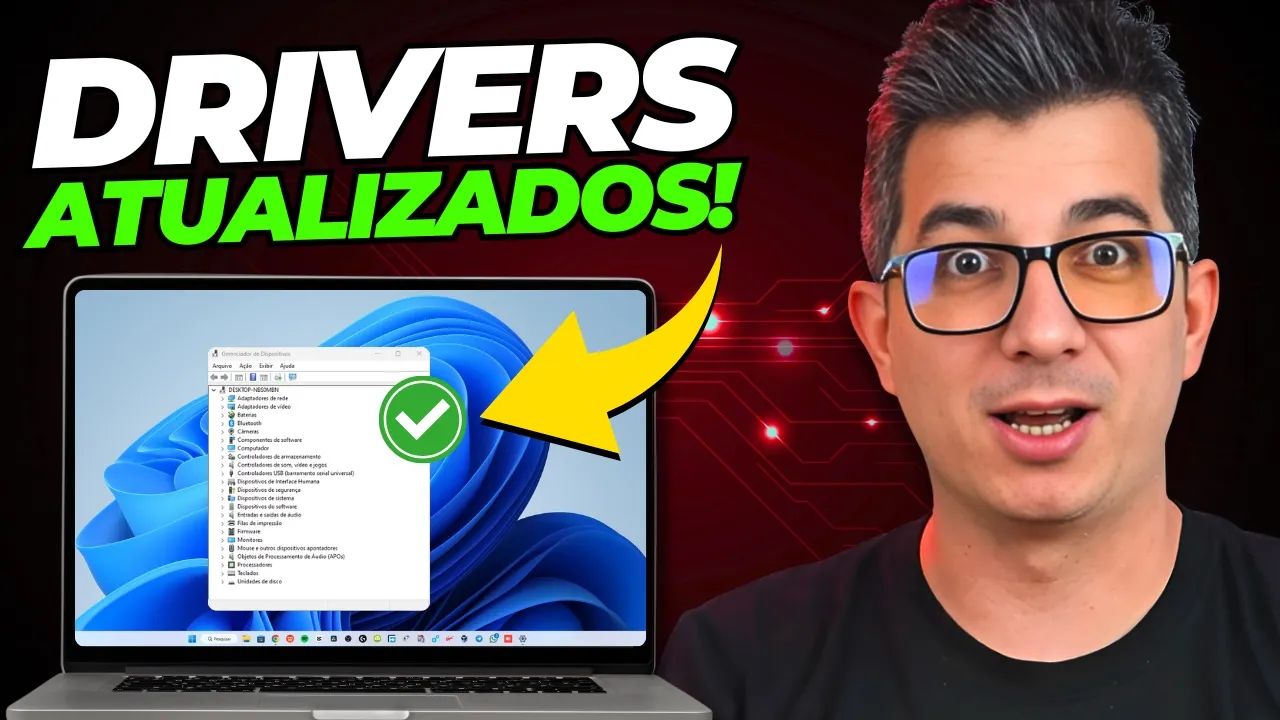
Now let's move on to the second manual way to update the drivers, using Windows' own "Device Manager". Click on the start menu with the right mouse button and then on "Device Manager". In the list, all the components of your machine will appear.
Expand the category for the desired hardware, such as network adapters, sound or video controllers. For example, I will simulate updating my video adapter here. Expand, right-click on the device and then click "Update driver".
On this screen, choose "Search automatically for drivers", and Windows will perform a search. In my case it was quick, and it already warned me that the best drivers were installed. But if there was an update, it would do the process automatically.
If you want to force a new attempt, click on "Search for updated drivers on Windows Update", and you will be redirected to the first procedure screen. There, click "Check for updates". This method is useful when a component is having a problem, such as Wi-Fi or audio that doesn't work, and you want Windows to find a solution.
Although useful, these methods have some limitations. Windows may install generic drivers or old versions that are not optimized for your specific hardware. This can compromise performance, cause instability in games, incompatibilities with recent programs and even random crashes.
In some cases, the system does not even recognize certain devices such as a dedicated video card, Wi-Fi adapters or printers, precisely due to the lack of the correct drivers. Therefore, I recommend that you test these methods to see if everything is working well. But if you want to guarantee the best performance, stability and compatibility, the ideal is to download directly from the manufacturer's website or use a reliable tool, as I will show you now.
The process for downloading drivers from the manufacturer's website is simple, but requires attention. First, you need to know exactly the model of your equipment. For notebooks or assembled PCs, look for the label with the model name, usually on the bottom of the notebook or on the side of the case.
Write down this model and search on Google for something like “driver” + “notebook model”. Go to the manufacturer's official website and download it. To make things easier, you can use the CPU-Z program, which is free and shows all the detailed information about your computer.
The download link is in the description and also pinned in the first comment. After downloading, run the installer, accept the terms and click "Next" until finished. Then run the program.
The most important tabs are: "CPU", which shows the processor specifications; "Mainboard", which shows the model and manufacturer of the motherboard; and "Graphics", where you find GPU information. With this information, search Google for “Drver” + the model of your motherboard or video card. Access the manufacturer's official website, select the operating system, download the driver and install normally.
Now that you know the manual methods and how to identify its components, let's move on to the most practical and complete way: using the Drve Hub. This tool is free, safe and efficient. Ideal for both old and newly formatted PCs.
The download link is in the description and in the pinned comment. After downloading, run the installer, click "Install", confirm, and it will begin the download process. Click "Continue" and, on the next screen, click "Skip all" to avoid installing additional software.
Then Drve Hub will open. Click "Find Now" and it will scan the system completely. It will list all available drivers.
I recommend checking the "Advanced Mode" option, so you can uncheck drivers you don't want to install, like audio, if the current driver is working fine. After checking, click "Download". When the limited usage screen appears, click "I prefer limited usage".
Then click "Skip this step" to avoid installing extra programs. The download and installation process will begin. If any errors or prompts appear, click "Install this driver" to continue.
This method is excellent after formatting, as it even installs drivers that Windows Update does not recognize. I use and recommend it. Despite requiring attention not to install extra programs, Drve Hub works very well.
And that's it! All machine drivers have been properly updated. Now you've seen that updating your PC drivers can be much easier and safer than it seems – and best of all: without spending anything.
With the right methods and tools, you can keep your computer fast, stable and compatible with everything you need on a daily basis. If this video helped you in any way, leave a like to strengthen it, subscribe to the channel by activating the bell and comment below if you managed to update everything correctly. Now click on the video here, where I show you the programs that you should never install on your PC, or this other one with a complete cleaning of Windows to make your PC faster.
Click there, we're together and I'll see you there. Until later!









![🔥PC ou Notebook Lento, Travando ou com Vírus? FAÇA uma LIMPEZA COMPLETA no Windows 10/11 [GRÁTIS]](https://img.youtube.com/vi/OD_zmWouhpg/maxresdefault.jpg)