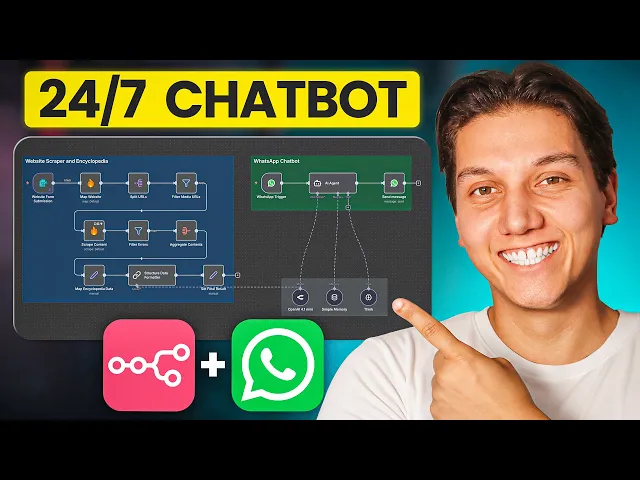
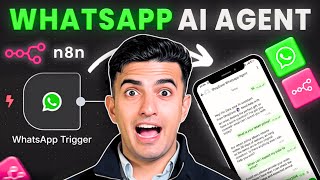
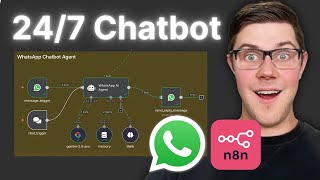
So, what if you could take any business website and you could turn it into a smart WhatsApp chatbot in less than 10 minutes? No coding required. Just paste a URL and boom, you've got a chatbot that knows everything about that specific business.
Hey guys, in today's video, that's exactly what I am going to show you. This system can scrape any company's website and what it will do is it will automatically create a WhatsApp chatbot that can answer customer questions using that company's information. And just in case you don't believe me, check this out.
Okay, this is the only form that you are going to need to fill in to get your custom chatbot. So for this example, we actually use the website of the Carlton. Okay.
And basically we put it through and after that the automation is now going to scrape all the website's details and it's going to really pick out all of the juicy bits. And now we have all of the information. And as you can see guys, it layered out everything so perfectly for us inside the chatbot.
And now let's test it out. Okay. So, hey, what are your hours?
What services do you offer? Okay, so picture this. A hotel website, a restaurant menu, a retail store, Catalot, whatever information is on their site becomes the brain of your chatbot.
So, do you need to update your website? That's cool because the chatbot learns the new information. And it's just that simple.
This opens up a massive amount of opportunities for you. So, you could offer this as a service to local businesses. You could charge clients monthly to maintain their AI assistant.
or you could just build a chatbot for 10 different companies in a single day. It's totally up to you. And here's what makes all of this so powerful.
You're not manually programming the sponsors because the AI reads the actual website and it uses that knowledge to answer questions naturally. So whether it's a barber or whether it's a law firm, the system actually works the exact same way. So, we're using three tools that do all of the heavy lifting for you.
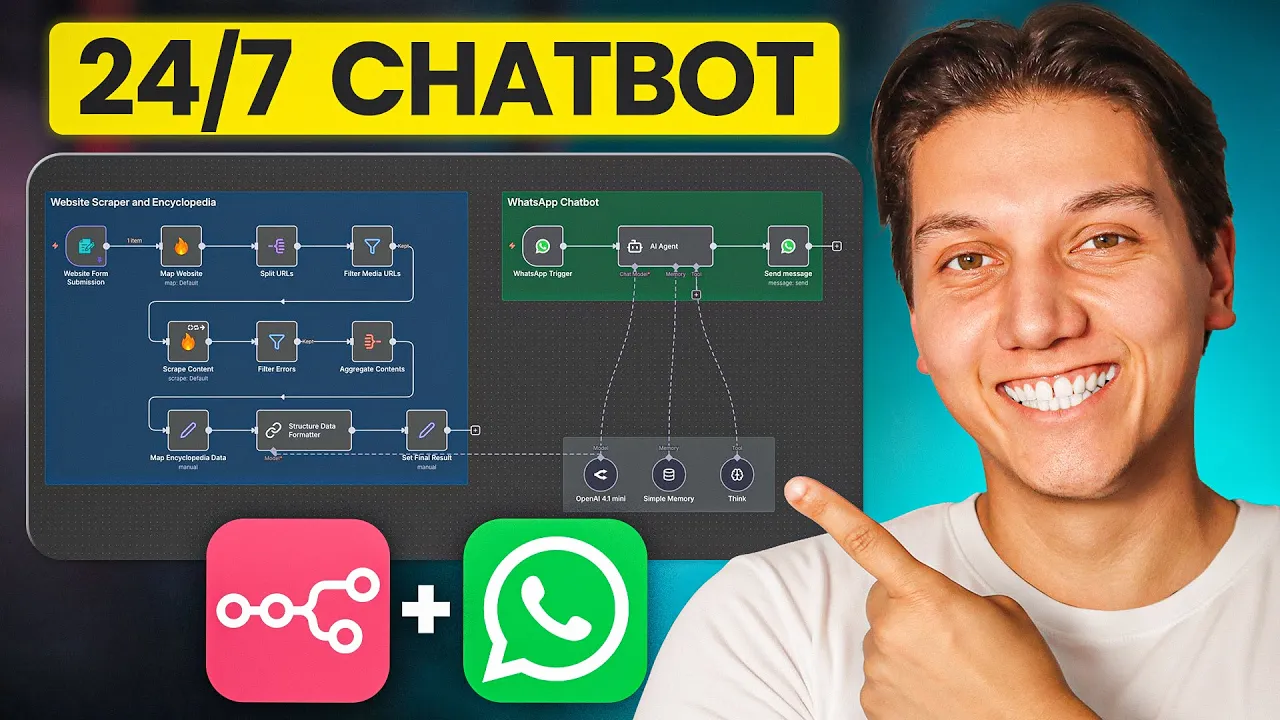
Firecrol is going to grab all of the content from any website and then NATN connects everything together automatically and then AI models like GPT is going to understand the content and chat with the customer. So, let me show you how all of this works step by step. So, guys, before we start, we've already built this entire system for you.
So, you can grab this complete automation template for free from our community. The link is in the description below. Once you join, you just have to go to the classroom section where all of our templates are.
Look for the how to build a WhatsApp chatbot for any business website and just click on it. And then you'll see the workflow diagram showing you how everything connects. Scroll down and you'll find the JSON file to download.
And this is the file that you'll import into [music] your N8 that gives you the entire automation pre-built. Okay, so you just need to add your own API keys and then you're ready to go. Okay guys, now let me explain what happens behind the scenes.
Okay, and don't worry guys, I promise you it's so much simpler than it sounds. Okay, so this automation is split into two parts that work perfectly together. Okay, the first one is the website scraper.
This is where you feed in any business website URL and let's say it's a boutique hotel or a coffee shop. Okay? Then the scraper goes through every page on that site [music] and it pulls out all of the useless information like services, prices, contact details and hours.
Then it organizes everything into a clean structured document with all of the business info in one place. Okay. And then the second one is the WhatsApp chatbot.
Okay. This is where the magic happens for customers. So when someone messages the business on WhatsApp, then the chatbot checks the [music] data that you've created and it finds the relevant information and then it sends that back to the customer as an answer.
Okay? So it even remembers what was said earlier in the conversation so [music] that people don't have to repeat themselves. So I know some of you are already thinking why not automate that step too.
Well, here's why. Okay, this gives you quality control over everything. So before you launch a chatbot for a client, you can review that encyclopedia and you can edit everything that needs fixing.
[music] So you can remove sensitive information that the business doesn't want shared and also you can add extra details that might not be on the website. Okay, so this manual step that takes roughly about 30 seconds, but it ensures that the chatbot represents the business perfectly. So for most businesses, you only really need to update the encyclopedia when their website changes significantly.
Other than that, you should be fine. Okay, so this will roughly be about once a month or every few months at the most. Okay, so that extra 30 seconds is totally worth it when it comes to your peace of mind.
So guys, now that you understand how everything works, let's import this automation into your NAN. Okay, so here's how you do it. So first you are going to download the free template from our school community as I mentioned earlier and then you are going to go to your init dashboard and you're going to click create new workflow.
Then you'll see three dots in the top right hand corner. So then just click on those and select import from file and then upload the downloaded JSON file. Okay.
So now it's time for us to set up the fire cable. Okay. So the first tool that we need to connect to all of our stuff is [music] basically firecrol.
So this is what actually goes out and scrapes the websites for [music] us. So you're going to head over to firecrol. dev and then you are going to create a free account.
So you can just use your email and it's going to take roughly about 30 seconds. Then once you are logged in, you'll land on your dashboard and then you're going to look for the section called API keys. You're going to click the create button [music] to generate a new API key.
Then you're going to name it something like N8N scraper. So just basically so that you'll remember what it's actually for. And then you're going to copy that API [music] key as soon as it shows up.
Now back to your N8, you are going to find the first fire node and it's going to be called map website. [music] And then you're going to double click on it to open up the settings. And then you'll see a section for credentials.
Click create [music] new credential and name it fire curl API. Okay. and then paste your API key [music] in the field and click save.
Then test the connection to make sure that all of the stuff works. So there's another fire curl node later in the workflow which is called scrape content. Okay, so open that one too, but this time instead of creating a new credential, just select the one that you already made from the dropdown and this way you don't have to enter the same key twice.
Okay, so that's it for fire control. Like I said, it was easy, right? Now we are getting on to setting up WhatsApp business.
Okay, so this one is where you're going to get a bit more slightly involved, but not too bad. Okay, so don't worry about all of this. I'm going to walk you through every single step, okay?
To make it super super super easy. So first, we need to make sure that you have a Facebook business account. Okay, so go to business.
fas. com and log in with your credentials. And if you don't have a business portfolio yet, then just create one.
Okay. And then you're going to click on the upper left corner and then select create a business portfolio and then fill out the necessary fields and give it a name that fits with your business. So make sure that you complete this step first before we create the WhatsApp app.
So now you are going to look for the menu on the left side and you should see the settings on the bottom left corner that you're going to click on it and then you will see a section that says accounts [music] and under that click the apps section. So here you want to create a new app. Okay?
And you're [music] going to click add on the top right of the screen. And then you're going to select create a new app ID. So it will open a new tab for you.
And then once you're in, you're going to click create app. And you're going to give your app a name that describes what it does like customer chatbot or business assistant bot, anything like that. Okay.
Now you're going to click on next. And then you're going to select others. And then you're going to scroll down and then you're going to select other again.
And now you're going to click on next. And now select business as your app type. And then click create app.
And when you do, you'll land on your [music] app dashboard. And then look through the list of products and find WhatsApp. Okay, now you have it.
So then click set up next to it. And now [music] go to the API setup. Look for a section that says generate access token.
And then a popup will show up. And then you're going to click continue as your Facebook account. So you can only select this current WhatsApp account right now, but this time we will choose the opt in to all current and future WhatsApp accounts.
[music] Okay, so this is super important. So copy it and save it somewhere secure. And then you're going to click the button to generate one and this creates a token.
Then copy this token and Facebook provides a test phone number for free which is perfect for building and testing. Okay, so you'll see that this number is displayed on the screen. So you're going to write it down because you will use this [music] to actually test out your chatbot before we are going to be connecting a real business phone number.
So you'll also need to select your mobile number so that we can test if it is working. So we need to collect four pieces of information. So let me tell you where you can find each and every single one of them.
Okay. So first it's your access token which is what we generated earlier. Then second it's your business account ID and this is also in the WhatsApp section.
So it's usually near the test number. So, you're going to find it and you're going to copy it. And then third, your app ID.
So, just go to your settings and then basic. And then you'll see the app ID right at the top. And then you're going to find it and you're going to copy it.
And then fourth is your app secret. It's on the same page, but you have to click show next to it. And it might ask you for your Facebook password.
So, just do that and then copy the secret. And now, let's plug all of this into NAT. Okay.
So, find the WhatsApp trigger node and doubleclick it. And then you're going to click new credential and you're [music] going to select WhatsApp business cloud API. And in the client ID field, you're going to paste your app ID.
And in the client secret field, you're going to paste [music] your app secret. And then you're just going to save it. And then next, you are going to find the send reply node and you're going to double click on it.
And then you are going to create a new credential again, same type as before. And this time, paste [music] your access token and your business account ID in the right fields. And then save.
and test. And that's the WhatsApp setup done now. So, I know it seemed like I was saying so many different words, but to be honest with you guys, once it's done, it is completely done.
So, just go through all those steps very carefully and once you have it, you don't have to touch it again. And now, guys, the last API that we need is Open Routter. Okay, so this powers the AI that actually chats with customers on WhatsApp and the encyclopedia also uses it.
Okay, so go to openout. ai [music] and create an account. Then once you are logged in, click on the credentials section to make sure that you have credits to use.
Okay? [music] And you can also add credits if there is no credits yet. So then you are going to click on keys in the navigation.
You're going to click [music] create API key and you're going to name it something like N8N web scraper. Okay, that's pretty easy to remember. And then you're going to copy the key that they generate.
And now back to your NN workflow. Find the OpenAI 4. 1 Mini near the AI agent and then click create new credential and paste your key in there and save it.
So guys, by default, we are using the GBT4. 1 mini because it's fast and it's cheap and it's perfect for chatbot responses. So you can change this later if you want to use a different model, but for now we are going to be using this.
Okay, so all your APIs are connected now. So let's move on to actually using all of this. So before we scrape our first website, let's look at how the AI organizes all the information.
So [music] find the structured data formatted node and then double click on it. And here you'll see the system prompt. It tells the AI [music] how to structure the encyclopedia.
So I have actually configured the system prompt over here. And it says something like you are an expert technical writer specializing in creative comprehensive whilst structured business encyclopedias from web scraped content. Okay.
So you can customize this if you want to like for example if you are building chatbots specifically for restaurants then you might change it to focus on menu items hours or even reservations. [music] If you're doing hotels then you want to emphasize rooms, amenities and booking info. Okay, but honestly guys, the default works great for most businesses.
So, the AI is smart enough to figure out what's important. So, that's why I trust it over here. And now, let's set up how your chatbot is actually going to talk to your customers.
So, this is super important because different businesses have different vibes. So, a law firm should sound professional and also formatted. And then a surf shop should kind of sound casual, laidback, and also friendly.
So you're going to find the AI agent node in your WhatsApp workflow and then you're going to double click [music] on it. And here you'll see another system prompt box. So you are the virtual concierge for this hotel.
You're friendly, helpful, and you know everything about the property. When guests ask you questions, give them clear, accurate answers based on the information provided. [music] So if someone asks something that you don't know, politely tell them to contact the [music] front desk.
Always end your messages by asking if there's anything else you can help with. Sounds super professional, right? So, you can actually see how specific that is.
It tells the AI who it [music] is, how to act, how to answer everything, and what to do if it doesn't know something and even how to close off conversations. So, [music] description is key here. So, you can customize this for whatever type of business you're building.
The more specific you are, the better the chatbot [music] always performs in my personal opinion. So below the prompt, you can paste the encyclopedia after you scrape a website. Okay?
And we'll fit it into the next steps. So guys, before we test out the workflow, you want to make sure that the scrape content [music] node has these turned on in the settings. So it will continue to process data even on errors.
Okay. So all right. So let's [music] actually use this thing.
Okay. So make sure that the scaper workflow is saved. And then you're going to click execute workflow so we can test and see how the workflow works.
and how it runs. And a pop-up form will appear after we click the execute workflow. So, you'll see a simple form with one field asking for a website URL.
And this is where all of the magic begins. Okay. So, for this demo, let's use a real business website.
So, I'm going to use the let's call website. Okay. But you can actually use any business that you really want to.
You can use a local restaurant, a retail [music] store, whatever. Just make sure that it's not the same website that's used in any reference videos that [music] you have seen. Okay.
So, paste the website URL into the form and it's going to look something like this. Okay. So, whatever site you chose, just hit submit.
And now, [music] watch your N8 closely. And then you'll actually see that the workflow starts executing. Each node lights up in green as it completes.
[music] And the first node, the map website will take about a few seconds depending on how big the site actually is. So it's discovering all of the pages on the website. It's looking at all of the details for you.
And then you'll see split URLs and filter URLs. [music] It's going to run really fast. So these are cleaning up all the lists of pages.
Okay. And then next comes the scrape content node. So this is actually where [music] it reads every single page.
So for a big website with too many pages, this can take roughly about let's say two to five minutes. Okay, so it pays you just to be patient and eventually you'll hit the structure data format node. So this is actually where the AI reads everything and it creates the organized document.
So this usually takes 1 to two minutes because it's processing a lot of different text. And then when it's all done, every node should be green. So then you're going to click on the final node which [music] is called set final result.
And then you are going to look at the output and you should see a beautifully organized document with sections, headers and all of the website information starched clearly. Okay. So copy this entire text and you'll need it for the next step.
[music] So now we connected the dots. So you are going to open your WhatsApp chatbot workflow if accepted from the scraper and you're going to find the AI agent node. Okay.
So double click and you're going to open it. Then scroll down past the personality prompt to where there's a big space or placeholder text that says something like [music] paste your encyclopedia content below this line. Something like that.
Okay? And then you're going to paste the entire encyclopedia that you just copied. All of it.
And don't worry if it's [music] too long cuz that's good. The more information means the better results. So your prompt should now look something like this.
Okay? And then guys, always answer based on the information above. So if you don't know something, then say so.
And then guys, just save the note because your chatbot now has a brain which is filled with knowledge about that business. Your your chatbot basically knows everything it needs to about that business. And now guys, it's time for us to see if this actually [music] works.
So fingers crossed. And guys, you're going to make sure that your WhatsApp workflow is activated. So your toggle should be on.
And then you're going to open WhatsApp and you're going to [music] send a message to the test phone number that Facebook gave you. Okay? So start simple, something like, "Hi, what are your hours?
" And you should [music] get a response with the actual business hours on the website. And now test the memory out. So send a follow-up question like, "Do you have parking?
" [music] And then you're going to notice how the AI actually understands that you're still asking about the same business. And that is the memory that's all working right now. So for you try out different kinds of questions.
Stuff like what services do you offer or how can I contact [music] you or what's your address? T stuff like that. And then every answer should come directly from the encyclopedia that you pasted.
And this is actually coming from the website [music] itself. So if the chatbot doesn't know, it should politely say that it does not know. And guys, just in case things aren't working perfectly, so here is usually the the usual suspects.
Okay, so the bot if it doesn't respond at all, then guys, you're just going to check the web hook setup in Facebook and you're going to make sure that the URL in Facebook exactly matches what's shown in your in it in [music] a WhatsApp trigger node. Okay? And also check if your access token has actually expired.
Okay? And then if the bot is giving any wrong answers, then the encyclopedia might not have captured the information correctly. So, just go back, look at the encyclopedia output, and you might need to manually edit it before pasting it into your chatbot.
And also make sure that you filtered out all of the junk pages properly, the stuff that does not need to be there. And if the scraper is taking forever, then it's usually because big websites with hundreds of pages can take 10 to 15 minutes to fully scrape. That is completely normal.
So, if it does time out, then try adding some delay between requests or scrape fewer pages. [music] Okay? Okay.
And if the bot forgets previous messages, then just check the memory settings in your AI agent, make sure that the session ID is configured correctly with the phone number variable because without this, the memory won't work. And if the encyclopedia just happens to be messy, then that means the AI [music] might need a better prompt. So just make your system prompt more specific about how you want the sections to be organized and give examples of all of the good headers that you are looking for.
But guys, if you're not seeing any of these, then that means that your system is working perfectly. So guys, let me quickly recap what you just learned. Okay, so you've got a system that can take any business website and turn it into a smart WhatsApp chatbot in under 10 minutes.
[music] So the chatbot knows everything on the site and it answers customer questions 24/7. So you can offer the service to any local business that you want and you can charge recurring fees, which is going to put money in your pocket. And this isn't just a fun project, it's actually a legitimate business opportunity.
So small businesses are desperate for this kind of an automation but [music] have no idea how to build it themselves. So because you watch this video, you just took yourself to the next level and you open up that door for yourself. [music] So now you can sell it to best, hotels, retail stores, service businesses, anyone that actually has a website would require this.
So the setup that we built today handles the hardest parts automatically. the scraping, the AI, the WhatsApp integration, all of it just works. Okay, so you just feed it the website URL and it customizes the personality of it all.
So if you have any questions or you want to share your results, then all you need to do is click on the first link in the description below and you need to join our community. Okay, it's completely free guys. The link is in description like I said before and there are hundreds of people that are building these kinds of automations who can actually help troubleshoot and also give advice.
We are really trying to build an incredible community over there guys. So definitely do go and check it out. So now go and build some chat bots and start making some serious money, okay?
And then tell us all about the money that you are making, okay? Your AI assistant factory is now ready to done.