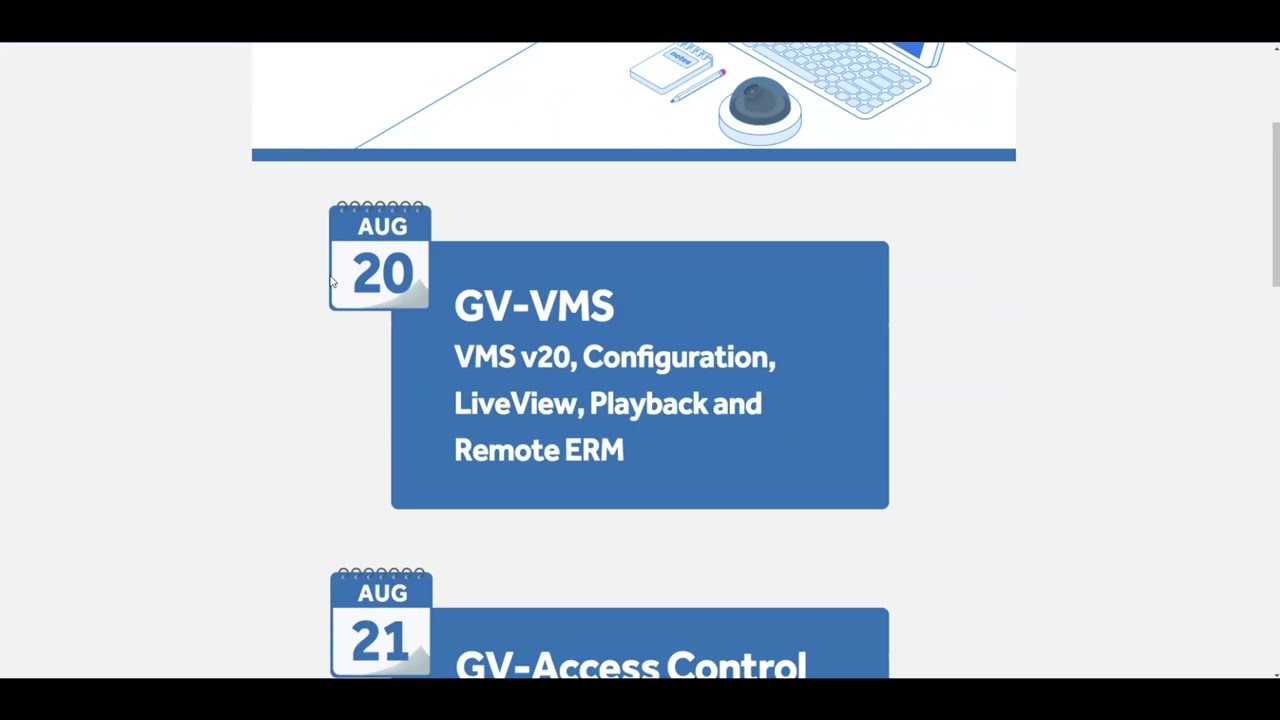
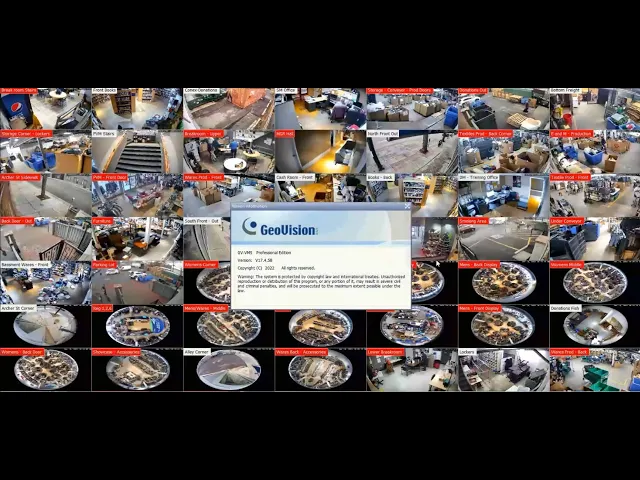
hey everybody this is Geo Joe here today with a video tutorial on how to upgrade your GV VMS software from an older version to the most current version so on the machine that I'm working on today we are on the VMS 17. 4. 55 minutes if you find the videos on this channel useful please consider subscribing to the channel and also giving this video a thumbs up as it does help exposure of the videos so the first thing that you will want to do in your VMS software is go go ahead and close down the software and we will need to stop all of the VMS services so to do that you can open up your task manager and you can expand it here and you'll want to look for for any geov Vision related Services the first one that I like to look for is the geost startup agent so we'll go ahead and stop that and make sure that that's closed and then any other geovision related Services you will want to go ahead and shut down so you can install the new version now once you've closed down all of your services you can go to the geovision website geov vision.
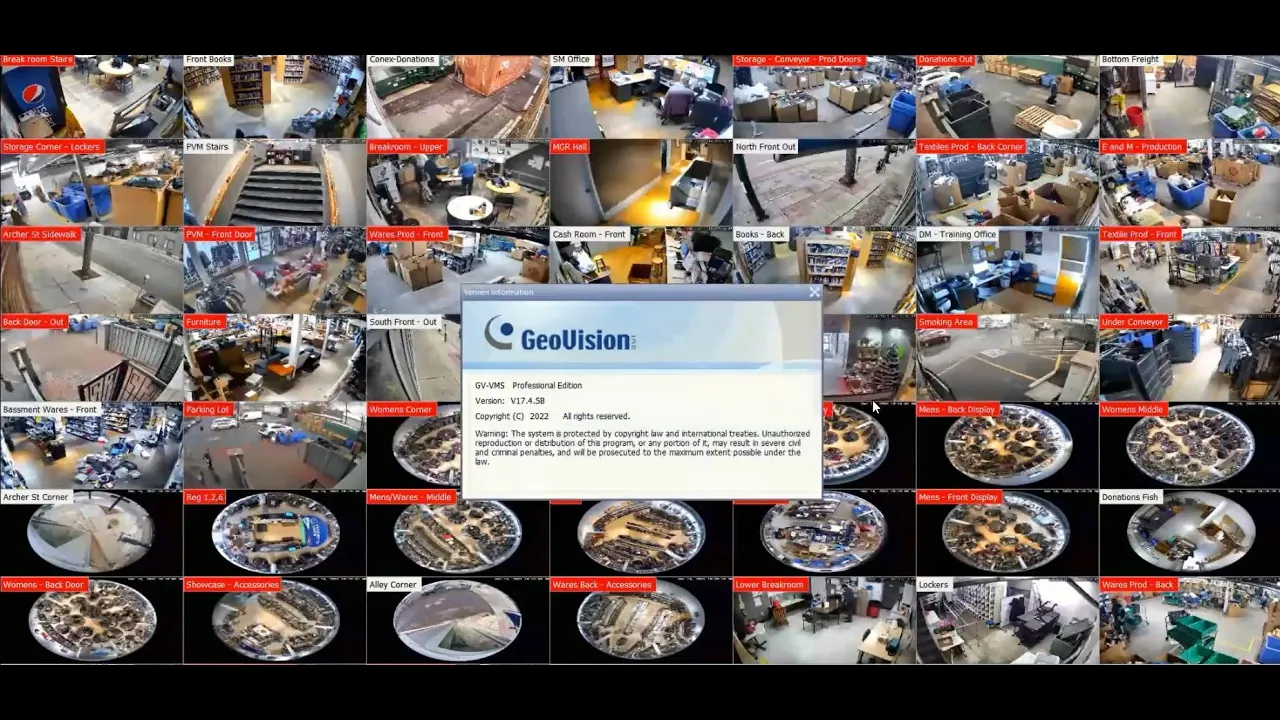
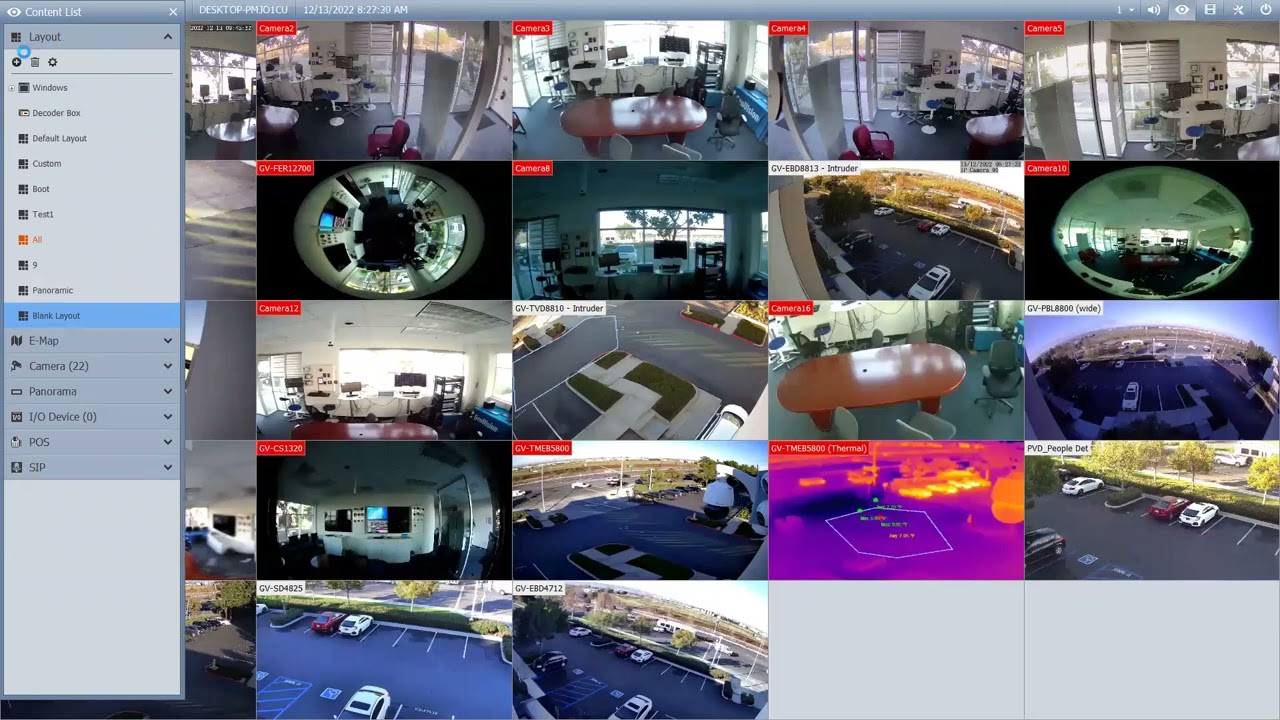
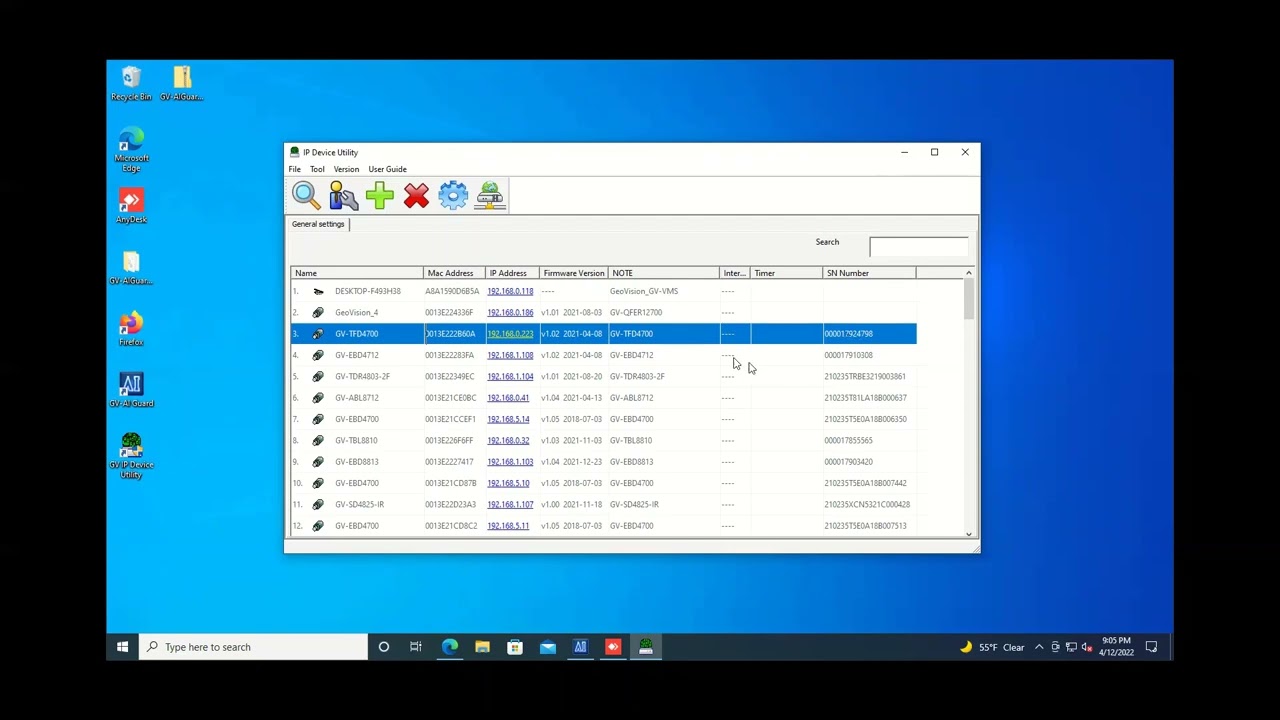
com dotw us and you can download the latest version the easiest way to do this is go to the download tab at the top and then over on the left side you will look for the video management software icon hit that expand VMS and you'll choose either VMS 17 or 18 just depending on what platform you are on but if I select VMS 17 we'll scroll down and this is down at the bottom you can see the download right here and you'll go ahead and download it now I have already downloaded it on this machine so I'll go ahead and open up this folder and we want to extract and then once you're inside the folder just go ahead and hit the setup icon and it will guide you through and allow you to do the upgrade directly over the existing version that you have so as you can see it prompts you here reinstall or upgrade or remove so we will leave it selected as reinstall upgrade and just hit next and you might see a message here saying stopping GV services this is totally normal you can hit okay on that now once the installation is complete you'll see a message here that says maintenance complete yes I want to restart my computer now or no I will restart my computer later it's typically a good idea to go ahead and restart but for the purposes of this video I'm just going to hit no and then I'll restart later so once you hit finished this will complete the installation of your VMS and then on the desk desktop or wherever you have your icon you can go ahead and launch the VMS and it will launch into the latest version so now that we have opened up the VMS we can go ahead and click the top leftand corner and you can see it is now updated to the VMS V1 174. 72 on your cameras just to make sure that you have all of your cameras compatible with the latest versions So within the IP device utility you can go in here and scan to find your cameras and it will tell you what version of firmware your cameras are on right here in this column if you are on the latest version of the IP device utility which is the V 8. 9.
1 you can hit this little Globe icon here to check for the latest firmware this is supported on most models and it will then pop up and show you if there are any firmware updates available if it is an older generation geovision camera like the ones that you see listed here you will have to request those from geovision but if it's a current generation model this icon will work and allow you to automatically upgrade your firmware this has been a video tutorial on how to update your VMS to the latest version for further information on our product line please check us out at www . geov vision.


![[2019 Version] Sunba VMS for Mac IP Camera Setup Tutorial](https://img.youtube.com/vi/SDDShE2abg0/maxresdefault.jpg)