what's up guys Brandon Lee with virtualization how to and we are talking all things esxi 8. 0 upgrades what if you have an esxi 7. 0 or earlier esxi hosts that you want to upgrade to esxi 8.
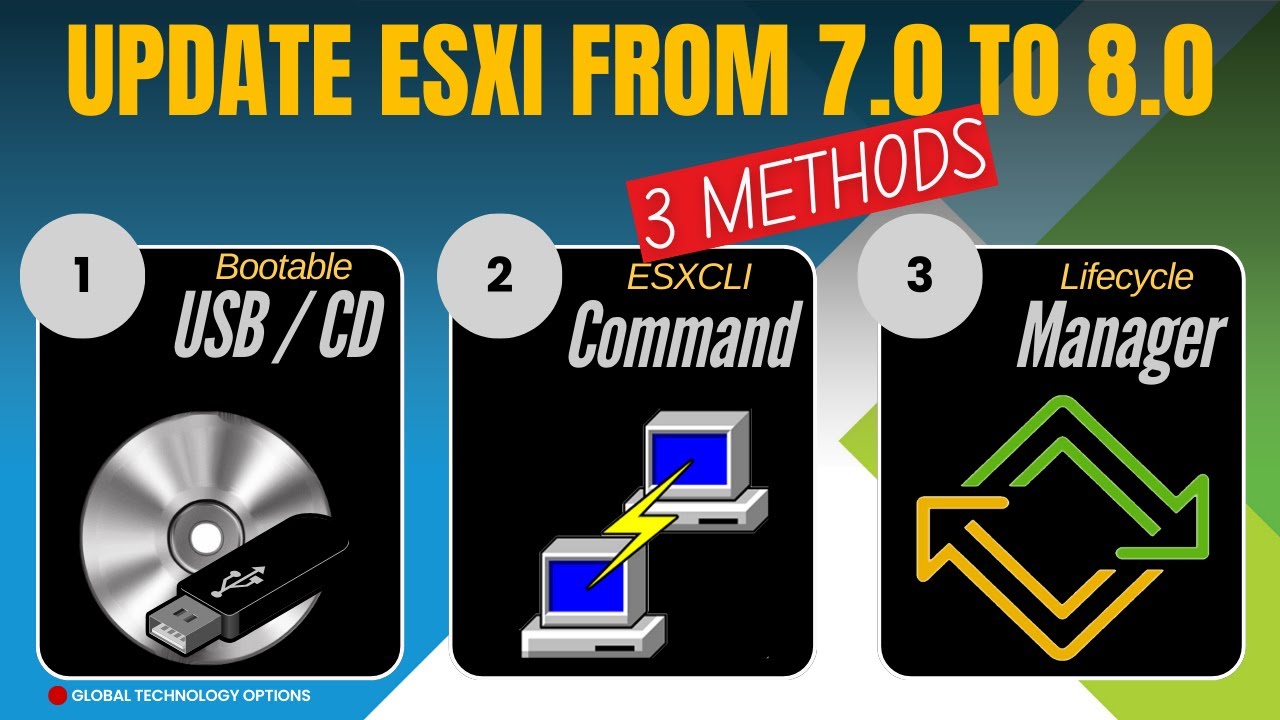
0 I'm going to cover three ways to upgrade your existing esxi host to esxi 8. 0 and let's Dive Right In [Music] method number one is one that most are going to be familiar with it simply involves mounting the esxi 8. 0 installation media to the either physical server or virtual server in my case a nested installation of esxi and rebooting that server booting off the esxi 8.
0 media so we're going to accomplish the first step we're going to boot from the esxi media so I am logged in going to log in we're going to initiate a reboot of the server I initiated a reboot into the UEFI setup screen so we're going to choose the virtual CD-ROM I'm going to boot from the esxi installer and for the most part this is the same process that we've used in previous versions of esxi including esxi 7x as you can see we're simply booting off the insulation media we're going to see the splash screen for VMware esxi 8. 0 and it's going going to load the installation files once we get booted into the esxi 8. 0 installer then we will have the option to perform an upgrade on our existing esxi installation okay the installer has finished booting into the installation environment so we're simply going to go through the props here after the first screen we are presented with the uterus we're going to press f11 now we are presented with the local storage detected by the installer so we're going to select our local storage it will then scan that storage for existing installations and as you see it will note that we have an existing installation so we are prompted if we want to upgrade or if we want to perform a clean install so we're going to leave the default as upgrade we're going to press enter and the installer gives us the note that it is set to upgrade this existing installation so to proceed with that we simply press f11 and as simple as that our existing 7.
x installation is now being upgraded to esxi 8. 0 so we will let this upgrade complete for only a couple of minutes the existing 7. x esxi insulation was successfully upgraded to 8.
0 as you can see we are prompted to restart our esxi host removing that install isolation media at this point our upgrade to esxi 8. 0 is complete the next method we will upgrade our existing esxi installation from the command line to do that we need to only paste a couple of commands to successfully initiate the upgrade to esxi 8. 0 I had these in a text file so I'm simply going to paste these into the SSH session that I've already established to the existing esxi host the First Command opens up connectivity to the internet from the esxi host so we're going to enable that the next command that we paste in is the ESX CLI software profile update come in and this command essentially tells the esxi host that we want to take the profile from the existing version to the esxi 8.
0 profile version which as you can see is esxi 8. 0. 0 20513 397 and we're using the standard profile with VMware tools at this point we simply press enter and you will not see any feedback from the command line so this will take a few minutes the command line will then come back with a successful installation message for this esxi software profile update command so there we go after just a few minutes we can see that the update completed successfully we have that message and also the message that a reboot is required of course so after this point we can simply either reboot our esxi server from the console or via SSH we can type the reboot command and at that point your server will reboot with esxi 8.
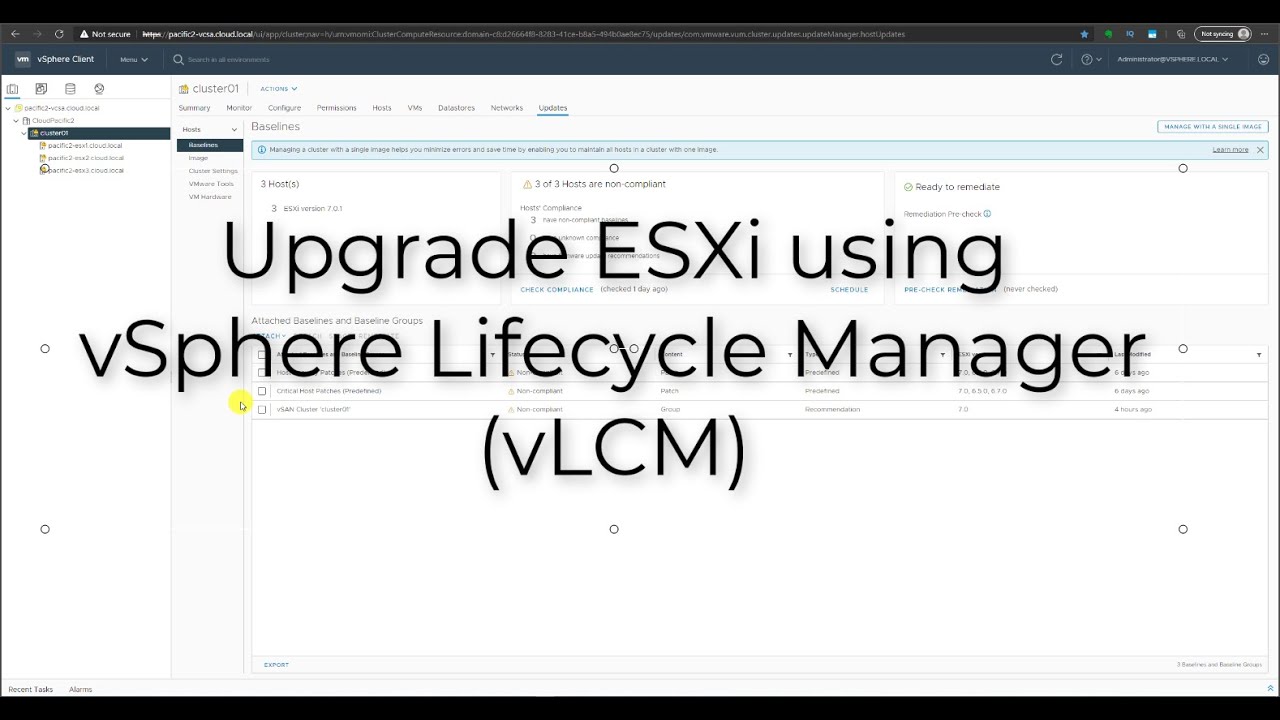
0 the final method that we want to discuss is using vsphere lifecycle manager to upgrade your esxi host to esxi 8. 0 now this method really make makes a lot of sense if you're running a cluster of esxi posts in this lab environment I actually just have a single host in a vsphere cluster so not something you're going to see in production however for lab purposes and seeing how this works this is a great way to see how vsphere lifecycle manager can perform the upgrade at the cluster Level under the updates tab posts image we can create a cluster level image that allows us to remediate any hosts that are part of that cluster as you can see we can Define many different things such as the esxi version which here I have selected 8. 0 GA so that's what we want to select there the great thing about vsphere lifecycle managers we can actually include other add-ons such as vendor-based add-ons firmware and Drver add-ons or various other components so after we select our ESS 6i version which we have selected at 8.
0 we simply click the save button after clicking the save button we see that it's running some other HDL compatibility issues checks now that the image check has completed we can see the image compliance section note how it automatically shows that 10. 1. 149.
154 it notes the host is out of compliance with the image because it has recognized that the host is not an esxi 8. 0 host in fact it is a 7. x host so it notes it's out of compliance and what we want to do at this point is we can simply either from here we can select remediate or we can select the remediate all which is you had multiple hosts in your cluster it would roll through all of those hosts in the cluster placing them in maintenance mode and bringing them out of maintenance mode as the tasks complete as it works its way through the cluster at this point I'm going to select the remediate all button it pops up the review remediation impact dialog here is a summary of the operation and any impacts that it makes note of you want to pay attention to those also we accept the EULA here and we simply click the start remediation button and once we click the start remediation button we will see the task for remediate cluster kick off so we're going to see the task progress as we have noted it's going to remediate our single host that we have in the cluster reboot that host it will perform the final checks to make sure the remediation was successful and we should be able to see this successfully complete in vsphere lifecycle manager and after just a few minutes the remediation process with vsphere lifecycle manager has completed and now if we look under image compliance we see something different all hosts in the cluster are compliant it and what about our esxi host well if we pull up the console to that host now we see our host is successfully upgraded to esxi 8.
0 well as you can see there are many ways to upgrade your esxi host to esxi 8.