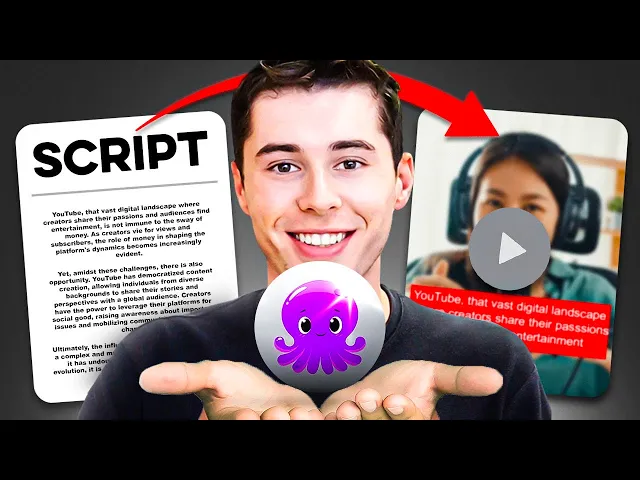
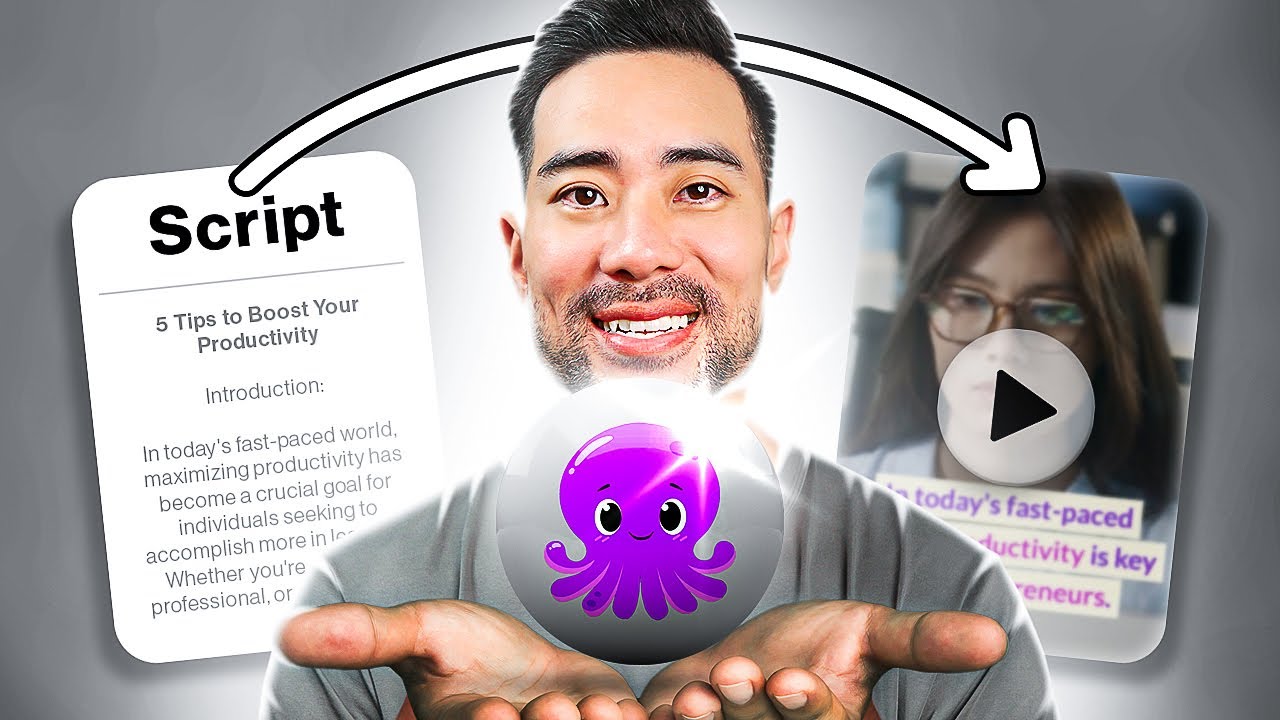
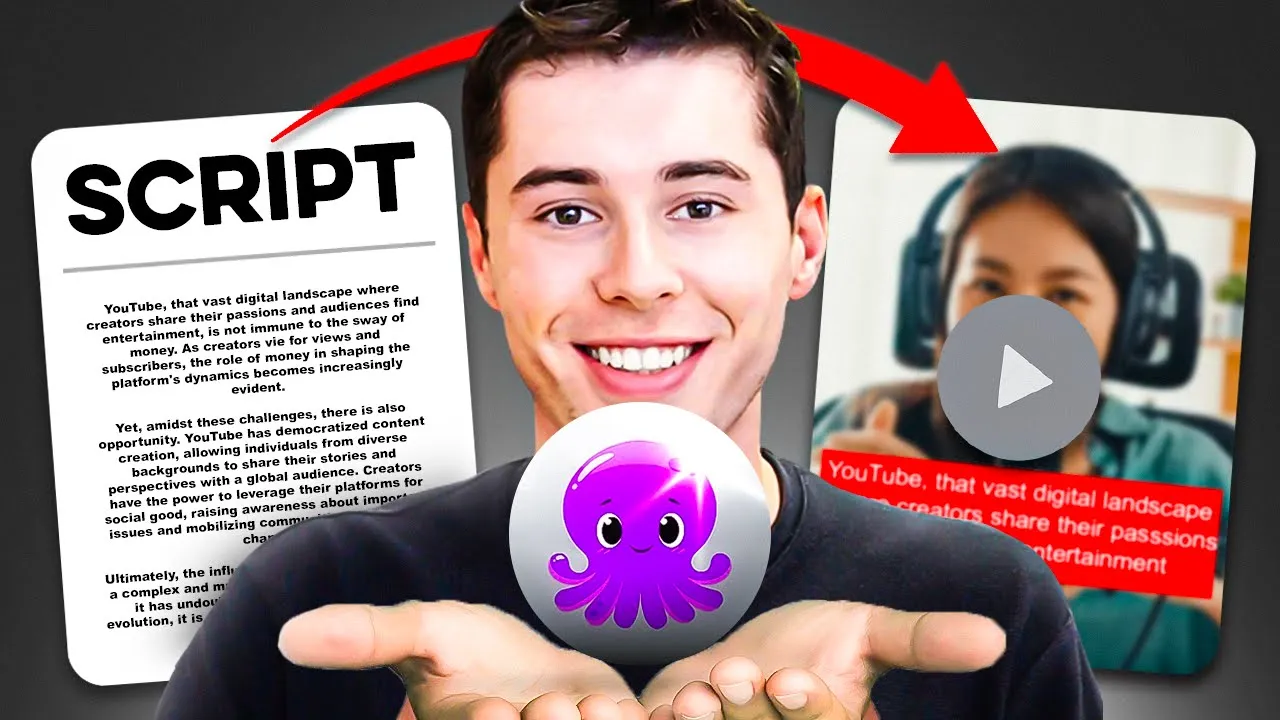
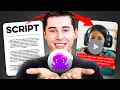
with pictory AI you can convert scripts into videos turn articles into videos by simply pasting the URL you can edit your videos using text so no software or skills required and you can then apply your own voice over or high quality AI voiceovers to that video to finish it all off for example I converted this script into this video pictory AI analyze my script then added relevant stock footage automatically I then chose the best AI voice to add to the video and I've got a full video done within 10 minutes of my time it also
added subtitles automatically which will improve the engagement rate like crazy so in this complete pictory AI tutorial I'm going to show you step by step how we can use this to create content this works for Content marketers education professionals businesses social media managers and the list goes on and on with that being said I'm going to sign into my account and show you the features that they've got available script the video this basically means that you can enter in a script right right here you can click proceed and it will make a full video for
you automatically once the default version is generated you can then go ahead and customize anything you'd like article the video this is where you can paste in a URL of an article and it will automatically turn that article into a faceless video you can then take that video upload it to YouTube or any other social media platform or potentially embedded in your blog you can edit videos using text this is where you can upload your own clips and start editing them you can trim videos you can add text you can change the format the sizing
you can clip shorts out of long form videos the opportunities here are endless finally visuals to video this is simply where you can upload your own clips and edit a video however you would like I want to get started by showing you the script the video feature as that is my personal favorite to get started you want to click on proceed which will then open up this tab right here start off by giving your video a name today I want to make a video about the French Els next up you have to paste your script
right here for it to then turn it into a video you can either write this yourself but obviously these days with AI being available I asked Chad gbt to write a script for me about the French Alps I will copy this and then paste it into Pi three AI what I can now do is click on proceed in the top right corner and it's going to automatically turn that script into a full video within the storyboard depending on the length of your script this might take a few minutes so I will get back to you
when this is done that took about 30 seconds and my entire video is now done and if you want to follow along all these steps I'm about to do I will leave a link in the description down below which allows you to sign up to pct3 AI for free so that you can follow along the process this is the pct3 AI storyboard this is where your video is made as well as where you can customize anything you want I'm going to show you step by step how you can customize it using all these features that
you can find on the left hand side but first of all I want to show you the concept of this entire thing so you can paste any script into the software and as you can see it will find b-roll footage high quality stock footage that matches what is being talked about so the first scene scene number one which you can find right here all the scenes collectively is about the fact that the French albs are nestled in the heart of Europe so what pictory AI will then do is we will find footage that matches what
is being talked about per specific scene which in this case is the French Alps so as you can see if we then preview this right here which you can do by clicking on preview the b-roll footage is indeed of the French elps they have also automatically added subtitles to your video as Wells that we can add an AI voice over or upload our own voice over to the video to complete it but what if you don't like the background Clips or the way the text shows up don't worry you can customize everything first of all
select the scene for which you want to customize it in this case C number one then for you to change the clip you want to click on visuals on the left hand side and this is where you can Sear search within the entire stock Library pictory AI has millions of Clips available about literally anything you might need so I can type in the French elves just like that and then they're going to show me all of the stock footage that I could insert to my video I kind of think this right here is a cool
clip with all of the clouds mixing like it's kind of like smokey all I need to do to get this clip to show up right here is click on it while I've selected the first scene and as you can see the clip has now changed as well as automatically saved it to our project which is extremely convenient as this way you don't need any video editing skills if I now want to customize the text I can go back to the storyboard which is right here and then simply select the text to customize it which I
can do with the bar that shows up right here first of all I can change the font by clicking on the font and then choosing the one I would like to go with for this video I want a simple bold font so I'm going to go with Ariel and then make it bold right here in order to then apply that to all of the text through throughout my video I can click apply to all and these settings will then be applied to all the text in your video that right there is an amazing feature as
otherwise it would take you hours to change all of the text whereas right now it will actually take you just 1 minute I can then change the text color right here if I want to which I actually want to so I'm going to select yellow and then make all the text yellow right there I can then also change the background color if I wish to I can make it white I can make it red but I'm actually going to stick to Black is that contrast as well with yellow I can play around with the text
wi so right here you can do that as well as the placement I can make this show up top left I can make this show up top right in the middle bottom middle you name it it is possible you can also enter in animations if you want to for example you can make it fade in and slide down you can make it slide left light right as well as all of the other animation effects right here as soon as I have customized my text to my liking remember to click apply to all so that this
gets saved to all of the text what you can now do is go through all of these scenes and customize it to your liking to edit your video for example scene number two the background clip isn't that great as well as that there's a lot of text on the screen so I want to stick to two lines of text maximum so the way you can customize this is going to the scene and then simply selecting the part where you want to split up the text so I want to split up the text after this question
mark so I'm going to click between the question mark As Wells the first letter and then click on split scene what this will now do as you can see right here is split out the text throughout multiple scenes what is important to know is that when you do that these scenes will still be linked to each other which means that if you were to change the background clip for this video it would also change it for this video right here as you can see there are linked what I recommend you do is unlink the scene
so that you can have different background Clips per lines of text which keeps it much more engaging so I just linked it back to preview what I mean let's say I don't like this clip right here and instead I want to insert this clip I will now do that that it will change it however you can see for scene number three which is right here it will also change it to that clip because they are linked instead unlink scene and then for scene number three we can now choose a different video for which I'm going
to go with this video and then going back to the storyboard you can see that c number two as well as number three are different however still there's a little bit too much text showing up for my liking so what I'm going to do is hit backspace right here click split scene so that the way it shows up here is much better and just so you know the water marks on this video are just for the preview if you've got the correct plan the watermarks will be removed but more about that later you can change
the video sizes right here so if you're doing YouTube Tik Tok or Instagram change it according to what you need and you can also turn an existing project into a different size for example if I want to go with portrait for Tik Tok reals or shorts I simply click on this and as you can see it will automatically change it now that we know how to do that we need to apply a voice over and background music to our video for that you want to go to audio and then most of the time there's background
music inserted automatically I recommend getting rid of that and then finding a song that you like to add yourself what is great is that you can filter based on the mood the purpose the genre as well as the duration of the background song allowing you to find a suiting song quickly for this video I want a calming background song which breath of Grace is perfect as you can see this is very chill so I'm going to click apply and that will then be applied to the video what is important is that you also apply a
voice over and then when you do that you check out the volume settings but before I show you that let's first choose a voiceover pictory AI has linked up with 11 Labs which is the best AI voice over tool available so what I recommend you do is you get a pay plan on pictory AI I will cover the cost about that later in the video as well as give you a coupon code so that you can save some money but the reason I say that is because this will give you access to premium voiceovers from
11 Labs which are insanely better than the free version Let Me preview a few for you the only thing to do with good advice is to pass it on allow the world to live as it chooses sometimes it is better to lose and do the right thing than to win and do the wrong thing for example Amanda right there sounds insanely humanlike now in order to apply one of these voiceovers to your video you don't need to go through a bunch of hassle you simply click apply right there and then there you go they're now
generating the voice over for your video and automatically apply it to your project as well as automatically sync it which leaves no editing or no skills required for you as soon as this hits 100% you're done and the voice over is applied but remember I said that you want to make sure to check the volume settings here's why by default the background music volume is set to 100 and the voice over volume is set to zero now as soon as you then apply the voice over it will change to 10% and 50% but make sure
that you customize this to your liking I like to set the back background music at around 7% and the voice over at around 60 and just like that I have now got a voice over for my video Let's preview what it sounds like nestled in the heart of Europe the French Alps stand as a testament to Nature's Majesty but what makes this region not just a stunning backdrop but a destination of unparalleled Allure and there you go how well does that voice over sound in my opinion that is perfect and will work on any platform
as a realistic voice over as of right now we've got a pretty good understanding of how we can turn a script into a full video additionally what you can do is you can change the style of the video which you can either choose from the Styles library now this will include the fonts as well as the colors Etc and you can also save them to my Styles so that you can always work with your favorites in order to then apply one of these to your video all you need to do is Click right here apply
to all scenes and as you can see that now changes now in my opinion this right here is perfect as the text is very easy to digest this way I like the color schemes as well and overall this just works on any platform so if you want my recommendation for the style to choose go with this one right here then if you want to you can insert text yourself to your video Simply by clicking on this and then as you can see the text will be inserted in the scene as you can see welcome to
French Els if you don't want to delete the text if you don't like it you can simply select it and then click delete and then it will be gone as well now let's say you made a mistake and you want to go back to what it previously was don't click on previous right here as that will delete the entire project instead click on the Arrow undo right here and as you can see you can make it come back as well as you can do redo to then go to the next step that you did now
if you're a business or a social media manager chances are that you've got similar colors to all of your projects what you can do is go to branding and click create a brand and then set up your brand in pictory AI so that from now on all these styles and colors will fit your brand let's say that my brand name is yvh which are my initials I can then upload my brand logo my brand colors as well as the font that I like to use for all of the videos for example I really like this
light blue kind of color but you can add multiple colors for example you can add red as well as then white and then from now on your videos will consist out of these three color schemes I can then also select a font which I can go with Ariel for example then I can click create and then from now on I can continue to use this branding for all of the videos So within this brand section what you can now do is customize it for example I want to make everything bolt just like that and depending
on which color you make the primary one the style will change so if I choose white as the default color it shows up like this if I go with yellow as the default color it shows up like this you can also upload intros outros the background songs as well as the AI voices that you would like to use so for example Amanda is perfect for my videos I can then click add and then from now on this will be automatically selected at all of my projects under this brand click save and apply and that is
then done pretty cool feature right there Additionally you can use emojis as well as gifts and insert them into your videos in case that is necessary with all of that being said my video is now done I can then preview it by clicking preview in the top right corner it will then make the preview so that I can check if everything is correct if that is the case I can then click download and then video and it will then generate my video and download it to my device now what is important is the plan you
have in order to download this at the best quality possible the start plan starts as low as just $199 a month however with this you only have one user 30 videos per month and the highquality AI voiceovers are missing which in my opinion you definitely need if you want to take this seriously and get good results so I recommend you take the professional plan which is the plan I have myself as well which allows me access to 60 videos per month and mainly the highquality voiceovers integrated from 11 Labs now if you want to use
pictory AI I will leave a link in the description down below which will give you a 20% discount if you apply the code Creator 20 at checkout this works on any plan that you decide to use and it's a lifetime discount so if you continue to use this every month you'll get 20% discount every single month that will also help support me as I put quite a lot of time in putting this tutorial together so the video is downloaded and this is what it now looks like nestled in the heart of Europe the French Alps
stand as a testament to Nature's Majesty but what makes this region not just a stunning backdrop but a destination of unparalleled Allure today we journey through the serenity of snowcapped mountains delve into the adrenaline pumping activities available and share fascinating facts about this remarkable region the French Alps are a spectacle of nature where rugged Peaks meet Crystal Clear Lakes then when it comes to article the video all you need to do is take the URL from your article you can then paste it in here simply click proceed and then what it will do first of
all it will create a summary of your article so it's not going to turn the entire article into the video instead as you can see it's extracting the key messages in the article and here's what that looks like all you need to do now to turn this into a video is highlight the parts that you want to add for example if I would like to add this part I simply highlight it and it will then be inserted into the AI powered summary and this is what we're going to turn into our video this also goes
the other way around if you would like to remove something simply go to that scene for example this right here and then either simply click on it to remove it or you can remove a scene right here by clicking on the bin icon one once you've chosen which part to include in your video click next and then from now on it's the exact same process as I just showed you with script to video and here we go so we went from the article to this video right here eight reasons why you need to visit the
French Alps to experience a winter that you'll never forget then once again you can customize everything you like by doing the same stuff that I just showed you now what is cool is that right away it will insert all of the pictures as well as videos that you've got in the blog into the project as you can see right here then we've got edit video using text for this you click on proceed and then you can either insert a YouTube link so I like that they've got that feature or the file itself so let's say
I want to turn this video right here that has 62,000 views into multiple clips for my social media I can take the URL I can paste it right here and then click proceed it will then upload the video and depending on the length that might take a few minutes and this is what it then look like so this is kind of like a video editor in collaboration with AI technology what you can do for from here is apply the text to the video you can do that by clicking on it and then as you can
see the style will change but instead of working in here what I recommend you do is go to customize video this will then send you back to the storyboard which once again you already know how that works if I want to change the text I can customize it I can go to branding and then either select my own brand to automatically apply it to my video which would then look like this or I can go to Styles and then apply what I like myself which is this one right here and then from here on you
can continue to edit your video as as well as ADD b-roll Clips audio whatever you would like as soon as you're done the same process goes you can click download to download your video if you want to try this yourself I'll leave a link in the description down below so that you can sign up for free and try it out if you do decide to get a pay plan which I definitely recommend I've been a paid user for over a year now you can use the code Creator 20 at checkout to save yourself 20% on
any PCT three AI plan for the lifetime of you using it thank you in case you use that and leave a comment down below asking anything El like and I'll try to get back to you with that being said I'll see you next time