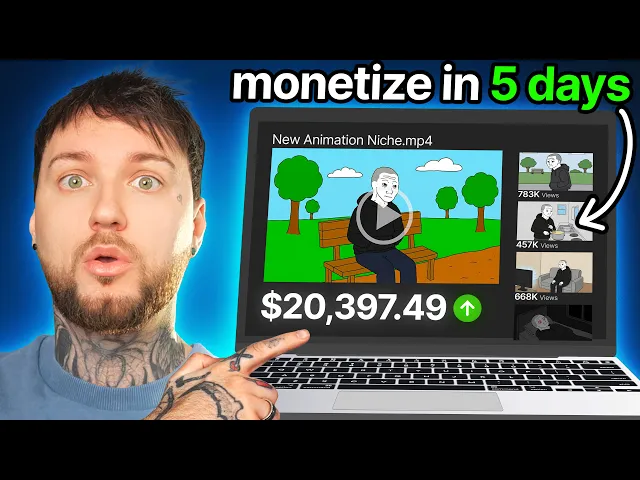
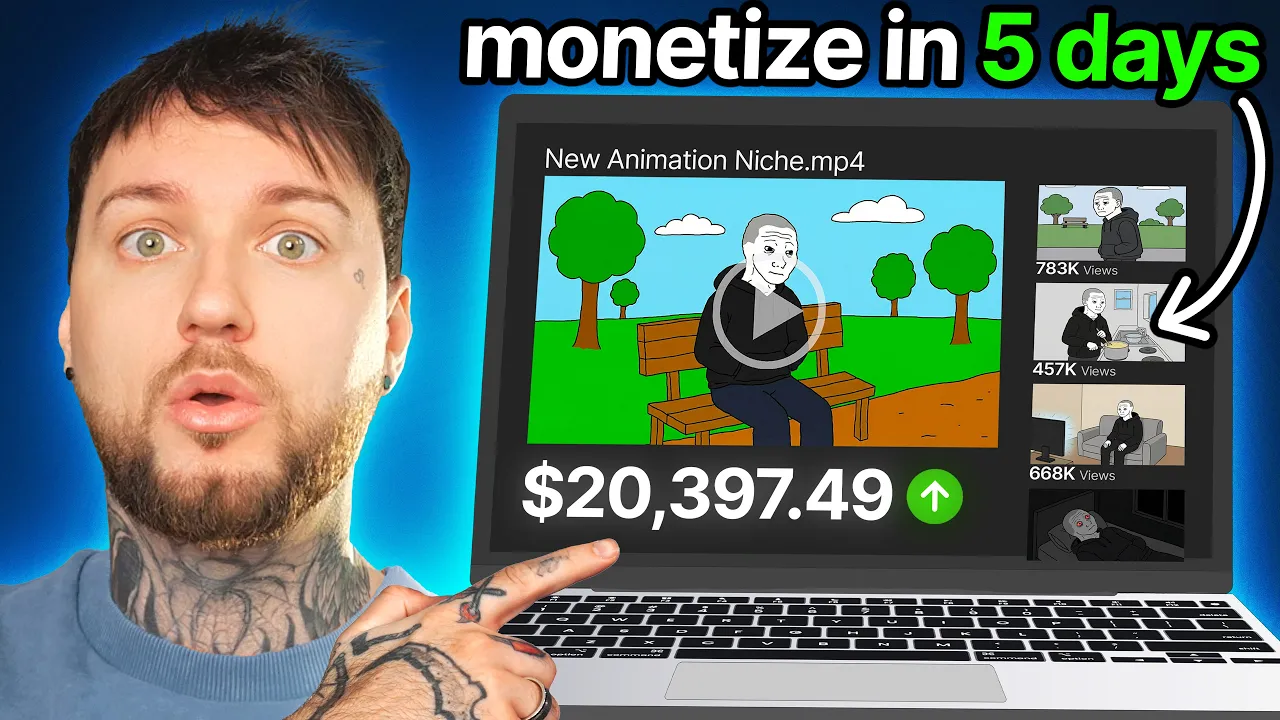
I just found the craziest YouTube niche I have ever seen. This channel over here got 90,000 subscribers with one single video uploaded. And the video itself got 1.
7 million views. The crazy part is that this video was uploaded 4 months ago. So one single video that was uploaded 4 months ago got this channel almost 100,000 subscribers.
That is insane. And this one single video probably generated around $5,000 to $10,000 in ad revenue based on my own experience of running faceless channels myself. As you can see my play buttons in the background.
This is usually how much you earn with a video like this. Now, I have no idea why the owner stopped uploading. Hopefully, he's okay, but the niche is insane and it shows that it has a lot of potential.
So, if you want to learn how to create and edit videos just like these ones, in this video I'm going to be teaching you for free step by step how to create these types of videos and animations. I'm going to be showing you how to use AI like a proper tool in order to create content that provides value to the viewers. Let's begin.
So, first let's study the channel so we can understand why did it work. As you can see, this video over here has 1. 7 million subscribers in just 4 months.
The channel name is called 20 Minutes University and you can see it has almost 100,000 subscribers with one single video and it was created just a few months ago. This is showing us that a niche like this has a lot of potential. So let's take a look at the video so we can understand what it's about.
So the title of the video is economics no BS no floss in 20 minutes. And this is not the only channel that is doing this. We have over here a channel called LowBudget Stories.
And we can see this channel has 1 million subscribers, over 100 videos, and over 100 million views in total. So, if we click over here to see the videos, we can see this channel is getting a lot of views. 3 days ago, 100,000.
13 days ago, 200,000. 2 weeks ago, 250,000. And this is not the only channel.
There are more channels similar to this one. Over here, we have Lord Ujac. We can see this channel has 250,000 subscribers, 50 million views in total.
And it also uploads these types of videos. You can see. So, if you want to inspire from this channel and build your own channel, let me show you how you can do it.
Now, to make everything easy for you guys, I prepared a free Google document with all the prompts with all the AI tools I'm going to be using. So, if you click on that link, it's going to send you to this document over here where we have all the AI tools and we have the prompts, the image prompt, and we also have the script prompt, which is a huge prompt, by the way. It's a very specific prompt that will help you generate unique ideas and unique videos.
Not only that, but the prompt is specifically made to only generate scripts that have actual facts, actual science, no theories or no invented stuff. So over here you can see it says non-negotiable fact rules. All factual claims must be true and widely supported.
If you are not sure about number statistics, do not guess. Instead, remove the number or use a safer phrasing. Research suggests often in many cases.
No pod science, no alpha male guru talk, no manifestation, no fake studies, no invented quotes. So we don't want to invent theories. We don't want to create fake news.
We want to make sure that this prompt will research the internet for only facts, Wikipedia, real research, real studies. Right? This is very important because if your script has fake theories or fake stories, you will get demonetized.
You will get terminated. Now, in order to create the video, the first thing we want is the script. So scroll back up over here where it says script prompt and copy this entire prompt.
Right? Just scroll down and copy the entire prompt just like me. Over here, right click and copy.
Then go back up, scroll back up and over here where it says Chad GPT, go to Chad GBT and open a new Chad GBT window. Over here, just paste the prompt. Now, this is not a normal prompt where you just send the prompt and Chad GP will answer.
This is a system prompt. Basically, after pasting this prompt inside Chad GBT, Chad GBT will act like a system specifically made to generate ideas and scripts and images for this type of videos. So, basically, I'm going to show you how it works.
Send this prompt to Chad GPD over here. And as you can see, Chad GPT is reading the script and it's going to tell you he's ready and to type start whenever you want 30 video ideas. Sometimes he might not reply.
That is okay. All you have to do is type in start over here in the message box and send this prompt to JGPD. And now Chad GBPD will generate 30 fresh ideas that will create bro educational stuff.
So it's basically educational stuff but it's written in a bro kind of style. Basically just like this video over here and these videos over here, right? They're educational but they're written in a very specific way to attract a very specific group of people.
Now you can scroll through these ideas and choose whatever idea you want. For example, over here 25. Why time feels like it's disappearing?
All you have to do is type in 25 in the chat box over here. So I'm going to type in 25. And right now Chad GBT will generate the script for this idea over here.
As you can see, called upon everyone wants more time. More hours, more weekends, more one day I'll go to blah blah blah. Now all you want to do is wait for Chad PT to generate the script.
And what's really cool is that you can use this prompt I provided inside this document all the time to generate new ideas and new scripts all the time. You can always repeat this prompt. It's very useful.
So you should subscribe to my channel if you appreciate I sharing these prompts for free. But here's where this prompt becomes super amazing. So after it's done generating the script, you can now generate the images for each 100 200 words of script.
So basically I'm just going to type in now generate the image prompt and I'm going to send this message to Chad GPT and now Chad GPT is generating image prompts for each 100 200 words of your script. So you can just use these prompts to generate the images the assets for your video. Now sometimes Chad GPT might reply with response number one or response number two.
It doesn't matter. Pick whichever you want. I'm just going to pick the first one.
And as you can see over here, we have 26 image prompts for our video. Now, it's actually time to create our video. The first thing we want is to create the voice over, the audio.
For that, copy the script over here. So, scroll up and copy this entire script. Right, just like that.
Right click and copy. But I'm actually not going to copy the entire script because I just want to show you guys how it works. So, I'm just going to copy the intro over here.
I think this one, this is enough for me. And then go back to my free document over here and go to AI Studio. This is Google's AI Studio.
Go over here and make sure you're on the first page over here where it says Google AI Studio. If you don't have an account, just log in with your Gmail, basically with your Google account. And over here, we can basically generate the voice over for free without spending credits, without paying for a subscription.
Google offers voiceovers for free. So over here where it says turn text into audio with Gemini, just click on this over here. If this over here is a little bit confusing, don't worry.
All you have to do is go over here where it says mode and click on single speaker audio over here. And as you can see now, this is much cleaner. Over here where it says text, just rightclick and paste the script you have.
And then you can choose a different voice over here. You can't see because of my webcam. So let me take out the webcam.
So over here where it says voice, you can choose a different voice. I'm just going to choose for example this one. Random.
And then in order to generate the voice over, all you have to do is click over here where it says run. And it will generate the voice over for us. And what's cool about this is that, as I said, it's free.
You don't have to pay for 11 Labs. You don't have to pay for something else. You can just use Google's AI studio to generate voiceovers for free.
But using an AI voice is just optional. My recommendation is that you use your own voice because using your own voice will add more originality, more authenticity to your video, and people will connect more with you when they see that your voice is real. Now, once the voice is ready, you should have it over here.
You can click play to listen to it. Everyone wants more time, more hours, more weekends, more. As you can see, it sounds incredibly real and it was free.
Now, to download it to your computer, just click on these three dots over here and click download. So, now we have the script, we have the voice over. It's time to create the footage.
And I promise it's going to shock you how good it looks using my prompts. So, go back to my free document over here and copy this image prompt over here. So, just copy this entire prompt, scroll down until it says over here, scene action, right?
Right click and copy. Now scroll up and go to Hickfield because we're going to be using Hicksfield to generate the images in the videos. Hickfield in my opinion is the best AI video and image generator because it offers a lot of features and it's also affordable when it comes to creating many many images and videos.
So click on this link over here to go to Hicksfield. Now on the top left over here where it says image, drag your mouse over the image and select create image. Over here on the chat box, we need to modify our model.
So, first of all, choose the model. Click on this over here and choose Nano Banana Pro. Then, make sure your ratio over here is 16 by9.
The quality, you can select 4K if you want, but I'm going to be using 2K because it's cheaper and lets me use unlimited over here. And then for the batch size, I always use just one because I want to save credits. As you can see, it only cost two credits to make one image.
That is why I've said Hickfield is very affordable and cheap. Now, what you want to do is paste the image prompt we've just copied from our free documents. So over here where is the chat box?
Right click and paste the prompt. This prompt was specifically designed to generate this style of illustration. As you can see MS paint illustration um it's basically designed to generate these types of animations over here and photos.
But we need to describe the scene over here at the end as you can see scene and action. That is why we've used this system prompt over here in Chad GBT which generated for us each scene of the script over here. As you can see, number one, a white shot of a young man sitting in his bed at night.
This is basically the part where we asked Chad GBT to generate the image prompts because this is what the system prompt over here does. It will generate ideas, then it will generate the script, and then it will generate the scenes in your script. So, you can use these scenes to generate the images for your script.
So, what I'm going to be doing is copy the first prompt over here, the first scene. Right click, copy, go to hixfield and over here where it says scene and action in the prompt paste this scene and just click generate. And once the image is ready, it should look like this, which is the exact same style these channels are using over here.
So you can see if you open it, it looks exactly like that. Now what you want to do is basically delete the scene over here where it says scene action inside your prompt. So I'm going to delete the scene, the first scene.
I'm going to go back to Chad GPT, copy the second scene over here. Right click, copy, go back to Hicksfield, paste the scene, and something I usually do in order to keep consistency is download this first image over here to my computer and add it as a reference over here in the prompt. So, I'm just going to drag it over the chat box over here, or you can click on the plus.
The reason why I do this is to explain Hicksfield how I want the character basically to look in the future. We're just using it as a reference photo for consistency. After you upload it, just click generate.
Now, what you want to do is scroll down over here to your prompt. Delete the second scene just like before. Just like that.
Go to CHBD. Copy the next scene over here. Right click, copy.
This is scene number three. Go back to Hickfield and paste the scene over here. And click generate.
And then again, delete the scene. Go back to Chad GPT. Copy the next scene.
Rightclick. Copy. Go back to Hickfield.
paste the scene, generate. And then pretty much again, you just want to do this until you generate each scene for your video. For us, we have 26 scenes over here.
And as I said, it cost very little, just two credits. That's why I really like Hex Field. So, I'm just going to go ahead and delete the scene as well.
This was scene number four. I'm going to get scene number five. Right click, copy.
Paste it over here. Generate. Go back.
Scene number six. Copy. Go back to Hicksfield.
Make sure to delete the scene, the previous scene. Right click, generate. And that's it.
Just do this until you generate all the scenes. And as you can see, this way we're using AI to speed up the process and make it more efficient. We're not using AI to use one single prompt to generate a AI slot video.
We're using AI to generate the assets for our video. We're generating each image by itself. Now, once all the images are generated, it's time to actually create the video.
for that. Go ahead and download all the images on your computer. So, I'm going to go over here where you have the download button and download this image to my computer.
This one. This one. Right.
Just download all the images to your computer. Just like that. Now, once all the images are generated, it's time to transform them into actual animations, actual videos.
For that, just click on each image just like this. So, I'm going to click on the first one over here, and I'm going to click animate. Now, over here for the prompt, we can use the same prompt from Chad GBT.
So for each image we can use the same prompt. So because this is image number one I'm going to use the first prompt the first scene. I'm going to copy this paste it over here in the prompt.
Then over here where it says model this is very important. We must choose when 2. 5 over here.
This is very important. And then as for the duration you can choose 10 seconds or 5 seconds. Usually I like to choose 10 seconds because I want to make sure my video is long enough.
Then for the resolution obviously I'm going to choose 1080p because we want a high resolution. And that's it. That's all you have to do.
Just click generate. And now in order to save time and speed up the process, we don't have to wait for this image to generate. What we can do is simply delete over here the reference photo, right?
And then add the next photo. So, so download the images you've created on your computer and then when you click over here to start frame, you can add the next image, which is this one with him sitting on the phone. So, just add this image.
Delete the prompt because this prompt was not meant for this image. We need the prompt for image number two. So go back to Chad GPD over here.
Get the number two prompt over here. Right, image number two. Right click, copy.
Back to Hixfield. Paste the prompt. Wait for the image to upload.
We don't need to change the settings because we already set them. We have one 2. 5 10 seconds.
And then once the image is uploaded, just click generate over here. And then do this again for each single image. So I'm going to delete the prompt.
I'm going to delete the reference image. I'm going to add the next image, which is this one over here. I'm going to go to chat GP.
I'm going to copy the prompt image number three. Right click, copy. Back to hickfield.
Paste the prompt over here. Click generate again. Delete the prompt.
Delete the reference image. Add the next one which is going to be this one with the calendar. Go back to chat GPT.
Copy prompt number four because this is for image number four which we added over here. Paste the prompt. Click generate again.
Delete that reference image. Delete the prompt. Start frame.
Next image over here. Go to CHPT. Next scene.
Copy. Paste X field. Boom.
Generate. And as I said, you have to do this for each image in order to transform them into animations, into moving videos. Now, I know this might seem slow, but that's the point.
We're using AI as a tool. We don't want to use AI to just generate one single video an AI slot video. We want to use AI as a tool in order to generate the images first, then transform each image into a video.
And we also want to make sure the script is real, is factual. We want to make sure everything matches, right? And if we go ahead to check the video, how the videos looks because we seem to have a bunch of them already ready.
Let's click on this one. We will see that it looks incredibly good. Let me remove the audio.
This looks incredibly good. It looks as if someone actually animated this. There's no glitches.
There's nothing. It looks very clean. That's what I like about this prompt.
That's what I like about Hicksfield. But sometimes there are glitches. For example, this first video over here, everything is wobbly.
It's weird. So all you have to do is click recreate and instead of using this huge uh prompt sometimes maybe the prompt is too big is too weird you can just delete the prompt and type in something simple like this the man is sitting and scrolling on his phone because that's exactly what he's doing in image and then you can just generate this in order to fix it. And as you can see after recreating it with a simpler prompt it should look something like this.
It should be clean now. As you can see he's just typing on the phone. The animation is static and clean, right?
That's exactly what we wanted because, as I said, we don't want to create AI slop where everything is crazy, things are transforming and changing. We just want to use AI to help us animate this faster instead of animating it ourselves. As you can see inside this video, it looks as if an actual animator animated the hand.
And it just gives it a little bit more life. Gives the video more life. Instead of just using the photo, you use this video and it gives it life and it looks real.
It doesn't look like AI slop, right? That's the point. Now, once you've generated all the videos, what you want to do is download them to your computer.
So, just click over here on these three dots and click download to download them to your computer. Just like that. And download all the videos to your computer.
Now, in order to edit them and put them together, go back to my free document over here and download Capot. Then, open Caput on your computer. Now, when you open Capot, it should look something like this.
Over here, where it says import, you want to drag your voice over and the footage you've just created with Hickfield. So going to drag over the voice over over here the footage just like that. Now in order to edit we will edit down over here on the timeline.
So I'm going to drag the voice over first. If I hit play we can listen to it everyone want. And then I'm going to drag each video.
So I'm going to drag the first video over here in the beginning. I'm going to drag the second video. I'm going to drag the third video, the fourth video and the fifth video.
You can rearrange them if you want. Now if we hit play, there's going to be a problem. The videos have audio and the audio with the voice over is going to connect is going to sound bad.
So the first thing you want to do is remove the audio from all of your videos. To remove the audio fast and easy, just hold click on the timeline and then drag it just like this to select all the videos. Once you have all the videos selected over here to the top right where it says audio, click on audio and decrease this volume toggle over here to the minimal.
Basically removes all the audio. In order to make everything fit, you still need to cut them and play with them. So for example over here in the script it says Friday over here day turns into Friday in about but he's still showing the phone.
So what you want to do is zoom in on the timeline. So over here where we have this magnifying glass um you can't see it because of my webcam. So over here this magnifying glass we can increase this toggle and you can see it zooms in on the timeline just like that.
Now let me bring back my webcam. And now over here, basically you want to drag this timeline. It's how I call him timeline pen over here.
And then click on this and just drag the video like this to delete. So now when he says Friday, it's going to show the calendar and it makes more sense with the script because as I said, we want to provide value. We want to create highquality videos.
So let me play. These are still 24 hours yet somehow Monday turns into Friday in about five blinks. You open Tik Tok for a second and then when he says you open Tik Tok, he again shows the phone.
You see how good they connect. But as you can see, this first scene over here is for 10 seconds and it gets boring. So what you can do is basically at the half of it over here, you can cut it.
So click on the clip and over here where it says uh split, click on this tool and it's going to split the video. What you can do now is select the second clip and then just scale it over here where it says basic. increase the size of it and then drag it on the screen just like this to change the position.
So now when we hit play it zooms on his face for example over here the scene is static right speed up be scrolling on the phone and it's static your phone what you can do is basically zoom in create a zoom in effect create a zoom in effect here's how you do it click on the clip move your timeline pin at the beginning of the clip just like this over here where it says basic on the top right select this key frame over here this dot if you select it you can see they all become blue select it then drag your timeline pen at the end over here and then increase the scale by a little bit just like this. So basically what we just did was to create a key frame at the beginning of the video and at the end of the video that tells the program to zoom in from here to there. That's how zooming in works.
That's how key frame works. So if we play the video right now, it's going to look like this. >> Time didn't actually speed up.
Your phone didn't bend physics. Days are still 24 hours. Yet somehow Monday turns into >> This is how you create these videos.
Now, if you want to learn how to use AI to create construction videos like these ones, you should watch this video over here because inside this video, I teach you how to create these videos. I'm going to give you prompts for free. I'm going to show you the AI tools.
It's going to be a step-by-step process, completely free.