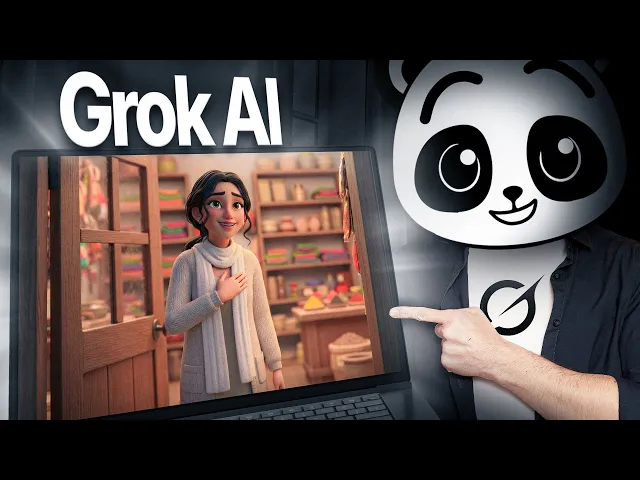
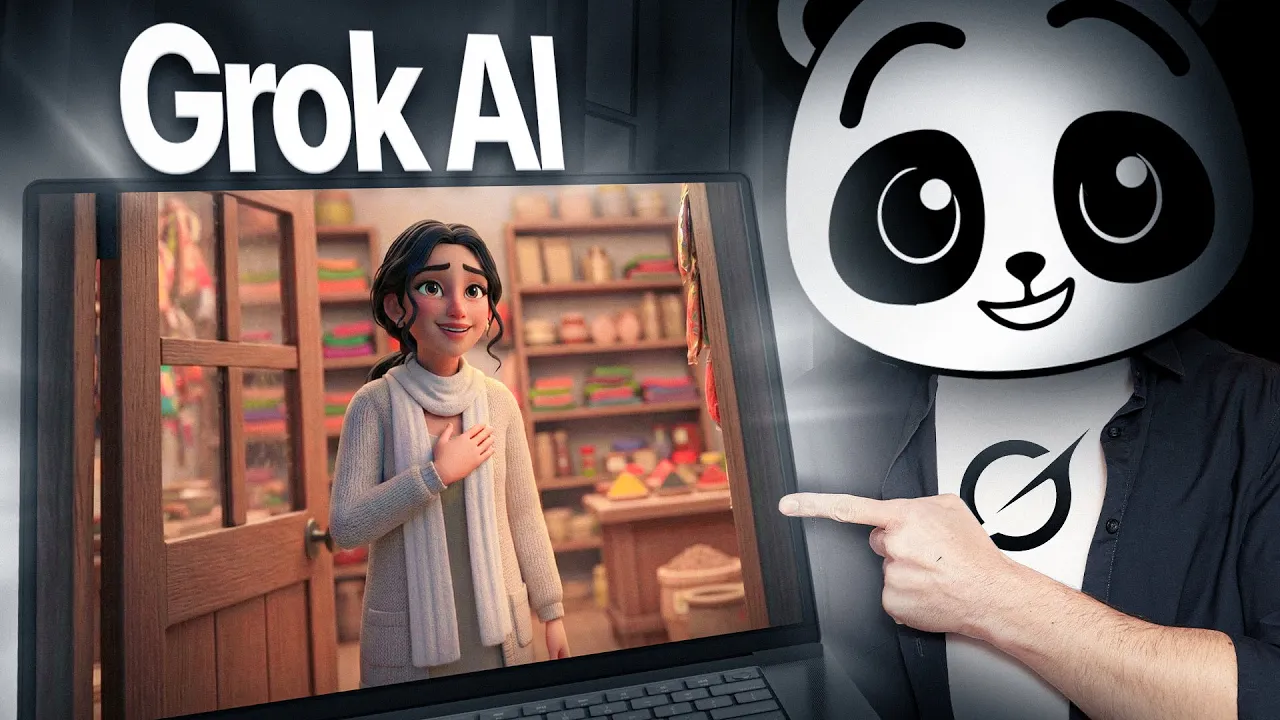
Watch this. [singing] >> I created this impressive animation with consistent characters without [music] any animation experience. This is Grock AI and in this video I'm going to show you the exact workflow [music] I use to turn a simple story idea into fully animated scenes where the characters stay identical across different emotions, camera angles, [music] and lighting.
You'll find links to all the resources and prompts used here in the description below. Let's start right from getting our script. Open chat GPT and build your story using a simple prompt.
The idea is to describe the kind of story you want as clearly as possible. For this example, [music] I'm asking it to write a 60-second emotional love story set in Old Delhi about a man named and a woman named Regina. I added more details and chat GPT generates a complete narrative.
I like the first result, but you can always tweak the tone or pacing until it feels right to you. Once it feels right, copy the full story because now it's time to prepare it for visuals. To animate this properly, the story needs to be broken into individual moments.
So, I go back to chat GPT and ask it to break the story into exactly 12 numbered scenes. For each scene, I want to clearly know what's happening, [music] which character is present, what emotion they're feeling, and where the scene takes place. Chat GPT gives me a clean breakdown with the character's name, their emotion, some form of action, and the setting.
Before we generate any scenes, we need to finalize our characters. So I go back to chat GPT one more time and ask it to write detailed character descriptions for image generation within 160 words. Chat GPT generates full character blueprints and I can make a few edits [music] to resonate with the complete narrative.
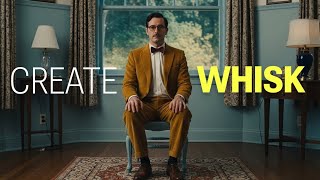
Once the characters are clearly defined, it's time to generate them visually. [music] Head over to Google Whisk and log in. The interface is simple and clean with clear sections for subject, scene, and style.
Before creating any characters, start by setting the visual style. I upload a single reference image into the style section. This image defines the overall artistic look, lighting, and color tone [music] for everything that follows.
Now, it's time to generate our first character. Click the pencil icon under subject. [music] Paste full character description and hit generate.
Whisk creates a character image that closely matches the prompt. Once is done, I repeat the exact same process for Rajina. Add a [music] new subject.
Paste her description and generate. Now both characters are created and locked. These images become permanent references for every scene they appear in.
With our characters ready, we can start creating the actual story scenes. For the first scene, I paste the scene description we created earlier. [music] Since this moment only includes an I make sure Rajina is deselected in the character panel.
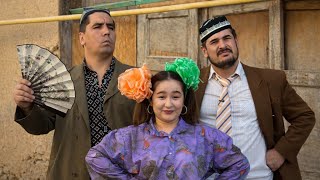
This tells Whisk to only include Fan in the image. Now we hit generate and the scene comes to life. An inside his small atar shop in Old Delhi, calm and focused exactly [music] as described.
For the next scene, Regina enters the story. I paste the scene description, and this time I make sure only Regina is selected. That small detail prevents Whisk from accidentally altering Fon's appearance in later scenes.
I continue this process for all 12 scenes, and the character stays consistent throughout. [music] At this point, we have a full visual story board. So, next, we need to bring it to life with motion.
[music] To do that, I go back to chat GPT and ask it to generate cinematic motion prompts for each scene. These prompts describe camera movement, subtle character or environmental motion, and the emotional energy of each moment without mentioning appearance. Along with that, I also create short dialogue lines for each scene so the character's lips move naturally with the voice.
Once the motion prompts and dialogues are ready, head over to grock. com, [music] sign in, and open settings. From there, scroll down to the behavior section.
You'll see an option called automatically generate videos from uploaded images. [music] Turn this off. This will prevent Grock from instantly generating a video every time you upload an image and will have control over motion prompts.
Now go to the imagine section in Grock and upload your first scene image, the [music] one we created in Whisk. I upload the first scene, paste the motion prompt and the dialogue for that scene. Ask Grock to generate the lip sync and hit generate.
Now watch what happens. The camera movement, lighting, character actions, and even the subtle background music that Grock adds. >> Good evening.
The rose fragrance, please. >> Of course. I kept one aside for you.
>> Automatically come together to create a really cinematic feel. From here, I repeat the same process for every other scene. Upload the scene image, paste the motion prompt and dialogue, and generate.
[music] As each clip finishes, I download the video files because now it's time to add voice. For the narration, I go back to Chat GPT and ask it to write 12 warm, emotional oneline narrations, one for each scene. Once I'm happy with the lines, I move over to 11 Labs and choose a soft American accent female voice that matches the mood of the story.
Then I simply paste each line, generate the audio, and download [music] it. Now, let's bring everything together in Canva. I import all my files, drop the animated scenes onto the timeline in order, and then start lining them up with the voiceovers.
You can use the YouTube music library for background music and free sound effects. And our final result is ready. >> This market always feels like home, doesn't it?
>> Yes, especially with you here. [clears throat] >> So, go ahead and try out this Grock AI workflow from the resources and prompts in the description below and let me know your feedback in the comments below.