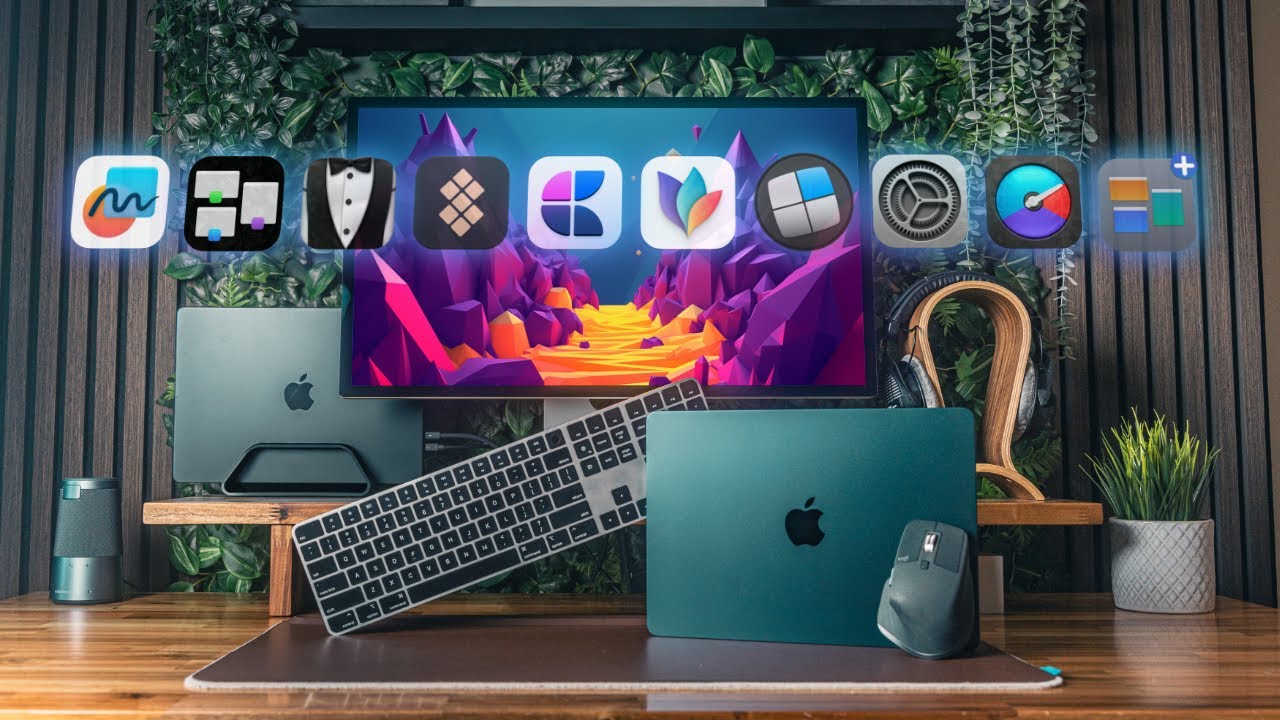
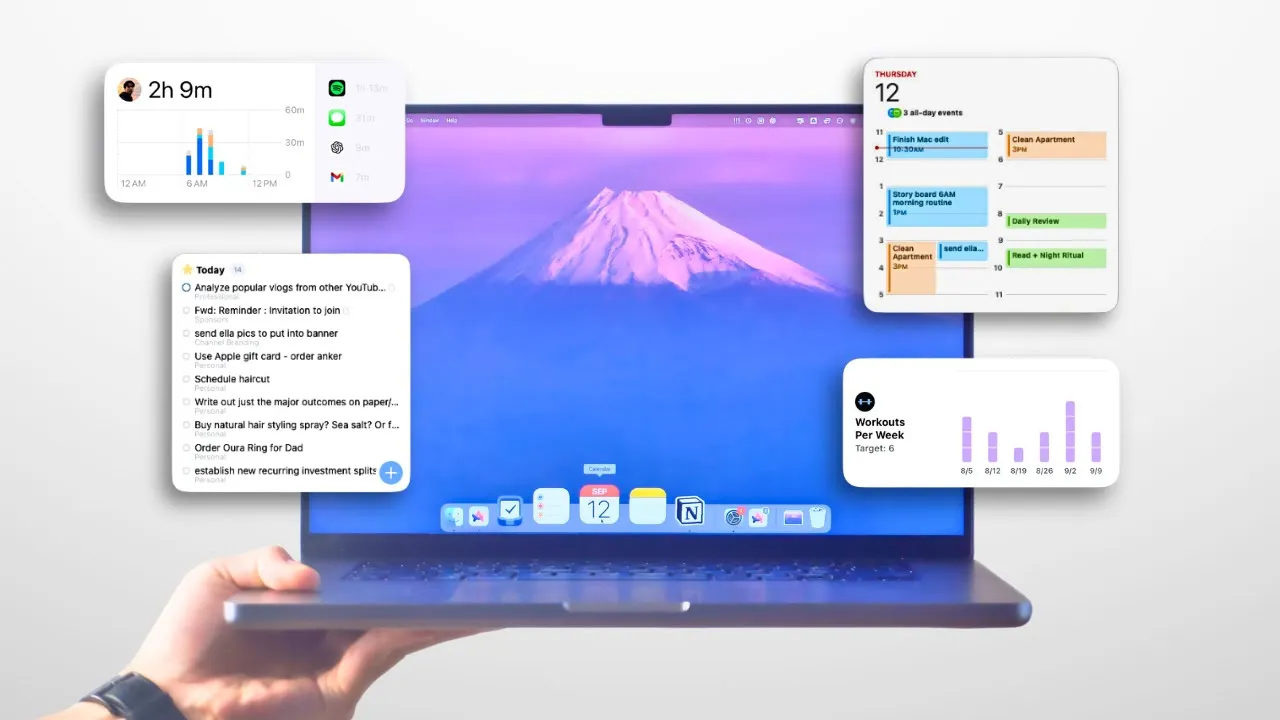
all right in this video I'll walk you through exactly how I set up my Mac to maximize productivity and ensure that I'm using it as effectively and efficiently as possible I've been a Mac User for my entire life and my Mac is really the core device that I use to create YouTube videos manage my finances organize my life take notes Etc over the years I've come across a number of shortcuts applications and various ways to optimize my Mac setup to reduce friction minimize distractions and get the most out of this powerful Machine by the way
if you're new here my name is Miles and I make videos about my experiences navigating life in my mid 20s while sharing any tactics tools and insights that have helped me along the way click subscribe right now to see more videos like this all right let's get into file organization and this is another very important part of my Mac setup and it makes sure that I basically maintain this nice clean desktop there's no clutter files don't get lost I know where everything is because it's nicely well organized and my approach to this is very similar
to how I approach other parts of my productivity system if you've seen any other videos and that is to essentially organize my files by the different aspects of my life and so on my calendar and task manager I'll do something similar but for my computer I have basically one master folder here just called miles and it's divided into personal and professional and these are kind of the two main areas of my life and within each of these there are different subfolders at as needed so this really depend on what you use your computer for and
what are the main areas of your life but applying this concept and having a simple intuitive file structure is a must in my opinion otherwise things will just get really cluttered super quickly you'll start to run out of storage and you won't feel comfortable deleting anything because you won't know what's important what's not and where everything is it'll just be a whole mess and another thing I would take advantage of is this favorites bar on the side here so I have specific folders within my file structure that I might access really frequently like maybe the
active videos that I'm working on and I don't want to have to go to this master folder and click through every single time to find that folder and look for the files that I want to access so instead what I can do is just take a folder let's say it's this one and I can just drag it onto this favorites bar here and then now I can just quickly click on this folder and it'll open it up right away rather than having to navigate through the whole structure so if there's a project with lots of
files that I'm constantly accessing I'll just drag that folder into my favorite bar here so I can just quickly access it and then once I'm done with that project I'll remove it now it's definitely unrealistic for our computer to maintain this perfect file organization at all times you know throughout the week when we're in the middle of a deep work session we're not going to want to worry about which folder a particular file goes into we're just going to want to download the folder get on with our work and not get interrupted so what I'll
use for that is this downloads folder and this will basically add act as an inbox for my computer so the same mindset with having an inbox for your notes or your task manager where you quickly capture any tasks that come to mind just so you can get on with your day I apply the similar concept to my computer so any files that I've downloaded or I don't really want to worry about organizing right now and I just need to quickly access them or use them I'll just throw it into my downloads F uh folder here
and then at the end of the week during my weekly review I'll go through this downloads folder I'll delete a lot of things I'll organize it into the proper file structure Etc now continuing with file management I would highly recommend signing up for some kind of cloud service there's a bunch of different options out there I think the main ones are probably Google Drive Dropbox iCloud drive maybe one drive too although I don't really use any Microsoft stuff so for me I use both iCloud and Google Drive my setup's a little more complicated than you
might need because I have stuff from my YouTube channel I also have personal things but honestly there's not a huge difference between the different cloud services I would say whichever one you already use a good amount I would just stick with that because it's a huge pain to transfer things between services so if you use a lot of Google Sheets Google applications and things although I'm an apple Fanboy I would just say stick with Google Drive so you don't have to worry about it although I do like iCloud drive for my photos specifically just because
you can get a lot more storage at at a fairly cheap rate compared to other cloud services so I think I can get up to like 12 terabytes or something I think I maybe have 3 or 6 terabytes and the price isn't too bad considering and I also use Google Drive for my YouTube work and whichever cloud service you choose I would highly recommend installing the app on your computer so that you can integrate your cloud files with your finder so what this means exactly is normally I would have to go to the Google Drive
website to access my files I would have to go into these folders and and you know click download and and stuff like that with this once I have the Google Drive app here installed you can see it at the top I can access all of these same folders just within my finer window and I don't have to like go onto the website to download them I can just drag them directly from here and they download Super quickly and it's it's great for me it's especially useful when it comes to editing my YouTube videos because I
can just go into my Boll Library here which I have uploaded all to Google Drive so none of these are stored on my computer and I can go into a particular folder look for a file let's say I want to use this one in my edit I can just take it and drag it straight into my editing software just like that and it's super nice and convenient now another key tool that I use for file management isn't actually on the computer itself but it's separate and that would be these Samsung SSD so I've got I
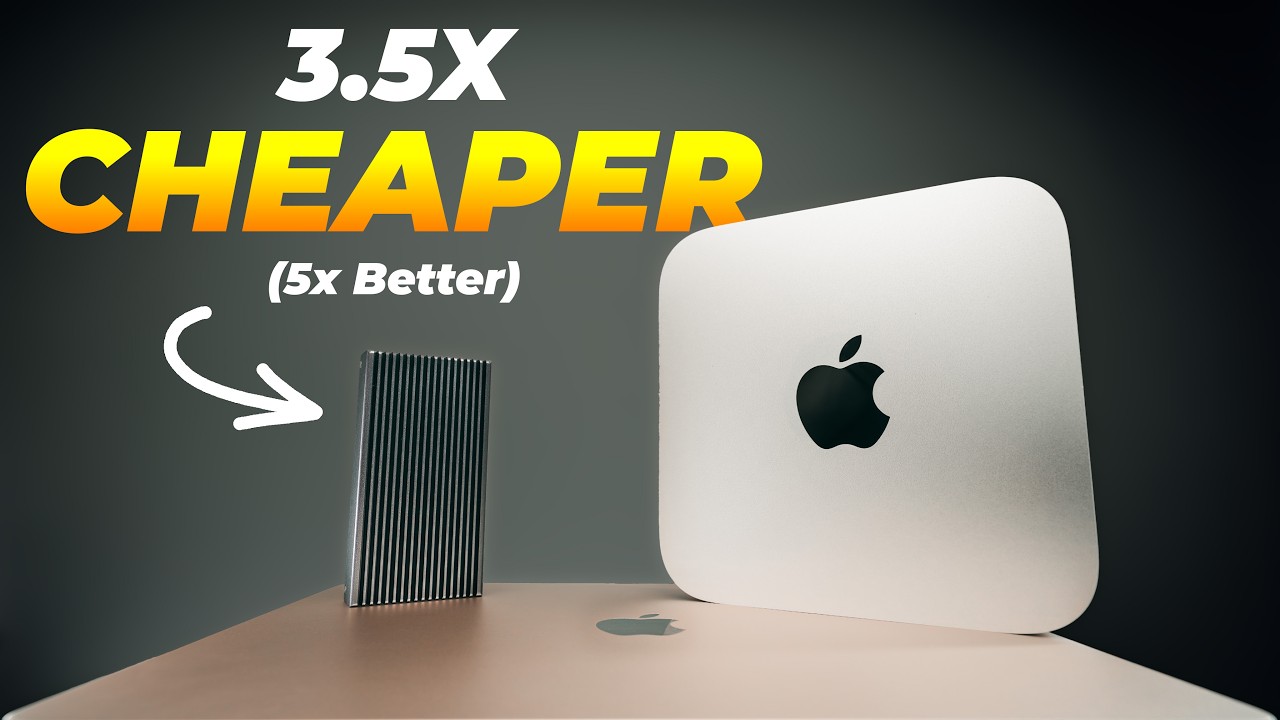
think this is the t7 here I also have like like some old t5s I believe it wants to focus yeah Samsung T5 SSD and these are basically external hard drives that are super fast and allows you to run entire applications video files project files at normal speeds as if they were on your computer but they're on an external drive and the reason this is so great is because Apple charges so much money to get more storage on your MacBook I think if you want to get like one terab 2 terabytes 4 terabytes or whatever it's
extra like $800,000 or something and this SSD cost me something like I don't know $100 maybe $150 for an extra 2 terabytes and I can take this and plug it into another computer my iPad my iPhone even and they're just super useful and must have if you are running out of storage or you use a lot of large files a key part of my weekly review is going through my desktop and downloads folder and cleaning up any files that have naturally accumul ated throughout the week we already know the value of keeping our physical environment
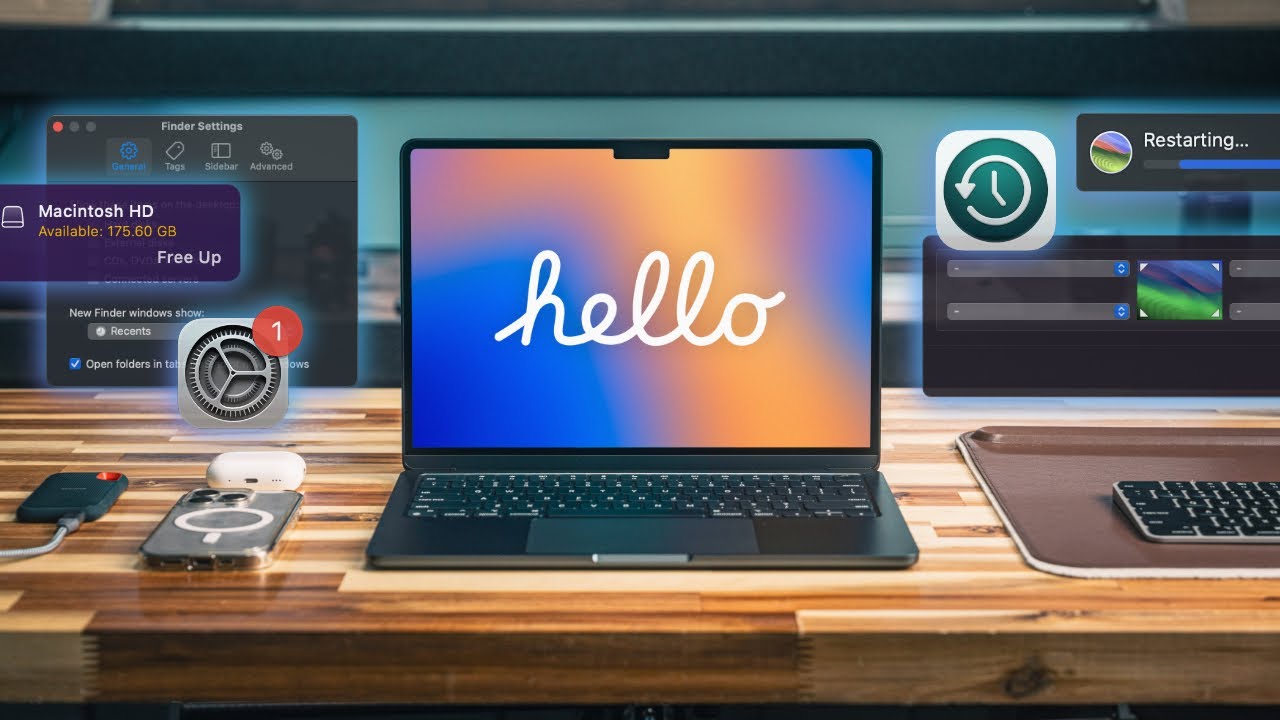
nice and organized so that we can stay focused on the task at hand but I think it's just as important that we keep our digital workspace clean and organized otherwise it's very easy for things to quickly pile up and hinder our productivity one piece of software that has really helped me organize large amounts of files and keep my Mac performing at its best is called clean my Mac X now this app does more than simply scan your computer for files clogging up your hard drive it's really kind of like a mini personal assistant for your
Mac I think my favorite feature is this little menu app at the top that we can click and it'll give us a bunch of real time updates about my Mac performance everything from Storage to memory usage CPU load even the temperature Wi-Fi speeds battery health etc for example the battery monitor here tells us not just the percentage but the actual time that we have left on our battery along with temperature and health and things like that and this is super helpful because sometimes I will take my laptop to work at coffee shops where I don't
really have access to outlets and I need to know how much time I have left on my battery we can also see things like Wi-Fi speeds and very quickly just run a quick speed test to see what our speeds are like and if you're like me and you use a bunch of different apps simultaneously the CPU and memory monitors here are super helpful it'll show you exactly which apps are using up most of your CPU you can quickly quit them if you need to or same goes for memory if you need to free up some
Ram that's kind of just the beginning of what this tool can do I know you can update and manage applications you can also I believe yeah scan your Mac for large files that you haven't really used in months which is super helpful way of freeing up that valuable space and we can also scan for malware potential viruses look for other system junk that you might not need on your Mac it's kind of like an all-in-one application for managing the different files and performance of your Mac so whether you're in the middle of a deep work
session and just need to to quickly clean up some storage or free up some memory or if you're doing a more routine cleanup of your Mac's files clean my Mac X is really kind of like a jack of all trades tool that will help you practice digital minimalism and keep your Mac running at Peak Performance I connected with the team and macul who developed clean my Mac X and was able to get you a free 7-Day trial if you click the link in the description you can also use the code miles to get 20% off
the first app that I think every Mac User needs to have installed if they want to optimize their workflows and productivity is going to be either Alfred or raycast and the reason I say or is because they pretty much do the same thing I've been a longtime user of Alfred for many years but I recently came across raycast which appears to be a somewhat more updated honestly more intuitive version of alfrid but both are great and we'll get the job done um but lately I have been using Rass now what do these actually do well
what they do is basically replace the spotlight search function on your Mac so if you don't have these installed and you press I believe it's command space right now you'll see this little popup window for me this is my raycast search and what this does is a number of different things at a basic level what you can do is essentially search across your entire Mac for files applications anything and very quickly access them and open them up so for example let's say we're at our desktop here and we press command space which is a global
key command that you can access anywhere if you have these installed and we type in C HR and we press enter that opens up Chrome let's say we want to open up Spotify all we have to do is do command space or whatever shortcut you set to open up raycast type S P enter spotify's open chat GPT I can type that in quickly open it Final Cut Pro enter opens that uh notes opens very quickly like that but you get the idea using our keyboard is going to be way faster than trying to navigate our
computer with our Mouse so like what normal people will do is they'll come down to the dock here they'll look for their application they'll click on it they'll open it up blah blah blah and that is just so slow you have to kind of move your hand from your keyboard to your mouse if that makes sense and so in general one of the fastest ways to improve your efficiency and reduce fr on your Mac is to use keyboard shortcuts like this and raycast makes it super easy to navigate with your keyboard and you can actually
assign specific hotkeys to open up certain apps so for some of my most frequently used apps like Arc my calender finder reminder Spotify I'll have specific key commands where if I press them at any point on my computer it will open up that app so for example Arc control command C I have set I press that and Arc opens up there's no more going down to my doc I don't even have to type it in that's kind of slow at this point I can just press the key command and instantly open that up also got
one for Spotify finder just shift command F that opens up my finder control command W opens up my calendar you get the idea and we can also assign keyboard shortcuts not just to opening apps but to do a number of different commands on our computer so if you want to search emojis control command space it opens up this nice Emoji search window I also have a hotkey set to open up my clipboard history and you probably don't realize how much of work that we do on computers is just like copying and pasting things around and
so it's super useful to have this clipboard history it can have links in here images that you've copied and you can scroll back and access them later super great feature if you use shortcuts just regular Apple shortcuts like I have one to add a new reminder to my Apple reminders set to shift command R and that will run that specific shortcut which is super awesome can have other functions like shift command Escape I've set to put my Mac to sleep so when I'm done for the day I don't need to like go up to the
top here and then press sleep I can just command Shi Escape goes to sleep I'm not going to do it now cuz my computer will shut down and another really helpful thing is quickly resizing windows and so I have all these various keyboard shortcuts set up to basically easily move around windows so let's say I have different things that I want to look at I can quickly just put Windows next to each other I can make them different sizes move them all around like this rather than having to kind of drag like I don't remember
the last time I've gone like this to resize a window and this is a feature that normally you would have had to get another third party application that would have costed money to do I know Apple did implement it in their recent Mac OS Sequoia update but it's not quite as good and it leaves this weird little space in between Windows that I don't really like so much prefer this and also because you can just use the keyboard to resize things which is way more efficient now another feature of raycast that I've just now started
to explore more is the extensions and this makes it a lot easier to set up than Alfred was for me back in the day so for example I have this extension installed to generate a high quality password so anytime I'm making an account all I need to do is type GE and it says generate password I press enter can set the length use numbers special characters if I press command enter it now copies that password to my clipboard you can see it right here on my clipboard history and then I can quickly go and paste
that into whatever website I need to paste it to and there's so many other extensions that I haven't even explored too much yet like Google translate Arc integration chat gbt Spotify slack notion obsidian oh yeah one thing I think I did install was this timer one which is super useful you can just quickly start a timer so if you're going to do like a 90-minute deep work session all I need to do is go here boom start 90 minutes I see it up at the top so much you can do with Alfred and all of
this is just with the free plan I'm not sponsored or anything I don't even know what the paid plan offers it seems like okay it's like some of AI features but all this stuff is things that I'm pretty sure I had to pay to do with Alfred and so definitely recommend checking this app out all right so continuing with ways to make our workflow as efficient and frictionless as possible on our Mac I want to continue with some more keyboard shortcuts and these are all built into our Mac so you don't even have to install
raycast or Alfred to run them and I really think that keyboard shortcuts are the best way to just simply save time when it comes to navigating your computer so the first one command Shift 4 allows you to just quickly create a screenshot like this you can just draw a little box and it'll take a screenshot and before you do that actually I would do command shift 5 and this will open up some different options for different types of screen captures and also screen recording but most importantly I would go to options and select where you
want screenshots to be saved by default I think it saves them to your desktop and if you take a lot of screenshots what you end up with is I'll show you an example here A bunch of screenshots just appearing and clogging up your desktop like this we don't want any of that we can go ahead and delete these so what I do is I like to save it to my clipboard or you can save it to your downloads folder and that'll make file management a lot easier and we'll get more into file organization in a
second now another one I use a lot is just command Tab and this opens up this little window here where we can quickly cycle between the different applications we have open so I can just hold command press Tab and move to the next application I can keep pressing tab if I want to select a different one and whichever one I end up on once I let go of command it'll kind of just open that application if that makes sense once you play around with it a little bit you'll get used to it you can also
hold shift to go backwards like that so you can navigate between them and this makes it way easier to navigate and pick which application you want to look at you don't have to click around like this I rarely use the mouse for anything anymore and also if you have a bunch of applications open like this while you're holding command if you press Q it will quit that application so if you want to quickly quit all the applications you have open you can just cycle through and press command Q like that and they will all quickly
close down another one that's super helpful is let's say you have a bunch of Windows within the same application open like this similarly to command tab you can press command Tilda whatever the squiggly line is called and this will cycle between the windows within that application so same works for Arc let's say I have a bunch of different windows open like this and I want to go between them I can press command squiggly line and cycle between them just like that if you have a window open and you want to just quickly click close it
you can press command W like this and see these windows are just closing and for finder specifically let's say you have a bunch of finder windows open sometimes this happens to me when I'm like doing a bunch of file organization you can do option command W and it just closes everything and another useful one that I use quite a bit is just command M and that will minimize the window and it'll go down into this little dock down here all right now let's quickly go through some settings that I would recommend changing on your Mac
so if we open up system settings and we search for Doc what I like to do is turn on automatically hide and show the doc so what this does if we unclick it you'll see that the dock with all these apps shows up here but we don't really need this anymore as I talked about earlier with raycast and Alfred we can just quickly open up applications by typing them in and it's way way faster so I just turn this on and if I really need to I can just hover my mouse over here and it
will appear but this just gives me more real estate on my screen which I much prefer prefer now another thing I do is just honestly turn off all the notifications on my Mac this is a big one for productivity purposes again my Mac is really the core device that I use to get my deep focus work done and so there's really no need for me to be bombarded with various notifications if I really wanted to get notified about something I can put that on my phone or my Apple watch or set an alarm or something
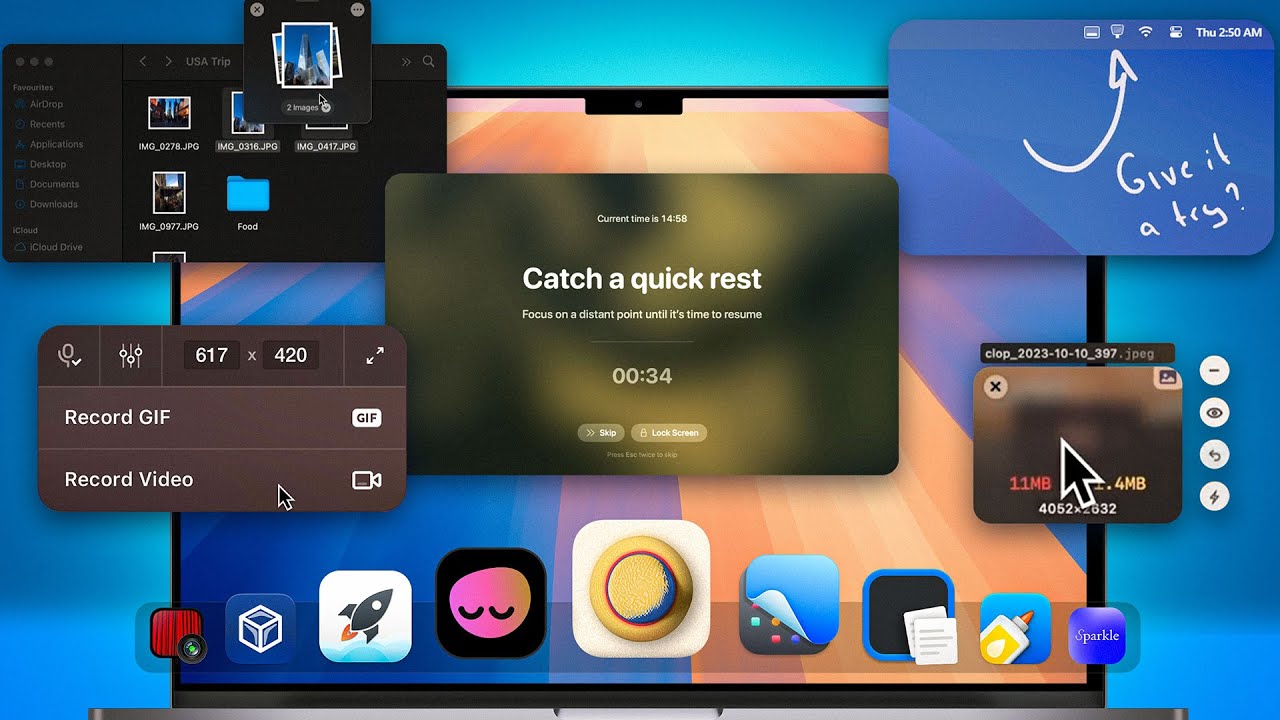
there's no need to have some random notification that doesn't really add anything to my life take me out of some deep Flow State that I'm in all right let's quickly cover some recommended apps and the first one is a classic and that is flux this will really help indirectly improve our productivity by ensuring that we get better sleep and basically what this does is it's like the built-in night shift mode that's on the Mac except when I turn this on hopefully you can see it gets a little dimmer and like this orange Hue but it's
not very much and late at night this still looks pretty Bright Now what flux does it takes things to the next level and will bring it all the way down to this kind of dark red color and cut out a lot of blue light which if you didn't know if you view a bunch of bright lights in particular blue light late at night it can kind of trick your brain into thinking that it's supposed to be awake and it can mess up your whole circadian rhythm and sleep schedule so I just have this set and
it's automatically turns on as it goes to Sunset and then it gets even darker at night so everyone should have this installed on their Mac it's completely free where this app is super simple but it's just another one of those quality of life things so let's say all right this next app is super simple but definitely comes in handy and it's become something that I really can't live without on my Mac and that is called drop over and how this basically works is let's say we have a file that we want to move to another
folder but it's kind of deeply embedded inside our file structure normally what I would have had to do is maybe move this window window to the side open up another window take that file navigate to the folder I want to go to and then drag that file in that takes forever you get cluttered up with all these different windows but with drop over what I can do instead is take the file kind of shake my mouse a little bit drop it onto this little platform that appears then quickly go and navigate to the folder drag
it in and it's way faster like that super simple but believe me it really comes in handy when you're moving things around on your Mac all right so for my browser what I've recently done is switch from chrome to what's called Arc which is this new kind of innovative browser that uses Ai and things at first it felt a little weird but now that I've gotten used to it I really like it and the first thing is you've got this kind of clean interface on the side here with these vertical tabs you can add folders
you can have favorites and manage your extensions and stuff and you can hide this whole sidebar with just uh pressing command s and then you get like a nice clean full screen window so you can see a lot more on the page you can also treat it kind of like an AI search by pressing shift enter and what it does is it'll search the web for you if you saw that it took me directly to this unsplash website which I guess is a bunch of royaltyfree images and if I don't know about you but lately
Google search has been kind of bad for me lately you search something and you just get a bunch of random websites where you have to click through things scroll through a bunch of ads and takes you minutes to get an answer this will basically browse the internet for you and find the perfect web page to answer whatever your search was now another super cool thing is that when you download anything within Arc so let's say I want to just download this image you'll see it pop down to the bottom left here and actually intelligently renames
the file to something that makes more sense and can actually be readable so you can see normally when you download things especially images it'll be like all this random text this is like lur cross ktj y7 blah BL BL blah and then when you're going through your files especially when you're cleaning out your downloads folder at the end of the week you'll just see all these different files that you have no idea what they are whereas now this has just quickly renamed it to Sydney Laura cross so I know this is probably a jake Peg
image of Sydney and that's just a super nice quality of life thing that is definitely making me stick with Ark browser another thing I use is chat GPT of course but specifically the Mac app because what this does is as you can see if I press shift command space is the hocky I've set it opens up this little chat GPT window I can ask it whatever I want make me a meal plan for for night and it opens up its answer in this nice little side window that I can drag to the side here and
if I do want to open up the full window I can just click here and it'll open up the full chat GPT thing so that's super helpful I use that a lot for for various things in my workflow now these next three apps I actually use simultaneously if I really want to go indepth reading or researching about a particular topic and that is first the Kindle app and I also will open up Apple notes and occasionally Spotify as well and how my workflow kind of works here is I'll read the book on the Kindle app
here while also simultaneously playing the Audi book and I've really enjoyed doing this lately because I think it just one makes the reading process more fun but I also feel like I retain the information a little better because I'm getting it through these two input channels and then I'll also be taking notes as I'm reading if especially if it's about on a book that is like a non-fiction book where I'm really trying to learn things and rather than just kind of read for pleasure now in addition to Apple notes I will also use Apple calendar
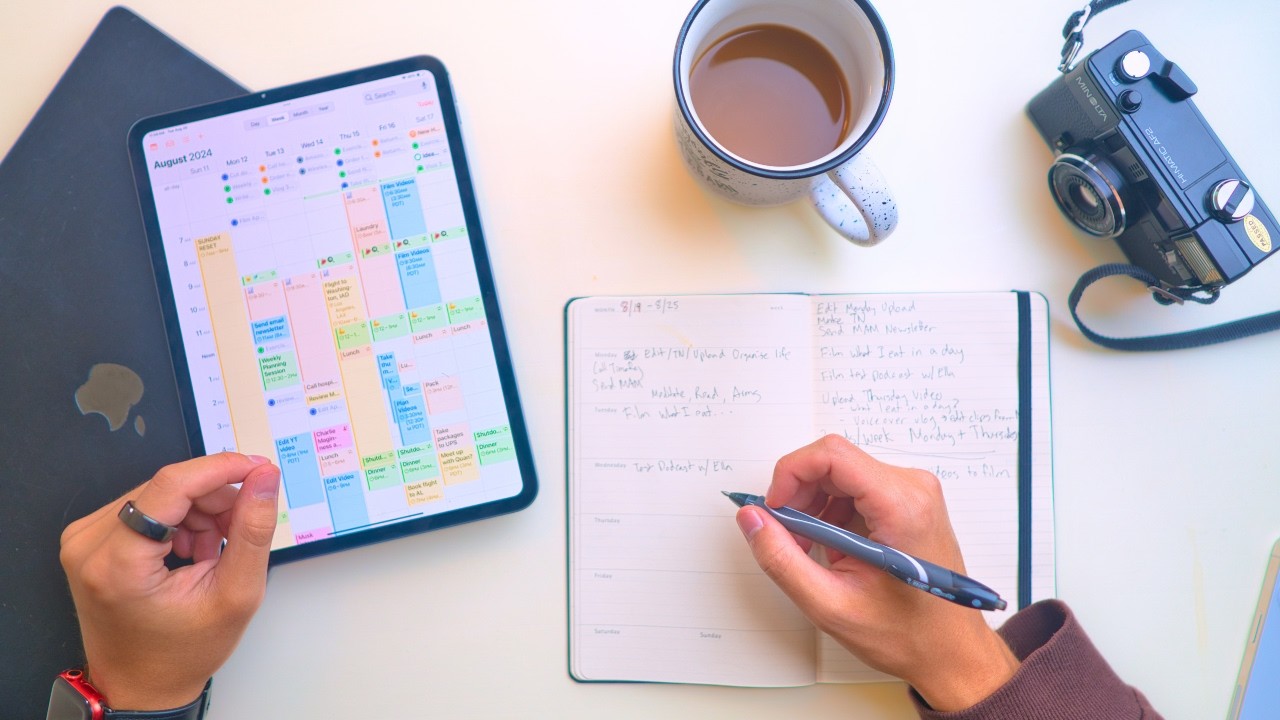
and apple reminder so I'm a big fan of Apple's entire sort of productivity App Suite here I think they all are Super Simple and Clean they work great offline and and sync nicely between devices click this video right here to learn more about my simple apple productivity system do something today that your future yourself

![Speed Up macOS Sequoia [How to Boost Mac Performance]](https://img.youtube.com/vi/vjcF3Hs-hXs/maxresdefault.jpg)