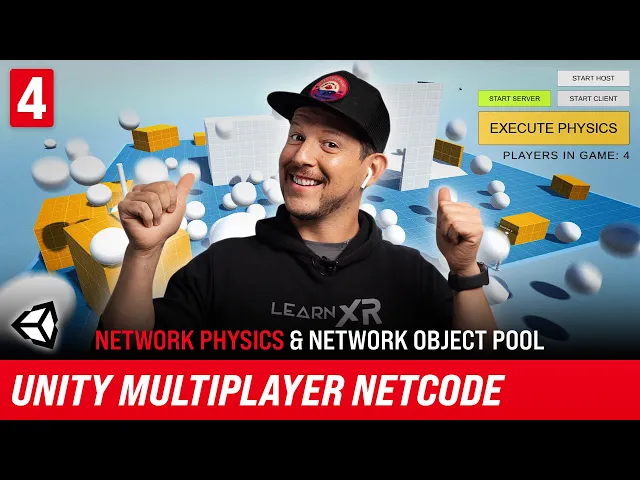
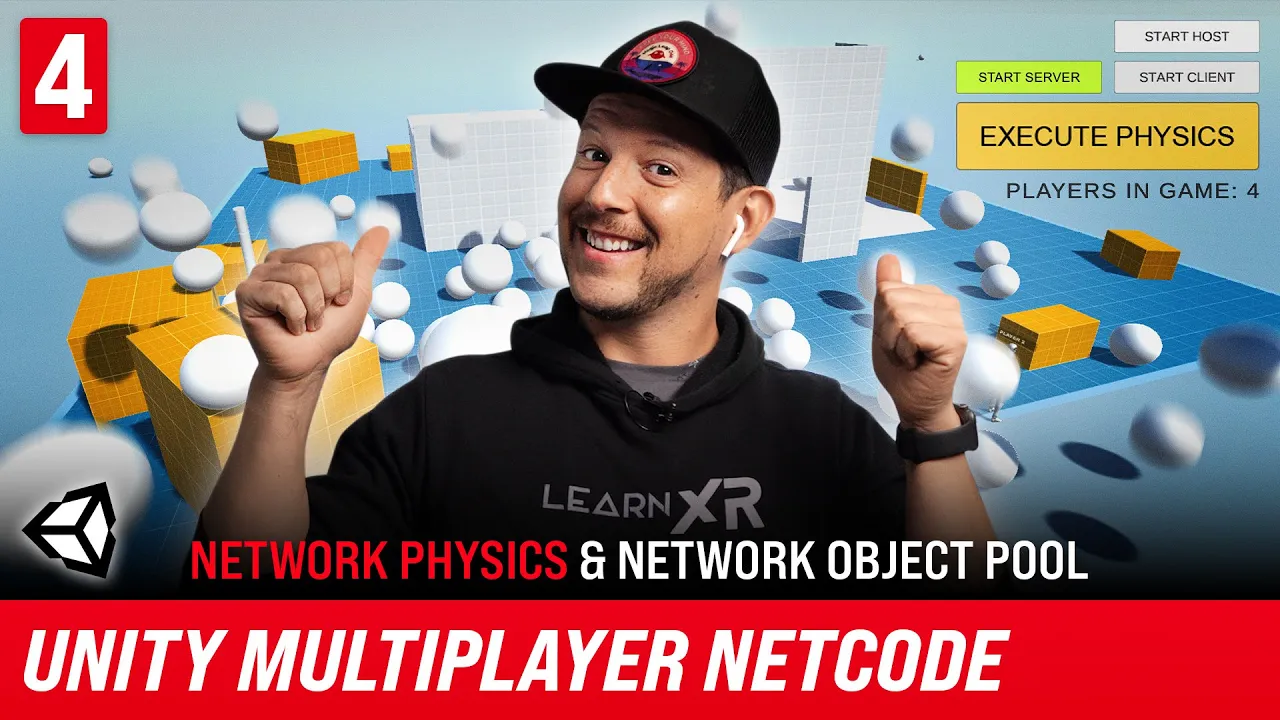
what's going on everybody sit delmar and welcome back to my channel so in today's video i'm going to continue working on echo for game objects and specifically i'm going to introduce you to two new objects one of them is going to be the network rigid body that is going to allow us to synchronize physics information back to the clients and i'm also going to show you how to do object pooling by using that network object pool so let's jump into my computer and i started working on it all right guys so the first thing that
we're going to do today to manage how we handle rigid bodies is we're going to start creating just a simple button that is going to execute a command and that command is going to instantiate multiple spheres which contain rigid bodies so what i'm going to do is i'm going to go ahead and clone this button here we'll just call this one execute physics and i'll just keep the same naming convention there and then what i'll do is we'll just go ahead and you know make sure that it is aligned well with the other ones i
also want to make sure that we disable it by default and then as soon as we have it you know we have the server started then we're going to enable and the reason for that is because we can only instantiate from the server side the server side is the one that is going to be controlling and spanning this game object so i'll go ahead and rename this as well we can say execute physics or create you know create spheres however you want to call it just keep it very simple and then what i'll do is
we'll go back into the ui manager so i will click on that and then here we'll have to basically just create a new serializable field which will just copy that one we can say execute physics button and then we'll just go ahead and bind to the method here and then i'll just say on click and then a listener just like we did with the other ones and then this is going to call to into a new script which we haven't created yet so just go ahead and focus on that so once we have that we
can go back into unity make sure you bind it that way we don't get the ugly errors that we normally get when we don't have something associated so just drag it and drop it here and that should be good and then again it's going to be you can set it to disable by default i can just do that later it doesn't really matter so once you have that what i'm gonna do now it's i think i already have oh yeah i do have a prefabs folder so we can create a new 3d object in here
i'll just go ahead and do it here right click 3d object we can do a sphere so that we can bounce i think it'll be cool if we just have a bouncing ball and then i'll just do zero zero zero to position it and then i'll go here we can make this a little bigger and then something like that i think i think the size is fine and this is going to be we'll just call it our physics object just to keep things easy to to be uh identify and then once we do that we
can go ahead and start adding the components that we're going to need right so i'm gonna add a rigid body and then you know if you don't know much about rigid bodies make sure you watch the essential videos because otherwise this this is not going to make more sense but the other thing that we need to do is we also need to add a physics material so i'm going to add a physics material we can just call it bouncing ball and then i like to keep things organized i'll just do folder and then we can
say physics and i'll drag it and drop it to it and make sure that you go in and select it and we're gonna do one for the bounce in it so we have something that bounces and then once you do that you go back into the collider and then just select that material and i think everything else in here should be good okay so now that we have the sphere collider rigidbody this one is added by default rigidbody is the one that we added we're gonna start adding a few components so the one that we're
going to be covering today is going to be rigidbody so i'll just do network rigidbody and then once you do that you're going to see that this is going to add a transform automatically and that's because the way that the multiplayer components work is that just to it that's a simulation on the server so the server is going to do all the physics simulations and the way that it works is those positions and rotations that the simulation generates is going to be synced back to the clients so that's basically how they handle the physics and
then you have multiple options in here if you want to basically change how frequently you know the position is going to be sent back you can change some of these thresholds rotation and also a scale and if you want this to be in local space you can interpolate i'm going to show you a couple differences between using interpolation and not using interpolation and just keep that in mind because we're going to be covering that and then that network rigidbody is going to be the one that it's going to allow us to basically send that information
back to the to the connected clients okay so now that we have that set up i think we're good with the physics object so what i'll do here i'll actually set this to zero drag it and drop it under prefabs and then we're gonna have our object in there and then we don't need it here what i'll do is i'll go back into my network manager and i'm actually going to remove this network prefab we don't need it because the player prefab is the one that is required and then i'll do the physics object all
associated here this is just telling the network manager that this is going to be some of the prefabs that are going to be accessible and basically span through the network i couldn't get it to work without associating these but there might be you can do it through scripts i'm sure and just access the network manager okay so now that we have that i think we're good to go as far as like creating a network prefab that has rigid bodies we added the physics material so now we need to do is i'm going to add a
new component here just to another another game object and this one is going to be we can just call this one the spanner control or you can call it spawner controller it just really depends how what name you want but i'll do that and then i just do a spanner control just to keep things consistent with the player control okay and then i'll just drag and drop that into my game object here just wait until everything gets compiled okay i'll just do that one more time drag and drop it now we should have everything in
here and this is throwing an error we'll just go ahead and dismiss it and we should be good to go there okay so now we need to do is i'm going to go ahead and double click it and if you double click it we're just going to go ahead and remove some of these things and i'll just start with some variables that we're going to need so i'm going to have a serializable field and this one is going to be the game object that we're going to be the prefab that we're going to be using
for instantiation so i just call it the object prefab here make sure you spell it right and then i'll do another variable that is going to keep track of how many instances we're going to be creating so just do i'll call it max object instance count and we'll just start with three different spheres that we can that we can test with the other thing that i'm gonna do is i'm gonna also use the awake and this is gonna be to initially initialize a pole and i'll go back to f for now just just know that
we're going to be using some kind of a networking poll and then i'll do another method that is going to be called from the button that we created on the ui manager basically to expand the object so i'm just going to say i'm just going to call it spam object or objects i think it'll be more correct because we're going to be doing more multiple and then here i'm going to do a check and this is going to be a server so remember like if we don't if we want to instantiate objects we need to
do it from the server so that's why i'm doing this check so if it is not the server then we're basically going to basically we're going to return because we're only going to allow the server to do that a couple of things that i need to do before we keep going is this singleton right here i'm gonna rename it and i'm gonna call it the network network singleton and that was based on what i did on the on the previous previous video just know that and then i'm also going to have another one so for
future videos and then this one is going to be the singleton this single tongue is going to just use mono behavior and then the other one is going to use the network behavior just because some objects don't need to be don't need to be using the network behavior and then i can go back i believe the logger was the only one that i was going to change so that we can see we can keep everything clean so if i go back to here this one is going to use a network behavior because we're going to
need to access some of this information the network information so i'm just going to do the singleton we can say singleton and i think i can just do network singleton and ctrl period to bring it in and then we can just say spanner control this information is only going to be accessible through the basically the network mono behavior so just make sure that you inherit from that and i believe we'll have to get the spanner basically a network object if we if it doesn't work with the way that we have it set up we can
just tweak it okay so now that we have that i'm just gonna do for loop here and then i equal and again i'm experimenting i'm not an expert on this so i apologize if some of you guys are expecting that to be otherwise i think we're just going to be learning together so so what i'm going to do right now i'm not going to use a pool to instantiate the objects just now but we will in just a minute so here what i'm going to do is i'm going to say okay object prefab and then
we're going to be telling the basically the instance where where we're going to be the instantiate let's do instantiate and we're going to tell it where we're going to be instantiating this object so it's going to say vector3 and then i want to randomize this i'm just going to say random and then we can say range and i think we can just do negative 10 to 10 and then i'll just do i want randomize the height so i'm just going to set it back to be about 10. that way we can have a volume from
the sky and then i'll just go ahead and copy this so we can randomize also the z-axis and once you have that all you really have to do is we need to tell you what the rotation is going to be so it's going to say quaternion that identity we can move this down so that is easier for you to read and then here we're going to come back to this and say paul instantiation and i'll show you how that it's going to work once once we go through this process okay so now that we have
this i think this is everything that we need to do there and if we go back into the spanner control we're gonna have to associate it with couple of things just wait until you finish compiling if we go back into prefabs we need to associate the object prefab is gonna be the one that we're going to be basically instantiating and i think that's everything that we did we need to do there and if we go back into our ui manager now i should be able to get into the execute physics button and we can do
something in here such as if the server is not running then we just display a message or you can set it to disable you know at the beginning and then enable it once you get to once you get to this point but i'm just gonna do it keep it simple we can just say the network manager manager that singleton and then we can say server on server study so this one is going to be actually uh a callback that we're gonna get so we can do something in here such as in this one we can
just do plus or equal and then we'll just do our lambda here and then basically you can say you know we can add another private ball has server started and we can just it's going to be set to false by default so we can say okay so if the server has been started we can set it to true and then we can say if server has not restarted we can return i can do something like that and then if you want to see more information we can also do logger that instance let me make sure
that i get that there we go and then log we can say warning server has not so so that way we know that okay so that's what's happening and then the next thing that we can do is we remember we did a single term for the spanner control so we can say instance and then we can say expand objects and this is going to be the one that is going to be spanning the objects and we go back here let me make sure that everything is associated correctly so we'll wait until we get the compilation
done so if we go back into the ui manager make sure that everything is good there everything is good there so now what we can do is i'm going to go ahead and put let me put the scene right here and then focus on the game view and then i'll just go ahead and hit play and what we should be able to do is we're going to start the host or the server and then we can execute the physics so if i were to start the host we're going to see the host we can walk
we can move and then if i execute physics we are going to get an error let me see why we're going to okay so we can go back into our physics object and then we can get a component remember this this needs to have a network object the spanner control needs to have also a network object and then if i do this okay we get an error so let me try that since we have the spanner control as you see in the network behavior so we can do and that's something that i changed on this
demo versus what i had initially and we'll just move this up and then we can hit play because i believe that anything it needs to be any network behavior that you access you need to have a network object so if i hit that and then execute and that was yeah that was the issue and i think i i had that idea that that was going to be an issue but you know i i changed things around okay so now that we have that let's go ahead and test it out so i have two instances running
right now so let's go ahead and test out and i start the hose here move the character around and then i'll do a client in here and remember we can only do this from the server side so we're going to do execute physics and we're not getting the physics executed on this and and that's because we haven't called there's one method that we need to call so we need to do one thing here i'm just gonna do network object and let me try that and we can do now we can do a span so normally
what happens is yeah we can instantiate it in here but you need to also call this pan so that you know we can notify other clients that they also need to instantiate it so let's go ahead and go back into unity all right guys so i got two instances running again let's go ahead and start the hose move the characters just so that you know that everything is working you start the client move the character as well and what i'm gonna do is on the on the server we're gonna do hit you know execute physics
execute physics and you can see that they're kind of like floating in the in the air and that's because there's some interpolation that it's happening right now so if i were to do that you're gonna see that it doesn't look quite real but it gives you a good actually gives you a really good performance so if we were to get you wanted to get a more realistic uh you know physics you're gonna have to tweak some of the settings but you can also go here and this is something that is not really recommended because you
might get some jittery but i wanna show you why we're getting that so if you go into a network transform a couple things that i'm going to do is i'm going to remove the scaling because we don't need to send that information and i'm also going to turn off interpolation okay so i have the two new builds so let's start the host and also let's start the client and now i'm going to execute physics and you're going to see how the physics are now more realistic but you're going to get some jittery so you might
need to do some you know changes and improvements but i wanted to see how you know interpolation works and in this case we don't have any interpolation so we're getting a more realistic but if you start adding a lot of them i noticed that the performance really decreases so this is something that you can play around with so now that we have that another thing that i would recommend that you start looking into it it's going to be the basically like a pulling object and that pulling object it's available in github and i'm going to
be listing that in the basically in the description of this video for now i'm just going to drag it and draw drop it from my computer and then we're just going to go ahead and add a new component here and you'll just call it network it's going to be basically the network object pool and that's going to allow us to instantiate objects you know before the game starts and that way we don't get basically a performance decrease when we start instantiating a lot of different objects so this is very common and especially in games if
you want to pull do pulling and then get everything instantiated before you actually start you know needing some of those objects okay so now that we have that it's going to go ahead and drop it here it's going to ask that we put in the network manager so that's going to be that on the on the actual objects i'm going to tell it that we want to use it with the physics object and i'm going to do we're going to do probably about a thousand we can pull do some pulling on a thousand objects and
then we can just enable and rename and disable them as well this is going to do that for us okay so now that we have that there's one thing that i'm going to be changing in here so if we go back into this guy i'm actually going to make it so that we can access it so i'm just going to do it's going to be a single tone and then i'll just do a single tone of this network object pool and then i'll just go ahead and do that and i'm also going to change here
there's an initialize spool and i'm going to make it oh looks like it's already public i already had it so this is private by default i made it public because of the way that i'm that i'm using it but if you want to use it how i'm using it you can change it and tweak it as you need it so what i'm going to do remember we have the initial pull here so i'm going to initialize the pool as long as we have the network started so if i go back into my ui manager let's
go back into that we also can get a call back into the actual let's see let me go back into a spawner control you can also get notify here but we don't need to check if the server started or not what i'm going to do here is i'm going to say you know what i want to grab the network object pool and then the instance and then i'm going to just say initialize the poll so that way we can you know we can initialize it through here if you don't want to initialize it this way
again you can change it however you need to and then what i'll do here we can just go ahead and comment out this we don't need this and i'm going to change how we are instantiating the object so the way that it's going to work you can say something we're still going to need a game object and then but instead of doing a new instantiation of it we're going to just get it from the from the pool so i'm just going to say network object pool and then we're gonna grab the instance and then we
can just say get object so we can just say get network object it's gonna ask us which object we're gonna get well we're gonna get this prefab and then once we get that we can also change the the position and let me see why okay so it's complaining because this is actually emitting a game object and then i'm just going to say transform that position equal and then we can just copy that position here and then we'll just say equal to that and i think that's everything that i needed to do before let me make
sure that i and we don't need we actually don't need a rotation because we're just setting the position and now we can do we can do that and i need one one more parenthesis okay so this should basically give us you know a better performance because we're now using the object pool so now we can do we can go back into unity and then test it with the with the object pulling i'm also going to increase how many objects we're going to be we're going to be pulling so i'll go here and then i'll do
maybe we'll do 10 at a time and then we can play make sure that everything that i didn't break anything and okay so it looks like we're good i'm gonna execute the hose and now you can see and if you notice if we want to look at the pool you can see that we got a thousand right so there's a thousand objects in here so as we basically request some of those objects they're going to get enabled so if i do this again here you're going to see how they they start falling okay so the
last thing that i'm going to do is i'm going to go ahead and test it we can insert the hose and move it around start a client move it around and start another client and then remember this is a server you can see everything falling so i'm just going to go ahead and do many of them and you can see that everything is working so that's everything that i wanted to show you guys today if you guys have any questions please let me know in the comments thank you